> ## Documentation Index
> Fetch the complete documentation index at: https://docs.llmcontrols.ai/llms.txt
> Use this file to discover all available pages before exploring further.
# Input and output components in LLM Controls
Input and output components define where data enters and exits your flow.
Both components accept user input and return a `Message` object, but serve different purposes.
The **Text Input** component accepts a text string input and returns a `Message` object containing only the input text. The output does not appear in the **Playground**.
The **Chat Input** component accepts multiple input types including text, files, and metadata, and returns a `Message` object containing the text along with sender information, session ID, and file attachments.
The **Chat Input** component provides an interactive chat interface in the **Playground**.
## **Chat Input**[****](https://docs.langflow.org/components-io#chat-input)
This component collects user input as `Text` strings from the chat and wraps it in a [Message](https://docs.llmcontrols.ai/Concepts/LLMCobjects#message-object%E2%80%8B) object that includes the input text, sender information, session ID, file attachments, and styling properties.
It can optionally store the message in a chat history.
**Inputs**
| **Name** | **Display Name** | **Info** |
| :--------------------- | :--------------- | :---------------------------------------------------------------------------------------------- |
| input\_value | Text | The Message to be passed as input. |
| should\_store\_message | Store Messages | Store the message in the history. |
| sender | Sender Type | The type of sender. |
| sender\_name | Sender Name | The name of the sender. |
| session\_id | Session ID | The unique identifier for the chat session. If empty, the current session ID parameter is used. |
| files | Files | The files to be sent with the message. |
| background\_color | Background Color | The background color of the icon. |
| chat\_icon | Icon | The icon of the message. |
| text\_color | Text Color | The text color of the name. |
**Outputs**
| **Name** | **Display Name** | **Info** |
| :------- | :--------------- | :--------------------------------------------------------------- |
| message | Message | The resulting chat message object with all specified properties. |
### **Message method**[****](https://docs.langflow.org/components-io#message-method)
The `ChatInput` class provides an asynchronous method to create and store a `Message` object based on the input parameters. The `Message` object is created in the `message_response` method of the ChatInput class using the `Message.create()` factory method.
## **Text Input**
The **Text Input** component accepts a text string input and returns a `Message` object containing only the input text.
The output does not appear in the **Playground**.
**Inputs**
| **Name** | **Display Name** | **Info** |
| :----------- | :--------------- | :--------------------------------------- |
| input\_value | Text | The text/content to be passed as output. |
**Outputs**
| **Name** | **Display Name** | **Info** |
| :------- | :--------------- | :-------------------------- |
| text | Text | The resulting text message. |
## **Chat Output**[****](https://docs.langflow.org/components-io#chat-output)
The **Chat Output** component creates a [Message](https://docs.llmcontrols.ai/Concepts/LLMCobjects#message-object%E2%80%8B) object that includes the input text, sender information, session ID, and styling properties.
The component accepts the following input types.
* [Data](https://docs.llmcontrols.ai/Concepts/LLMCobjects#data-object%E2%80%8B)
* [DataFrame](https://docs.llmcontrols.ai/Concepts/LLMCobjects#dataframe-object%E2%80%8B)
* [Message](https://docs.llmcontrols.ai/Concepts/LLMCobjects#message-object%E2%80%8B)
**Inputs**
| **Name** | **Display Name** | **Info** |
| :--------------------- | :--------------- | :--------------------------------------------------------------------------------------------------------------------------------------------- |
| input\_value | Text | The message to be passed as output. |
| should\_store\_message | Store Messages | The flag to store the message in the history. |
| sender | Sender Type | The type of sender. |
| sender\_name | Sender Name | The name of the sender. |
| session\_id | Session ID | The unique identifier for the chat session. If empty, the current session ID parameter is used. |
| data\_template | Data Template | The template to convert Data to Text. If the option is left empty, it is dynamically set to the Data's text key. |
| background\_color | Background Color | The background color of the icon. |
| chat\_icon | Icon | The icon of the message. |
| text\_color | Text Color | The text color of the name. |
| clean\_data | Basic Clean Data | When enabled, `DataFrame` inputs are cleaned when converted to text. Cleaning removes empty rows, empty lines in cells, and multiple newlines. |
**Outputs**
| **Name** | **Display Name** | **Info** |
| :------- | :--------------- | :--------------------------------------------------------------- |
| message | Message | The resulting chat message object with all specified properties. |
## **Text Output**[****](https://docs.langflow.org/components-io#text-output)
The **Text Output** takes a single input of text and returns a [Message](https://docs.llmcontrols.ai/Concepts/LLMCobjects#message-object%E2%80%8B) object containing that text.
The output does not appear in the **Playground**.
**Inputs**
| **Name** | **Display Name** | **Info** |
| :----------- | :--------------- | :------------------------------- |
| input\_value | Text | The text to be passed as output. |
**Outputs**
| **Name** | **Display Name** | **Info** |
| :------- | :--------------- | :-------------------------- |
| text | Text | The resulting text message. |
## **Markdown to Text**
This component converts markdown-formatted text to plain text output. It strips markdown syntax, including headers, bold, italic, links, images, code blocks, lists, blockquotes, and strikethrough.
### **To Convert Markdown**
1. Enter or connect markdown-formatted text in the Markdown Text field
2. The component outputs the stripped plain text as a Message
**Inputs**
| Name | Display Name | Info |
| :----------- | :------------ | :------------------------------------------------ |
| input\_value | Markdown Text | Markdown formatted text to convert to plain text. |
#### Outputs
| Name | Display Name | Info |
| :--- | :----------- | :-------------------------------------------- |
| text | Message | The converted plain text as a Message object. |
## **Chat components example flow**[****](https://docs.langflow.org/components-io#chat-components-example-flow)
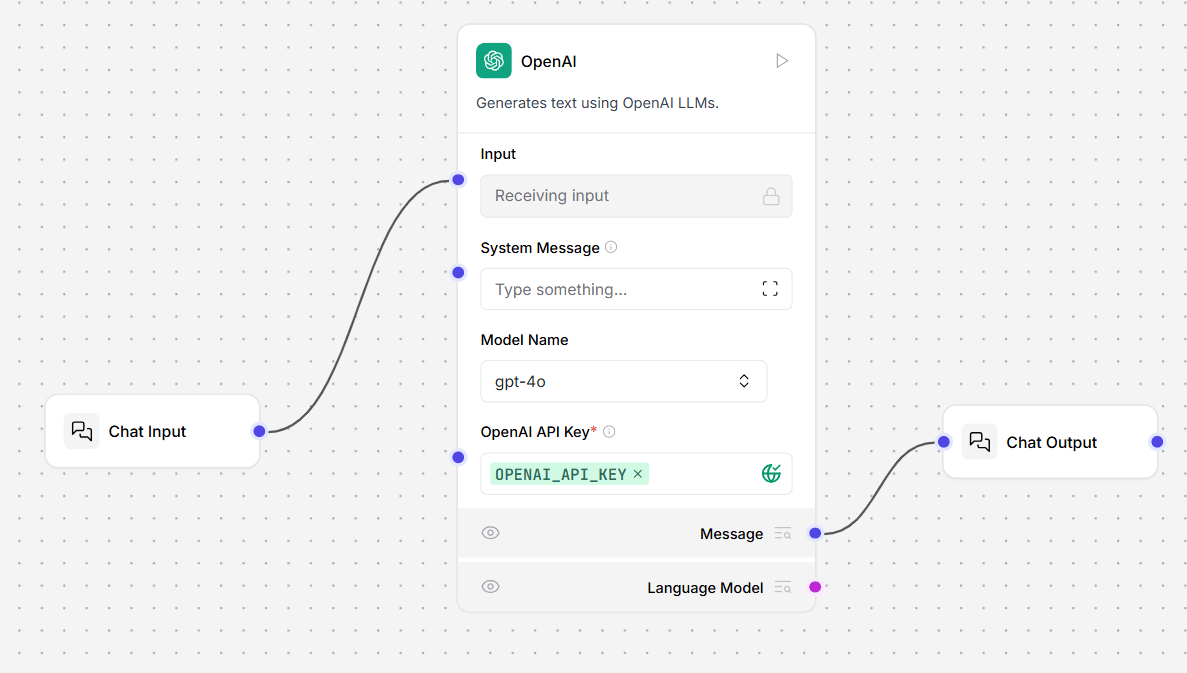
1. To use the **Chat Input** and **Chat Output** components in a flow, connect them to components that accept or send the [Message](https://docs.llmcontrols.ai/Concepts/LLMCobjects#message-object%E2%80%8B) type. For this example, connect a **Chat Input** component to an **OpenAI** model component's **Input** port, and then connect the **OpenAI** model component's **Message** port to the **Chat Output** component.
2. In the **OpenAI** model component, in the **OpenAI API Key** field, add your **OpenAI API key**.
The flow looks like this:
 3. To send a message to your flow, open the **Playground** and then enter a message. The **OpenAI** model component responds. Optionally, in the **OpenAI** model component, enter a **System Message** to control the model's response.
4. In the LLM Controls UI, click your flow name, and then click **Logs**. The **Logs** pane opens. Here, you can inspect your component logs.
3. To send a message to your flow, open the **Playground** and then enter a message. The **OpenAI** model component responds. Optionally, in the **OpenAI** model component, enter a **System Message** to control the model's response.
4. In the LLM Controls UI, click your flow name, and then click **Logs**. The **Logs** pane opens. Here, you can inspect your component logs.
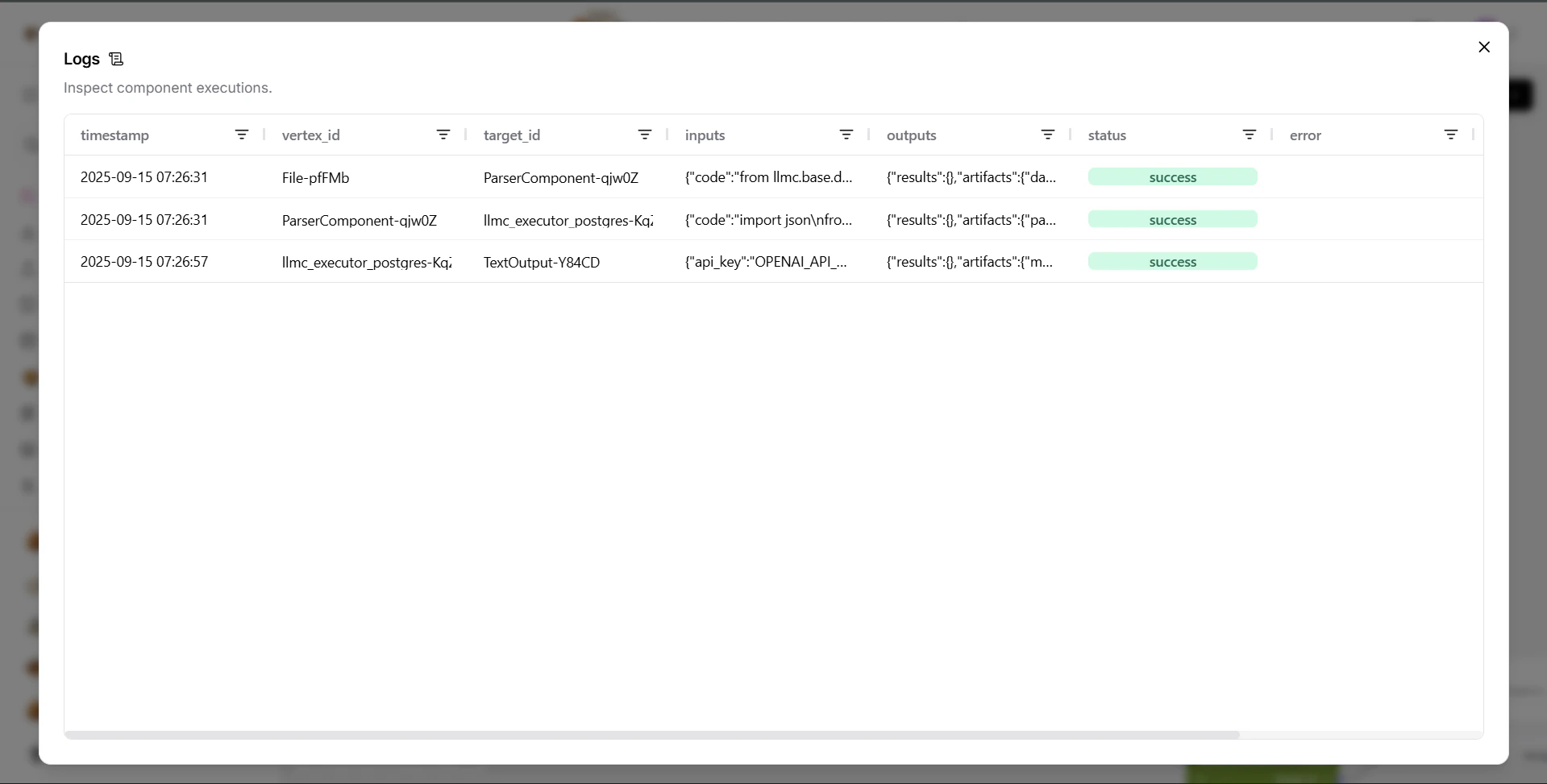 5. Your first message was sent by the **Chat Input** component to the **OpenAI** model component.
6. Your second message was sent by the **OpenAI** model component to the **Chat Output** component. This is the raw text output of the model's response. The **Chat Output** component accepts this text as input and presents it as a formatted message.
**tip**
Optionally, to view the outputs of each component in the flow, click **Inspect output**.
### **Send chat messages with the API**[****](https://docs.langflow.org/components-io#send-chat-messages-with-the-api)
The **Chat Input** component is often the entry point for passing messages to the LLM Controls API. To send the same example messages programmatically to your LLM Controls server, do the following:
1. To get your LLM Controls endpoint, click **Publish**, and then click **API access**.
2. Copy the command from the **cURL** tab, and then paste it into your terminal. It looks similar to this:
3. Modify `input_value` so it contains the question, `What's the recommended way to install Docker on Mac M1?`.
Note the `output_type` and `input_type` parameters that are passed with the message. The `chat` type provides additional configuration options, and the messages appear in the **Playground**. The `text` type returns only text strings and does not appear in the **Playground**.
4. Add a custom `session_id` to the message's `data` object. The custom `session_id` value starts a new chat session between your client and the LLM Controls server, and can be useful in keeping conversations and AI context separate.
5. Send the POST request. Your request is answered.
6. Navigate to the **Playground**. A new chat session called `docker-question-on-m1` has appeared, using your unique `session_id`.
7. To modify additional parameters with **Tweaks** for your **Chat Input** and **Chat Output** components, click **Publish**, and then click **API access**.
8. Click **Tweaks** to modify parameters in the component's `data` object. For example, disabling storing messages from the **Chat Input** component adds a **Tweak** to your command:
To confirm your command is using the tweak, navigate to the **Logs** pane and view the request from the **Chat Input** component. The value for `should_store_message` is `false`.
5. Your first message was sent by the **Chat Input** component to the **OpenAI** model component.
6. Your second message was sent by the **OpenAI** model component to the **Chat Output** component. This is the raw text output of the model's response. The **Chat Output** component accepts this text as input and presents it as a formatted message.
**tip**
Optionally, to view the outputs of each component in the flow, click **Inspect output**.
### **Send chat messages with the API**[****](https://docs.langflow.org/components-io#send-chat-messages-with-the-api)
The **Chat Input** component is often the entry point for passing messages to the LLM Controls API. To send the same example messages programmatically to your LLM Controls server, do the following:
1. To get your LLM Controls endpoint, click **Publish**, and then click **API access**.
2. Copy the command from the **cURL** tab, and then paste it into your terminal. It looks similar to this:
3. Modify `input_value` so it contains the question, `What's the recommended way to install Docker on Mac M1?`.
Note the `output_type` and `input_type` parameters that are passed with the message. The `chat` type provides additional configuration options, and the messages appear in the **Playground**. The `text` type returns only text strings and does not appear in the **Playground**.
4. Add a custom `session_id` to the message's `data` object. The custom `session_id` value starts a new chat session between your client and the LLM Controls server, and can be useful in keeping conversations and AI context separate.
5. Send the POST request. Your request is answered.
6. Navigate to the **Playground**. A new chat session called `docker-question-on-m1` has appeared, using your unique `session_id`.
7. To modify additional parameters with **Tweaks** for your **Chat Input** and **Chat Output** components, click **Publish**, and then click **API access**.
8. Click **Tweaks** to modify parameters in the component's `data` object. For example, disabling storing messages from the **Chat Input** component adds a **Tweak** to your command:
To confirm your command is using the tweak, navigate to the **Logs** pane and view the request from the **Chat Input** component. The value for `should_store_message` is `false`.