> ## Documentation Index
> Fetch the complete documentation index at: https://docs.llmcontrols.ai/llms.txt
> Use this file to discover all available pages before exploring further.
# Logic components in LLM Controls
Logic components provide functionalities for routing, conditional processing, and flow management.
## **Use a logic component in a flow**[****](https://docs.langflow.org/components-logic#use-a-logic-component-in-a-flow)
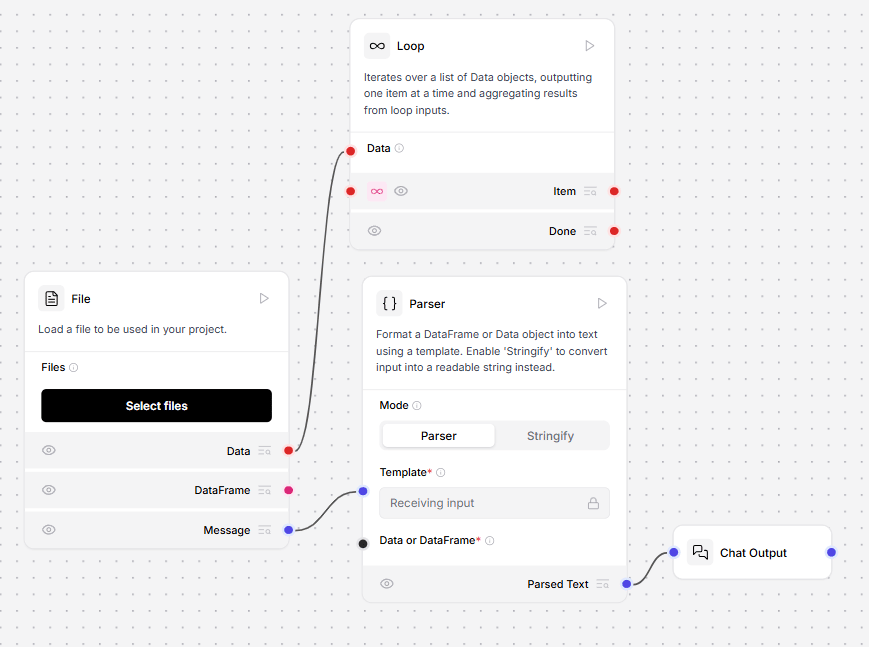
This flow creates a summarizing "for each" loop with the [Loop](https://docs.llmcontrols.ai/Components/Logic#loop%E2%80%8B) component.
The component iterates over a list of [Data](https://docs.llmcontrols.ai/Concepts/LLMCobjects#data-object%E2%80%8B) objects until it's completed, and then the **Done** loop aggregates the results.
The **File** component loads text files from your local machine, and then the **Parser** component parses them into a list of structured `Data` objects. The **Loop** component passes each `Data` object to a **Prompt** to be summarized.
When the **Loop** component runs out of `Data`, the **Done** loop activates, which counts the number of pages and summarizes their tone with another **Prompt**. This is represented in LLM Controls by connecting the Parser component's **Data List** output to the Loop component's `Data` loop input.
 ## **Conditional router (If-Else component)**
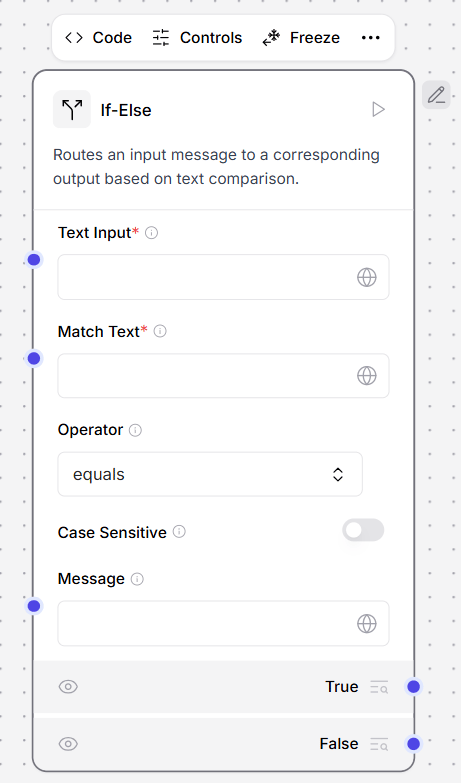
This component routes messages by comparing two strings. It evaluates a condition by comparing two text inputs using the specified operator and routes the message to `true_result` or `false_result`.
The operator looks for single strings based on your defined [operator behavior](https://docs.llmcontrols.ai/Components/Logic#operator-behavior%E2%80%8B), but it can also search for multiple words by regex matching.
To use the **Conditional router** component to check incoming messages with regex matching, do the following:
1. Connect the **If-Else** component's **Text Input** port to a **Chat Input** component.
2. In the If-Else component, enter the following values.
* In the **Match Text** field, enter `.*(urgent|warning|caution).*`. The component looks for these values. The regex match is case sensitive, so to look for all permutations of `warning`, enter `warning|Warning|WARNING`.
* In the **Operator** field, enter `regex`. The component looks for the strings `urgent`, `warning`, and `caution`. For more operators, see [Operator behavior](https://docs.llmcontrols.ai/Components/Logic#operator-behavior%E2%80%8B).
* In the **Message** field, enter `New Message Detected`. This field is optional. The message is sent to both the **True** and **False** ports. The component is now set up to send a `New Message Detected` message out of its **True** port if it matches any of the strings. If no strings are detected, it sends a message out of the **False** port.
3. Create two identical flows to process the messages. Connect an **Open AI** component, a **Prompt**, and a **Chat Output** component together.
4. Connect one chain to the **If-Else** component's **True** port, and one chain to the **False** port.
The flow looks like this:
## **Conditional router (If-Else component)**
This component routes messages by comparing two strings. It evaluates a condition by comparing two text inputs using the specified operator and routes the message to `true_result` or `false_result`.
The operator looks for single strings based on your defined [operator behavior](https://docs.llmcontrols.ai/Components/Logic#operator-behavior%E2%80%8B), but it can also search for multiple words by regex matching.
To use the **Conditional router** component to check incoming messages with regex matching, do the following:
1. Connect the **If-Else** component's **Text Input** port to a **Chat Input** component.
2. In the If-Else component, enter the following values.
* In the **Match Text** field, enter `.*(urgent|warning|caution).*`. The component looks for these values. The regex match is case sensitive, so to look for all permutations of `warning`, enter `warning|Warning|WARNING`.
* In the **Operator** field, enter `regex`. The component looks for the strings `urgent`, `warning`, and `caution`. For more operators, see [Operator behavior](https://docs.llmcontrols.ai/Components/Logic#operator-behavior%E2%80%8B).
* In the **Message** field, enter `New Message Detected`. This field is optional. The message is sent to both the **True** and **False** ports. The component is now set up to send a `New Message Detected` message out of its **True** port if it matches any of the strings. If no strings are detected, it sends a message out of the **False** port.
3. Create two identical flows to process the messages. Connect an **Open AI** component, a **Prompt**, and a **Chat Output** component together.
4. Connect one chain to the **If-Else** component's **True** port, and one chain to the **False** port.
The flow looks like this:
 5. Add your **OpenAI API key** to both **OpenAI** components.
6. In both **Prompt** components, enter the behavior you want each route to take.
7. Open the **Playground**.
8. Send the flow some messages. Your messages route differently based on the if-else component's evaluation.
**Inputs**
| **Name** | **Type** | **Description** |
| :-------------- | :------- | :------------------------------------------------------------------------------------------------------------------------------------------ |
| input\_text | String | The primary text input for the operation. |
| match\_text | String | The text to compare against. |
| operator | Dropdown | The operator used to compare texts. Options include equals, not equals, contains, starts with, ends with, and regex. The default is equals. |
| case\_sensitive | Boolean | When set to true, the comparison is case sensitive. This setting does not apply to regex comparison. The default is false. |
| message | Message | The message to pass through either route. |
| max\_iterations | Integer | The maximum number of iterations allowed for the conditional router. The default is 10. |
| default\_route | Dropdown | The route to take when max iterations are reached. Options include true\_result or false\_result. The default is false\_result. |
**Outputs**
| **Name** | **Type** | **Description** |
| :------------ | :------- | :----------------------------------------------- |
| true\_result | Message | The output produced when the condition is true. |
| false\_result | Message | The output produced when the condition is false. |
### **Operator Behavior**[****](https://docs.langflow.org/components-logic#operator-behavior)
The **If-else** component includes a comparison operator to compare the values in `input_text` and `match_text`.
All options respect the `case_sensitive` setting except **regex**.
* **Equals**: Exact match comparison.
* **Not equals**: Inverse of exact match.
* **contains**: Checks if match\_text is found within input\_text.
* **starts with**: Checks if input\_text begins with match\_text.
* **Ends with**: Checks if input\_text ends with match\_text.
* **Regex**: Performs regular expression matching. It is always case sensitive and ignores the case\_sensitive setting.
## **Listen**[****](https://docs.langflow.org/components-logic#listen)
This component listens for a notification and retrieves its associated state.
**Inputs**
| **Name** | **Type** | **Description** |
| :------- | :------- | :------------------------------------------ |
| name | String | The name of the notification to listen for. |
**Outputs**
| **Name** | **Type** | **Description** |
| :------- | :------- | :------------------------------------------ |
| output | Data | The state associated with the notification. |
## **Loop**[****](https://docs.langflow.org/components-logic#loop)
**tip**
For another **Loop** component example, see the **Research Translation Loop** template.
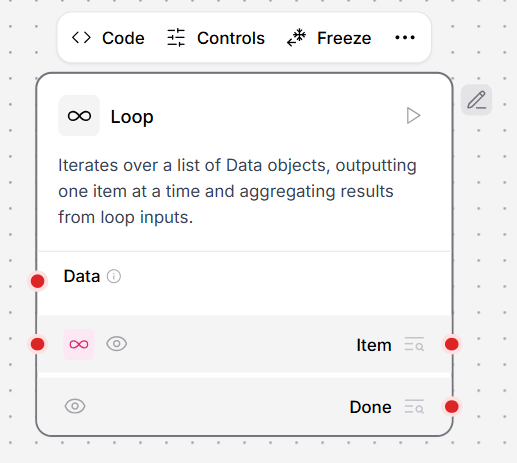
This component iterates over a list of [Data](https://docs.llmcontrols.ai/Concepts/LLMCobjects#data-object%E2%80%8B) objects, outputting one item at a time and aggregating results from loop inputs.
In this example, the **Loop** component iterates over a CSV file through the **Item** port until there are no rows left to process. Then, the **Loop** component performs the actions connected to the **Done** port, which in this case is loading the structured data into **Chroma DB**.
Think of it this way: the **Item** port forms the "main" loop that repeats until a "complete" condition is reached.
1. The **Loop** component accepts **Data** from the **Load CSV** component and outputs the data from the **Item** port.
2. Each CSV row is converted to a **Message** and processed into structured data with the **StructureOpenAId Output** component. The dotted line connected from the **Structured Output** component's **Looping** port tells you where the loop begins again.
3. The **Loop** component repeatedly extracts rows by **Text Key** until there are no more rows to extract.
Once all items are processed, the action connected to the **Done** port is performed. In this example, the data is loaded into **Chroma DB**.
5. Add your **OpenAI API key** to both **OpenAI** components.
6. In both **Prompt** components, enter the behavior you want each route to take.
7. Open the **Playground**.
8. Send the flow some messages. Your messages route differently based on the if-else component's evaluation.
**Inputs**
| **Name** | **Type** | **Description** |
| :-------------- | :------- | :------------------------------------------------------------------------------------------------------------------------------------------ |
| input\_text | String | The primary text input for the operation. |
| match\_text | String | The text to compare against. |
| operator | Dropdown | The operator used to compare texts. Options include equals, not equals, contains, starts with, ends with, and regex. The default is equals. |
| case\_sensitive | Boolean | When set to true, the comparison is case sensitive. This setting does not apply to regex comparison. The default is false. |
| message | Message | The message to pass through either route. |
| max\_iterations | Integer | The maximum number of iterations allowed for the conditional router. The default is 10. |
| default\_route | Dropdown | The route to take when max iterations are reached. Options include true\_result or false\_result. The default is false\_result. |
**Outputs**
| **Name** | **Type** | **Description** |
| :------------ | :------- | :----------------------------------------------- |
| true\_result | Message | The output produced when the condition is true. |
| false\_result | Message | The output produced when the condition is false. |
### **Operator Behavior**[****](https://docs.langflow.org/components-logic#operator-behavior)
The **If-else** component includes a comparison operator to compare the values in `input_text` and `match_text`.
All options respect the `case_sensitive` setting except **regex**.
* **Equals**: Exact match comparison.
* **Not equals**: Inverse of exact match.
* **contains**: Checks if match\_text is found within input\_text.
* **starts with**: Checks if input\_text begins with match\_text.
* **Ends with**: Checks if input\_text ends with match\_text.
* **Regex**: Performs regular expression matching. It is always case sensitive and ignores the case\_sensitive setting.
## **Listen**[****](https://docs.langflow.org/components-logic#listen)
This component listens for a notification and retrieves its associated state.
**Inputs**
| **Name** | **Type** | **Description** |
| :------- | :------- | :------------------------------------------ |
| name | String | The name of the notification to listen for. |
**Outputs**
| **Name** | **Type** | **Description** |
| :------- | :------- | :------------------------------------------ |
| output | Data | The state associated with the notification. |
## **Loop**[****](https://docs.langflow.org/components-logic#loop)
**tip**
For another **Loop** component example, see the **Research Translation Loop** template.
This component iterates over a list of [Data](https://docs.llmcontrols.ai/Concepts/LLMCobjects#data-object%E2%80%8B) objects, outputting one item at a time and aggregating results from loop inputs.
In this example, the **Loop** component iterates over a CSV file through the **Item** port until there are no rows left to process. Then, the **Loop** component performs the actions connected to the **Done** port, which in this case is loading the structured data into **Chroma DB**.
Think of it this way: the **Item** port forms the "main" loop that repeats until a "complete" condition is reached.
1. The **Loop** component accepts **Data** from the **Load CSV** component and outputs the data from the **Item** port.
2. Each CSV row is converted to a **Message** and processed into structured data with the **StructureOpenAId Output** component. The dotted line connected from the **Structured Output** component's **Looping** port tells you where the loop begins again.
3. The **Loop** component repeatedly extracts rows by **Text Key** until there are no more rows to extract.
Once all items are processed, the action connected to the **Done** port is performed. In this example, the data is loaded into **Chroma DB**.
 **Inputs**
| **Name** | **Type** | **Description** |
| :------- | :-------- | :------------------------------------------- |
| data | Data/List | The initial list of Data objects to process. |
**Outputs**
| **Name** | **Type** | **Description** |
| :------- | :------- | :---------------------------------------------------- |
| item | Data | The current item being processed from the data list. |
| done | Data | The aggregated results after all items are processed. |
## **Notify**[****](https://docs.langflow.org/components-logic#notify)
This component generates a notification for the Listen component to use.
**Inputs**
| **Name** | **Type** | **Description** |
| :------- | :------- | :------------------------------------------------------------------ |
| name | String | The name of the notification. |
| data | Data | The data to store in the notification. |
| append | Boolean | When set to true, the record is added to the existing notification. |
**Outputs**
| **Name** | **Type** | **Description** |
| :------- | :------- | :---------------------------------- |
| output | Data | The data stored in the notification |
## **Pass**[****](https://docs.langflow.org/components-logic#pass)
This component forwards the input message, unchanged.
**Inputs**
| **Name** | **Display Name** | **Info** |
| :--------------- | :--------------- | :--------------------------------------------------------------------- |
| input\_message | Input Message | The message to forward. |
| ignored\_message | Ignored Message | A second message that is ignored. Used as a workaround for continuity. |
**Outputs**
| **Name** | **Display Name** | **Info** |
| :-------------- | :--------------- | :------------------------------------ |
| output\_message | Output Message | The forwarded message from the input. |
## **Run flow**[****](https://docs.langflow.org/components-logic#run-flow)
This component allows you to run any flow stored in your LLM Controls database without opening the flow editor.
The Run Flow component can also be used as a tool when connected to an [Agent](/Components/Agents). The `name` and `description` metadata that the Agent uses to register the tool are created automatically.
When you select a flow, the component fetches the flow's graph structure and uses it to generate the inputs and outputs for the Run Flow component.
To use the Run Flow component as a tool, do the following:
1. Add the **Run Flow** component to the [Simple Agent](/Templates/Simpleagent) flow.
2. In the **Flow Name** menu, select the sub-flow you want to run. The appearance of the **Run Flow** component changes to reflect the inputs and outputs of the selected flow.
3. On the **Run Flow** component, enable **Tool Mode**.
4. Connect the **Run Flow** component to the **Toolset** input of the Agent. Your flow should now look like this:
**Inputs**
| **Name** | **Type** | **Description** |
| :------- | :-------- | :------------------------------------------- |
| data | Data/List | The initial list of Data objects to process. |
**Outputs**
| **Name** | **Type** | **Description** |
| :------- | :------- | :---------------------------------------------------- |
| item | Data | The current item being processed from the data list. |
| done | Data | The aggregated results after all items are processed. |
## **Notify**[****](https://docs.langflow.org/components-logic#notify)
This component generates a notification for the Listen component to use.
**Inputs**
| **Name** | **Type** | **Description** |
| :------- | :------- | :------------------------------------------------------------------ |
| name | String | The name of the notification. |
| data | Data | The data to store in the notification. |
| append | Boolean | When set to true, the record is added to the existing notification. |
**Outputs**
| **Name** | **Type** | **Description** |
| :------- | :------- | :---------------------------------- |
| output | Data | The data stored in the notification |
## **Pass**[****](https://docs.langflow.org/components-logic#pass)
This component forwards the input message, unchanged.
**Inputs**
| **Name** | **Display Name** | **Info** |
| :--------------- | :--------------- | :--------------------------------------------------------------------- |
| input\_message | Input Message | The message to forward. |
| ignored\_message | Ignored Message | A second message that is ignored. Used as a workaround for continuity. |
**Outputs**
| **Name** | **Display Name** | **Info** |
| :-------------- | :--------------- | :------------------------------------ |
| output\_message | Output Message | The forwarded message from the input. |
## **Run flow**[****](https://docs.langflow.org/components-logic#run-flow)
This component allows you to run any flow stored in your LLM Controls database without opening the flow editor.
The Run Flow component can also be used as a tool when connected to an [Agent](/Components/Agents). The `name` and `description` metadata that the Agent uses to register the tool are created automatically.
When you select a flow, the component fetches the flow's graph structure and uses it to generate the inputs and outputs for the Run Flow component.
To use the Run Flow component as a tool, do the following:
1. Add the **Run Flow** component to the [Simple Agent](/Templates/Simpleagent) flow.
2. In the **Flow Name** menu, select the sub-flow you want to run. The appearance of the **Run Flow** component changes to reflect the inputs and outputs of the selected flow.
3. On the **Run Flow** component, enable **Tool Mode**.
4. Connect the **Run Flow** component to the **Toolset** input of the Agent. Your flow should now look like this:
.png?fit=max&auto=format&n=9PuWEwunOBJ8KxNm&q=85&s=44640a56acb168b190ee551b29b33392) 5. Run the flow. The Agent uses the Run Flow component as a tool to run the selected sub-flow.
**Inputs**
| **Name** | **Type** | **Description** |
| :------------------- | :------- | :--------------------------------------------------------------- |
| flow\_name\_selected | Dropdown | The name of the flow to run. |
| flow\_tweak\_data | Dict | Dictionary of tweaks to customize the flow's behavior. |
| dynamic inputs | Various | Additional inputs that are generated based on the selected flow. |
**Outputs**
| **Name** | **Type** | **Description** |
| :----------- | :-------------------------------------------------- | :----------------------------------------------- |
| run\_outputs | A `List` of types `Data`, `Message,` or `DataFrame` | All outputs are generated from running the flow. |
5. Run the flow. The Agent uses the Run Flow component as a tool to run the selected sub-flow.
**Inputs**
| **Name** | **Type** | **Description** |
| :------------------- | :------- | :--------------------------------------------------------------- |
| flow\_name\_selected | Dropdown | The name of the flow to run. |
| flow\_tweak\_data | Dict | Dictionary of tweaks to customize the flow's behavior. |
| dynamic inputs | Various | Additional inputs that are generated based on the selected flow. |
**Outputs**
| **Name** | **Type** | **Description** |
| :----------- | :-------------------------------------------------- | :----------------------------------------------- |
| run\_outputs | A `List` of types `Data`, `Message,` or `DataFrame` | All outputs are generated from running the flow. |