> ## Documentation Index
> Fetch the complete documentation index at: https://docs.llmcontrols.ai/llms.txt
> Use this file to discover all available pages before exploring further.
# Processing
Processing components process and transform data within a flow.
## **Use a processing component in a flow**
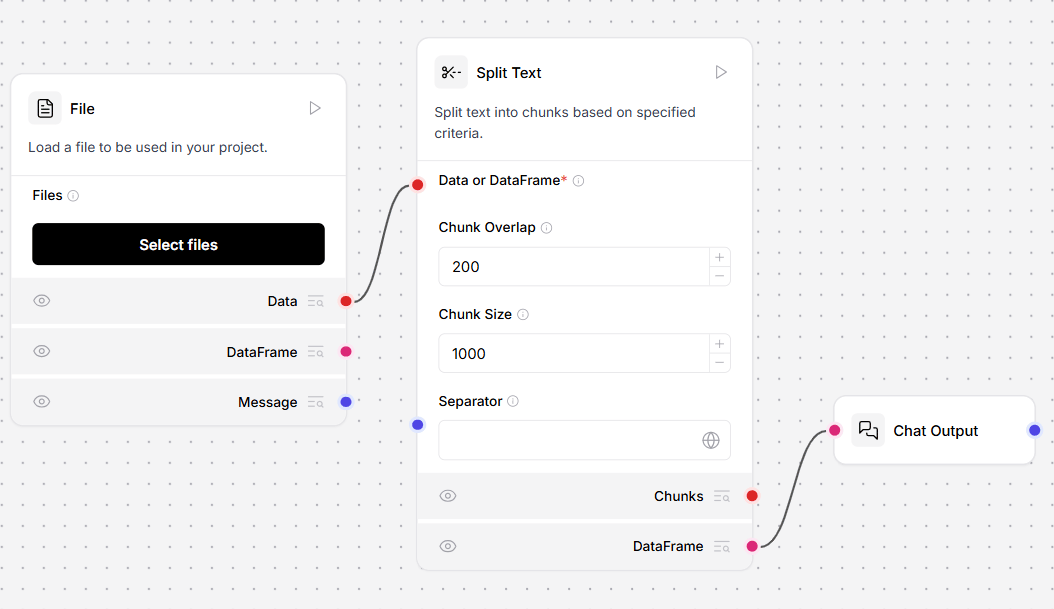
The **Split Text** processing component in this flow splits the incoming [Data](/Concepts/LLMCobjects) into chunks to be embedded into the vector store component.
The component offers control over chunk size, overlap, and separator, which affect context and granularity in vector store retrieval results.
 ## **DataFrame operations**
This component performs operations on DataFrame rows and columns.
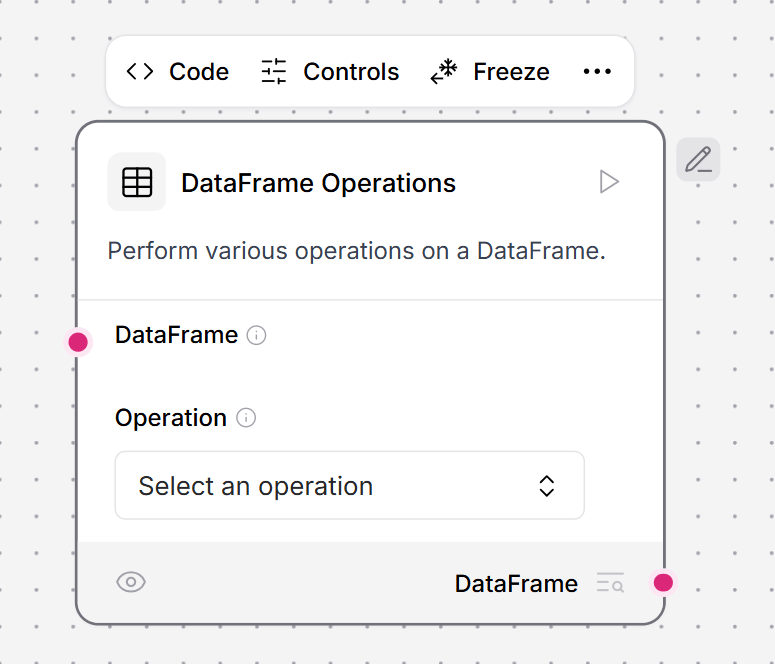
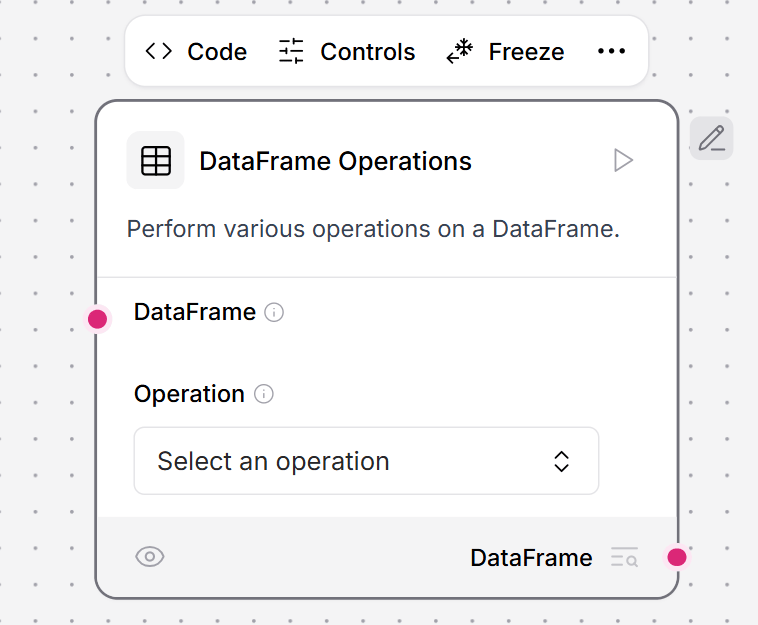
To use this component in a flow, connect a component that outputs [DataFrame](https://docs.llmcontrols.ai/Concepts/LLMCobjects#dataframe-object%E2%80%8B) to the **DataFrame Operations** component
This example fetches JSON data from an API. The **Smart function** component extracts and flattens the results into a tabular DataFrame. The **DataFrame Operations** component can then work with the retrieved data.
## **DataFrame operations**
This component performs operations on DataFrame rows and columns.
To use this component in a flow, connect a component that outputs [DataFrame](https://docs.llmcontrols.ai/Concepts/LLMCobjects#dataframe-object%E2%80%8B) to the **DataFrame Operations** component
This example fetches JSON data from an API. The **Smart function** component extracts and flattens the results into a tabular DataFrame. The **DataFrame Operations** component can then work with the retrieved data.
 1. The **API Request** component retrieves data with only `source` and `result` fields. For this example, the desired data is nested within the `result` field.
2. Connect a **Smart function** to the API request component, and a **Language model** to the **Smart function**. This example connects a **Groq** model component.
3. In the **Groq** model component, add your **Groq** API key.
4. To filter the data, in the **Smart function** component, in the **Instructions** field, use natural language to describe how the data should be filtered.
TIP
Avoid punctuation in the **Instructions** field, as it can cause errors.
5. To run the flow, in the **Smart function** component, click **Run component**.
6. To inspect the filtered data, in the **Smart function** component, click **Inspect output**. The result is a structured DataFrame.
7. Add the **DataFrame Operations** component, and a **Chat Output** component to the flow.
8. In the **DataFrame Operations** component, in the **Operation** field, select **Filter**.
9. To apply a filter, in the **Column Name** field, enter a column to filter on. This example filters by `name`.
10. Click **Playground**, and then click **Run Flow**. The flow extracts the values from the `name` column.
### **Operations**
This component can perform the following operations on Pandas [DataFrame](https://pandas.pydata.org/docs/reference/api/pandas.DataFrame.html).
| **Operation** | **Required Inputs** | **Info** |
| :------------- | :----------------------------------------------- | :--------------------------------------- |
| Add Column | new\_column\_name, new\_column\_value | Adds a new column with a constant value. |
| Drop Column | column\_name | Removes a specified column. |
| Filter | column\_name, filter\_value | Filters rows based on column value. |
| Head | num\_rows | Returns first `n` rows. |
| Rename Column | column\_name, new\_column\_name | Renames an existing column. |
| Replace Value | column\_name, replace\_value, replacement\_value | Replaces values in a column. |
| Select Columns | columns\_to\_select | Selects specific columns. |
| Sort | column\_name, ascending | Sorts DataFrame by column. |
| Tail | num\_rows | Returns last `n` rows. |
**Inputs**
| **Name** | **Display Name** | **Info** |
| :------------------ | :---------------- | :------------------------------------------------------------------------------------------------------------------------------------------------------- |
| df | DataFrame | The input DataFrame to operate on. |
| operation | Operation | The DataFrame operation to perform. Options include Add Column, Drop Column, Filter, Head, Rename Column, Replace Value, Select Columns, Sort, and Tail. |
| column\_name | Column Name | The column name to use for the operation. |
| filter\_value | Filter Value | The value to filter rows by. |
| ascending | Sort Ascending | Whether to sort in ascending order. |
| new\_column\_name | New Column Name | The new column name when renaming or adding a column. |
| new\_column\_value | New Column Value | The value to populate the new column with. |
| columns\_to\_select | Columns to Select | A list of column names to select. |
| num\_rows | Number of Rows | The number of rows to return for head/tail operations. The default is 5. |
| replace\_value | Value to Replace | The value to replace in the column. |
| replacement\_value | Replacement Value | The value to replace with. |
**Outputs**
| **Name** | **Display Name** | **Info** |
| :------- | :--------------- | :------------------------------------------- |
| output | DataFrame | The resulting DataFrame after the operation. |
## **Data operations**
This component performs operations on [Data](https://docs.llmcontrols.ai/Concepts/LLMCobjects#data-object%E2%80%8B) objects, including selecting keys, evaluating literals, combining data, filtering values, appending/updating data, removing keys, and renaming keys.
1. To use this component in a flow, connect a component that outputs [Data](https://docs.llmcontrols.ai/Concepts/LLMCobjects#data-object%E2%80%8B) to the **Data Operations** component's input. All operations in the component require at least one [Data](https://docs.llmcontrols.ai/Concepts/LLMCobjects#data-object%E2%80%8B) input.
2. In the **Operations** field, select the operation you want to perform. For example, send this request to the **Webhook** component. Replace `YOUR_FLOW_ID` with your flow ID.
3. In the **Data Operations** component, select the **Select Keys** operation to extract specific user information. To add additional keys, click **Add More**.
1. The **API Request** component retrieves data with only `source` and `result` fields. For this example, the desired data is nested within the `result` field.
2. Connect a **Smart function** to the API request component, and a **Language model** to the **Smart function**. This example connects a **Groq** model component.
3. In the **Groq** model component, add your **Groq** API key.
4. To filter the data, in the **Smart function** component, in the **Instructions** field, use natural language to describe how the data should be filtered.
TIP
Avoid punctuation in the **Instructions** field, as it can cause errors.
5. To run the flow, in the **Smart function** component, click **Run component**.
6. To inspect the filtered data, in the **Smart function** component, click **Inspect output**. The result is a structured DataFrame.
7. Add the **DataFrame Operations** component, and a **Chat Output** component to the flow.
8. In the **DataFrame Operations** component, in the **Operation** field, select **Filter**.
9. To apply a filter, in the **Column Name** field, enter a column to filter on. This example filters by `name`.
10. Click **Playground**, and then click **Run Flow**. The flow extracts the values from the `name` column.
### **Operations**
This component can perform the following operations on Pandas [DataFrame](https://pandas.pydata.org/docs/reference/api/pandas.DataFrame.html).
| **Operation** | **Required Inputs** | **Info** |
| :------------- | :----------------------------------------------- | :--------------------------------------- |
| Add Column | new\_column\_name, new\_column\_value | Adds a new column with a constant value. |
| Drop Column | column\_name | Removes a specified column. |
| Filter | column\_name, filter\_value | Filters rows based on column value. |
| Head | num\_rows | Returns first `n` rows. |
| Rename Column | column\_name, new\_column\_name | Renames an existing column. |
| Replace Value | column\_name, replace\_value, replacement\_value | Replaces values in a column. |
| Select Columns | columns\_to\_select | Selects specific columns. |
| Sort | column\_name, ascending | Sorts DataFrame by column. |
| Tail | num\_rows | Returns last `n` rows. |
**Inputs**
| **Name** | **Display Name** | **Info** |
| :------------------ | :---------------- | :------------------------------------------------------------------------------------------------------------------------------------------------------- |
| df | DataFrame | The input DataFrame to operate on. |
| operation | Operation | The DataFrame operation to perform. Options include Add Column, Drop Column, Filter, Head, Rename Column, Replace Value, Select Columns, Sort, and Tail. |
| column\_name | Column Name | The column name to use for the operation. |
| filter\_value | Filter Value | The value to filter rows by. |
| ascending | Sort Ascending | Whether to sort in ascending order. |
| new\_column\_name | New Column Name | The new column name when renaming or adding a column. |
| new\_column\_value | New Column Value | The value to populate the new column with. |
| columns\_to\_select | Columns to Select | A list of column names to select. |
| num\_rows | Number of Rows | The number of rows to return for head/tail operations. The default is 5. |
| replace\_value | Value to Replace | The value to replace in the column. |
| replacement\_value | Replacement Value | The value to replace with. |
**Outputs**
| **Name** | **Display Name** | **Info** |
| :------- | :--------------- | :------------------------------------------- |
| output | DataFrame | The resulting DataFrame after the operation. |
## **Data operations**
This component performs operations on [Data](https://docs.llmcontrols.ai/Concepts/LLMCobjects#data-object%E2%80%8B) objects, including selecting keys, evaluating literals, combining data, filtering values, appending/updating data, removing keys, and renaming keys.
1. To use this component in a flow, connect a component that outputs [Data](https://docs.llmcontrols.ai/Concepts/LLMCobjects#data-object%E2%80%8B) to the **Data Operations** component's input. All operations in the component require at least one [Data](https://docs.llmcontrols.ai/Concepts/LLMCobjects#data-object%E2%80%8B) input.
2. In the **Operations** field, select the operation you want to perform. For example, send this request to the **Webhook** component. Replace `YOUR_FLOW_ID` with your flow ID.
3. In the **Data Operations** component, select the **Select Keys** operation to extract specific user information. To add additional keys, click **Add More**.
 4. Filter by `name`, `username`, and `email` to select the values from the request.
### **Operations**
The component supports the following operations. All operations in the **Data operations** component require at least one [Data](https://docs.llmcontrols.ai/Concepts/LLMCobjects#data-object%E2%80%8B) input.
| **Operation** | **Required Inputs** | **Info** |
| :--------------- | :---------------------------------------- | :------------------------------------------ |
| Select Keys | `select_keys_input` | Selects specific keys from the data. |
| Literal Eval | None | Evaluates string values as Python literals. |
| Combine | None | Combines multiple data objects into one. |
| Filter Values | `filter_key`, `filter_values`, `operator` | Filters data based on key-value pair. |
| Append or Update | `append_update_data` | Adds or updates key-value pairs. |
| Remove Keys | `remove_keys_input` | Removes specified keys from the data. |
| Rename Keys | `rename_keys_input` | Renames keys in the data. |
**Inputs**
| **Name** | **Display Name** | **Info** |
| :------------------- | :------------------ | :--------------------------------------------------- |
| data | Data | The Data object to operate on. |
| operations | Operations | The operation to perform on the data. |
| select\_keys\_input | Select Keys | A list of keys to select from the data. |
| filter\_key | Filter Key | The key to filter by. |
| operator | Comparison Operator | The operator to apply for comparing values. |
| filter\_values | Filter Values | A list of values to filter by. |
| append\_update\_data | Append or Update | The data to append or update the existing data with. |
| remove\_keys\_input | Remove Keys | A list of keys to remove from the data. |
| rename\_keys\_input | Rename Keys | A list of keys to rename in the data. |
**Outputs**
| **Name** | **Display Name** | **Info** |
| :----------- | :--------------- | :--------------------------------------------- |
| data\_output | Data | The resulting Data object after the operation. |
## **Data to DataFrame**
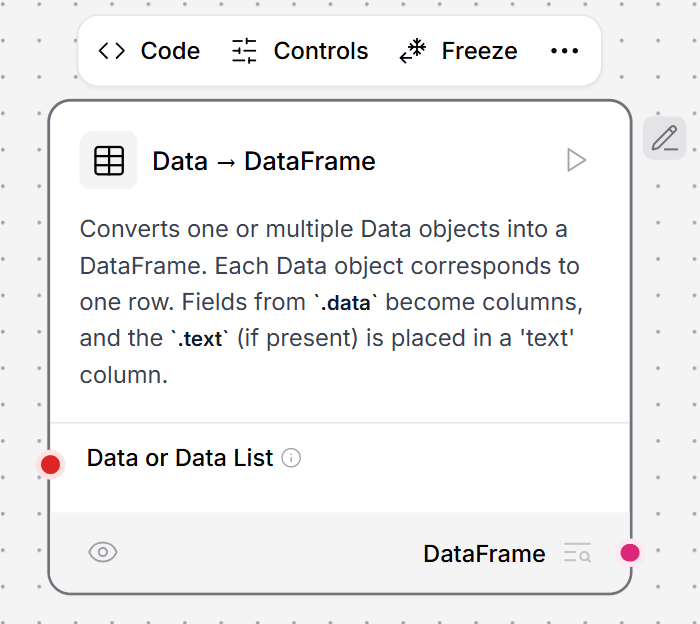
This component converts one or multiple [Data](https://docs.llmcontrols.ai/Concepts/LLMCobjects#data-object%E2%80%8B) objects into a [DataFrame](https://docs.llmcontrols.ai/Concepts/LLMCobjects#dataframe-object%E2%80%8B). Each Data object corresponds to one row in the resulting DataFrame. Fields from the `.data` attribute become columns, and the `.text` field (if present) is placed in a 'text' column.
1. To use this component in a flow, connect a component that outputs [Data](https://docs.llmcontrols.ai/Concepts/LLMCobjects#data-object%E2%80%8B) to the **Data to Dataframe** component's input. This example connects a **Webhook** component to convert `text` and `data` into a DataFrame.
2. To view the flow's output, connect a **Chat Output** component to the **Data to Dataframe** component.
4. Filter by `name`, `username`, and `email` to select the values from the request.
### **Operations**
The component supports the following operations. All operations in the **Data operations** component require at least one [Data](https://docs.llmcontrols.ai/Concepts/LLMCobjects#data-object%E2%80%8B) input.
| **Operation** | **Required Inputs** | **Info** |
| :--------------- | :---------------------------------------- | :------------------------------------------ |
| Select Keys | `select_keys_input` | Selects specific keys from the data. |
| Literal Eval | None | Evaluates string values as Python literals. |
| Combine | None | Combines multiple data objects into one. |
| Filter Values | `filter_key`, `filter_values`, `operator` | Filters data based on key-value pair. |
| Append or Update | `append_update_data` | Adds or updates key-value pairs. |
| Remove Keys | `remove_keys_input` | Removes specified keys from the data. |
| Rename Keys | `rename_keys_input` | Renames keys in the data. |
**Inputs**
| **Name** | **Display Name** | **Info** |
| :------------------- | :------------------ | :--------------------------------------------------- |
| data | Data | The Data object to operate on. |
| operations | Operations | The operation to perform on the data. |
| select\_keys\_input | Select Keys | A list of keys to select from the data. |
| filter\_key | Filter Key | The key to filter by. |
| operator | Comparison Operator | The operator to apply for comparing values. |
| filter\_values | Filter Values | A list of values to filter by. |
| append\_update\_data | Append or Update | The data to append or update the existing data with. |
| remove\_keys\_input | Remove Keys | A list of keys to remove from the data. |
| rename\_keys\_input | Rename Keys | A list of keys to rename in the data. |
**Outputs**
| **Name** | **Display Name** | **Info** |
| :----------- | :--------------- | :--------------------------------------------- |
| data\_output | Data | The resulting Data object after the operation. |
## **Data to DataFrame**
This component converts one or multiple [Data](https://docs.llmcontrols.ai/Concepts/LLMCobjects#data-object%E2%80%8B) objects into a [DataFrame](https://docs.llmcontrols.ai/Concepts/LLMCobjects#dataframe-object%E2%80%8B). Each Data object corresponds to one row in the resulting DataFrame. Fields from the `.data` attribute become columns, and the `.text` field (if present) is placed in a 'text' column.
1. To use this component in a flow, connect a component that outputs [Data](https://docs.llmcontrols.ai/Concepts/LLMCobjects#data-object%E2%80%8B) to the **Data to Dataframe** component's input. This example connects a **Webhook** component to convert `text` and `data` into a DataFrame.
2. To view the flow's output, connect a **Chat Output** component to the **Data to Dataframe** component.
 3. Send a POST request to the **Webhook** containing your JSON data. Replace `YOUR_FLOW_ID` with your flow ID. This example uses the default LLM Controls server address.
4. In the **Playground**, view the output of your flow. The **Data to DataFrame** component converts the webhook request into a `DataFrame`, with `text` and `data` fields as columns.
5. Send another employee data object.
6. In the **Playground**, this request is also converted to `DataFrame`.
**Inputs**
| **Name** | **Display Name** | **Info** |
| :--------- | :---------------- | :---------------------------------------------------------- |
| data\_list | Data or Data List | One or multiple Data objects to transform into a DataFrame. |
**Outputs**
| **Name** | **Display Name** | **Info** |
| :-------- | :--------------- | :------------------------------------------------------------------- |
| dataframe | DataFrame | A DataFrame built from each Data object's fields plus a text column. |
## **LLM router**
This component routes requests to the most appropriate LLM based on OpenRouter model specifications.
**Inputs**
| **Name** | **Display Name** | **Info** |
| :----------- | :--------------- | :--------------------------------------------------------------------- |
| models | Language Models | A list of LLMs to route between. |
| input\_value | Input | The input message to be routed. |
| judge\_llm | Judge LLM | The LLM that evaluates and selects the most appropriate model. |
| optimization | Optimization | The optimization preference between quality, speed, cost, or balanced. |
**Outputs**
| **Name** | **Display Name** | **Info** |
| :-------------- | :--------------- | :------------------------------------ |
| output | Output | The response from the selected model. |
| selected\_model | Selected Model | The name of the chosen model. |
## **Message to data**
This component converts [Message](https://docs.llmcontrols.ai/Concepts/LLMCobjects#message-object%E2%80%8B) objects to [Data](https://docs.llmcontrols.ai/Concepts/LLMCobjects#data-object%E2%80%8B) objects.
**Inputs**
| **Name** | **Display Name** | **Info** |
| :------- | :--------------- | :---------------------------------------------- |
| message | Message | The Message object to convert to a Data object. |
**Outputs**
| **Name** | **Display Name** | **Info** |
| :------- | :--------------- | :------------------------- |
| data | Data | The converted Data object. |
## **Parser**
This component formats `DataFrame` or `Data` objects into text using templates, with an option to convert inputs directly to strings using `stringify`.
To use this component, create variables for values in the `template` the same way you would in a [Prompt](/Components/Prompts) component. For `DataFrames`, use column names, for example `Name: {Name}`. For `Data` objects, use `{text}`.
To use the **Parser** component with a **Structured Output** component, do the following:
1. Connect a **Structured Output** component's **DataFrame** output to the **Parser** component's **DataFrame** input.
2. Connect the **File** component to the **Structured Output** component's **Message** input.
3. Connect the **OpenAI** model component's **Language Model** output to the **Structured Output** component's **Language Model** input.
The flow looks like this:
3. Send a POST request to the **Webhook** containing your JSON data. Replace `YOUR_FLOW_ID` with your flow ID. This example uses the default LLM Controls server address.
4. In the **Playground**, view the output of your flow. The **Data to DataFrame** component converts the webhook request into a `DataFrame`, with `text` and `data` fields as columns.
5. Send another employee data object.
6. In the **Playground**, this request is also converted to `DataFrame`.
**Inputs**
| **Name** | **Display Name** | **Info** |
| :--------- | :---------------- | :---------------------------------------------------------- |
| data\_list | Data or Data List | One or multiple Data objects to transform into a DataFrame. |
**Outputs**
| **Name** | **Display Name** | **Info** |
| :-------- | :--------------- | :------------------------------------------------------------------- |
| dataframe | DataFrame | A DataFrame built from each Data object's fields plus a text column. |
## **LLM router**
This component routes requests to the most appropriate LLM based on OpenRouter model specifications.
**Inputs**
| **Name** | **Display Name** | **Info** |
| :----------- | :--------------- | :--------------------------------------------------------------------- |
| models | Language Models | A list of LLMs to route between. |
| input\_value | Input | The input message to be routed. |
| judge\_llm | Judge LLM | The LLM that evaluates and selects the most appropriate model. |
| optimization | Optimization | The optimization preference between quality, speed, cost, or balanced. |
**Outputs**
| **Name** | **Display Name** | **Info** |
| :-------------- | :--------------- | :------------------------------------ |
| output | Output | The response from the selected model. |
| selected\_model | Selected Model | The name of the chosen model. |
## **Message to data**
This component converts [Message](https://docs.llmcontrols.ai/Concepts/LLMCobjects#message-object%E2%80%8B) objects to [Data](https://docs.llmcontrols.ai/Concepts/LLMCobjects#data-object%E2%80%8B) objects.
**Inputs**
| **Name** | **Display Name** | **Info** |
| :------- | :--------------- | :---------------------------------------------- |
| message | Message | The Message object to convert to a Data object. |
**Outputs**
| **Name** | **Display Name** | **Info** |
| :------- | :--------------- | :------------------------- |
| data | Data | The converted Data object. |
## **Parser**
This component formats `DataFrame` or `Data` objects into text using templates, with an option to convert inputs directly to strings using `stringify`.
To use this component, create variables for values in the `template` the same way you would in a [Prompt](/Components/Prompts) component. For `DataFrames`, use column names, for example `Name: {Name}`. For `Data` objects, use `{text}`.
To use the **Parser** component with a **Structured Output** component, do the following:
1. Connect a **Structured Output** component's **DataFrame** output to the **Parser** component's **DataFrame** input.
2. Connect the **File** component to the **Structured Output** component's **Message** input.
3. Connect the **OpenAI** model component's **Language Model** output to the **Structured Output** component's **Language Model** input.
The flow looks like this:
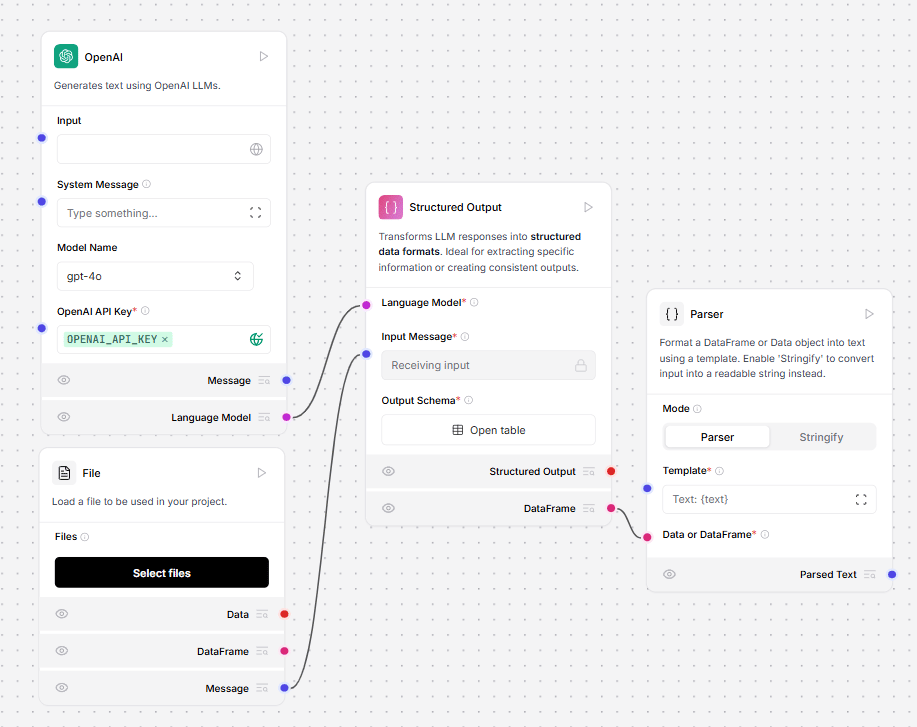 4. In the **Structured Output** component, click **Open Table**. This opens a pane for structuring your table. The table contains the rows **Name**, **Description**, **Type**, and **Multiple**.
5. Create a table that maps to the data you're loading from the **File** loader. For example, to create a table for employees, you might have the rows `id`, `name`, and `email`, all of type `string`.
6. In the **Template** field of the **Parser** component, enter a template for parsing the **Structured Output** component's DataFrame output into structured text. Create variables for values in the `template` the same way you would in a [Prompt](/Components/Prompts) component. For example, to present a table of employees in Markdown:
```text theme={null}
| {id} | {name} | {email} |
```
7. To run the flow, in the **Parser** component, click **Run component**.
8. To view your parsed text, in the **Parser** component, click **Inspect output**.
9. Optionally, connect a **Chat Output** component, and open the **Playground** to see the output.
For an additional example of using the **Parser** component to format a DataFrame from a **Structured Output** component, see the **Market Research** template flow.
**Inputs**
| **Name** | **Display Name** | **Info** |
| :---------- | :---------------- | :------------------------------------------------------------------------------------------------------------------------------------------------------- |
| mode | Mode | The tab selection between "Parser" and "Stringify" modes. "Stringify" converts input to a string instead of using a template. |
| pattern | Template | The template for formatting using variables in curly brackets. For DataFrames, use column names, such as `Name: {Name}`. For Data objects, use `{text}`. |
| input\_data | Data or DataFrame | The input to parse. Accepts either a DataFrame or Data object. |
| sep | Separator | The string used to separate rows or items. The default is a newline. |
| clean\_data | Clean Data | When stringify is enabled, this option cleans data by removing empty rows and lines. |
**Outputs**
| **Name** | **Display Name** | **Info** |
| :----------- | :--------------- | :------------------------------------------------------- |
| parsed\_text | Parsed Text | The resulting formatted text as a Message object. |
## **Regex extractor**
This component extracts patterns from text using regular expressions. It can be used to find and extract specific patterns or information from text data.
To use this component in a flow:
1. Connect the **Regex Extractor** to a **URL** component and a **Chat Output** component.
4. In the **Structured Output** component, click **Open Table**. This opens a pane for structuring your table. The table contains the rows **Name**, **Description**, **Type**, and **Multiple**.
5. Create a table that maps to the data you're loading from the **File** loader. For example, to create a table for employees, you might have the rows `id`, `name`, and `email`, all of type `string`.
6. In the **Template** field of the **Parser** component, enter a template for parsing the **Structured Output** component's DataFrame output into structured text. Create variables for values in the `template` the same way you would in a [Prompt](/Components/Prompts) component. For example, to present a table of employees in Markdown:
```text theme={null}
| {id} | {name} | {email} |
```
7. To run the flow, in the **Parser** component, click **Run component**.
8. To view your parsed text, in the **Parser** component, click **Inspect output**.
9. Optionally, connect a **Chat Output** component, and open the **Playground** to see the output.
For an additional example of using the **Parser** component to format a DataFrame from a **Structured Output** component, see the **Market Research** template flow.
**Inputs**
| **Name** | **Display Name** | **Info** |
| :---------- | :---------------- | :------------------------------------------------------------------------------------------------------------------------------------------------------- |
| mode | Mode | The tab selection between "Parser" and "Stringify" modes. "Stringify" converts input to a string instead of using a template. |
| pattern | Template | The template for formatting using variables in curly brackets. For DataFrames, use column names, such as `Name: {Name}`. For Data objects, use `{text}`. |
| input\_data | Data or DataFrame | The input to parse. Accepts either a DataFrame or Data object. |
| sep | Separator | The string used to separate rows or items. The default is a newline. |
| clean\_data | Clean Data | When stringify is enabled, this option cleans data by removing empty rows and lines. |
**Outputs**
| **Name** | **Display Name** | **Info** |
| :----------- | :--------------- | :------------------------------------------------------- |
| parsed\_text | Parsed Text | The resulting formatted text as a Message object. |
## **Regex extractor**
This component extracts patterns from text using regular expressions. It can be used to find and extract specific patterns or information from text data.
To use this component in a flow:
1. Connect the **Regex Extractor** to a **URL** component and a **Chat Output** component.
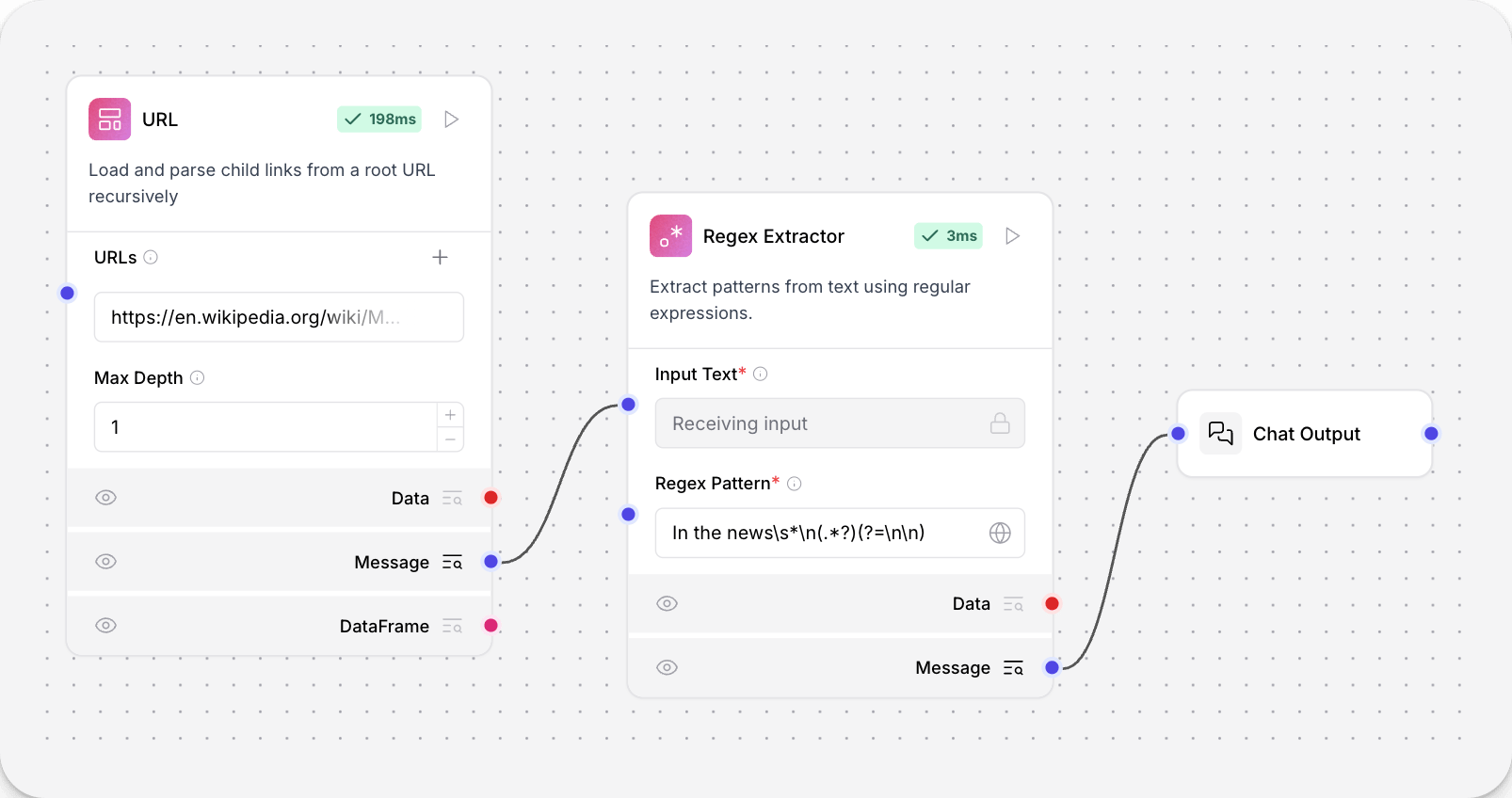 2. In the **Regex Extractor** tool, enter a pattern to extract text from the **URL** component's raw output. This example extracts the first paragraph from the "In the News" section of `https://en.wikipedia.org/wiki/Main_Page`:
## **Save to File**
This component saves [DataFrames, Data, or Messages](/Concepts/LLMCobjects) to various file formats.
1. To use this component in a flow, connect a component that outputs [DataFrames, Data, or Messages](/Concepts/LLMCobjects) to the **Save to File** component's input. The following example connects a **Webhook** component to two **Save to File** components to demonstrate the different outputs.
2. In the **Regex Extractor** tool, enter a pattern to extract text from the **URL** component's raw output. This example extracts the first paragraph from the "In the News" section of `https://en.wikipedia.org/wiki/Main_Page`:
## **Save to File**
This component saves [DataFrames, Data, or Messages](/Concepts/LLMCobjects) to various file formats.
1. To use this component in a flow, connect a component that outputs [DataFrames, Data, or Messages](/Concepts/LLMCobjects) to the **Save to File** component's input. The following example connects a **Webhook** component to two **Save to File** components to demonstrate the different outputs.
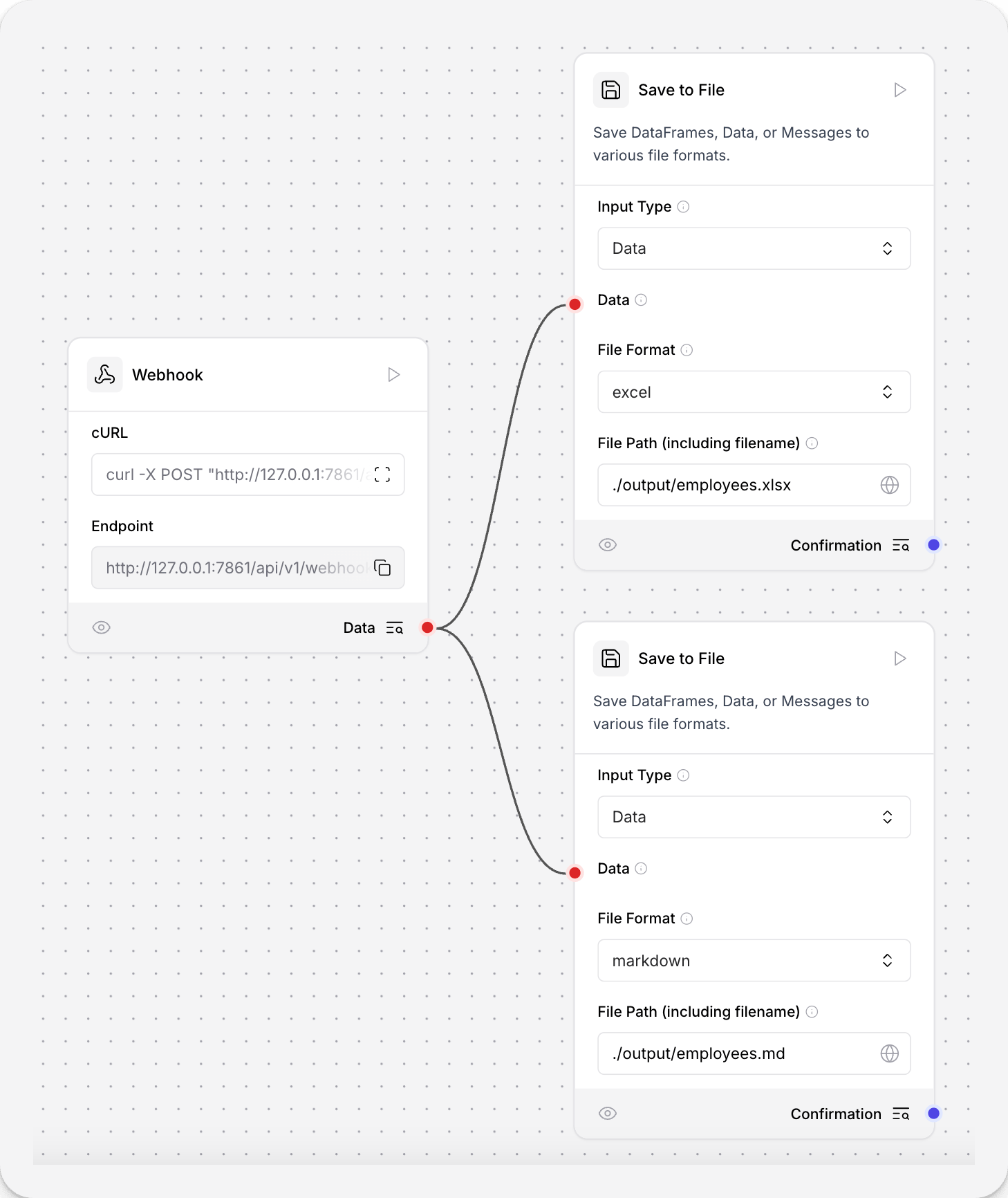 2. In the **Save to File** component's **Input Type** field, select the expected input type. This example expects **Data** from the **Webhook**.
3. In the **File Format** field, select the file type for your saved file. This example uses `.md` in one **Save to File** component, and `.xlsx` in another.
4. In the **File Path** field, enter the path for your saved file. This example uses `./output/employees.xlsx` and `./output/employees.md` to save the files in a directory relative to where LLM Controls is running. The component accepts both relative and absolute paths, and creates any necessary directories if they don't exist.
**tip**
If you enter a format in the `file_path` that is not accepted, the component appends the proper format to the file. For example, if the selected `file_format` is `csv`, and you enter `file_path` as `./output/test.txt`, the file is saved as `./output/test.txt.csv` so the file is not corrupted.
5. Send a POST request to the **Webhook** containing your JSON data. Replace `YOUR_FLOW_ID` with your flow ID. This example uses the default LLM Controls server address.
6. In your local filesystem, open the `outputs` directory. You should see two files created from the data you've sent: one in `.xlsx` for structured spreadsheets, and one in Markdown.
### **File input format options**
For `DataFrame` and `Data` inputs, the component can create:
* `csv`
* `excel`
* `json`
* `markdown`
* `pdf`
For `Message` inputs, the component can create:
* `txt`
* `json`
* `markdown`
* `pdf`
**Inputs**
| **Name** | **Display Name** | **Info** |
| :----------- | :--------------- | :--------------------------------------------------- |
| input\_text | Input Text | The text to analyze and extract patterns from. |
| pattern | Regex Pattern | The regular expression pattern to match in the text. |
| input\_type | Input Type | The type of input to save. |
| df | DataFrame | The DataFrame to save. |
| data | Data | The Data object to save. |
| message | Message | The Message to save. |
| file\_format | File Format | The file format to save the input in. |
| file\_path | File Path | The full file path including filename and extension. |
**Outputs**
| **Name** | **Display Name** | **Info** |
| :----------- | :--------------- | :--------------------------------------------------- |
| data | Data | A list of extracted matches as Data objects. |
| text | Message | The extracted matches formatted as a Message object. |
| confirmation | Confirmation | The confirmation message after saving the file. |
## **Split text**
This component splits text into chunks based on specified criteria. It's ideal for chunking data to be tokenized and embedded into vector databases.
The **Split Text** component outputs **Chunks** or **DataFrame**. The **Chunks** output returns a list of individual text chunks. The **DataFrame** output returns a structured data format, with additional `text` and `metadata` columns the applied.
1. To use this component in a flow, connect a component that outputs [Data or DataFrame](/Concepts/LLMCobjects) to the **Split Text** component's **Data** port. This example uses the **URL** component, which is fetching JSON placeholder data.
2. In the **Save to File** component's **Input Type** field, select the expected input type. This example expects **Data** from the **Webhook**.
3. In the **File Format** field, select the file type for your saved file. This example uses `.md` in one **Save to File** component, and `.xlsx` in another.
4. In the **File Path** field, enter the path for your saved file. This example uses `./output/employees.xlsx` and `./output/employees.md` to save the files in a directory relative to where LLM Controls is running. The component accepts both relative and absolute paths, and creates any necessary directories if they don't exist.
**tip**
If you enter a format in the `file_path` that is not accepted, the component appends the proper format to the file. For example, if the selected `file_format` is `csv`, and you enter `file_path` as `./output/test.txt`, the file is saved as `./output/test.txt.csv` so the file is not corrupted.
5. Send a POST request to the **Webhook** containing your JSON data. Replace `YOUR_FLOW_ID` with your flow ID. This example uses the default LLM Controls server address.
6. In your local filesystem, open the `outputs` directory. You should see two files created from the data you've sent: one in `.xlsx` for structured spreadsheets, and one in Markdown.
### **File input format options**
For `DataFrame` and `Data` inputs, the component can create:
* `csv`
* `excel`
* `json`
* `markdown`
* `pdf`
For `Message` inputs, the component can create:
* `txt`
* `json`
* `markdown`
* `pdf`
**Inputs**
| **Name** | **Display Name** | **Info** |
| :----------- | :--------------- | :--------------------------------------------------- |
| input\_text | Input Text | The text to analyze and extract patterns from. |
| pattern | Regex Pattern | The regular expression pattern to match in the text. |
| input\_type | Input Type | The type of input to save. |
| df | DataFrame | The DataFrame to save. |
| data | Data | The Data object to save. |
| message | Message | The Message to save. |
| file\_format | File Format | The file format to save the input in. |
| file\_path | File Path | The full file path including filename and extension. |
**Outputs**
| **Name** | **Display Name** | **Info** |
| :----------- | :--------------- | :--------------------------------------------------- |
| data | Data | A list of extracted matches as Data objects. |
| text | Message | The extracted matches formatted as a Message object. |
| confirmation | Confirmation | The confirmation message after saving the file. |
## **Split text**
This component splits text into chunks based on specified criteria. It's ideal for chunking data to be tokenized and embedded into vector databases.
The **Split Text** component outputs **Chunks** or **DataFrame**. The **Chunks** output returns a list of individual text chunks. The **DataFrame** output returns a structured data format, with additional `text` and `metadata` columns the applied.
1. To use this component in a flow, connect a component that outputs [Data or DataFrame](/Concepts/LLMCobjects) to the **Split Text** component's **Data** port. This example uses the **URL** component, which is fetching JSON placeholder data.
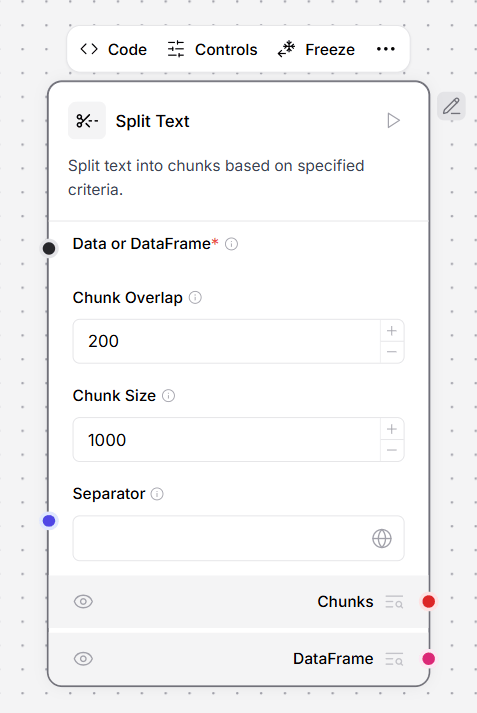 2. In the **Split Text** component, define your data splitting parameters.
This example splits incoming JSON data at the separator `},`, so each chunk contains one JSON object.
The order of precedence is **Separator**, then **Chunk Size**, and then **Chunk Overlap**. If any segment after separator splitting is longer than `chunk_size`, it is split again to fit within `chunk_size`.
After `chunk_size`, **Chunk Overlap** is applied between chunks to maintain context.
3. Connect a **Chat Output** component to the **Split Text** component's **DataFrame** output to view its output.
4. Click **Playground**, and then click **Run Flow**. The output contains a table of JSON objects split at `},`.
5. Clear the **Separator** field, and then run the flow again. Instead of JSON objects, the output contains 50-character lines of text with 10 characters of overlap.
## **Inputs**
| **Name** | **Display Name** | **Info** |
| :------------- | :--------------- | :-------------------------------------------------------------------------------- |
| data\_inputs | Input Documents | The data to split. The component accepts Data or DataFrame objects. |
| chunk\_overlap | Chunk Overlap | The number of characters to overlap between chunks. Default: `200`. |
| chunk\_size | Chunk Size | The maximum number of characters in each chunk. Default: `1000`. |
| separator | Separator | The character to split on. Default: `newline`. |
| text\_key | Text Key | The key to use for the text column. Default: `text`. |
**Outputs**
| **Name** | **Display Name** | **Info** |
| :-------- | :--------------- | :------------------------------------------------------- |
| chunks | Chunks | A list of split text chunks as Data objects. |
| dataframe | DataFrame | A list of split text chunks as DataFrame objects. |
## **Update data**
This component dynamically updates or appends data with specified fields.
**Inputs**
| **Name** | **Display Name** | **Info** |
| :------------------- | :----------------- | :---------------------------------------------- |
| old\_data | Data | The records to update. |
| number\_of\_fields | Number of Fields | The number of fields to add. The maximum is 15. |
| text\_key | Text Key | The key for text content. |
| text\_key\_validator | Text Key Validator | Validates the text key presence. |
**Outputs**
| **Name** | **Display Name** | **Info** |
| :------- | :--------------- | :------------------------ |
| data | Data | The updated Data objects. |
## **Text Input**
This component gets text inputs from the Playground and passes them as a Message to downstream components.
### **To Use Text Input**
1. Add the component to your flow
2. Enter text in the Text field or connect it to the Playground input
**Inputs**
| Name | Display Name | Info |
| :----------- | :----------- | :-------------------------- |
| input\_value | Text | Text to be passed as input. |
#### Outputs
| Name | Display Name | Info |
| :--- | :----------- | :---------------------------------- |
| text | Message | The input text as a Message object. |
## **Filter Data**
This component filters a Data object based on a list of keys, returning a new Data object containing only the matching key-value pairs.
### **To Filter Data**
1. Connect a Data object from an upstream component
2. Specify one or more keys in the Filter Criteria list to keep
**Inputs**
| Name | Display Name | Info |
| :--------------- | :-------------- | :------------------------- |
| data | Data | Data object to filter. |
| filter\_criteria | Filter Criteria | List of keys to filter by. |
#### Outputs
| Name | Display Name | Info |
| :------------- | :------------ | :-------------------------------------------------------------- |
| filtered\_data | Filtered Data | A new Data object containing only the filtered key-value pairs. |
## **Filter Values**
This component filters a list of data items based on a specified key, filter value, and comparison operator. Check the advanced options to select match comparison.
### **To Filter Values**
1. Connect a list of Data items from an upstream component
2. Set the Filter Key (e.g., 'route') and Filter Value (e.g., 'CMIP')
3. Optionally change the Comparison Operator in the advanced options
**Inputs**
| Name | Display Name | Info |
| :------------ | :------------------ | :------------------------------------------------------------------------------------------------------------- |
| input\_data | Input Data | The list of data items to filter. |
| filter\_key | Filter Key | The key to filter on (e.g., 'route'). |
| filter\_value | Filter Value | The value to filter by (e.g., 'CMIP'). |
| operator | Comparison Operator | The operator to apply for comparing the values. Options: equals, not equals, contains, starts with, ends with. |
#### Outputs
| Name | Display Name | Info |
| :------------- | :------------ | :----------------------------------------------------- |
| filtered\_data | Filtered Data | The filtered list of Data items matching the criteria. |
## **Lambda Filter**
This component uses an LLM to generate a lambda function for filtering or transforming structured data. Provide natural language instructions, and the component will create and apply a Python lambda function to your data.
### **To Use Lambda Filter**
1. Connect structured Data from an upstream component
2. Connect a Language Model output from an LLM component
3. Write natural language Instructions describing how to filter or transform the data
**Inputs**
| Name | Display Name | Info |
| :------------------ | :------------- | :---------------------------------------------------------------------------------------------------------------------------------------------------------------------------- |
| data | Data | The structured data to filter or transform using a lambda function. |
| llm | Language Model | Connect the 'Language Model' output from your LLM component here. |
| filter\_instruction | Instructions | Natural language instructions for how to filter or transform the data using a lambda function. Example: Filter the data to only include items where the 'status' is 'active'. |
| sample\_size | Sample Size | For large datasets, number of items to sample from head/tail. |
| max\_size | Max Size | Number of characters for the data to be considered large. |
#### Outputs
| Name | Display Name | Info |
| :------------- | :------------ | :---------------------------------------------------------- |
| filtered\_data | Filtered Data | The filtered or transformed data as a list of Data objects. |
| dataframe | DataFrame | The filtered data as a DataFrame object. |
## LLMC Parser
This component batch processes document chunks to extract structured information using LLM with custom prompts. It processes chunks in configurable batches, extracts JSON from LLM responses, and merges results across batches.
### **To Use LLMC Parser**
1. Connect Document Chunks from a Split Text component (accepts list or single input)
2. Connect a Language Model from an LLM component
3. Write a Custom Prompt defining what information to extract and the JSON structure
4. Optionally adjust Batch Size and Max Tokens in advanced options
Inputs
| Name | Display Name | Info |
| :------------- | :-------------- | :------------------------------------------------------------------------------------------------------------------------------------- |
| document\_text | Document Chunks | Chunked document data from Split Text component (accepts list or single input) |
| llm | Language Model | LLM for intelligent extraction. |
| custom\_prompt | Custom Prompt | Custom prompt for extraction. Define what information to extract and the JSON structure. |
| batch\_size | Batch Size | Number of chunks to process per LLM call (default: 15) |
| max\_tokens | Max Tokens | Maximum tokens for LLM response. Set to 0 to use LLM component's default. Recommended: 16384 for large JSON responses (default: 16384) |
#### Outputs
| Name | Display Name | Info |
| :-------- | :------------ | :------------------------------------------------------------------------------------------ |
| output | Parsed Output | The extracted structured information as a Data object with merged results from all batches. |
| raw\_json | Raw JSON | The parsed output as a formatted JSON string wrapped in a Data object. |
2. In the **Split Text** component, define your data splitting parameters.
This example splits incoming JSON data at the separator `},`, so each chunk contains one JSON object.
The order of precedence is **Separator**, then **Chunk Size**, and then **Chunk Overlap**. If any segment after separator splitting is longer than `chunk_size`, it is split again to fit within `chunk_size`.
After `chunk_size`, **Chunk Overlap** is applied between chunks to maintain context.
3. Connect a **Chat Output** component to the **Split Text** component's **DataFrame** output to view its output.
4. Click **Playground**, and then click **Run Flow**. The output contains a table of JSON objects split at `},`.
5. Clear the **Separator** field, and then run the flow again. Instead of JSON objects, the output contains 50-character lines of text with 10 characters of overlap.
## **Inputs**
| **Name** | **Display Name** | **Info** |
| :------------- | :--------------- | :-------------------------------------------------------------------------------- |
| data\_inputs | Input Documents | The data to split. The component accepts Data or DataFrame objects. |
| chunk\_overlap | Chunk Overlap | The number of characters to overlap between chunks. Default: `200`. |
| chunk\_size | Chunk Size | The maximum number of characters in each chunk. Default: `1000`. |
| separator | Separator | The character to split on. Default: `newline`. |
| text\_key | Text Key | The key to use for the text column. Default: `text`. |
**Outputs**
| **Name** | **Display Name** | **Info** |
| :-------- | :--------------- | :------------------------------------------------------- |
| chunks | Chunks | A list of split text chunks as Data objects. |
| dataframe | DataFrame | A list of split text chunks as DataFrame objects. |
## **Update data**
This component dynamically updates or appends data with specified fields.
**Inputs**
| **Name** | **Display Name** | **Info** |
| :------------------- | :----------------- | :---------------------------------------------- |
| old\_data | Data | The records to update. |
| number\_of\_fields | Number of Fields | The number of fields to add. The maximum is 15. |
| text\_key | Text Key | The key for text content. |
| text\_key\_validator | Text Key Validator | Validates the text key presence. |
**Outputs**
| **Name** | **Display Name** | **Info** |
| :------- | :--------------- | :------------------------ |
| data | Data | The updated Data objects. |
## **Text Input**
This component gets text inputs from the Playground and passes them as a Message to downstream components.
### **To Use Text Input**
1. Add the component to your flow
2. Enter text in the Text field or connect it to the Playground input
**Inputs**
| Name | Display Name | Info |
| :----------- | :----------- | :-------------------------- |
| input\_value | Text | Text to be passed as input. |
#### Outputs
| Name | Display Name | Info |
| :--- | :----------- | :---------------------------------- |
| text | Message | The input text as a Message object. |
## **Filter Data**
This component filters a Data object based on a list of keys, returning a new Data object containing only the matching key-value pairs.
### **To Filter Data**
1. Connect a Data object from an upstream component
2. Specify one or more keys in the Filter Criteria list to keep
**Inputs**
| Name | Display Name | Info |
| :--------------- | :-------------- | :------------------------- |
| data | Data | Data object to filter. |
| filter\_criteria | Filter Criteria | List of keys to filter by. |
#### Outputs
| Name | Display Name | Info |
| :------------- | :------------ | :-------------------------------------------------------------- |
| filtered\_data | Filtered Data | A new Data object containing only the filtered key-value pairs. |
## **Filter Values**
This component filters a list of data items based on a specified key, filter value, and comparison operator. Check the advanced options to select match comparison.
### **To Filter Values**
1. Connect a list of Data items from an upstream component
2. Set the Filter Key (e.g., 'route') and Filter Value (e.g., 'CMIP')
3. Optionally change the Comparison Operator in the advanced options
**Inputs**
| Name | Display Name | Info |
| :------------ | :------------------ | :------------------------------------------------------------------------------------------------------------- |
| input\_data | Input Data | The list of data items to filter. |
| filter\_key | Filter Key | The key to filter on (e.g., 'route'). |
| filter\_value | Filter Value | The value to filter by (e.g., 'CMIP'). |
| operator | Comparison Operator | The operator to apply for comparing the values. Options: equals, not equals, contains, starts with, ends with. |
#### Outputs
| Name | Display Name | Info |
| :------------- | :------------ | :----------------------------------------------------- |
| filtered\_data | Filtered Data | The filtered list of Data items matching the criteria. |
## **Lambda Filter**
This component uses an LLM to generate a lambda function for filtering or transforming structured data. Provide natural language instructions, and the component will create and apply a Python lambda function to your data.
### **To Use Lambda Filter**
1. Connect structured Data from an upstream component
2. Connect a Language Model output from an LLM component
3. Write natural language Instructions describing how to filter or transform the data
**Inputs**
| Name | Display Name | Info |
| :------------------ | :------------- | :---------------------------------------------------------------------------------------------------------------------------------------------------------------------------- |
| data | Data | The structured data to filter or transform using a lambda function. |
| llm | Language Model | Connect the 'Language Model' output from your LLM component here. |
| filter\_instruction | Instructions | Natural language instructions for how to filter or transform the data using a lambda function. Example: Filter the data to only include items where the 'status' is 'active'. |
| sample\_size | Sample Size | For large datasets, number of items to sample from head/tail. |
| max\_size | Max Size | Number of characters for the data to be considered large. |
#### Outputs
| Name | Display Name | Info |
| :------------- | :------------ | :---------------------------------------------------------- |
| filtered\_data | Filtered Data | The filtered or transformed data as a list of Data objects. |
| dataframe | DataFrame | The filtered data as a DataFrame object. |
## LLMC Parser
This component batch processes document chunks to extract structured information using LLM with custom prompts. It processes chunks in configurable batches, extracts JSON from LLM responses, and merges results across batches.
### **To Use LLMC Parser**
1. Connect Document Chunks from a Split Text component (accepts list or single input)
2. Connect a Language Model from an LLM component
3. Write a Custom Prompt defining what information to extract and the JSON structure
4. Optionally adjust Batch Size and Max Tokens in advanced options
Inputs
| Name | Display Name | Info |
| :------------- | :-------------- | :------------------------------------------------------------------------------------------------------------------------------------- |
| document\_text | Document Chunks | Chunked document data from Split Text component (accepts list or single input) |
| llm | Language Model | LLM for intelligent extraction. |
| custom\_prompt | Custom Prompt | Custom prompt for extraction. Define what information to extract and the JSON structure. |
| batch\_size | Batch Size | Number of chunks to process per LLM call (default: 15) |
| max\_tokens | Max Tokens | Maximum tokens for LLM response. Set to 0 to use LLM component's default. Recommended: 16384 for large JSON responses (default: 16384) |
#### Outputs
| Name | Display Name | Info |
| :-------- | :------------ | :------------------------------------------------------------------------------------------ |
| output | Parsed Output | The extracted structured information as a Data object with merged results from all batches. |
| raw\_json | Raw JSON | The parsed output as a formatted JSON string wrapped in a Data object. |