> ## Documentation Index
> Fetch the complete documentation index at: https://docs.llmcontrols.ai/llms.txt
> Use this file to discover all available pages before exploring further.
# LLM Controls overview
This page explores the fundamental building blocks of LLM Controls, beginning with the question, **"What is a flow?"**
## **What is a flow?**[****](https://docs.langflow.org/concepts-overview#what-is-a-flow)
A **flow** is an application. It receives input, processes it, and produces output.
Flows consist of [components](/Components/componentoverview) that you configure and connect in the **Workspace**.
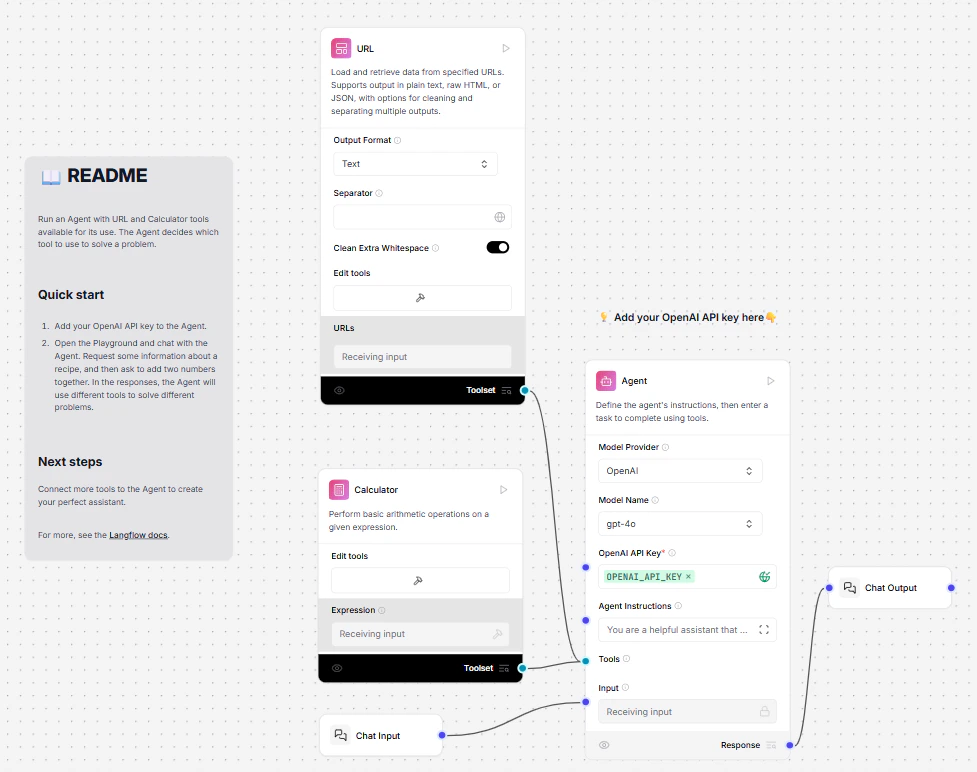 A flow can be as simple as the [basic prompting flow](/Getstarted/quickstart), which creates an OpenAI chatbot with four components.
* Each component in a flow is a **node** that performs a specific task, like an AI model or a data source.
* Each component has a **Configuration** menu. Click the **Code** button on a component to see its underlying Python code.
* Components are connected with **edges** to form flows.
## **Find your way around**[****](https://docs.langflow.org/concepts-overview#find-your-way-around)
If you're new to LLM Controls, it's OK to feel a bit lost at first. We’ll take you on a tour, so you can orient yourself and start creating applications quickly.
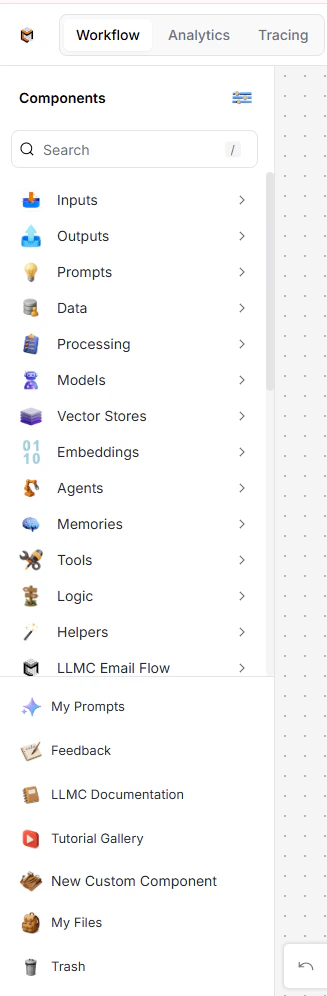
LLM Controls has four distinct regions: the [workspace](https://docs.llmcontrols.ai/Concepts/LLMCoverview#workspace%E2%80%8B) is the main area where you build your flows. The components sidebar is on the left and lists the available [components](https://docs.llmcontrols.ai/Concepts/LLMCoverview#components%E2%80%8B). The [playground](https://docs.llmcontrols.ai/Concepts/LLMCoverview#playground%E2%80%8B) and [publish pane](https://docs.llmcontrols.ai/Concepts/LLMCoverview#publish-pane%E2%80%8B) are available in the upper right corner.
## **Workspace**[****](https://docs.langflow.org/concepts-overview#workspace)
The **workspace** is where you create AI applications by connecting and running components in flows.
* Click and drag the workspace to move it left, right, up, and down.
* Scroll up and down to zoom in and out of the workspace, or use the **Zoom In** and **Zoom Out** controls.
* Click **Fit To Zoom** to center the workspace on the current flow.
* Click **Lock** to lock the workspace in place, preventing accidental movement.
* Click **Add Note** to add a note to your flow, similar to commenting in code.
A flow can be as simple as the [basic prompting flow](/Getstarted/quickstart), which creates an OpenAI chatbot with four components.
* Each component in a flow is a **node** that performs a specific task, like an AI model or a data source.
* Each component has a **Configuration** menu. Click the **Code** button on a component to see its underlying Python code.
* Components are connected with **edges** to form flows.
## **Find your way around**[****](https://docs.langflow.org/concepts-overview#find-your-way-around)
If you're new to LLM Controls, it's OK to feel a bit lost at first. We’ll take you on a tour, so you can orient yourself and start creating applications quickly.
LLM Controls has four distinct regions: the [workspace](https://docs.llmcontrols.ai/Concepts/LLMCoverview#workspace%E2%80%8B) is the main area where you build your flows. The components sidebar is on the left and lists the available [components](https://docs.llmcontrols.ai/Concepts/LLMCoverview#components%E2%80%8B). The [playground](https://docs.llmcontrols.ai/Concepts/LLMCoverview#playground%E2%80%8B) and [publish pane](https://docs.llmcontrols.ai/Concepts/LLMCoverview#publish-pane%E2%80%8B) are available in the upper right corner.
## **Workspace**[****](https://docs.langflow.org/concepts-overview#workspace)
The **workspace** is where you create AI applications by connecting and running components in flows.
* Click and drag the workspace to move it left, right, up, and down.
* Scroll up and down to zoom in and out of the workspace, or use the **Zoom In** and **Zoom Out** controls.
* Click **Fit To Zoom** to center the workspace on the current flow.
* Click **Lock** to lock the workspace in place, preventing accidental movement.
* Click **Add Note** to add a note to your flow, similar to commenting in code.
 ## **Components**[****](https://docs.langflow.org/concepts-overview#components)
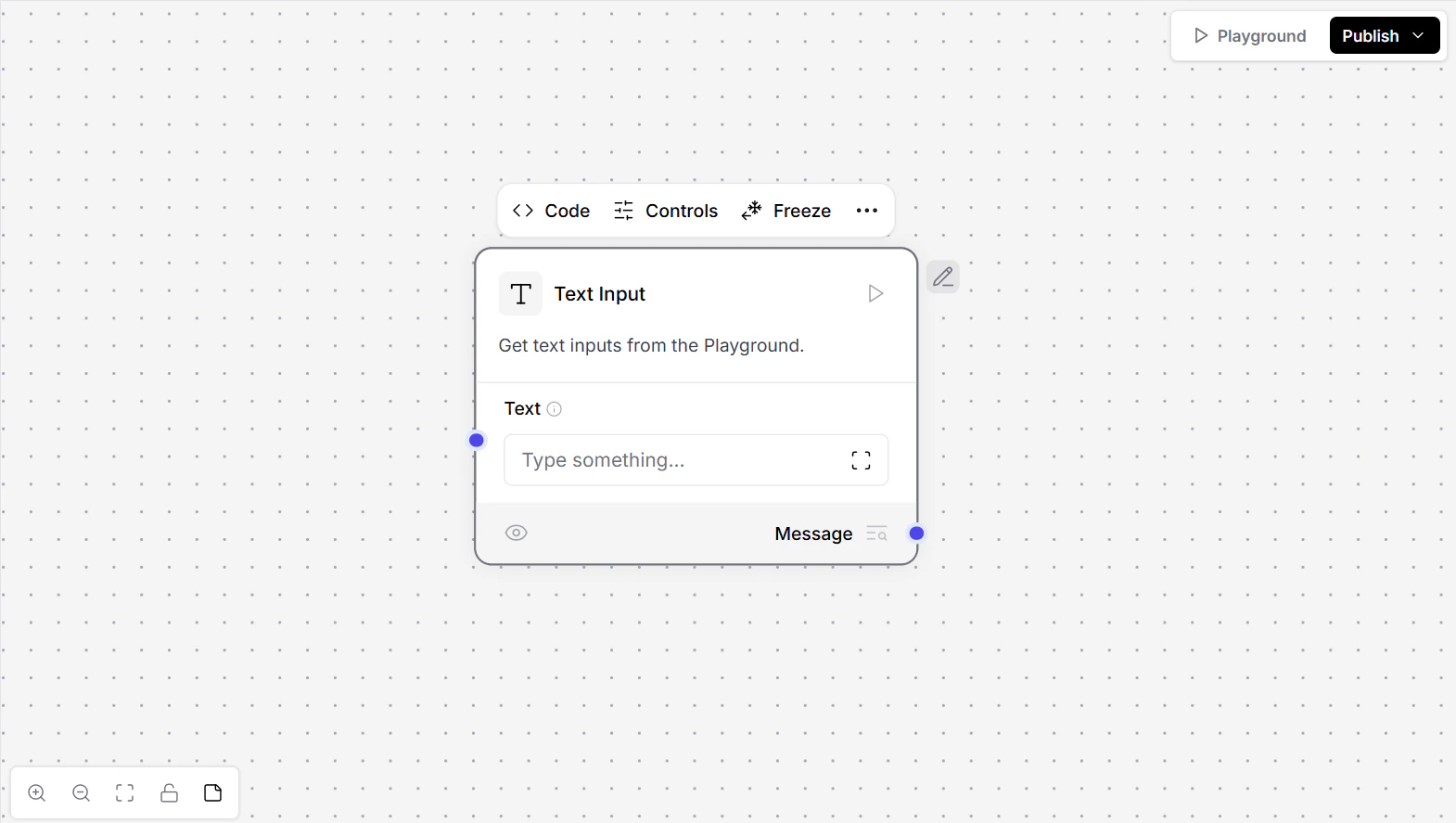
A **component** is a single building block within a flow and consists of inputs, outputs, and parameters that define its functionality.
To add a component to your flow, drag it from the sidebar onto the workspace.
To connect components, drag a line from the output handle of one component to the input handle of another.
For more information, see [Components overview](/Components/componentoverview).
## **Components**[****](https://docs.langflow.org/concepts-overview#components)
A **component** is a single building block within a flow and consists of inputs, outputs, and parameters that define its functionality.
To add a component to your flow, drag it from the sidebar onto the workspace.
To connect components, drag a line from the output handle of one component to the input handle of another.
For more information, see [Components overview](/Components/componentoverview).
 ## **Playground**[****](https://docs.langflow.org/concepts-overview#playground)
The **Playground** executes the current flow in the workspace.
Chat with your flow, view inputs and outputs, and modify your AI's memories to tune your responses in real time.
Either the **Chat Input** or **Chat Output** component can be opened in the **Playground** and tested in real time.
For more information, see the [Playground](/Concepts/playground).
## **Playground**[****](https://docs.langflow.org/concepts-overview#playground)
The **Playground** executes the current flow in the workspace.
Chat with your flow, view inputs and outputs, and modify your AI's memories to tune your responses in real time.
Either the **Chat Input** or **Chat Output** component can be opened in the **Playground** and tested in real time.
For more information, see the [Playground](/Concepts/playground).
.png?fit=max&auto=format&n=9PuWEwunOBJ8KxNm&q=85&s=b02f9070b45b8b0c69d25f800435a2b3) ## **Publish pane**[****](https://docs.langflow.org/concepts-overview#publish-pane)
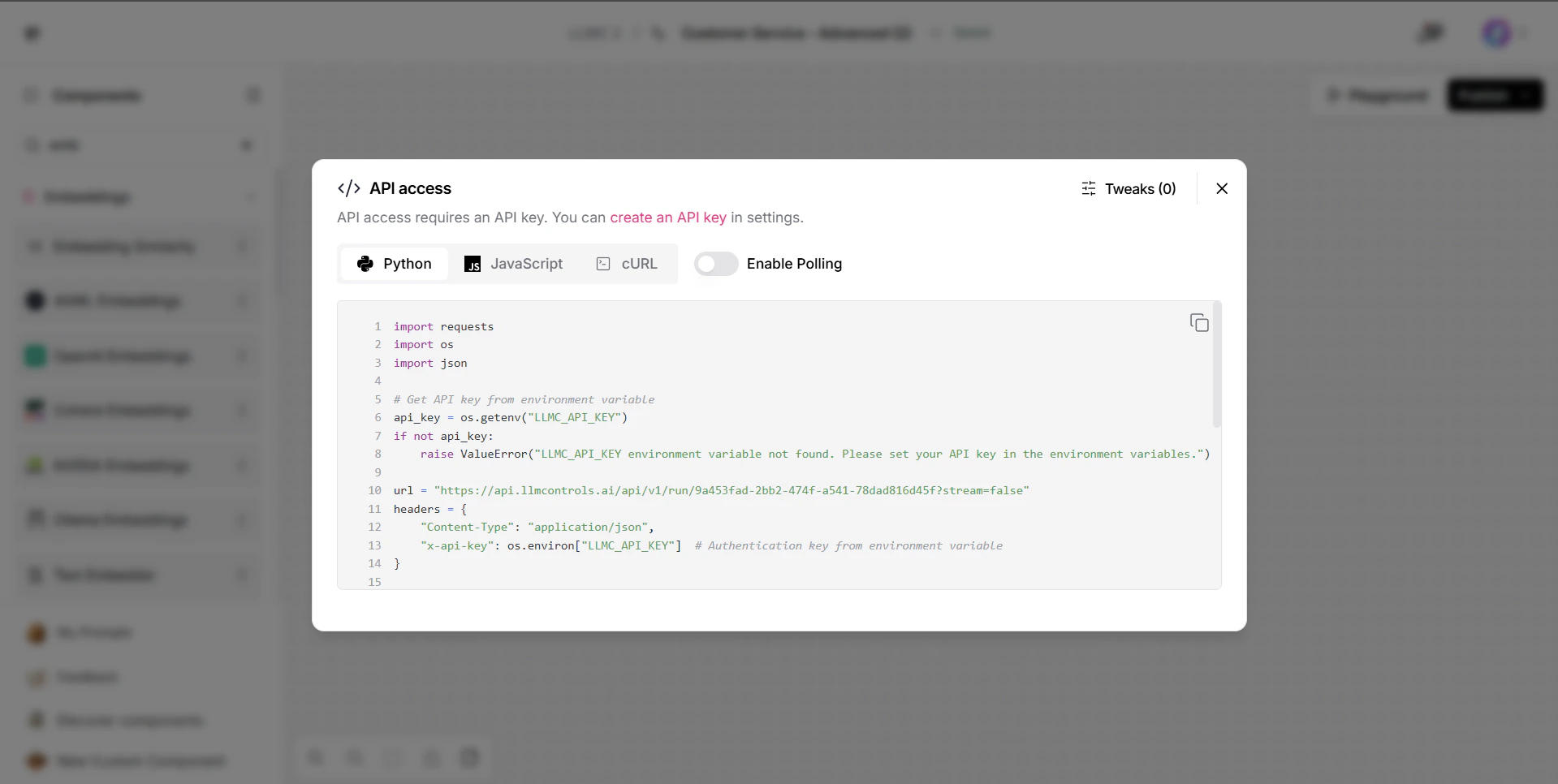
The **Publish** pane provides code templates to integrate your flows into external applications.
For more information, see the [Publish pane](/Concepts/publish-flows).
## **Publish pane**[****](https://docs.langflow.org/concepts-overview#publish-pane)
The **Publish** pane provides code templates to integrate your flows into external applications.
For more information, see the [Publish pane](/Concepts/publish-flows).
 ## **View logs**[****](https://docs.langflow.org/concepts-overview#view-logs)
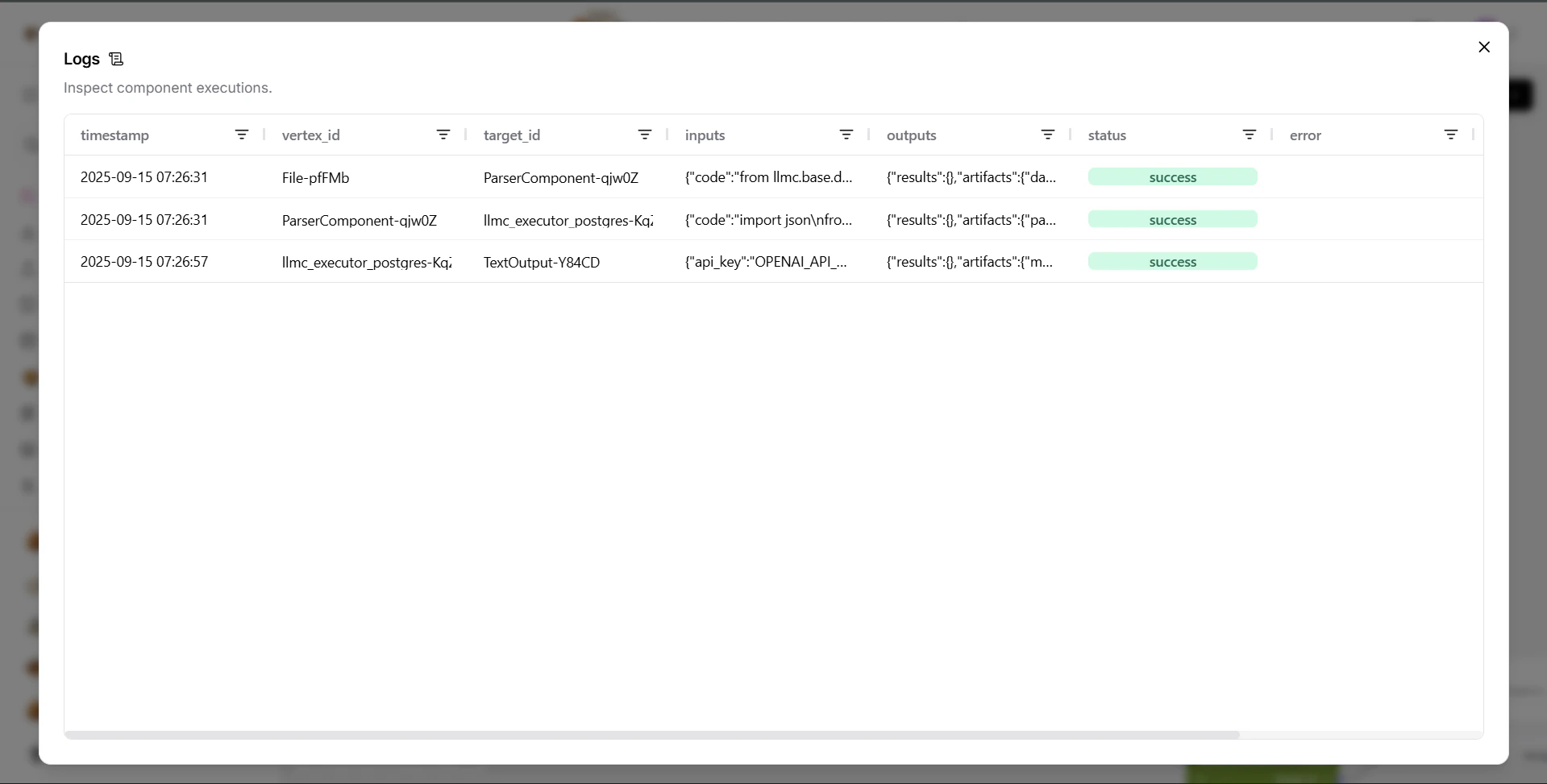
The **Logs** pane provides a detailed record of all component executions within a workspace.
To access the **Logs** pane, click your **Flow Name** and then select **Logs**.
## **View logs**[****](https://docs.langflow.org/concepts-overview#view-logs)
The **Logs** pane provides a detailed record of all component executions within a workspace.
To access the **Logs** pane, click your **Flow Name** and then select **Logs**.
 ## **Projects**[****](https://docs.langflow.org/concepts-overview#projects)
The **Projects** page displays all the flows you've created in the LLM Controls workspace.
## **Projects**[****](https://docs.langflow.org/concepts-overview#projects)
The **Projects** page displays all the flows you've created in the LLM Controls workspace.
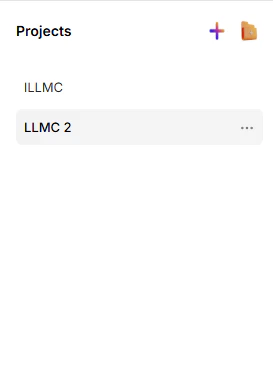 **Starter Project** is the default space where all new projects are initially stored. To create a new project, click **Create new project**.
To upload a flow to your project, click **Upload a flow**.
To delete a flow from your project, click a flow's checkbox to select it, and then click **Delete**. You can select multiple flows in a single action.
## **File management**[****](https://docs.langflow.org/concepts-overview#file-management)
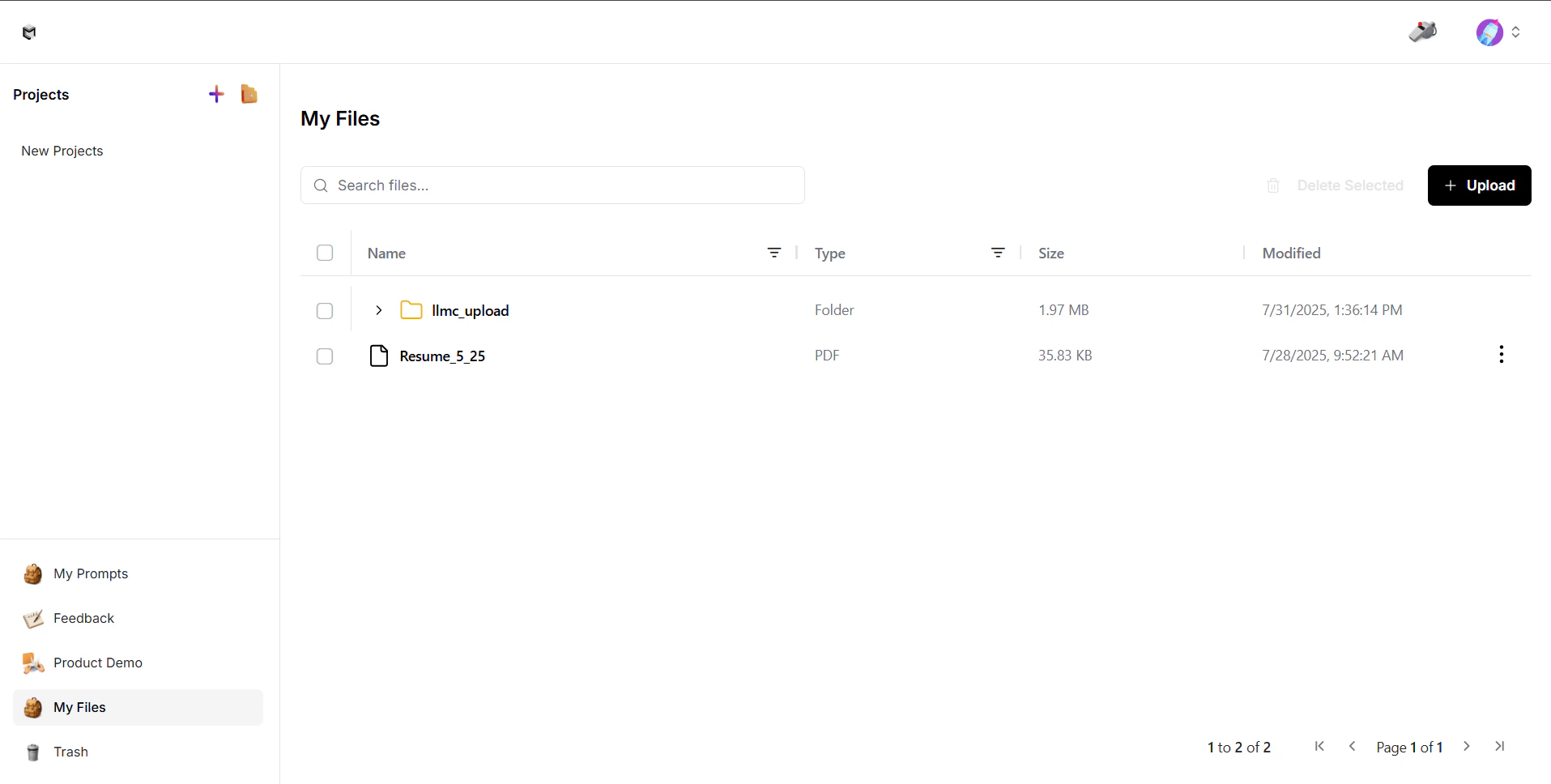
Upload, store, and manage files in LLM Controls' **File management** system.
For more on managing your files, see [Manage files](/Concepts/manage-files).
**Starter Project** is the default space where all new projects are initially stored. To create a new project, click **Create new project**.
To upload a flow to your project, click **Upload a flow**.
To delete a flow from your project, click a flow's checkbox to select it, and then click **Delete**. You can select multiple flows in a single action.
## **File management**[****](https://docs.langflow.org/concepts-overview#file-management)
Upload, store, and manage files in LLM Controls' **File management** system.
For more on managing your files, see [Manage files](/Concepts/manage-files).
 ## **Options menu**[****](https://docs.langflow.org/concepts-overview#options-menu)
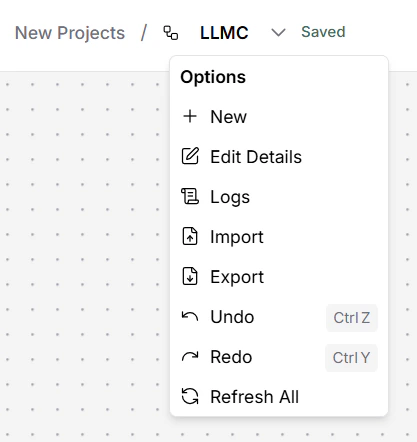
The dropdown menu labeled with the project name offers several management and customization options for the current flow in the LLM Controls workspace:
* **New**: Create a new flow from scratch.
* **Edit Details**: Adjust settings specific to the current flow, such as its name, description, and endpoint name.
* **Logs**: View logs for the current project, including execution history, errors, and other runtime events.
* **Import**: Import a flow or component from a JSON file into the workspace.
* **Export**: Export the current flow as a JSON file.
* **Undo**: Revert the last action taken in the project. Keyboard shortcut: Control+Z(or on macOS).
* **Redo**: Reapply a previously undone action. Keyboard shortcut: Control+Y(or on macOS).
* **Refresh All**: Refresh all components and delete cache.
## **Options menu**[****](https://docs.langflow.org/concepts-overview#options-menu)
The dropdown menu labeled with the project name offers several management and customization options for the current flow in the LLM Controls workspace:
* **New**: Create a new flow from scratch.
* **Edit Details**: Adjust settings specific to the current flow, such as its name, description, and endpoint name.
* **Logs**: View logs for the current project, including execution history, errors, and other runtime events.
* **Import**: Import a flow or component from a JSON file into the workspace.
* **Export**: Export the current flow as a JSON file.
* **Undo**: Revert the last action taken in the project. Keyboard shortcut: Control+Z(or on macOS).
* **Redo**: Reapply a previously undone action. Keyboard shortcut: Control+Y(or on macOS).
* **Refresh All**: Refresh all components and delete cache.
 ## **Settings**
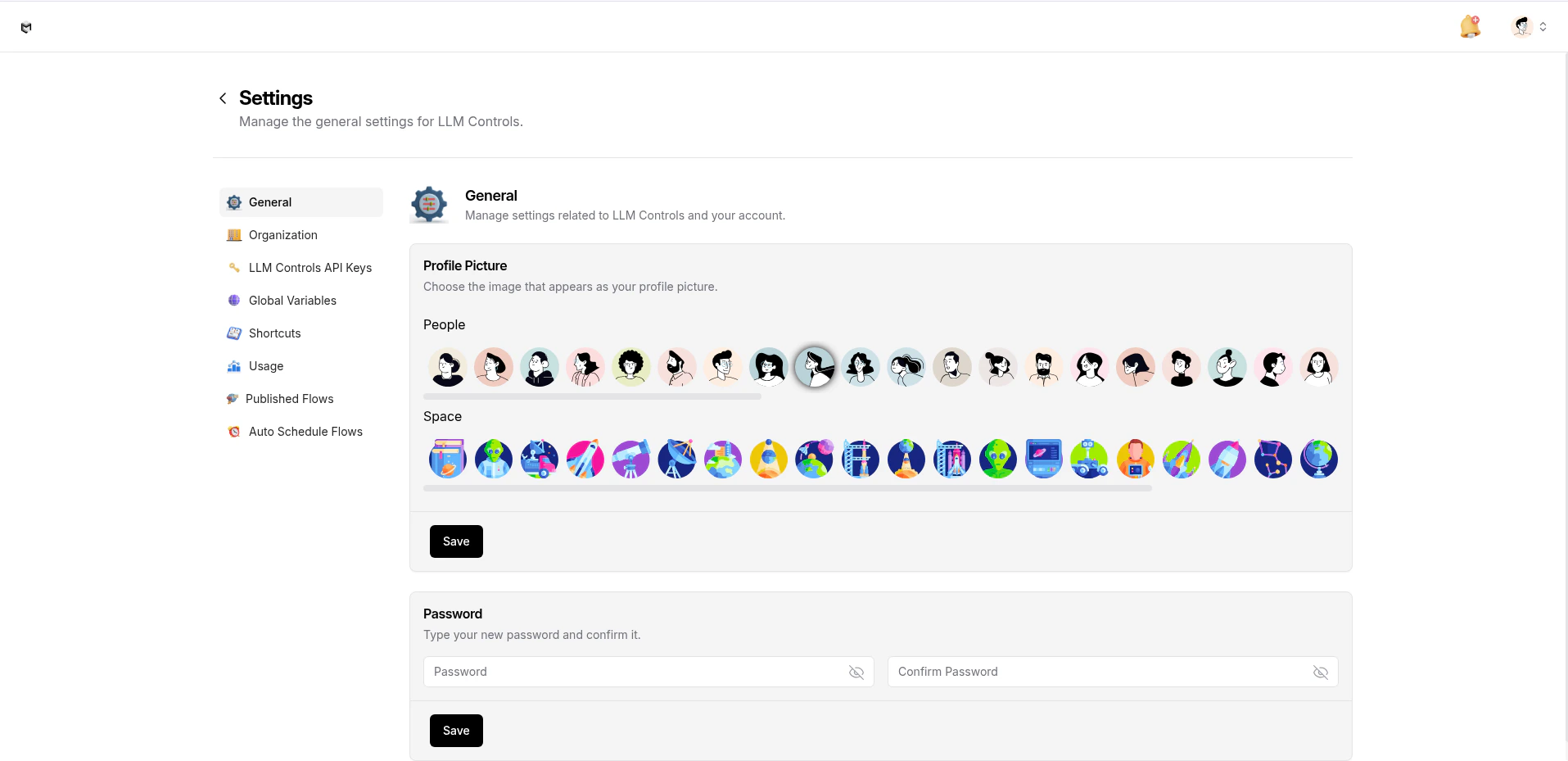
In the LLM Controls header, click your profile icon, and then select **Settings** to access general LLM Controls settings, including global variables, LLM Controls API keys, keyboard shortcuts, and log messages.
## **Settings**
In the LLM Controls header, click your profile icon, and then select **Settings** to access general LLM Controls settings, including global variables, LLM Controls API keys, keyboard shortcuts, and log messages.