> ## Documentation Index
> Fetch the complete documentation index at: https://docs.llmcontrols.ai/llms.txt
> Use this file to discover all available pages before exploring further.
# Manage files
Upload, store, and manage files in LLM Controls' **File management** system.
Uploading files to the **File management** system keeps your files in a central location and allows you to reuse files across flows without repeated manual uploads.
## **Upload a file**
The **File management** system is available at the `/files` URL. For example, if you're running LLM Controls at the default `http://localhost:7860` address, the **File management** system is located at `http://localhost:7860/files`.
To upload a file from your local machine:
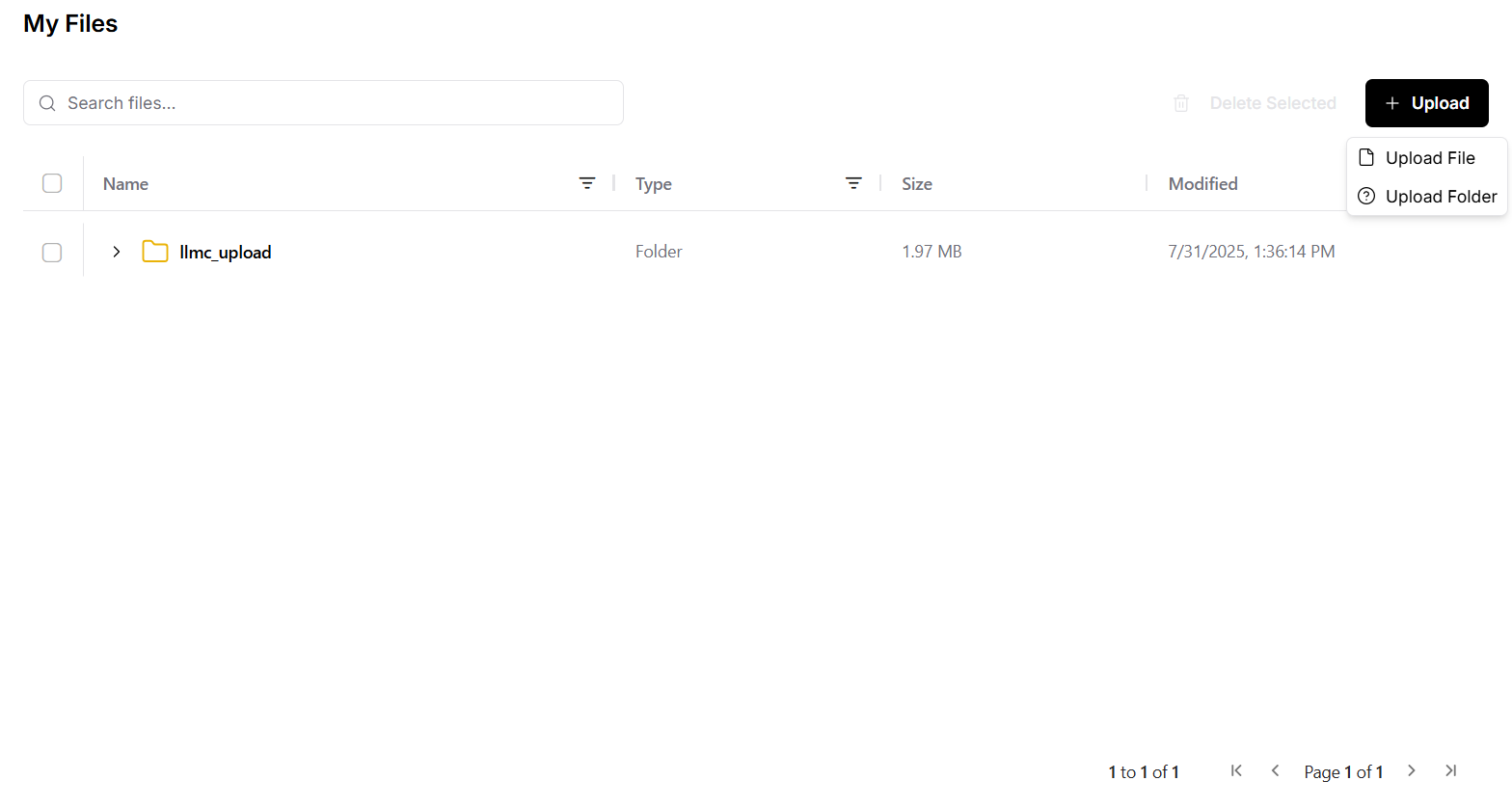
1. From the **My Files** window at `http://localhost:7860/files`, click **Upload**.
2. Select the file to upload. The file is uploaded to LLM Controls.
You can upload multiple files in a single action. Files are available to flows stored in different projects.
Files stored in **My Files** can be renamed, downloaded, duplicated, or deleted.
To delete a file from your project, hover over a file's icon to click and select it, and then click **Delete**. You can delete multiple files in a single action.
To download a file from your project, hover over a file's icon to click and select it, and then click **Download**. You can download multiple files in a single action, but they will be saved together in a .ZIP file.
 ## **Use uploaded files in a flow**[****](https://docs.langflow.org/concepts-file-management#use-uploaded-files-in-a-flow)
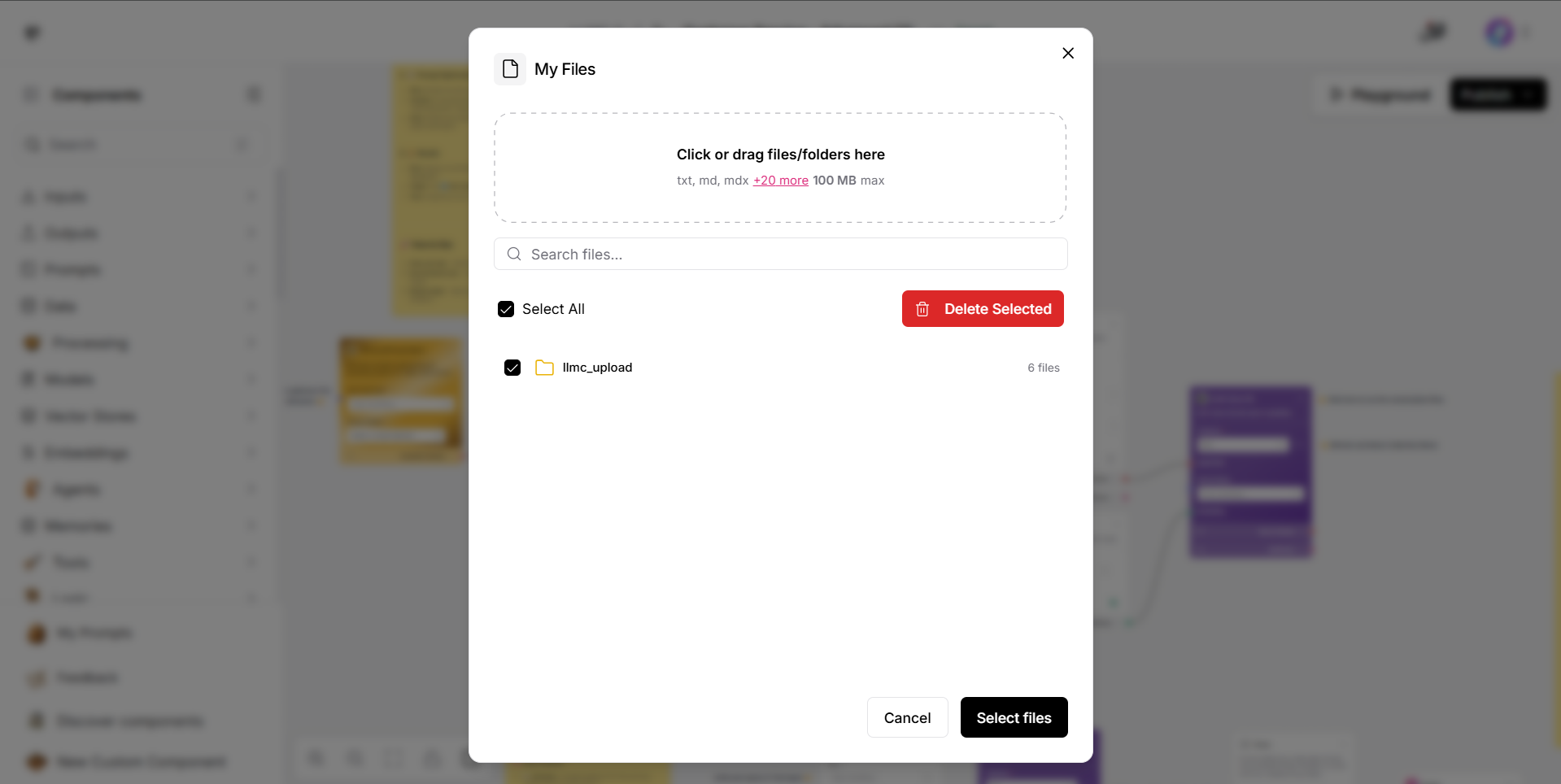
To use your uploaded files in flows:
1. Include the [File](https://docs.llmcontrols.ai/Components/Data#file) component in a flow.
2. To select a document to load, in the **File** component, click the **Select files** button.
3. Select a file to upload, and then click **Select file**. The loaded file name appears in the component.
NOTE
If you prefer a one-time upload, the [File](https://docs.llmcontrols.ai/Components/Data#file) component still allows one-time uploads directly from your local machine.
## **Use uploaded files in a flow**[****](https://docs.langflow.org/concepts-file-management#use-uploaded-files-in-a-flow)
To use your uploaded files in flows:
1. Include the [File](https://docs.llmcontrols.ai/Components/Data#file) component in a flow.
2. To select a document to load, in the **File** component, click the **Select files** button.
3. Select a file to upload, and then click **Select file**. The loaded file name appears in the component.
NOTE
If you prefer a one-time upload, the [File](https://docs.llmcontrols.ai/Components/Data#file) component still allows one-time uploads directly from your local machine.
 ## **Supported file types**[****](https://docs.langflow.org/concepts-file-management#supported-file-types)
The maximum supported file size is 100 MB.
Text files:
* `.txt` - Text files
* `.md`, `.mdx` - Markdown files
* `.csv` - CSV files
* `.json` - JSON files
* `.yaml`, `.yml` - YAML files
* `.xml` - XML files
* `.html`, `.htm` - HTML files
* `.pdf` - PDF files
* `.docx` - Word documents
* `.py` - Python files
* `.sh` - Shell scripts
* `.sql` - SQL files
* `.js` - JavaScript files
* `.ts`, `.tsx` - TypeScript files
Archive formats (for bundling multiple files):
* `.zip` - ZIP archives
* `.tar` - TAR archives
* `.tgz` - Gzipped TAR archives
* `.bz2` - Bzip2 compressed files
* `.gz` - Gzip compressed files
## **Supported file types**[****](https://docs.langflow.org/concepts-file-management#supported-file-types)
The maximum supported file size is 100 MB.
Text files:
* `.txt` - Text files
* `.md`, `.mdx` - Markdown files
* `.csv` - CSV files
* `.json` - JSON files
* `.yaml`, `.yml` - YAML files
* `.xml` - XML files
* `.html`, `.htm` - HTML files
* `.pdf` - PDF files
* `.docx` - Word documents
* `.py` - Python files
* `.sh` - Shell scripts
* `.sql` - SQL files
* `.js` - JavaScript files
* `.ts`, `.tsx` - TypeScript files
Archive formats (for bundling multiple files):
* `.zip` - ZIP archives
* `.tar` - TAR archives
* `.tgz` - Gzipped TAR archives
* `.bz2` - Bzip2 compressed files
* `.gz` - Gzip compressed files