> ## Documentation Index
> Fetch the complete documentation index at: https://docs.llmcontrols.ai/llms.txt
> Use this file to discover all available pages before exploring further.
# Playground
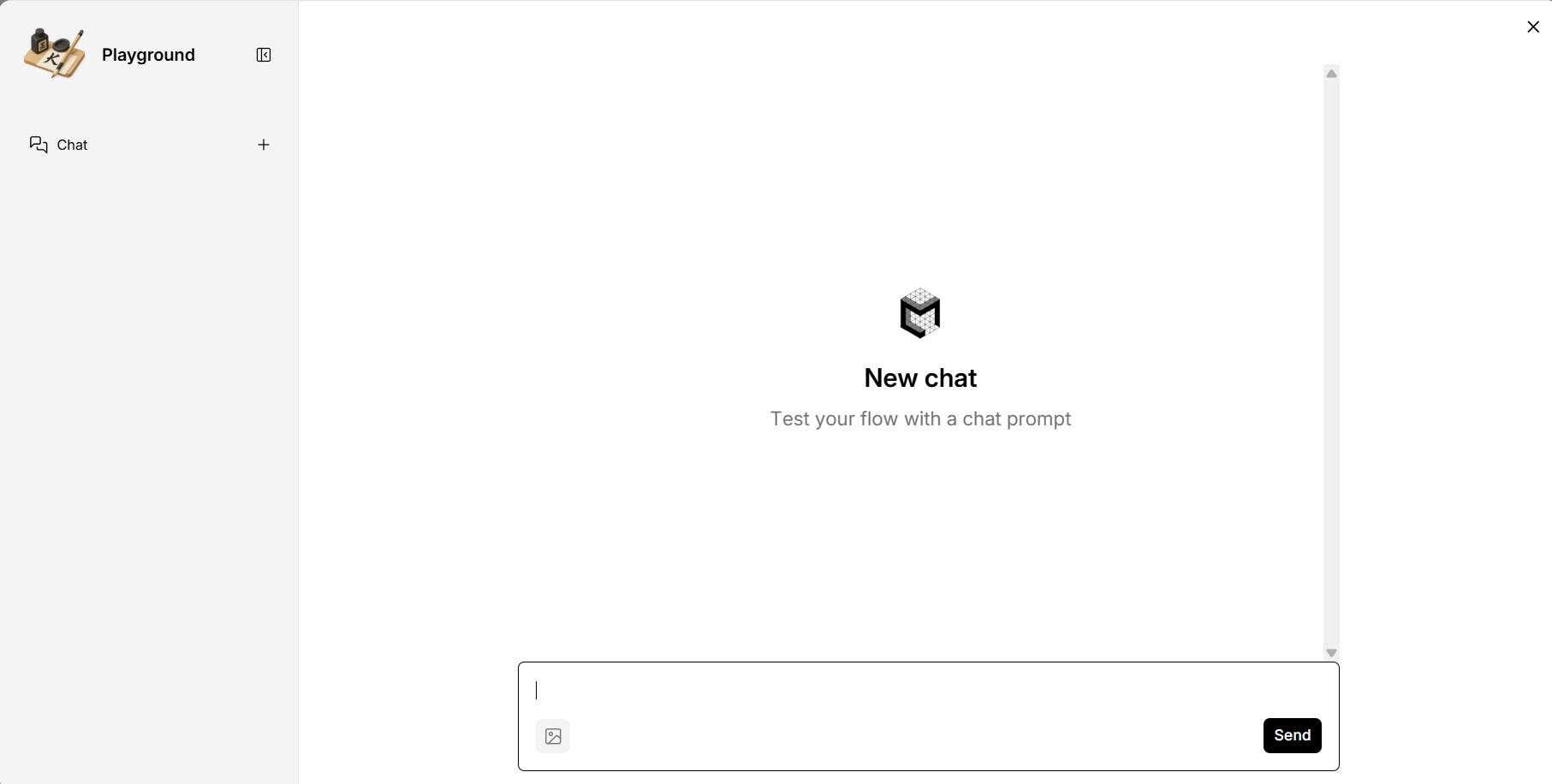
The **Playground** is a dynamic interface designed for real-time interaction with LLMs, allowing users to chat, access memories, and monitor inputs and outputs. Here, users can directly prototype their models, making adjustments and observing different outcomes.
As long as you have an [Input or Output](/Components/Inputsandoutputs) component working, you can open it by clicking the **Playground** button. The Playground's window arrangement changes depending on what components are being used
 ## **Run a flow in the playground.**[****](https://docs.langflow.org/concepts-playground#run-a-flow-in-the-playgound)
When you run a flow in the **Playground**, LLM Controls calls the endpoint. This call retrieves the flow data, builds a graph, and executes the graph. As each component (or node) is executed, the build\_vertex function calls build and run, which may call the individual components' `def_build` method, if it exists. If a component doesn't have a `def_build` function, the build still returns a component.
The build function allows components to execute logic at runtime. When text needs to be processed, the parent class's build method is called, which creates a `RecursiveCharacterTextSplitter` object and uses it to split the text according to the defined parameters. The split text is then passed on to the next component. This all occurs when the component is built.
## **View playground messages by session ID.**[****](https://docs.langflow.org/concepts-playground#view-playground-messages-by-session-id)
When you send a message from the **Playground** interface, the interactions are stored in the **Message Logs** by `session_id`. A single flow can have multiple chats, and different flows can share the same chat. Each chat will have a different `session_id`.
To view messages by `session_id` within the Playground, click the menu of any chat session and then select **Message Logs**.
## **Run a flow in the playground.**[****](https://docs.langflow.org/concepts-playground#run-a-flow-in-the-playgound)
When you run a flow in the **Playground**, LLM Controls calls the endpoint. This call retrieves the flow data, builds a graph, and executes the graph. As each component (or node) is executed, the build\_vertex function calls build and run, which may call the individual components' `def_build` method, if it exists. If a component doesn't have a `def_build` function, the build still returns a component.
The build function allows components to execute logic at runtime. When text needs to be processed, the parent class's build method is called, which creates a `RecursiveCharacterTextSplitter` object and uses it to split the text according to the defined parameters. The split text is then passed on to the next component. This all occurs when the component is built.
## **View playground messages by session ID.**[****](https://docs.langflow.org/concepts-playground#view-playground-messages-by-session-id)
When you send a message from the **Playground** interface, the interactions are stored in the **Message Logs** by `session_id`. A single flow can have multiple chats, and different flows can share the same chat. Each chat will have a different `session_id`.
To view messages by `session_id` within the Playground, click the menu of any chat session and then select **Message Logs**.
 Individual messages in chat memory can be edited or deleted. Modifying these memories influences the behavior of the chatbots. Responses.
To learn more about chat memories in LLM Controls, see [Memory components](/Components/Memories).
## **Use custom Session IDs for multiple user interactions**[****](https://docs.langflow.org/concepts-playground#use-custom-session-ids-for-multiple-user-interactions)
`session_id` values are used to track user interactions in a flow. By default, if the `session_id` value is empty, it is set to the same value as the `flow_id`. In this case, every chat call uses the same `session_id`, and you effectively have one chat session.
The `session_id` value can be configured in the **Advanced Settings** of the **Chat Input** and **Chat Output** components.
To have more than one session in a single flow, pass a specific session ID to a flow with the `session_id` parameter in the URL. All the components in the flow will automatically use this `session_id` value.
To post a message to a flow with a specific Session ID with curl, enter the following command:
```text theme={null}
if [ -z "$LLMC_API_KEY" ]; then
echo "Error: LLMC_API_KEY environment variable not found. Please set your API key in the environment variables."
fi
curl --request POST \
--url 'https://dev-api.llmcontrols.ai/api/v1/run/7694bf91-14e9-4399-b5fb-01b02889a2eb?stream=false' \
--header 'Content-Type: application/json' \
--header "x-api-key: $LLMC_API_KEY" \
--data '{
"input_value": "hello world!",
"output_type": "chat",
"input_type": "chat",
"File-vQH9U": {
"file_paths": [],
"input_type": "file",
"output_type": "file"
}
}'
```
Check your flow's **Playground**. In addition to the messages stored for the Default Session, a new session is started with your custom Session ID.
## **Work with images in the Playground.**[****](https://docs.langflow.org/concepts-playground#work-with-images-in-the-playground)
The Playground supports handling images in base64 format, allowing you to work with image data directly in your flows.
The Playground accepts the following image formats:
* PNG
* JPG/JPEG
* GIF
* BMP
* WebP
You can work with base64 images in the Playground in several ways:
* **Direct Upload**: Use the image upload button in the chat interface to upload images directly.
* **Drag and Drop**: Drag and drop image files into the chat interface.
* **Programmatic Input**: Send base64-encoded images through the API.
This example sends a base64-encoded image to the Playground using curl:
```text theme={null}
curl -X POST "https://dev-api.llmcontrols.ai/api/v2/files/bulk" \
--header "x-api-key: $LLMC_API_KEY" \
-F "files=@file1.pdf" \
-F "files=@file2.pdf"
```
The image is displayed in the chat interface and can be processed by your flow components.
Individual messages in chat memory can be edited or deleted. Modifying these memories influences the behavior of the chatbots. Responses.
To learn more about chat memories in LLM Controls, see [Memory components](/Components/Memories).
## **Use custom Session IDs for multiple user interactions**[****](https://docs.langflow.org/concepts-playground#use-custom-session-ids-for-multiple-user-interactions)
`session_id` values are used to track user interactions in a flow. By default, if the `session_id` value is empty, it is set to the same value as the `flow_id`. In this case, every chat call uses the same `session_id`, and you effectively have one chat session.
The `session_id` value can be configured in the **Advanced Settings** of the **Chat Input** and **Chat Output** components.
To have more than one session in a single flow, pass a specific session ID to a flow with the `session_id` parameter in the URL. All the components in the flow will automatically use this `session_id` value.
To post a message to a flow with a specific Session ID with curl, enter the following command:
```text theme={null}
if [ -z "$LLMC_API_KEY" ]; then
echo "Error: LLMC_API_KEY environment variable not found. Please set your API key in the environment variables."
fi
curl --request POST \
--url 'https://dev-api.llmcontrols.ai/api/v1/run/7694bf91-14e9-4399-b5fb-01b02889a2eb?stream=false' \
--header 'Content-Type: application/json' \
--header "x-api-key: $LLMC_API_KEY" \
--data '{
"input_value": "hello world!",
"output_type": "chat",
"input_type": "chat",
"File-vQH9U": {
"file_paths": [],
"input_type": "file",
"output_type": "file"
}
}'
```
Check your flow's **Playground**. In addition to the messages stored for the Default Session, a new session is started with your custom Session ID.
## **Work with images in the Playground.**[****](https://docs.langflow.org/concepts-playground#work-with-images-in-the-playground)
The Playground supports handling images in base64 format, allowing you to work with image data directly in your flows.
The Playground accepts the following image formats:
* PNG
* JPG/JPEG
* GIF
* BMP
* WebP
You can work with base64 images in the Playground in several ways:
* **Direct Upload**: Use the image upload button in the chat interface to upload images directly.
* **Drag and Drop**: Drag and drop image files into the chat interface.
* **Programmatic Input**: Send base64-encoded images through the API.
This example sends a base64-encoded image to the Playground using curl:
```text theme={null}
curl -X POST "https://dev-api.llmcontrols.ai/api/v2/files/bulk" \
--header "x-api-key: $LLMC_API_KEY" \
-F "files=@file1.pdf" \
-F "files=@file2.pdf"
```
The image is displayed in the chat interface and can be processed by your flow components.