> ## Documentation Index
> Fetch the complete documentation index at: https://docs.llmcontrols.ai/llms.txt
> Use this file to discover all available pages before exploring further.
# Publish flows
LLM Controls provides flexible ways to publish your flows and integrate them into external applications. Whether you want to expose your flow as a secure API, embed it on a website, or share it with your team or organization, this guide walks you through all options.
### **API Access**
You can access your flow programmatically using REST API calls. LLM Controls supports integration using Python, JavaScript (fetch), and cURL.
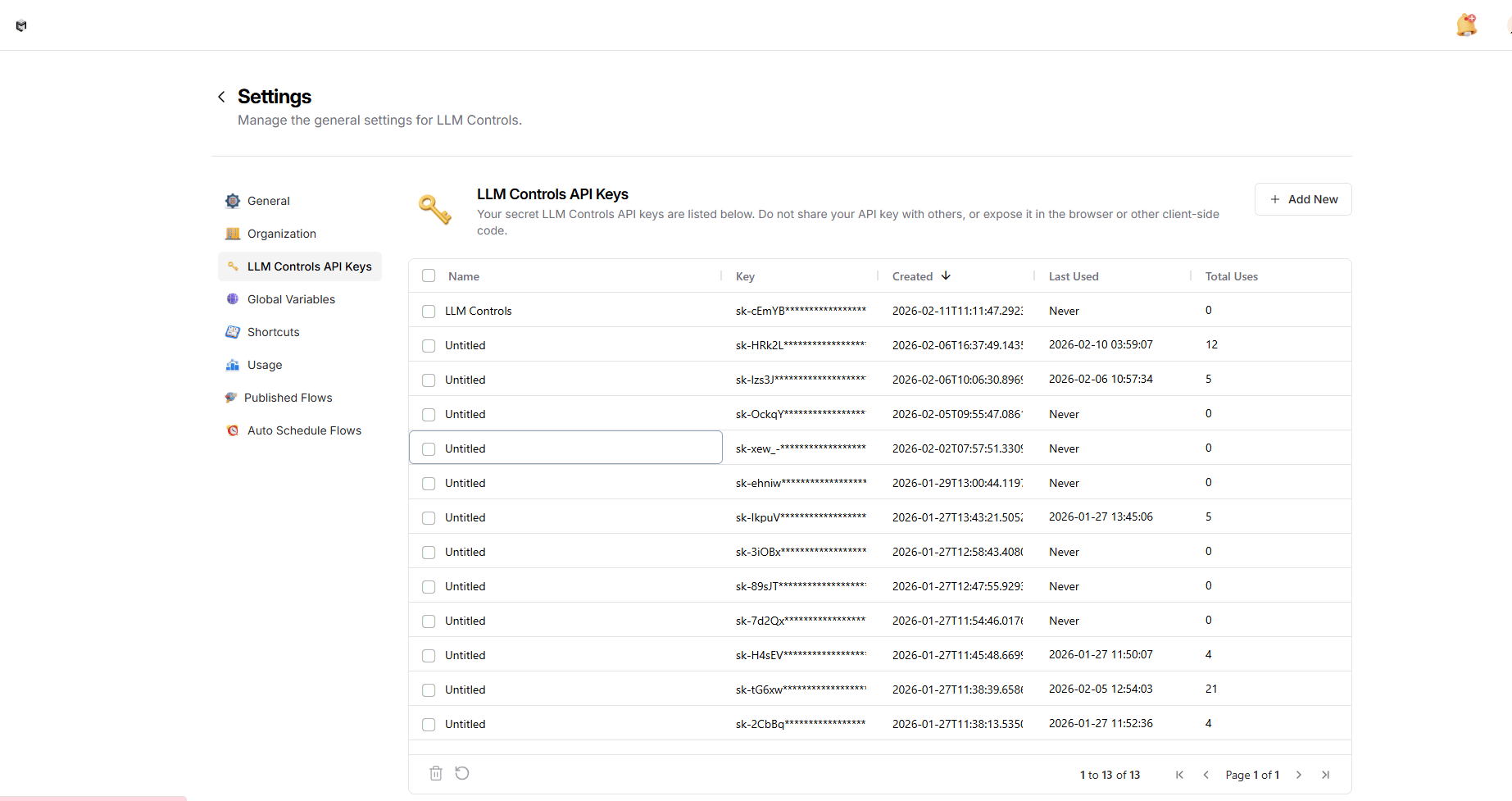 ### **Generating Your API Key**
To authenticate API requests, you need a valid LLM Controls API key. Follow the steps below to create one:
1. Go to the **Settings** panel in your LLM Controls dashboard.
2. In the left sidebar, click on **“LLM Controls API Keys”**.
3. Click the **“Add New”** button in the top-right corner.
4. Give your key a name (e.g., my\_project\_key) and save it.
5. Your new API key will appear in the list. Make sure to **copy it immediately** ,this is the only time it will be fully visible.
**Important**
Keep your API key secure. Do not expose it in frontend code or share it publicly. Use environment variables or server-side storage to manage keys safely. Once created, you can use this key in your API requests by setting it as the x-api-key header.
### How to Use the API
Depending on your preferred language, follow the example below
```python theme={null}
import requests
import os
import json
# Get API key from environment variable
api_key = os.getenv("LLMC_API_KEY")
if not api_key:
raise ValueError("LLMC_API_KEY environment variable not found. Please set your API key in the environment variables.")
url = "https://api.llmcontrols.ai/api/v1/run/9a453fad-2bb2-474f-a541-78dad816d45f?stream=false"
headers = {
"Content-Type": "application/json",
"x-api-key": os.environ["LLMC_API_KEY"] # Authentication key from environment variable
}
payload = {
"input_value": "hello world!",
"output_type": "chat",
"input_type": "chat"
}
try:
# Make the API request
response = requests.post(url, json=payload, headers=headers)
response.raise_for_status() # Raise an exception for HTTP errors
# Process the response
data = response.json()
print("Initial response:", json.dumps(data, indent=2))
except requests.exceptions.RequestException as e:
print("Error making request:", e)
except json.JSONDecodeError as e:
print("Error decoding response:", e)
```
```javascript theme={null}
// Get API key from environment variable
const apiKey = process.env.LLMC_API_KEY;
if (!apiKey) {
throw new Error("LLMC_API_KEY environment variable not found. Please set your API key in the environment variables.");
}
const url = "https://api.llmcontrols.ai/api/v1/run/9a453fad-2bb2-474f-a541-78dad816d45f?stream=false";
const headers = {
"Content-Type": "application/json",
"x-api-key": process.env.LLMC_API_KEY // Authentication key from environment variable
};
const payload = {
"input_value": "hello world!",
"output_type": "chat",
"input_type": "chat"
};
fetch(url, {
method: "POST",
headers: headers,
body: JSON.stringify(payload)
})
.then(response => response.json())
.then(data => {
console.log("Initial response:", data);
})
.catch(error => console.error("Error:", error));
```
```bash theme={null}
curl --request POST \
--url 'https://api.llmcontrols.ai/api/v1/run/9a453fad-2bb2-474f-a541-78dad816d45f?stream=false' \
--header 'Content-Type: application/json' \
--header "x-api-key: $LLMC_API_KEY" \
--data '{
"input_value": "hello world!",
"output_type": "chat",
"input_type": "chat"
}'
```
## Temporary Overrides
Each flow has customizable input parameters that you can override:
* These input fields are part of the payload (e.g. input\_value)
* You can override them via the API or directly through the UI
* To add more override options, add input boxes in the UI and connect them to relevant components
Overrides are not persistent, but they are applied to that particular API run.
## **Execution Modes: Static vs. Polling**
LLM Controls lets you run flows in two modes based on your needs: **Static (synchronous)** or **Polling (asynchronous)**. You can control this using the sync query parameter in the URL.
### **Overview**
| **Mode** | **Query Param** | **Use Case** | **Simplicity** | **Suitable For Complex Workflow** |
| :---------- | :-------------- | :----------------------------------- | :------------- | :-------------------------------- |
| **Static** | stream=false | Short flows, real-time responses | Yes | No |
| **Polling** | sync=false | Long-running flows, background tasks | No | Yes |
### **Static Mode (stream=false)**
In static mode, the API **waits for the full result** before returning the response.
**When to use:**
* Short or fast-executing flows
* Real-time user interaction (e,.g. chat widgets)
**Example Request:**
```text theme={null}
POST https://api.llmcontrols.ai/api/v1/run/YOUR_FLOW_ID?stream=false
Content-Type: application/json
x-api-key: YOUR_API_KEY
{
"input_value": "your message", // For chat inputs
"input_type": "chat", // or "text" based on input type
"output_type": "chat", // or "text" based on output type
"tweaks": { // Optional tweaks object
"component_id": {
"parameter": "value"
}
}
}
```
**Example Response:**
```text theme={null}
{
"result": "Here's the response...",
// Additional response data based on your flow's output
}
```
### **Polling Mode (sync=false)**
In polling mode, the API returns immediately with a task\_id and task\_url. You must poll this URL to retrieve the final result once it's ready.
**When to use:**
* Long-running flows
* Flows that perform multi-step background operations
* When using external data sources or embeddings
**Initial Request:**
```text theme={null}
POST https://api.llmcontrols.ai/api/v1/run/YOUR_FLOW_ID?sync=false
Content-Type: application/json
x-api-key: YOUR_API_KEY
{
"input_value": "your message", // For chat inputs
"input_type": "chat", // or "text" based on input type
"output_type": "chat", // or "text" based on output type
"tweaks": { // Optional tweaks object
"component_id": {
"parameter": "value"
}
}
}
```
**Initial Response:**
```text theme={null}
{
"task_id": "abc123",
"message": "Task started. Check task_url for updates.",
"task_url": "https://api.llmcontrols.ai/api/v1/task/abc123"
}
```
**Polling Request:**
```text theme={null}
GET https://api.llmcontrols.ai/api/v1/task/abc123
x-api-key: YOUR_API_KEY
```
**Polling Response:**
```text theme={null}
{
"status": "COMPLETED", // or "PENDING", "FAILED"
"result": {
// Flow output data
}
}
```
### **Best Practices**
* Use **static mode** for user-facing interactions.
* Use **polling mode** when a flow takes more than 10 seconds.
* Always check status in polling responses (PENDING, RUNNING, COMPLETED, FAILED).
### Embed into Site
You can embed your flow as a chat widget or a full-screen application.
#### Features:
* Supports two-way communication between frontend and backend
* Can be embedded in HTML, React, or other frontend frameworks
* Full control over the input/output elements
* Styling customization available (light/dark themes, widget position)
#### Usage Example:
```text theme={null}
```
### **Generating Your API Key**
To authenticate API requests, you need a valid LLM Controls API key. Follow the steps below to create one:
1. Go to the **Settings** panel in your LLM Controls dashboard.
2. In the left sidebar, click on **“LLM Controls API Keys”**.
3. Click the **“Add New”** button in the top-right corner.
4. Give your key a name (e.g., my\_project\_key) and save it.
5. Your new API key will appear in the list. Make sure to **copy it immediately** ,this is the only time it will be fully visible.
**Important**
Keep your API key secure. Do not expose it in frontend code or share it publicly. Use environment variables or server-side storage to manage keys safely. Once created, you can use this key in your API requests by setting it as the x-api-key header.
### How to Use the API
Depending on your preferred language, follow the example below
```python theme={null}
import requests
import os
import json
# Get API key from environment variable
api_key = os.getenv("LLMC_API_KEY")
if not api_key:
raise ValueError("LLMC_API_KEY environment variable not found. Please set your API key in the environment variables.")
url = "https://api.llmcontrols.ai/api/v1/run/9a453fad-2bb2-474f-a541-78dad816d45f?stream=false"
headers = {
"Content-Type": "application/json",
"x-api-key": os.environ["LLMC_API_KEY"] # Authentication key from environment variable
}
payload = {
"input_value": "hello world!",
"output_type": "chat",
"input_type": "chat"
}
try:
# Make the API request
response = requests.post(url, json=payload, headers=headers)
response.raise_for_status() # Raise an exception for HTTP errors
# Process the response
data = response.json()
print("Initial response:", json.dumps(data, indent=2))
except requests.exceptions.RequestException as e:
print("Error making request:", e)
except json.JSONDecodeError as e:
print("Error decoding response:", e)
```
```javascript theme={null}
// Get API key from environment variable
const apiKey = process.env.LLMC_API_KEY;
if (!apiKey) {
throw new Error("LLMC_API_KEY environment variable not found. Please set your API key in the environment variables.");
}
const url = "https://api.llmcontrols.ai/api/v1/run/9a453fad-2bb2-474f-a541-78dad816d45f?stream=false";
const headers = {
"Content-Type": "application/json",
"x-api-key": process.env.LLMC_API_KEY // Authentication key from environment variable
};
const payload = {
"input_value": "hello world!",
"output_type": "chat",
"input_type": "chat"
};
fetch(url, {
method: "POST",
headers: headers,
body: JSON.stringify(payload)
})
.then(response => response.json())
.then(data => {
console.log("Initial response:", data);
})
.catch(error => console.error("Error:", error));
```
```bash theme={null}
curl --request POST \
--url 'https://api.llmcontrols.ai/api/v1/run/9a453fad-2bb2-474f-a541-78dad816d45f?stream=false' \
--header 'Content-Type: application/json' \
--header "x-api-key: $LLMC_API_KEY" \
--data '{
"input_value": "hello world!",
"output_type": "chat",
"input_type": "chat"
}'
```
## Temporary Overrides
Each flow has customizable input parameters that you can override:
* These input fields are part of the payload (e.g. input\_value)
* You can override them via the API or directly through the UI
* To add more override options, add input boxes in the UI and connect them to relevant components
Overrides are not persistent, but they are applied to that particular API run.
## **Execution Modes: Static vs. Polling**
LLM Controls lets you run flows in two modes based on your needs: **Static (synchronous)** or **Polling (asynchronous)**. You can control this using the sync query parameter in the URL.
### **Overview**
| **Mode** | **Query Param** | **Use Case** | **Simplicity** | **Suitable For Complex Workflow** |
| :---------- | :-------------- | :----------------------------------- | :------------- | :-------------------------------- |
| **Static** | stream=false | Short flows, real-time responses | Yes | No |
| **Polling** | sync=false | Long-running flows, background tasks | No | Yes |
### **Static Mode (stream=false)**
In static mode, the API **waits for the full result** before returning the response.
**When to use:**
* Short or fast-executing flows
* Real-time user interaction (e,.g. chat widgets)
**Example Request:**
```text theme={null}
POST https://api.llmcontrols.ai/api/v1/run/YOUR_FLOW_ID?stream=false
Content-Type: application/json
x-api-key: YOUR_API_KEY
{
"input_value": "your message", // For chat inputs
"input_type": "chat", // or "text" based on input type
"output_type": "chat", // or "text" based on output type
"tweaks": { // Optional tweaks object
"component_id": {
"parameter": "value"
}
}
}
```
**Example Response:**
```text theme={null}
{
"result": "Here's the response...",
// Additional response data based on your flow's output
}
```
### **Polling Mode (sync=false)**
In polling mode, the API returns immediately with a task\_id and task\_url. You must poll this URL to retrieve the final result once it's ready.
**When to use:**
* Long-running flows
* Flows that perform multi-step background operations
* When using external data sources or embeddings
**Initial Request:**
```text theme={null}
POST https://api.llmcontrols.ai/api/v1/run/YOUR_FLOW_ID?sync=false
Content-Type: application/json
x-api-key: YOUR_API_KEY
{
"input_value": "your message", // For chat inputs
"input_type": "chat", // or "text" based on input type
"output_type": "chat", // or "text" based on output type
"tweaks": { // Optional tweaks object
"component_id": {
"parameter": "value"
}
}
}
```
**Initial Response:**
```text theme={null}
{
"task_id": "abc123",
"message": "Task started. Check task_url for updates.",
"task_url": "https://api.llmcontrols.ai/api/v1/task/abc123"
}
```
**Polling Request:**
```text theme={null}
GET https://api.llmcontrols.ai/api/v1/task/abc123
x-api-key: YOUR_API_KEY
```
**Polling Response:**
```text theme={null}
{
"status": "COMPLETED", // or "PENDING", "FAILED"
"result": {
// Flow output data
}
}
```
### **Best Practices**
* Use **static mode** for user-facing interactions.
* Use **polling mode** when a flow takes more than 10 seconds.
* Always check status in polling responses (PENDING, RUNNING, COMPLETED, FAILED).
### Embed into Site
You can embed your flow as a chat widget or a full-screen application.
#### Features:
* Supports two-way communication between frontend and backend
* Can be embedded in HTML, React, or other frontend frameworks
* Full control over the input/output elements
* Styling customization available (light/dark themes, widget position)
#### Usage Example:
```text theme={null}
```