> ## Documentation Index
> Fetch the complete documentation index at: https://docs.llmcontrols.ai/llms.txt
> Use this file to discover all available pages before exploring further.
# Quickstart
Get started with LLM Controls by loading a template flow, running it, and then serving it at the /run API endpoint.
## **Prerequisites**[****](https://docs.langflow.org/get-started-quickstart#prerequisites)
* [An OpenAI API key](https://platform.openai.com/api-keys)
## **Run the Simple Agent template flow**[****](https://docs.langflow.org/get-started-quickstart#run-the-simple-agent-template-flow)
1. In LLM Controls, click **New Flow**, and then select the **Simple Agent** template.
.png?fit=max&auto=format&n=9PuWEwunOBJ8KxNm&q=85&s=da2de5dc1ce82d8e0d9d9a0742947a9f) The Simple Agent flow consists of an Agent component connected to [Chat I/O components](/Components/Inputsandoutputs), a [Calculator component](https://docs.llmcontrols.ai/Components/Tools#calculator-tool), and a [URL component](https://docs.llmcontrols.ai/Components/Data#url). When you run this flow, you submit a query to the agent through the Chat Input component, the agent uses the Calculator and URL tools to generate a response, and then returns the response through the Chat Output component.
Many components can be tools for agents, including **MCP.** The agent decides which tools to call based on the context of a given query.
2. In the **Agent** component's settings, in the **OpenAI API Key** field, enter your OpenAI API key. This guide uses an OpenAI model for demonstration purposes. If you want to use a different provider, change the **Model Provider** field, and then provide credentials for your selected provider.
Optionally, you can click **Globe** to store the key in an LLM Controls global variable.
3. To run the flow, click **Playground**.
4. To test the Calculator tool, ask the agent a simple math question, such as `I want to add 4 and 4.` To help you test and evaluate your flows, the Playground shows the agent's reasoning process as it analyzes the prompt, selects a tool, and then uses the tool to generate a response. In this case, a math question causes the agent to select the Calculator tool and use an action like `evaluate_expression`.
The Simple Agent flow consists of an Agent component connected to [Chat I/O components](/Components/Inputsandoutputs), a [Calculator component](https://docs.llmcontrols.ai/Components/Tools#calculator-tool), and a [URL component](https://docs.llmcontrols.ai/Components/Data#url). When you run this flow, you submit a query to the agent through the Chat Input component, the agent uses the Calculator and URL tools to generate a response, and then returns the response through the Chat Output component.
Many components can be tools for agents, including **MCP.** The agent decides which tools to call based on the context of a given query.
2. In the **Agent** component's settings, in the **OpenAI API Key** field, enter your OpenAI API key. This guide uses an OpenAI model for demonstration purposes. If you want to use a different provider, change the **Model Provider** field, and then provide credentials for your selected provider.
Optionally, you can click **Globe** to store the key in an LLM Controls global variable.
3. To run the flow, click **Playground**.
4. To test the Calculator tool, ask the agent a simple math question, such as `I want to add 4 and 4.` To help you test and evaluate your flows, the Playground shows the agent's reasoning process as it analyzes the prompt, selects a tool, and then uses the tool to generate a response. In this case, a math question causes the agent to select the Calculator tool and use an action like `evaluate_expression`.
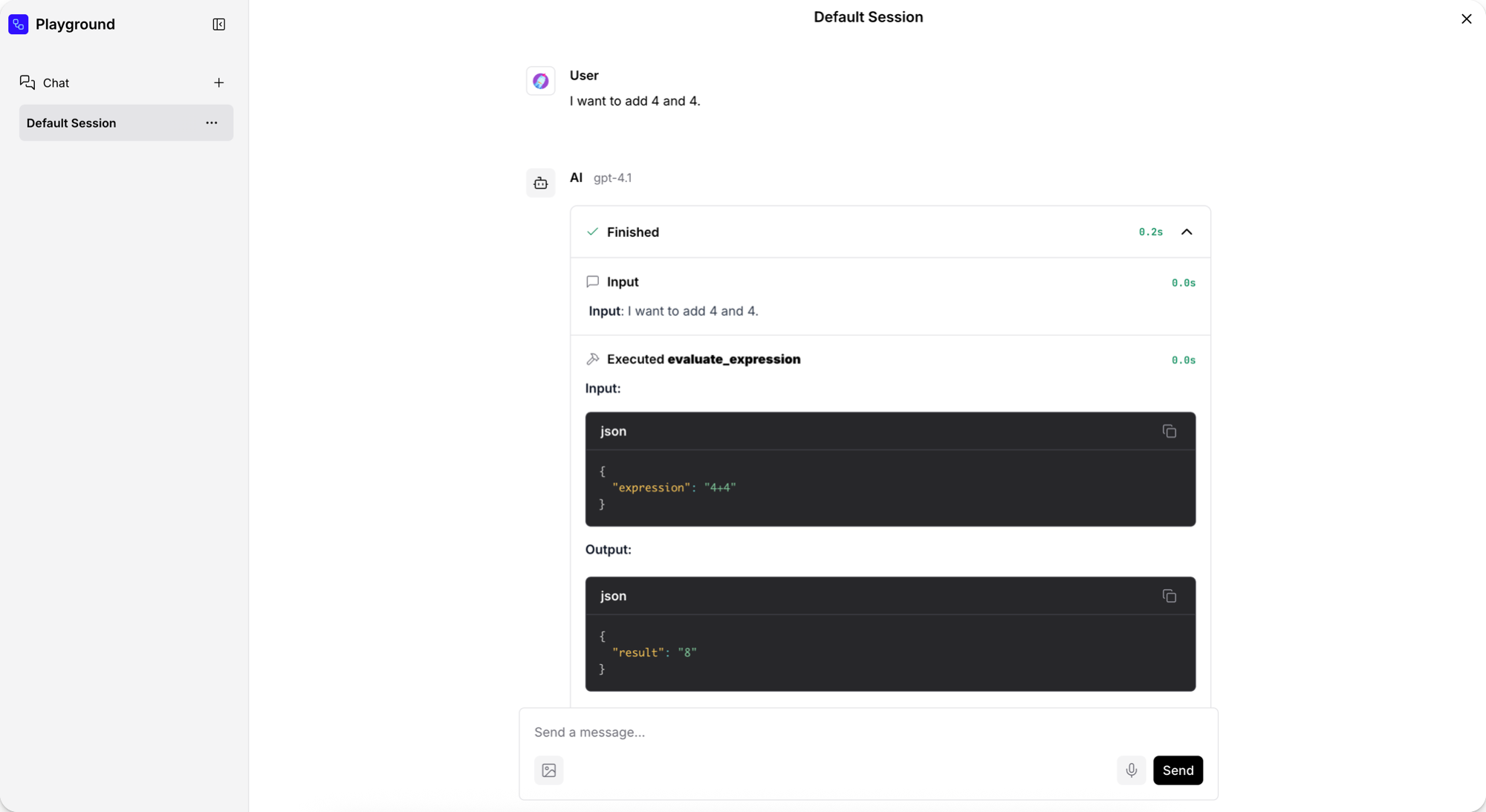 5. To test the URL tool, ask the agent about current events. For this request, the agent selects the URL tool's `fetch_content` action, and then returns a summary of current news headlines.
6. When you are done testing the flow, click **Close**.
Now that you've run your first flow, try these next steps:
* Edit your **Simple Agent** flow by attaching different tools or adding more components to the flow.
* Build your own flows from scratch or by modifying other template flows.
* Integrate flows into your applications, as explained in [Run your flows from external applications](https://docs.llmcontrols.ai/Getstarted/quickstart#run-your-flows-from-external-applications%E2%80%8B).
Optionally, stop here if you just want to create more flows within LLM Controls.
If you want to learn how LLM Controls integrates into external applications, read on.
## **Run your flows from external applications**[****](https://docs.langflow.org/get-started-quickstart#run-your-flows-from-external-applications)
LLM Controls is an application development platform, but it's also a runtime you can call through an API with Python, JavaScript, or HTTP.
LLM Controls provides code snippets to help you get started with the LLM Controls API
1. To access the API code for any flow in LLM Controls, open the desired flow and click on the **"Publish"** button located at the top-right corner of the screen. A dropdown will appear with three options: **API access**, **Embed into site**, and **Shareable Playground**.
```
import requests
import os
import json
# Get API key from environment variable
api_key = os.getenv("LLMC_API_KEY")
if not api_key:
raise ValueError("LLMC_API_KEY environment variable not found. Please set your API key in the environment variables.")
url = "https://api.llmcontrols.ai/api/v1/run/9a453fad-2bb2-474f-a541-78dad816d45f?stream=false"
headers = {
"Content-Type": "application/json",
"x-api-key": os.environ["LLMC_API_KEY"] # Authentication key from environment variable
}
payload = {
"input_value": "hello world!",
"output_type": "chat",
"input_type": "chat"
}
try:
# Make the API request
response = requests.post(url, json=payload, headers=headers)
response.raise_for_status() # Raise an exception for HTTP errors
# Process the response
data = response.json()
print("Initial response:", json.dumps(data, indent=2))
except requests.exceptions.RequestException as e:
print("Error making request:", e)
except json.JSONDecodeError as e:
print("Error decoding response:", e)
```
```
// Get API key from environment variable
const apiKey = process.env.LLMC_API_KEY;
if (!apiKey) {
throw new Error("LLMC_API_KEY environment variable not found. Please set your API key in the environment variables.");
}
const url = "https://api.llmcontrols.ai/api/v1/run/9a453fad-2bb2-474f-a541-78dad816d45f?stream=false";
const headers = {
"Content-Type": "application/json",
"x-api-key": process.env.LLMC_API_KEY // Authentication key from environment variable
};
const payload = {
"input_value": "hello world!",
"output_type": "chat",
"input_type": "chat"
};
fetch(url, {
method: "POST",
headers: headers,
body: JSON.stringify(payload)
})
.then(response => response.json())
.then(data => {
console.log("Initial response:", data);
})
.catch(error => console.error("Error:", error));
```
```
# Get API key from environment variable
if [ -z "$LLMC_API_KEY" ]; then
echo "Error: LLMC_API_KEY environment variable not found. Please set your API key in the environment variables."
fi
curl --request POST \
--url 'https://api.llmcontrols.ai/api/v1/run/9a453fad-2bb2-474f-a541-78dad816d45f?stream=false' \
--header 'Content-Type: application/json' \
--header "x-api-key: $LLMC_API_KEY" \
--data '{
"input_value": "hello world!",
"output_type": "chat",
"input_type": "chat"
}'
```
2. Click on **API access** to open a code snippet window that provides you with ready-to-use code in multiple languages (Python, JavaScript, cURL). The default code in the API access pane constructs a request with the LLM Controls server URL, headers, and a payload of request data. The code snippets automatically include the LLMC\_SERVER\_ADDRESS and FLOW\_ID values for the flow.
3. If you're using the cloud version, make sure to create an API key in your **Settings > LLM Controls API** tab and set it as an environment variable (LLMC\_API\_KEY) in your development environment before making requests.
```
{
"outputs": [
{
"inputs": {
"input_value": "I want to add 4 and 4"
},
"outputs": [
{
"results": {
"message": {
"text_key": "text",
"data": {
"text": "I'll help you add 4 and 4. Let me use the calculator tool to perform this calculation.\n\nUsing Calculator tool\n\nThe result of 4 + 4 is 8."
},
"timestamp": "2024-01-15T10:30:45.123Z",
"flow_id": "9a453fad-2bb2-474f-a541-78dad816d45f",
"session_id": "session_123",
"sender": "AI",
"sender_name": "Assistant"
}
},
"artifacts": {},
"outputs": {},
"logs": {},
"messages": [],
"timedelta": 2.45,
"duration": "2.45s",
"component_display_name": "Chat Output",
"component_id": "ChatOutput-xyz123",
"used_frozen_result": false
}
]
}
],
"session_id": "session_123"
}
```
In a production application, you probably want to select parts of this response to return to the user, store in logs, and so on. The next steps demonstrate how you can extract data from an LLM Controls API response to use in your application.
### **Extract data from the response**[****](https://docs.langflow.org/get-started-quickstart#extract-data-from-the-response)
The following example builds on the API pane's example code to create a question-and-answer chat in your terminal that stores the Agent's previous answer.
1. Incorporate your **Simple Agent** flow's `/run` snippet into the following script. This script runs a question-and-answer chat in your terminal and stores the Agent's previous answer so you can compare it.
```
import requests
import os
import json
# Get API key from environment variable
api_key = os.getenv("LLMC_API_KEY")
if not api_key:
raise ValueError("LLMC_API_KEY environment variable not found. Please set your API key in the environment variables.")
url = "https://api.llmcontrols.ai/api/v1/run/9a453fad-2bb2-474f-a541-78dad816d45f?stream=false"
headers = {
"Content-Type": "application/json",
"x-api-key": os.environ["LLMC_API_KEY"] # Authentication key from environment variable
}
payload = {
"input_value": "hello world!",
"output_type": "chat",
"input_type": "chat"
}
try:
# Make the API request
response = requests.post(url, json=payload, headers=headers)
response.raise_for_status() # Raise an exception for HTTP errors
# Process the response
data = response.json()
print("Initial response:", json.dumps(data, indent=2))
except requests.exceptions.RequestException as e:
print("Error making request:", e)
except json.JSONDecodeError as e:
print("Error decoding response:", e)
def extract_message(data):
try:
return data["outputs"][0]["outputs"][0]["outputs"]["message"]["message"]
except (KeyError, IndexError):
return None
# Store the previous answer from ask_agent response
previous_answer = None
# the terminal chat
while True:
# Get user input
print("\nAsk the agent anything, such as 'What is 15 * 7?' or 'What is the capital of France?')")
print("Type 'quit' to exit or 'compare' to see the previous answer")
user_question = input("Your question: ")
if user_question.lower() == 'quit':
break
elif user_question.lower() == 'compare':
if previous_answer:
print(f"\nPrevious answer was: {previous_answer}")
else:
print("\nNo previous answer to compare with!")
continue
# Get and display the answer
result = ask_agent(user_question)
print(f"\nAgent's answer: {result}")
# Store the answer for comparison
previous_answer = result
```
```
// Get API key from environment variable
const apiKey = process.env.LLMC_API_KEY;
if (!apiKey) {
throw new Error("LLMC_API_KEY environment variable not found. Please set your API key in the environment variables.");
}
const url = "https://api.llmcontrols.ai/api/v1/run/9a453fad-2bb2-474f-a541-78dad816d45f?stream=false";
const headers = {
"Content-Type": "application/json",
"x-api-key": process.env.LLMC_API_KEY // Authentication key from environment variable
};
const payload = {
"input_value": "hello world!",
"output_type": "chat",
"input_type": "chat"
};
fetch(url, {
method: "POST",
headers: headers,
body: JSON.stringify(payload)
})
.then(response => response.json())
.then(data => {
console.log("Initial response:", data);
})
.catch(error => console.error("Error:", error));
// the terminal chat
async function startChat() {
console.log("\nAsk the agent anything, such as 'What is 15 * 7?' or 'What is the capital of France?'");
console.log("Type 'quit' to exit or 'compare' to see the previous answer");
const askQuestion = () => {
rl.question('\nYour question: ', async (userQuestion) => {
if (userQuestion.toLowerCase() === 'quit') {
rl.close();
return;
}
if (userQuestion.toLowerCase() === 'compare') {
if (previousAnswer) {
console.log(`\nPrevious answer was: ${previousAnswer}`);
} else {
console.log("\nNo previous answer to compare with!");
}
askQuestion();
return;
}
const result = await askAgent(userQuestion);
console.log(`\nAgent's answer: ${result}`);
previousAnswer = result;
askQuestion();
});
};
askQuestion();
}
startChat();
```
2. To view the Agent's previous answer, type `compare`. To close the terminal chat, type `exit`.
### Use tweaks to apply temporary overrides to a flow run
You can include tweaks with your requests to temporarily modify flow parameters. Tweaks are added to the API request and temporarily change component parameters within your flow. Tweaks override the flow's components' settings for a single run only. They don't modify the underlying flow configuration or persist between runs.
Tweaks are added to the /run endpoint's payload. To assist with formatting, you can define tweaks in the LLM Controls Tweaks pane before copying the code snippet.
1. To open the Tweaks pane, from the API access pane, click Tweaks.
2. In the Tweaks pane, select the parameter you want to modify in your next request. Enabling parameters in the Tweaks pane adds them to the example code snippet.
3. For example, to change the model provider from OpenAI to Groq and include your Groq API key with the request, select the relevant parameters in the Tweaks pane, and the code snippet will be automatically updated.
5. To test the URL tool, ask the agent about current events. For this request, the agent selects the URL tool's `fetch_content` action, and then returns a summary of current news headlines.
6. When you are done testing the flow, click **Close**.
Now that you've run your first flow, try these next steps:
* Edit your **Simple Agent** flow by attaching different tools or adding more components to the flow.
* Build your own flows from scratch or by modifying other template flows.
* Integrate flows into your applications, as explained in [Run your flows from external applications](https://docs.llmcontrols.ai/Getstarted/quickstart#run-your-flows-from-external-applications%E2%80%8B).
Optionally, stop here if you just want to create more flows within LLM Controls.
If you want to learn how LLM Controls integrates into external applications, read on.
## **Run your flows from external applications**[****](https://docs.langflow.org/get-started-quickstart#run-your-flows-from-external-applications)
LLM Controls is an application development platform, but it's also a runtime you can call through an API with Python, JavaScript, or HTTP.
LLM Controls provides code snippets to help you get started with the LLM Controls API
1. To access the API code for any flow in LLM Controls, open the desired flow and click on the **"Publish"** button located at the top-right corner of the screen. A dropdown will appear with three options: **API access**, **Embed into site**, and **Shareable Playground**.
```
import requests
import os
import json
# Get API key from environment variable
api_key = os.getenv("LLMC_API_KEY")
if not api_key:
raise ValueError("LLMC_API_KEY environment variable not found. Please set your API key in the environment variables.")
url = "https://api.llmcontrols.ai/api/v1/run/9a453fad-2bb2-474f-a541-78dad816d45f?stream=false"
headers = {
"Content-Type": "application/json",
"x-api-key": os.environ["LLMC_API_KEY"] # Authentication key from environment variable
}
payload = {
"input_value": "hello world!",
"output_type": "chat",
"input_type": "chat"
}
try:
# Make the API request
response = requests.post(url, json=payload, headers=headers)
response.raise_for_status() # Raise an exception for HTTP errors
# Process the response
data = response.json()
print("Initial response:", json.dumps(data, indent=2))
except requests.exceptions.RequestException as e:
print("Error making request:", e)
except json.JSONDecodeError as e:
print("Error decoding response:", e)
```
```
// Get API key from environment variable
const apiKey = process.env.LLMC_API_KEY;
if (!apiKey) {
throw new Error("LLMC_API_KEY environment variable not found. Please set your API key in the environment variables.");
}
const url = "https://api.llmcontrols.ai/api/v1/run/9a453fad-2bb2-474f-a541-78dad816d45f?stream=false";
const headers = {
"Content-Type": "application/json",
"x-api-key": process.env.LLMC_API_KEY // Authentication key from environment variable
};
const payload = {
"input_value": "hello world!",
"output_type": "chat",
"input_type": "chat"
};
fetch(url, {
method: "POST",
headers: headers,
body: JSON.stringify(payload)
})
.then(response => response.json())
.then(data => {
console.log("Initial response:", data);
})
.catch(error => console.error("Error:", error));
```
```
# Get API key from environment variable
if [ -z "$LLMC_API_KEY" ]; then
echo "Error: LLMC_API_KEY environment variable not found. Please set your API key in the environment variables."
fi
curl --request POST \
--url 'https://api.llmcontrols.ai/api/v1/run/9a453fad-2bb2-474f-a541-78dad816d45f?stream=false' \
--header 'Content-Type: application/json' \
--header "x-api-key: $LLMC_API_KEY" \
--data '{
"input_value": "hello world!",
"output_type": "chat",
"input_type": "chat"
}'
```
2. Click on **API access** to open a code snippet window that provides you with ready-to-use code in multiple languages (Python, JavaScript, cURL). The default code in the API access pane constructs a request with the LLM Controls server URL, headers, and a payload of request data. The code snippets automatically include the LLMC\_SERVER\_ADDRESS and FLOW\_ID values for the flow.
3. If you're using the cloud version, make sure to create an API key in your **Settings > LLM Controls API** tab and set it as an environment variable (LLMC\_API\_KEY) in your development environment before making requests.
```
{
"outputs": [
{
"inputs": {
"input_value": "I want to add 4 and 4"
},
"outputs": [
{
"results": {
"message": {
"text_key": "text",
"data": {
"text": "I'll help you add 4 and 4. Let me use the calculator tool to perform this calculation.\n\nUsing Calculator tool\n\nThe result of 4 + 4 is 8."
},
"timestamp": "2024-01-15T10:30:45.123Z",
"flow_id": "9a453fad-2bb2-474f-a541-78dad816d45f",
"session_id": "session_123",
"sender": "AI",
"sender_name": "Assistant"
}
},
"artifacts": {},
"outputs": {},
"logs": {},
"messages": [],
"timedelta": 2.45,
"duration": "2.45s",
"component_display_name": "Chat Output",
"component_id": "ChatOutput-xyz123",
"used_frozen_result": false
}
]
}
],
"session_id": "session_123"
}
```
In a production application, you probably want to select parts of this response to return to the user, store in logs, and so on. The next steps demonstrate how you can extract data from an LLM Controls API response to use in your application.
### **Extract data from the response**[****](https://docs.langflow.org/get-started-quickstart#extract-data-from-the-response)
The following example builds on the API pane's example code to create a question-and-answer chat in your terminal that stores the Agent's previous answer.
1. Incorporate your **Simple Agent** flow's `/run` snippet into the following script. This script runs a question-and-answer chat in your terminal and stores the Agent's previous answer so you can compare it.
```
import requests
import os
import json
# Get API key from environment variable
api_key = os.getenv("LLMC_API_KEY")
if not api_key:
raise ValueError("LLMC_API_KEY environment variable not found. Please set your API key in the environment variables.")
url = "https://api.llmcontrols.ai/api/v1/run/9a453fad-2bb2-474f-a541-78dad816d45f?stream=false"
headers = {
"Content-Type": "application/json",
"x-api-key": os.environ["LLMC_API_KEY"] # Authentication key from environment variable
}
payload = {
"input_value": "hello world!",
"output_type": "chat",
"input_type": "chat"
}
try:
# Make the API request
response = requests.post(url, json=payload, headers=headers)
response.raise_for_status() # Raise an exception for HTTP errors
# Process the response
data = response.json()
print("Initial response:", json.dumps(data, indent=2))
except requests.exceptions.RequestException as e:
print("Error making request:", e)
except json.JSONDecodeError as e:
print("Error decoding response:", e)
def extract_message(data):
try:
return data["outputs"][0]["outputs"][0]["outputs"]["message"]["message"]
except (KeyError, IndexError):
return None
# Store the previous answer from ask_agent response
previous_answer = None
# the terminal chat
while True:
# Get user input
print("\nAsk the agent anything, such as 'What is 15 * 7?' or 'What is the capital of France?')")
print("Type 'quit' to exit or 'compare' to see the previous answer")
user_question = input("Your question: ")
if user_question.lower() == 'quit':
break
elif user_question.lower() == 'compare':
if previous_answer:
print(f"\nPrevious answer was: {previous_answer}")
else:
print("\nNo previous answer to compare with!")
continue
# Get and display the answer
result = ask_agent(user_question)
print(f"\nAgent's answer: {result}")
# Store the answer for comparison
previous_answer = result
```
```
// Get API key from environment variable
const apiKey = process.env.LLMC_API_KEY;
if (!apiKey) {
throw new Error("LLMC_API_KEY environment variable not found. Please set your API key in the environment variables.");
}
const url = "https://api.llmcontrols.ai/api/v1/run/9a453fad-2bb2-474f-a541-78dad816d45f?stream=false";
const headers = {
"Content-Type": "application/json",
"x-api-key": process.env.LLMC_API_KEY // Authentication key from environment variable
};
const payload = {
"input_value": "hello world!",
"output_type": "chat",
"input_type": "chat"
};
fetch(url, {
method: "POST",
headers: headers,
body: JSON.stringify(payload)
})
.then(response => response.json())
.then(data => {
console.log("Initial response:", data);
})
.catch(error => console.error("Error:", error));
// the terminal chat
async function startChat() {
console.log("\nAsk the agent anything, such as 'What is 15 * 7?' or 'What is the capital of France?'");
console.log("Type 'quit' to exit or 'compare' to see the previous answer");
const askQuestion = () => {
rl.question('\nYour question: ', async (userQuestion) => {
if (userQuestion.toLowerCase() === 'quit') {
rl.close();
return;
}
if (userQuestion.toLowerCase() === 'compare') {
if (previousAnswer) {
console.log(`\nPrevious answer was: ${previousAnswer}`);
} else {
console.log("\nNo previous answer to compare with!");
}
askQuestion();
return;
}
const result = await askAgent(userQuestion);
console.log(`\nAgent's answer: ${result}`);
previousAnswer = result;
askQuestion();
});
};
askQuestion();
}
startChat();
```
2. To view the Agent's previous answer, type `compare`. To close the terminal chat, type `exit`.
### Use tweaks to apply temporary overrides to a flow run
You can include tweaks with your requests to temporarily modify flow parameters. Tweaks are added to the API request and temporarily change component parameters within your flow. Tweaks override the flow's components' settings for a single run only. They don't modify the underlying flow configuration or persist between runs.
Tweaks are added to the /run endpoint's payload. To assist with formatting, you can define tweaks in the LLM Controls Tweaks pane before copying the code snippet.
1. To open the Tweaks pane, from the API access pane, click Tweaks.
2. In the Tweaks pane, select the parameter you want to modify in your next request. Enabling parameters in the Tweaks pane adds them to the example code snippet.
3. For example, to change the model provider from OpenAI to Groq and include your Groq API key with the request, select the relevant parameters in the Tweaks pane, and the code snippet will be automatically updated.