> ## Documentation Index
> Fetch the complete documentation index at: https://docs.llmcontrols.ai/llms.txt
> Use this file to discover all available pages before exploring further.
# Connect an Astra DB MCP server to LLM Controls
Use the MCP connection component to connect LLM Controls to a Datastax Astra DB MCP server.
1. Install an LTS release of [Node.js](https://docs.npmjs.com/downloading-and-installing-node-js-and-npm).
2. Create an [OpenAI](https://platform.openai.com/) API key.
3. Create an [Astra DB Serverless (Vector) database](https://docs.datastax.com/en/astra-db-serverless/databases/create-database.html#create-vector-database), if you don't already have one.
4. Get your database's **Astra DB API endpoint** and an **Astra DB application token** with the Database Administrator role. For more information, see [Generate an application token for a database](https://docs.datastax.com/en/astra-db-serverless/administration/manage-application-tokens.html#database-token).
5. Create a Simple agent starter project if you want to follow along with this guide. Otherwise, you can use an existing flow or create a new, blank flow.
6. Remove the **URL** tool, and then replace it with an MCP connection component. The flow should look like this:
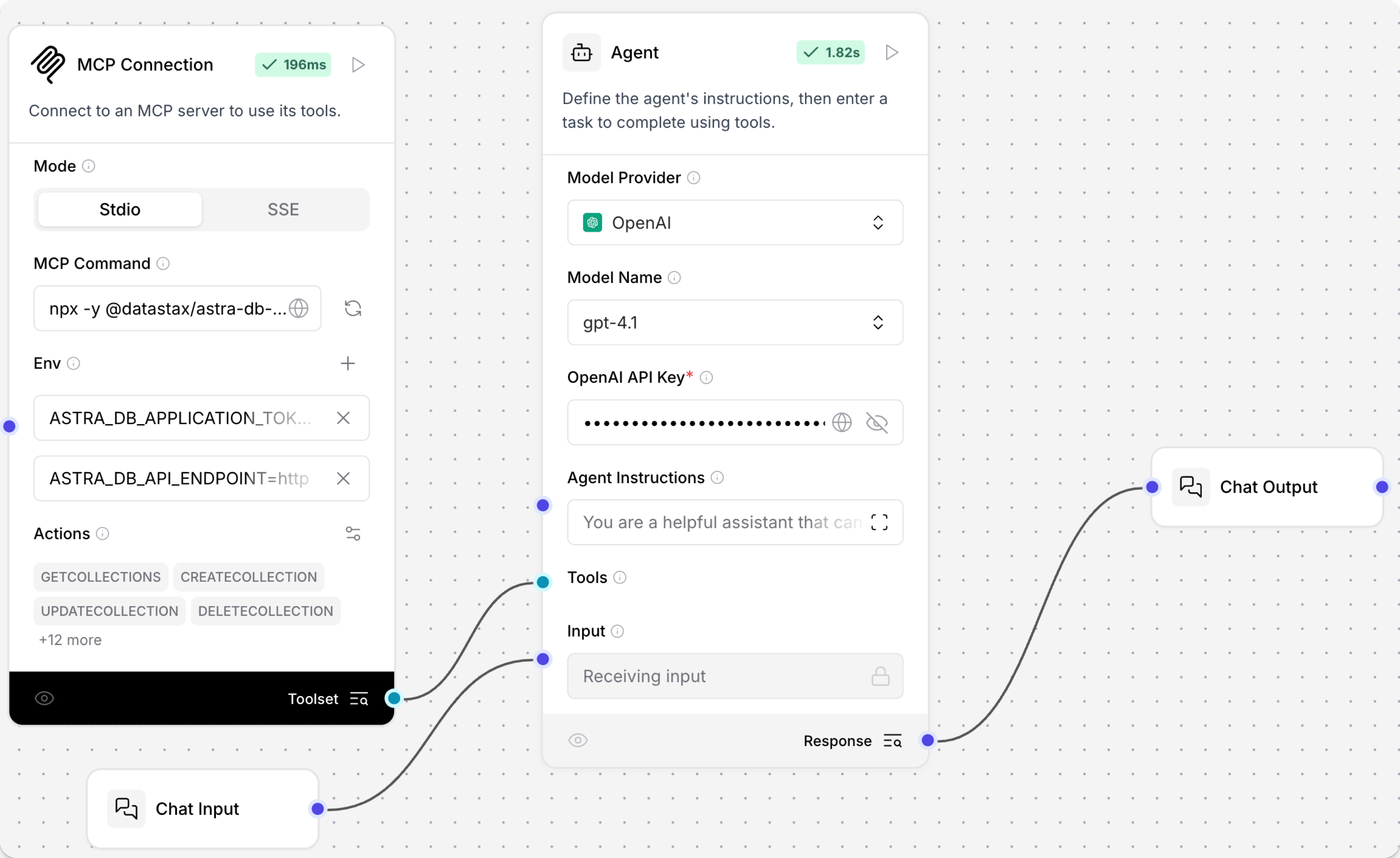 7. In the **MCP connection** component, in the **MCP server** field, add the following code to connect to an Astra DB MCP server:
8. In the **MCP connection** component, in the **Env** fields, add variables for `ASTRA_DB_APPLICATION_TOKEN` and `ASTRA_DB_API_ENDPOINT` with the values from your Astra database.
**important**
LLM Controls passes environment variables from the `.env` file to MCP, but not global variables declared in the UI. To add the values for `ASTRA_DB_APPLICATION_TOKEN` and `ASTRA_DB_API_ENDPOINT` as global variables, add them to LLM Controls' `.env` file at startup.
9. To add another variable, click **Add More**.
10. In the **Agent** component, add your **OpenAI API key**.
11. Open the **Playground**, and then ask the agent, `What collections are available?`
Since LLM Controls is connected to your Astra DB database through the MCP, the agent chooses the correct tool and connects to your database to retrieve the answer.
7. In the **MCP connection** component, in the **MCP server** field, add the following code to connect to an Astra DB MCP server:
8. In the **MCP connection** component, in the **Env** fields, add variables for `ASTRA_DB_APPLICATION_TOKEN` and `ASTRA_DB_API_ENDPOINT` with the values from your Astra database.
**important**
LLM Controls passes environment variables from the `.env` file to MCP, but not global variables declared in the UI. To add the values for `ASTRA_DB_APPLICATION_TOKEN` and `ASTRA_DB_API_ENDPOINT` as global variables, add them to LLM Controls' `.env` file at startup.
9. To add another variable, click **Add More**.
10. In the **Agent** component, add your **OpenAI API key**.
11. Open the **Playground**, and then ask the agent, `What collections are available?`
Since LLM Controls is connected to your Astra DB database through the MCP, the agent chooses the correct tool and connects to your database to retrieve the answer.