> ## Documentation Index
> Fetch the complete documentation index at: https://docs.llmcontrols.ai/llms.txt
> Use this file to discover all available pages before exploring further.
# Integrate Composio with LLM Controls
LLM Controls integrates with [Composio](https://docs.composio.dev/introduction/intro/overview) as a toolset for your **Agent** component.
Instead of juggling multiple integrations and components in your flow, connect the Composio component to an **Agent** component to use all of Composio's supported APIs and actions as **Tools** for your agent.
## **Prerequisites**[****](https://docs.langflow.org/integrations-composio#prerequisites)
* [A Composio API key](https://app.composio.dev/)
* [An OpenAI API key](https://platform.openai.com/)
* [A Gmail account](https://mail.google.com/)
## **Connect LLM Controls to a Composio tool**[****](https://docs.langflow.org/integrations-composio#connect-langflow-to-a-composio-tool)
1. In the LLM Controls **Workspace**, add an **Agent** component.
2. In the **Workspace**, add the **Composio Tools** component.
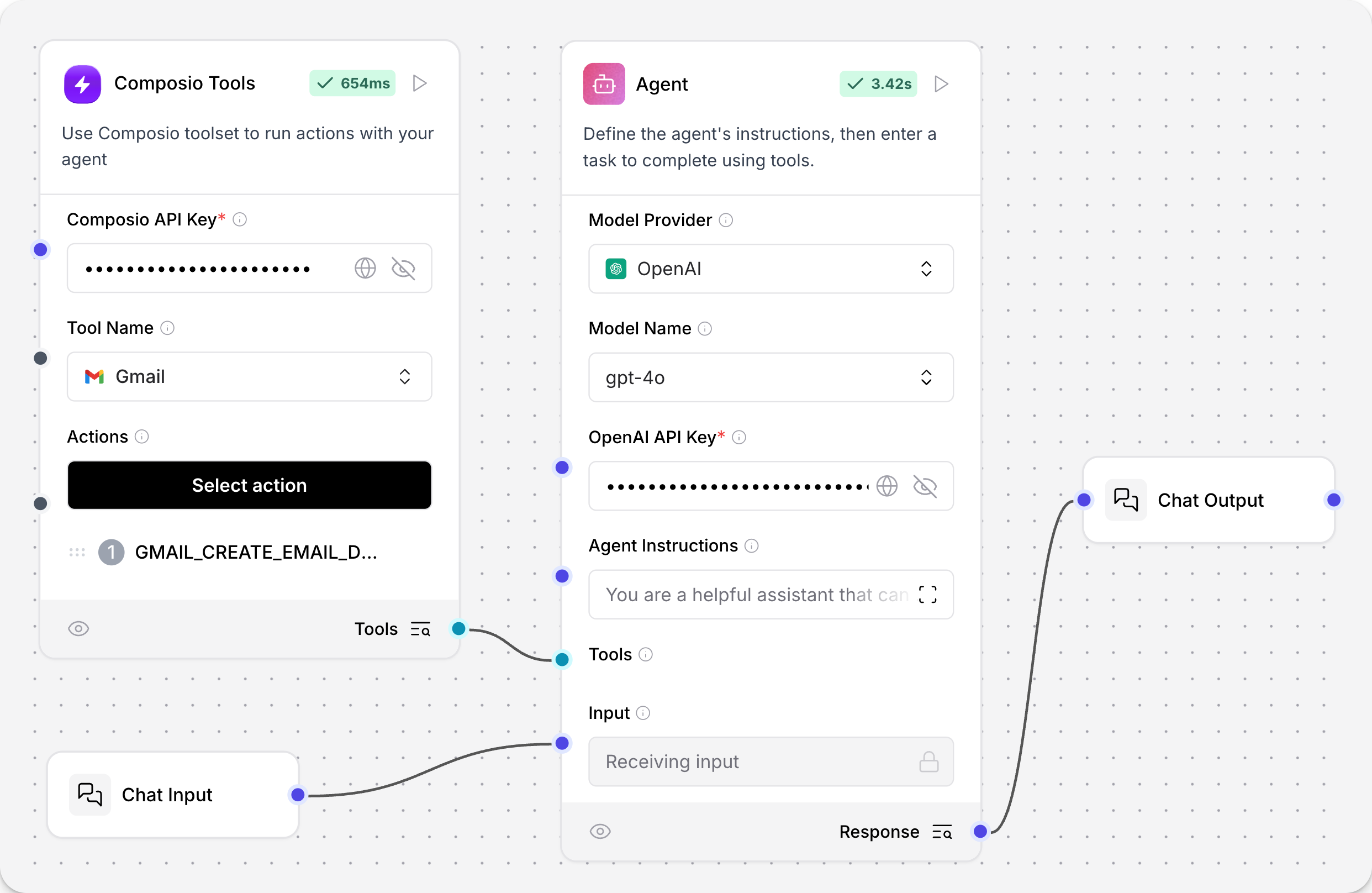
3. Connect the **Agent** component's **Tools** port to the **Composio Tools** component's **Tools** port.
4. In the **Composio API Key** field, paste your Composio API key. Alternatively, add the key as a global variable.
5. In the **Tool Name** field, select the tool you want your agent to have access to. For this example, select the **Gmail** tool, which allows your agent to control an email account with the Composio tool.
6. In the **Actions** field, select the action you want the **Agent** to take with the **Gmail** tool. The **Gmail** tool supports multiple actions, and also supports multiple actions within the same tool. For this example, select **GMAIL\_CREATE\_EMAIL\_DRAFT**. For more information, see the [Composio documentation](https://docs.composio.dev/patterns/tools/use-tools/use-specific-actions).
## **Create a Composio flow**[****](https://docs.langflow.org/integrations-composio#create-a-composio-flow)
1. In the **Workspace**, add **Chat Input** and **Chat Output** components to your flow.
2. Connect the components so they look like this.
 3. In the **OpenAI API Key** field of the **Agent** component, paste your OpenAI API key. Alternatively, add the key as a global variable.
4. To open the **Playground** pane, click **Playground**.
5. **Ask your AI:**
What tools are available to you?
**The response should be similar to:**
**GMAIL\_CREATE\_EMAIL\_DRAFT**: This tool allows me to create a draft email using Gmail's API. I can specify the recipient's email address, subject, body content, and whether the body content is HTML.
**CurrentDate-get\_current\_date**: This tool retrieves the current date and time in a specified timezone.
This confirms your **Agent** and **Composio** are communicating.
6. **Tell your AI to write a draft email.**
Create a draft email with the subject line "Greetings from Composio."
**Recipient**: "[your.email@address.com](mailto:your.email@address.com)"
**Body content**: "Hello from composio!"
Inspect the response to see how the agent used the attached tool to write an email. This example response is abbreviated.
The draft email with the subject "Greetings from Composio" and body "Hello from Composio!" has been **successfully created.**
```text theme={null}
{
"recipient_email": "your.email@address.com",
"subject": "Greetings from Composio",
"body": "Hello from composio!",
"is_html": false
}
{
"data": {
"response_data": {
"id": "r-237981011463568567",
"message": {
"id": "195dd80528171132",
"threadId": "195dd80528171132",
"labelIds": [
"DRAFT"
]
}
}
},
"error": null,
"successfull": true,
"successful": true
}
```
Inspect the response to see how the agent used the attached tool to write an email. This example response is abbreviated.
7. To confirm further, navigate to the Gmail account you authenticated with Composio. Your email is visible in **Drafts**.
You have successfully integrated your LLM Controls component with Composio. To add more tools, add another Composio component.
3. In the **OpenAI API Key** field of the **Agent** component, paste your OpenAI API key. Alternatively, add the key as a global variable.
4. To open the **Playground** pane, click **Playground**.
5. **Ask your AI:**
What tools are available to you?
**The response should be similar to:**
**GMAIL\_CREATE\_EMAIL\_DRAFT**: This tool allows me to create a draft email using Gmail's API. I can specify the recipient's email address, subject, body content, and whether the body content is HTML.
**CurrentDate-get\_current\_date**: This tool retrieves the current date and time in a specified timezone.
This confirms your **Agent** and **Composio** are communicating.
6. **Tell your AI to write a draft email.**
Create a draft email with the subject line "Greetings from Composio."
**Recipient**: "[your.email@address.com](mailto:your.email@address.com)"
**Body content**: "Hello from composio!"
Inspect the response to see how the agent used the attached tool to write an email. This example response is abbreviated.
The draft email with the subject "Greetings from Composio" and body "Hello from Composio!" has been **successfully created.**
```text theme={null}
{
"recipient_email": "your.email@address.com",
"subject": "Greetings from Composio",
"body": "Hello from composio!",
"is_html": false
}
{
"data": {
"response_data": {
"id": "r-237981011463568567",
"message": {
"id": "195dd80528171132",
"threadId": "195dd80528171132",
"labelIds": [
"DRAFT"
]
}
}
},
"error": null,
"successfull": true,
"successful": true
}
```
Inspect the response to see how the agent used the attached tool to write an email. This example response is abbreviated.
7. To confirm further, navigate to the Gmail account you authenticated with Composio. Your email is visible in **Drafts**.
You have successfully integrated your LLM Controls component with Composio. To add more tools, add another Composio component.