> ## Documentation Index
> Fetch the complete documentation index at: https://docs.llmcontrols.ai/llms.txt
> Use this file to discover all available pages before exploring further.
# Integrate Google OAuth with LLM Controls
LLM Controls integrates with [Google OAuth](https://developers.google.com/identity/protocols/oauth2) for authenticating the [Gmail loader](https://docs.llmcontrols.ai/Components/Data#gmail-loader), [Google Drive loader](https://docs.llmcontrols.ai/Components/Data#gmail-loader), and [Google Drive Search](https://docs.llmcontrols.ai/Components/Data#gmail-loader) components.
Learn how to create an OAuth app in Google Cloud, obtain the necessary credentials and access tokens, and add them to LLM Controls' Google components.
## **Create an OAuth Application in Google Cloud**
1. Navigate to the [Google Cloud Console](https://console.cloud.google.com/).
2. Click **Select a project**, and then click **New Project** to create a new project.
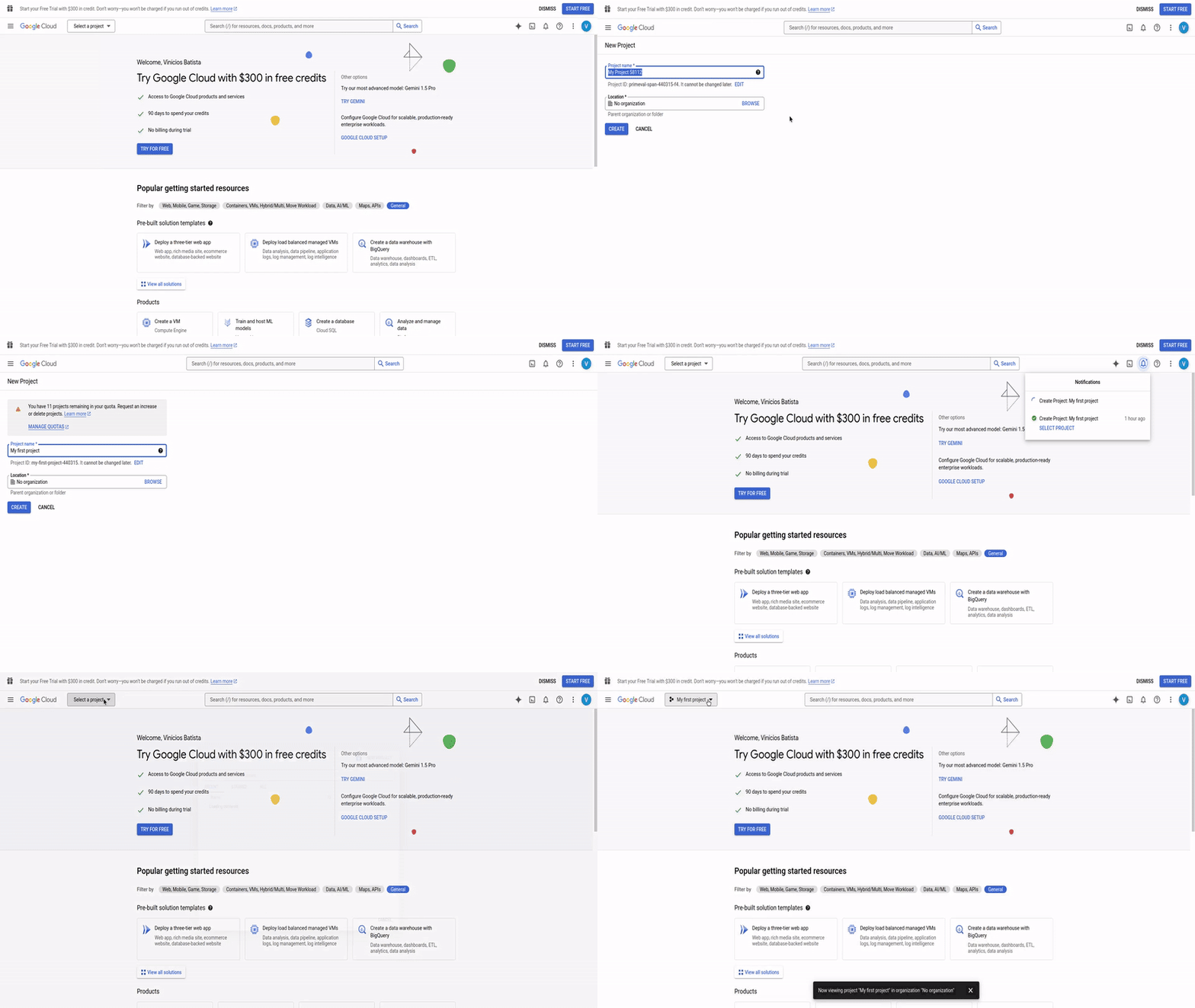 3. To enable APIs for the project, select **APIs & Services**, and then click **Library**. Enable the APIs you need for your project. For example, if your flow uses the Google Drive component, enable the Google Drive API.
4. To navigate to the OAuth consent screen, click **APIs & Services**, and then click **OAuth consent screen**.
5. Populate your OAuth consent screen with the application name, audience, and user support email. For the audience, select **External**. This creates a testing application environment that you can add users to.
6. To add users to your OAuth audience, click **Audience**. Under **Test users**, click **Add users**. Enter any email addresses you intend to use to authenticate LLM Controls with OAuth. These email addresses have access to the application while it's in a **Testing** publishing state. For more information, see the [Google documentation](https://support.google.com/cloud/answer/13461325?hl=en).
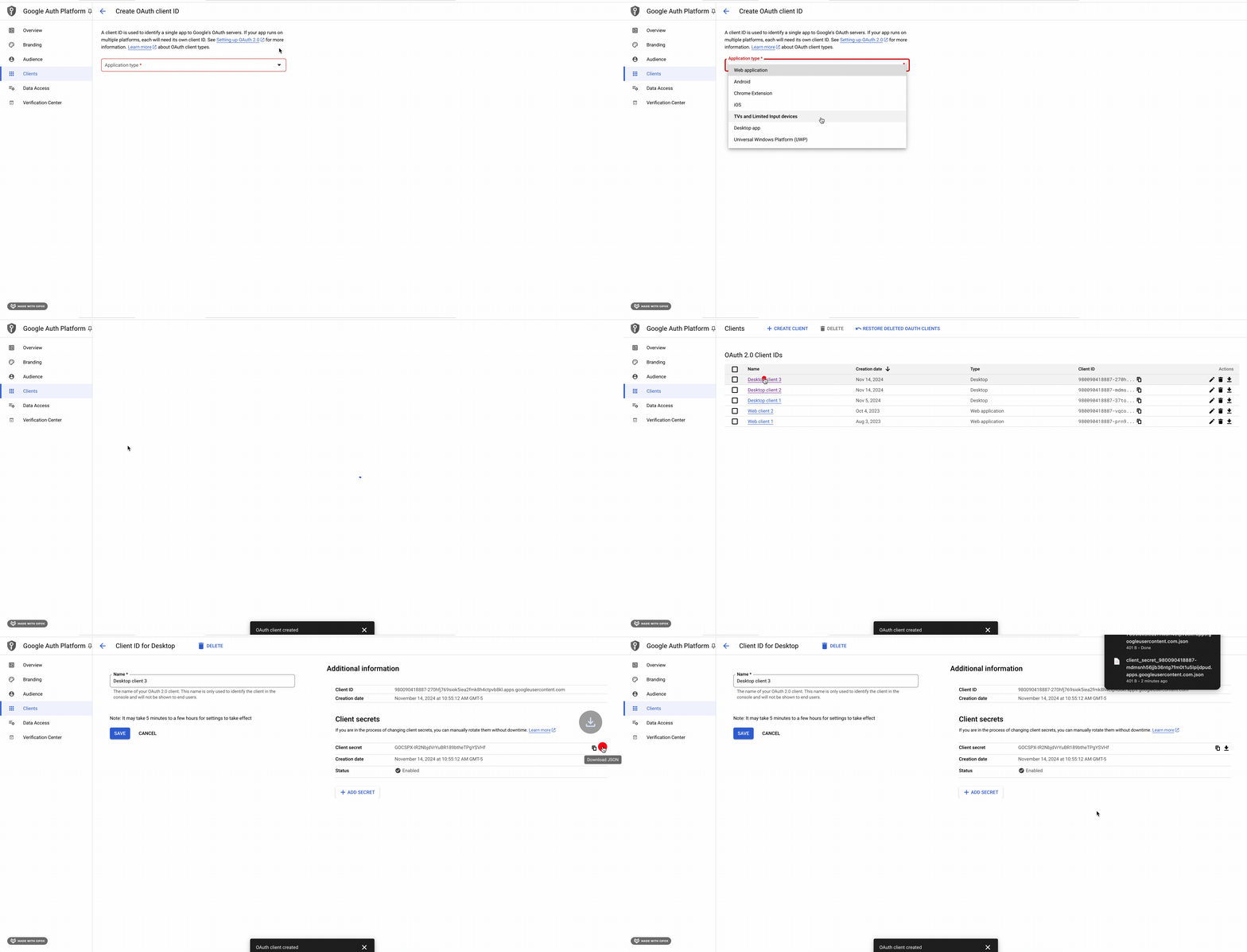
7. To create an **OAuth Client ID**, navigate to **Clients** and then click **Create Client**.
8. Choose **Desktop app** as the application type, and then name your client ID.
9. Click **Create**. A Client ID and Client Secret are created. Download the credentials as a JSON file to your local machine and save it securely.
3. To enable APIs for the project, select **APIs & Services**, and then click **Library**. Enable the APIs you need for your project. For example, if your flow uses the Google Drive component, enable the Google Drive API.
4. To navigate to the OAuth consent screen, click **APIs & Services**, and then click **OAuth consent screen**.
5. Populate your OAuth consent screen with the application name, audience, and user support email. For the audience, select **External**. This creates a testing application environment that you can add users to.
6. To add users to your OAuth audience, click **Audience**. Under **Test users**, click **Add users**. Enter any email addresses you intend to use to authenticate LLM Controls with OAuth. These email addresses have access to the application while it's in a **Testing** publishing state. For more information, see the [Google documentation](https://support.google.com/cloud/answer/13461325?hl=en).
7. To create an **OAuth Client ID**, navigate to **Clients** and then click **Create Client**.
8. Choose **Desktop app** as the application type, and then name your client ID.
9. Click **Create**. A Client ID and Client Secret are created. Download the credentials as a JSON file to your local machine and save it securely.
 ## **Retrieve Access and Refresh Tokens**
With your OAuth application configured and your credentials JSON file created, follow these steps to authenticate the LLM Controls application.
1. Create a new project in LLM Controls.
2. Add a **Google OAuth Token** component to your flow.
3. In the **Credentials File** field of the Google OAuth Token component, enter the path to your **Credentials File**, the JSON file containing the Client ID credentials you downloaded from Google in the previous steps.
4. In the **Scopes** field of the Google Oauth Token component, enter the scope required to access your resources. For example, to allow your LLM Controls application to access a user's Google Drive, the scope is `https://www.googleapis.com/auth/drive`. For more information, see the [Google documentation](https://developers.google.com/identity/protocols/oauth2/scopes).
5. To authenticate your application, in the **Google OAuth Token** component, click **Play**. A new tab opens in the browser to authenticate your application using your Google Cloud account. You must authenticate the application with the same Google account that created the OAuth credentials.
**info**
If a new tab does not open automatically, check the LLM Controls **Logs** for the Google authentication URL. Open this URL in your browser to complete the authentication.
6. After successful authentication, your LLM Controls application can request and refresh tokens. These tokens enable LLM Controls to interact with Google services on your behalf and execute your specified requests.
## **Create a flow with Google Drive loader**
For a pre-built JSON file of a flow that uses the Google Drive loader component, download the Google Drive Document Translation Example Flow JSON to your local machine.
**Example flow structure:**
```text theme={null}
Google OAuth Token → Parse Data → JSON Cleaner → Google Drive Loader → Prompt → OpenAI Model → Chat Output
```
In this example, the **Google Drive loader** component loads a text file hosted on Google Drive, translates the text to Spanish, and returns it to a chat output.
1. Download the Google Drive Document Translation Example Flow JSON to your local machine.
2. To import the downloaded JSON to LLM Controls, click **Options**, and then select **Import**.
3. In the **Credentials File** field of the Google OAuth Token component, enter the path to your **Credentials File**, the JSON file containing the Client ID credentials you downloaded from Google in the previous steps.
4. In the **Scopes** field of the Google Oauth Token component, enter the scope required to access your resources. For example, to allow your LLM Controls application to access a user's Google Drive, the scope is `https://www.googleapis.com/auth/drive`. For more information, see the [Google documentation](https://developers.google.com/identity/protocols/oauth2/scopes). The example flow includes a **Parse data** component to convert the `data` output of the Google OAuth Token component to the `text` input of the JSON Cleaner component.
5. To allow the LLM Controls component to access the document in Google Drive, copy the Google Drive `documentID` from the document's URL.
**info**
The `documentID` is located between `/d/` and `/edit` in a Google Drive document's URL. For example, in the URL `https://drive.google.com/file/d/1a2b3c4D5E6F7gHI8J9klmnopQ/edit`, the `documentID` is `1a2b3c4D5E6F7gHI8J9klmnopQ`.
6. In the Google Drive loader component, in the **Document ID** field, paste the document URL.
7. To view the translated document, open the **Playground**.
## **Google Sheets**
This component creates, reads, and writes Google Sheets using credentials from Google Authenticator. It supports operations including create, read, write, append, clear, and listing sheets, with automatic spreadsheet creation for write/append when no spreadsheet ID is provided.
### **Prerequisites**
* Google Credentials JSON (from Gmail Setup Script or Google Universal Authenticator)
### **To Use Google Sheets**
1. Paste your Google Credentials JSON (from Gmail Setup Script or Universal Authenticator)
2. Select an Operation (create, read, write, append, clear, or list\_sheets)
3. For read/write/append/clear/list\_sheets: Provide a Spreadsheet ID or URL
4. For write/append: Provide data via Input Data connection or Data to Write (JSON)
5. Optionally configure Range, Include Headers, and Value Input Option
**Inputs**
| Name | Display Name | Info |
| :-------------------- | :------------------------------------------ | :-------------------------------------------------------------------------------------------------------------------------------------- |
| credentials\_json | Google Credentials JSON (Paste JSON Object) | Paste the credentials JSON object (not a string, not escaped quotes) from Gmail Setup Script or Universal Authenticator. |
| input\_data | Input Data (from Component) | Connect data from other components (like Resume Results Formatter) to write to Google Sheets |
| spreadsheet\_id | Spreadsheet ID or URL | Google Sheets spreadsheet ID (found in URL) or full Google Sheets URL (not needed for 'create' operation) |
| spreadsheet\_title | New Spreadsheet Title | Title for new spreadsheet (only used with 'create' operation) |
| initial\_sheet\_names | Initial Sheet Names | Comma-separated list of sheet names for new spreadsheet (only used with 'create' operation) |
| range\_name | Range | Range to read/write (e.g., 'Sheet1!A1:C10', 'Results!A1:Z1000', or 'A:C') |
| operation | Operation | Operation to perform on the Google Sheet. Options: create, read, write, append, clear, list\_sheets. |
| data\_to\_write | Data to Write (JSON) | JSON array of arrays for write/append operations (e.g., \[\['Name', 'Age'], \['John', 25]]) - not needed if using Input Data connection |
| include\_headers | Include Headers | Whether to treat the first row as headers when reading |
| value\_input\_option | Value Input Option | How input data should be interpreted. Options: RAW, USER\_ENTERED. |
**Outputs**
| Name | Display Name | Info |
| :--------- | :----------- | :--------------------------------------------------------------------------------------- |
| data | Sheet Data | Operation result as a Data object containing sheet data, operation status, and metadata. |
| sheet\_url | Sheet URL | The spreadsheet URL as a Message. |
## **Google Docs**
This component reads Google Docs and extracts text content and metadata using credentials from Google Universal Authenticator. It supports reading document content with optional formatting preservation and retrieving document metadata.
### **Prerequisites**
* Google Credentials JSON (from Google Universal Authenticator with Docs or Drive permissions)
### **To Use Google Docs**
1. Connect Google Credentials JSON from Google Universal Authenticator or paste JSON string
2. Enter the Document ID (found in the Google Docs URL)
3. Select an Operation (read or metadata)
4. Optionally toggle Include Metadata and Preserve Formatting
**Inputs**
| Name | Display Name | Info |
| :------------------- | :---------------------- | :------------------------------------------------------------------------------------------------------------------------------------------------------ |
| credentials\_json | Google Credentials JSON | Connect from Google Universal Authenticator component output, or paste JSON string containing OAuth 2.0 access token information for Google Docs access |
| document\_id | Document ID | Google Docs document ID (found in the URL) |
| operation | Operation | Operation to perform on the Google Doc. Options: read, metadata. |
| include\_metadata | Include Metadata | Whether to include document metadata with content |
| preserve\_formatting | Preserve Formatting | Whether to preserve basic formatting information in the extracted text |
**Outputs**
| Name | Display Name | Info |
| :------- | :---------------- | :------------------------------------------------------------------------------------------- |
| data | Document Data | Full operation result as a Data object containing text, metadata, and word/character counts. |
| text | Document Text | Extracted document text as a Data object. |
| metadata | Document Metadata | Document metadata (ID, title, revision, word count, etc.) as a Data object. |
| result | Operation Result | Result of the last operation as a Data object. |
## **Gmail Manager**
This component provides complete Gmail management with email extraction, sending, deletion, label management, attachment processing, and Google Drive integration. It supports duplicate avoidance, search queries, and multiple output formats for downstream processing.
### **Prerequisites**
* Gmail Credentials JSON (from Gmail Setup Script or Google Universal Authenticator)
### **To Use Gmail Manager**
1. Paste your Gmail Credentials JSON
2. Select an Operation (extract, list, send, delete, mark\_read, mark\_unread, add\_labels, remove\_labels, create\_label, move, create\_and\_apply\_label, or show\_extracted\_emails)
3. For extract: Configure Target Labels, Search Query, and Maximum Emails
4. For send: Provide To, Subject, and Body in advanced options
5. Optionally enable Include Attachments, Download Attachments, and Google Drive Upload
**Inputs**
| Name | Display Name | Info |
| :----------------------------- | :--------------------------- | :------------------------------------------------------------------------------------------------------------------------------------------------------------------------------------- |
| credentials\_json | Gmail Credentials JSON | Paste credentials JSON from Gmail Setup Script or Universal Authenticator. |
| operation | Operation | Options: extract, list, send, delete, mark\_read, mark\_unread, add\_labels, remove\_labels, create\_label, move, create\_and\_apply\_label, show\_extracted\_emails. |
| target\_labels | Target Labels | Comma-separated Gmail labels (e.g., INBOX,IMPORTANT) |
| search\_query | Gmail Search Query | Gmail search operators (e.g., 'from:[user@domain.com](mailto:user@domain.com) has:attachment') |
| max\_emails | Maximum Emails | |
| include\_attachments | Include Attachments | |
| clean\_content | Clean Email Content | |
| download\_attachments | Download Attachments | |
| avoid\_duplicate\_extraction | Avoid Duplicate Extraction | Only extract new emails, skip already processed ones |
| processed\_label | Processed Label Name | Label to mark processed emails |
| days\_lookback | Days Lookback | How many days back to check for new emails |
| enable\_drive\_upload | Enable Google Drive Upload | Upload attachments to Google Drive (optimized: \~2-3 seconds per file, provides permanent storage) |
| drive\_folder\_name | Drive Folder Name | Folder name in Google Drive to store attachments |
| create\_timestamped\_subfolder | Create Timestamped Subfolder | |
| organize\_by\_email\_subject | Organize by Email Subject | |
| email\_to | To (Recipients) | |
| email\_cc | CC | |
| email\_subject | Email Subject | |
| email\_body | Email Body | |
| message\_ids | Message IDs | |
| labels\_to\_add | Labels to Add | |
| labels\_to\_remove | Labels to Remove | |
| new\_label\_name | New Label Name | |
| destination\_label | Destination Label | |
| apply\_label\_after\_extract | Apply Label After Extract | |
| label\_name\_for\_application | Label Name for Application | |
| label\_action\_type | Label Action Type | Options: create\_new, use\_existing. |
**Outputs**
| Name | Display Name | Info |
| :-------------- | :-------------------- | :----------------------------------------------------------------------------------- |
| result | Operation Result | The result of the Gmail operation as a Data object. |
| count | Email Count | Count of extracted emails as a Data object. |
| summary | Summary | Summary of extracted emails (subjects, senders, attachment counts) as a Data object. |
| files | Downloaded Files | Downloaded attachment files as a list of Data objects with file paths and metadata. |
| sheet\_data | Email Data for Sheets | Email data formatted for Google Sheets (with headers and rows) as a Data object. |
| file\_links | File Links & IDs | File links and Google Drive IDs for downloaded attachments as a Data object. |
| email\_contents | Email Contents | Full email contents (subject, from, to, date, body, labels) as a Data object. |
| gmail\_links | Gmail Links | Direct Gmail links for extracted emails as a Message. |
## **Gmail Setup Script**
This component authenticates with Gmail, Drive, Sheets, Docs, and Calendar using a client\_secret.json file and outputs a credentials JSON for use in LLMC extractors. It uses a two-step OAuth flow: first generating an OAuth URL, then exchanging the authorization code for credentials.
### **Prerequisites**
* A client\_secret.json file from Google Cloud Console
### **To Use Gmail Setup Script**
1. Paste the contents of your client\_secret\_\*.json file from Google Cloud Console
2. Run the component to generate an OAuth URL
3. Visit the OAuth URL in your browser and sign in to your Google account
4. Copy the authorization code from the browser
5. Paste the authorization code in the "Authorization Code (Step 2)" field
6. Run the component again to complete authentication
**Inputs**
| Name | Display Name | Info |
| :------------------- | :-------------------------- | :---------------------------------------------------------------------------------------------------------------------------------------- |
| client\_secret\_json | Client Secret JSON Content | Paste the contents of your client\_secret\_\*.json file from Google Cloud Console here |
| custom\_scopes | Custom Scopes (optional) | Comma-separated or newline-separated list of OAuth scopes. Leave blank to use default: Gmail, Drive, Sheets, Docs, Calendar (full access) |
| authorization\_code | Authorization Code (Step 2) | After visiting the OAuth URL, paste the authorization code here and run again |
| saved\_scopes\_json | Saved Scopes (Internal) | DO NOT MODIFY - Internal field to persist scopes between OAuth steps |
**Outputs**
| Name | Display Name | Info |
| :---------------- | :-------------------- | :----------------------------------------------------------------------------------------------------------------- |
| credentials\_json | Credentials JSON | Generated OAuth credentials as a Data object (contains credentials\_for\_copy\_paste for use in other components). |
| auth\_status | Authentication Status | Current authentication status (SUCCESS, ERROR, or PENDING) as a Data object. |
| email | Authenticated Email | The authenticated Google account email address as a Data object. |
| next\_steps | Next Steps | Instructions for next steps as a Data object. |
## **Google Universal Authenticator**
This component is a universal Google services authenticator. Select which Google services you need (Gmail, Sheets, Drive, Docs, Calendar, Photos, Contacts, YouTube, etc.) and authenticate once for all selected services. It supports both Desktop and Web application OAuth client types.
### **Prerequisites**
* A client\_secret.json file from Google Cloud Console
* Required APIs enabled in Google Cloud Console for selected services
### **To Use Google Universal Authenticator**
1. Paste the contents of your client\_secret\_\*.json file from Google Cloud Console
2. Enter the services you want to authenticate for in Selected Services (comma-separated)
3. Run the component — a browser window will open for OAuth authentication
4. Sign in with your Google account and grant the requested permissions
5. Copy the generated credentials to use in other Google components (Gmail Manager, Google Sheets, Google Docs, etc.)
**Inputs**
| Name | Display Name | Info |
| :------------------- | :-------------------------- | :---------------------------------------------------------------------------------------------------------------------------------------------------------------------------------------------------------------------------------------------------------------------------------------------------------------------------------------------------------------------- |
| client\_secret\_json | Client Secret JSON Content | Paste the contents of your client\_secret\_\*.json file from Google Cloud Console here |
| selected\_services | Selected Services | Comma-separated list of services to authenticate for. Available: gmail, gmail\_readonly, sheets, sheets\_readonly, drive, drive\_readonly, drive\_file, docs, docs\_readonly, calendar, calendar\_readonly, calendar\_events, photos, photos\_readonly, contacts, contacts\_readonly, youtube, youtube\_readonly, cloud\_platform, admin\_directory, all\_full\_access. |
| redirect\_message | Authentication Instructions | Instructions that will be shown to the user during OAuth flow |
| auto\_open\_browser | Auto Open Browser | Automatically open browser for OAuth authentication (disable if running on server) |
**Outputs**
| Name | Display Name | Info |
| :------------------ | :---------------------- | :---------------------------------------------------------------------------------------------------------------------------------------------- |
| credentials\_json | Google Credentials JSON | Generated OAuth credentials as a Data object (includes credentials\_for\_copy\_paste, authenticated\_email, scopes, and service support flags). |
| auth\_status | Authentication Status | Current authentication status (SUCCESS, ERROR, or PENDING) as a Data object. |
| setup\_instructions | Setup Instructions | Step-by-step setup instructions, security notes, and troubleshooting tips as a Data object. |
| available\_services | Available Services | Information about all available Google services and usage examples as a Data object. |
## **Retrieve Access and Refresh Tokens**
With your OAuth application configured and your credentials JSON file created, follow these steps to authenticate the LLM Controls application.
1. Create a new project in LLM Controls.
2. Add a **Google OAuth Token** component to your flow.
3. In the **Credentials File** field of the Google OAuth Token component, enter the path to your **Credentials File**, the JSON file containing the Client ID credentials you downloaded from Google in the previous steps.
4. In the **Scopes** field of the Google Oauth Token component, enter the scope required to access your resources. For example, to allow your LLM Controls application to access a user's Google Drive, the scope is `https://www.googleapis.com/auth/drive`. For more information, see the [Google documentation](https://developers.google.com/identity/protocols/oauth2/scopes).
5. To authenticate your application, in the **Google OAuth Token** component, click **Play**. A new tab opens in the browser to authenticate your application using your Google Cloud account. You must authenticate the application with the same Google account that created the OAuth credentials.
**info**
If a new tab does not open automatically, check the LLM Controls **Logs** for the Google authentication URL. Open this URL in your browser to complete the authentication.
6. After successful authentication, your LLM Controls application can request and refresh tokens. These tokens enable LLM Controls to interact with Google services on your behalf and execute your specified requests.
## **Create a flow with Google Drive loader**
For a pre-built JSON file of a flow that uses the Google Drive loader component, download the Google Drive Document Translation Example Flow JSON to your local machine.
**Example flow structure:**
```text theme={null}
Google OAuth Token → Parse Data → JSON Cleaner → Google Drive Loader → Prompt → OpenAI Model → Chat Output
```
In this example, the **Google Drive loader** component loads a text file hosted on Google Drive, translates the text to Spanish, and returns it to a chat output.
1. Download the Google Drive Document Translation Example Flow JSON to your local machine.
2. To import the downloaded JSON to LLM Controls, click **Options**, and then select **Import**.
3. In the **Credentials File** field of the Google OAuth Token component, enter the path to your **Credentials File**, the JSON file containing the Client ID credentials you downloaded from Google in the previous steps.
4. In the **Scopes** field of the Google Oauth Token component, enter the scope required to access your resources. For example, to allow your LLM Controls application to access a user's Google Drive, the scope is `https://www.googleapis.com/auth/drive`. For more information, see the [Google documentation](https://developers.google.com/identity/protocols/oauth2/scopes). The example flow includes a **Parse data** component to convert the `data` output of the Google OAuth Token component to the `text` input of the JSON Cleaner component.
5. To allow the LLM Controls component to access the document in Google Drive, copy the Google Drive `documentID` from the document's URL.
**info**
The `documentID` is located between `/d/` and `/edit` in a Google Drive document's URL. For example, in the URL `https://drive.google.com/file/d/1a2b3c4D5E6F7gHI8J9klmnopQ/edit`, the `documentID` is `1a2b3c4D5E6F7gHI8J9klmnopQ`.
6. In the Google Drive loader component, in the **Document ID** field, paste the document URL.
7. To view the translated document, open the **Playground**.
## **Google Sheets**
This component creates, reads, and writes Google Sheets using credentials from Google Authenticator. It supports operations including create, read, write, append, clear, and listing sheets, with automatic spreadsheet creation for write/append when no spreadsheet ID is provided.
### **Prerequisites**
* Google Credentials JSON (from Gmail Setup Script or Google Universal Authenticator)
### **To Use Google Sheets**
1. Paste your Google Credentials JSON (from Gmail Setup Script or Universal Authenticator)
2. Select an Operation (create, read, write, append, clear, or list\_sheets)
3. For read/write/append/clear/list\_sheets: Provide a Spreadsheet ID or URL
4. For write/append: Provide data via Input Data connection or Data to Write (JSON)
5. Optionally configure Range, Include Headers, and Value Input Option
**Inputs**
| Name | Display Name | Info |
| :-------------------- | :------------------------------------------ | :-------------------------------------------------------------------------------------------------------------------------------------- |
| credentials\_json | Google Credentials JSON (Paste JSON Object) | Paste the credentials JSON object (not a string, not escaped quotes) from Gmail Setup Script or Universal Authenticator. |
| input\_data | Input Data (from Component) | Connect data from other components (like Resume Results Formatter) to write to Google Sheets |
| spreadsheet\_id | Spreadsheet ID or URL | Google Sheets spreadsheet ID (found in URL) or full Google Sheets URL (not needed for 'create' operation) |
| spreadsheet\_title | New Spreadsheet Title | Title for new spreadsheet (only used with 'create' operation) |
| initial\_sheet\_names | Initial Sheet Names | Comma-separated list of sheet names for new spreadsheet (only used with 'create' operation) |
| range\_name | Range | Range to read/write (e.g., 'Sheet1!A1:C10', 'Results!A1:Z1000', or 'A:C') |
| operation | Operation | Operation to perform on the Google Sheet. Options: create, read, write, append, clear, list\_sheets. |
| data\_to\_write | Data to Write (JSON) | JSON array of arrays for write/append operations (e.g., \[\['Name', 'Age'], \['John', 25]]) - not needed if using Input Data connection |
| include\_headers | Include Headers | Whether to treat the first row as headers when reading |
| value\_input\_option | Value Input Option | How input data should be interpreted. Options: RAW, USER\_ENTERED. |
**Outputs**
| Name | Display Name | Info |
| :--------- | :----------- | :--------------------------------------------------------------------------------------- |
| data | Sheet Data | Operation result as a Data object containing sheet data, operation status, and metadata. |
| sheet\_url | Sheet URL | The spreadsheet URL as a Message. |
## **Google Docs**
This component reads Google Docs and extracts text content and metadata using credentials from Google Universal Authenticator. It supports reading document content with optional formatting preservation and retrieving document metadata.
### **Prerequisites**
* Google Credentials JSON (from Google Universal Authenticator with Docs or Drive permissions)
### **To Use Google Docs**
1. Connect Google Credentials JSON from Google Universal Authenticator or paste JSON string
2. Enter the Document ID (found in the Google Docs URL)
3. Select an Operation (read or metadata)
4. Optionally toggle Include Metadata and Preserve Formatting
**Inputs**
| Name | Display Name | Info |
| :------------------- | :---------------------- | :------------------------------------------------------------------------------------------------------------------------------------------------------ |
| credentials\_json | Google Credentials JSON | Connect from Google Universal Authenticator component output, or paste JSON string containing OAuth 2.0 access token information for Google Docs access |
| document\_id | Document ID | Google Docs document ID (found in the URL) |
| operation | Operation | Operation to perform on the Google Doc. Options: read, metadata. |
| include\_metadata | Include Metadata | Whether to include document metadata with content |
| preserve\_formatting | Preserve Formatting | Whether to preserve basic formatting information in the extracted text |
**Outputs**
| Name | Display Name | Info |
| :------- | :---------------- | :------------------------------------------------------------------------------------------- |
| data | Document Data | Full operation result as a Data object containing text, metadata, and word/character counts. |
| text | Document Text | Extracted document text as a Data object. |
| metadata | Document Metadata | Document metadata (ID, title, revision, word count, etc.) as a Data object. |
| result | Operation Result | Result of the last operation as a Data object. |
## **Gmail Manager**
This component provides complete Gmail management with email extraction, sending, deletion, label management, attachment processing, and Google Drive integration. It supports duplicate avoidance, search queries, and multiple output formats for downstream processing.
### **Prerequisites**
* Gmail Credentials JSON (from Gmail Setup Script or Google Universal Authenticator)
### **To Use Gmail Manager**
1. Paste your Gmail Credentials JSON
2. Select an Operation (extract, list, send, delete, mark\_read, mark\_unread, add\_labels, remove\_labels, create\_label, move, create\_and\_apply\_label, or show\_extracted\_emails)
3. For extract: Configure Target Labels, Search Query, and Maximum Emails
4. For send: Provide To, Subject, and Body in advanced options
5. Optionally enable Include Attachments, Download Attachments, and Google Drive Upload
**Inputs**
| Name | Display Name | Info |
| :----------------------------- | :--------------------------- | :------------------------------------------------------------------------------------------------------------------------------------------------------------------------------------- |
| credentials\_json | Gmail Credentials JSON | Paste credentials JSON from Gmail Setup Script or Universal Authenticator. |
| operation | Operation | Options: extract, list, send, delete, mark\_read, mark\_unread, add\_labels, remove\_labels, create\_label, move, create\_and\_apply\_label, show\_extracted\_emails. |
| target\_labels | Target Labels | Comma-separated Gmail labels (e.g., INBOX,IMPORTANT) |
| search\_query | Gmail Search Query | Gmail search operators (e.g., 'from:[user@domain.com](mailto:user@domain.com) has:attachment') |
| max\_emails | Maximum Emails | |
| include\_attachments | Include Attachments | |
| clean\_content | Clean Email Content | |
| download\_attachments | Download Attachments | |
| avoid\_duplicate\_extraction | Avoid Duplicate Extraction | Only extract new emails, skip already processed ones |
| processed\_label | Processed Label Name | Label to mark processed emails |
| days\_lookback | Days Lookback | How many days back to check for new emails |
| enable\_drive\_upload | Enable Google Drive Upload | Upload attachments to Google Drive (optimized: \~2-3 seconds per file, provides permanent storage) |
| drive\_folder\_name | Drive Folder Name | Folder name in Google Drive to store attachments |
| create\_timestamped\_subfolder | Create Timestamped Subfolder | |
| organize\_by\_email\_subject | Organize by Email Subject | |
| email\_to | To (Recipients) | |
| email\_cc | CC | |
| email\_subject | Email Subject | |
| email\_body | Email Body | |
| message\_ids | Message IDs | |
| labels\_to\_add | Labels to Add | |
| labels\_to\_remove | Labels to Remove | |
| new\_label\_name | New Label Name | |
| destination\_label | Destination Label | |
| apply\_label\_after\_extract | Apply Label After Extract | |
| label\_name\_for\_application | Label Name for Application | |
| label\_action\_type | Label Action Type | Options: create\_new, use\_existing. |
**Outputs**
| Name | Display Name | Info |
| :-------------- | :-------------------- | :----------------------------------------------------------------------------------- |
| result | Operation Result | The result of the Gmail operation as a Data object. |
| count | Email Count | Count of extracted emails as a Data object. |
| summary | Summary | Summary of extracted emails (subjects, senders, attachment counts) as a Data object. |
| files | Downloaded Files | Downloaded attachment files as a list of Data objects with file paths and metadata. |
| sheet\_data | Email Data for Sheets | Email data formatted for Google Sheets (with headers and rows) as a Data object. |
| file\_links | File Links & IDs | File links and Google Drive IDs for downloaded attachments as a Data object. |
| email\_contents | Email Contents | Full email contents (subject, from, to, date, body, labels) as a Data object. |
| gmail\_links | Gmail Links | Direct Gmail links for extracted emails as a Message. |
## **Gmail Setup Script**
This component authenticates with Gmail, Drive, Sheets, Docs, and Calendar using a client\_secret.json file and outputs a credentials JSON for use in LLMC extractors. It uses a two-step OAuth flow: first generating an OAuth URL, then exchanging the authorization code for credentials.
### **Prerequisites**
* A client\_secret.json file from Google Cloud Console
### **To Use Gmail Setup Script**
1. Paste the contents of your client\_secret\_\*.json file from Google Cloud Console
2. Run the component to generate an OAuth URL
3. Visit the OAuth URL in your browser and sign in to your Google account
4. Copy the authorization code from the browser
5. Paste the authorization code in the "Authorization Code (Step 2)" field
6. Run the component again to complete authentication
**Inputs**
| Name | Display Name | Info |
| :------------------- | :-------------------------- | :---------------------------------------------------------------------------------------------------------------------------------------- |
| client\_secret\_json | Client Secret JSON Content | Paste the contents of your client\_secret\_\*.json file from Google Cloud Console here |
| custom\_scopes | Custom Scopes (optional) | Comma-separated or newline-separated list of OAuth scopes. Leave blank to use default: Gmail, Drive, Sheets, Docs, Calendar (full access) |
| authorization\_code | Authorization Code (Step 2) | After visiting the OAuth URL, paste the authorization code here and run again |
| saved\_scopes\_json | Saved Scopes (Internal) | DO NOT MODIFY - Internal field to persist scopes between OAuth steps |
**Outputs**
| Name | Display Name | Info |
| :---------------- | :-------------------- | :----------------------------------------------------------------------------------------------------------------- |
| credentials\_json | Credentials JSON | Generated OAuth credentials as a Data object (contains credentials\_for\_copy\_paste for use in other components). |
| auth\_status | Authentication Status | Current authentication status (SUCCESS, ERROR, or PENDING) as a Data object. |
| email | Authenticated Email | The authenticated Google account email address as a Data object. |
| next\_steps | Next Steps | Instructions for next steps as a Data object. |
## **Google Universal Authenticator**
This component is a universal Google services authenticator. Select which Google services you need (Gmail, Sheets, Drive, Docs, Calendar, Photos, Contacts, YouTube, etc.) and authenticate once for all selected services. It supports both Desktop and Web application OAuth client types.
### **Prerequisites**
* A client\_secret.json file from Google Cloud Console
* Required APIs enabled in Google Cloud Console for selected services
### **To Use Google Universal Authenticator**
1. Paste the contents of your client\_secret\_\*.json file from Google Cloud Console
2. Enter the services you want to authenticate for in Selected Services (comma-separated)
3. Run the component — a browser window will open for OAuth authentication
4. Sign in with your Google account and grant the requested permissions
5. Copy the generated credentials to use in other Google components (Gmail Manager, Google Sheets, Google Docs, etc.)
**Inputs**
| Name | Display Name | Info |
| :------------------- | :-------------------------- | :---------------------------------------------------------------------------------------------------------------------------------------------------------------------------------------------------------------------------------------------------------------------------------------------------------------------------------------------------------------------- |
| client\_secret\_json | Client Secret JSON Content | Paste the contents of your client\_secret\_\*.json file from Google Cloud Console here |
| selected\_services | Selected Services | Comma-separated list of services to authenticate for. Available: gmail, gmail\_readonly, sheets, sheets\_readonly, drive, drive\_readonly, drive\_file, docs, docs\_readonly, calendar, calendar\_readonly, calendar\_events, photos, photos\_readonly, contacts, contacts\_readonly, youtube, youtube\_readonly, cloud\_platform, admin\_directory, all\_full\_access. |
| redirect\_message | Authentication Instructions | Instructions that will be shown to the user during OAuth flow |
| auto\_open\_browser | Auto Open Browser | Automatically open browser for OAuth authentication (disable if running on server) |
**Outputs**
| Name | Display Name | Info |
| :------------------ | :---------------------- | :---------------------------------------------------------------------------------------------------------------------------------------------- |
| credentials\_json | Google Credentials JSON | Generated OAuth credentials as a Data object (includes credentials\_for\_copy\_paste, authenticated\_email, scopes, and service support flags). |
| auth\_status | Authentication Status | Current authentication status (SUCCESS, ERROR, or PENDING) as a Data object. |
| setup\_instructions | Setup Instructions | Step-by-step setup instructions, security notes, and troubleshooting tips as a Data object. |
| available\_services | Available Services | Information about all available Google services and usage examples as a Data object. |