> ## Documentation Index
> Fetch the complete documentation index at: https://docs.llmcontrols.ai/llms.txt
> Use this file to discover all available pages before exploring further.
# Resume Extraction
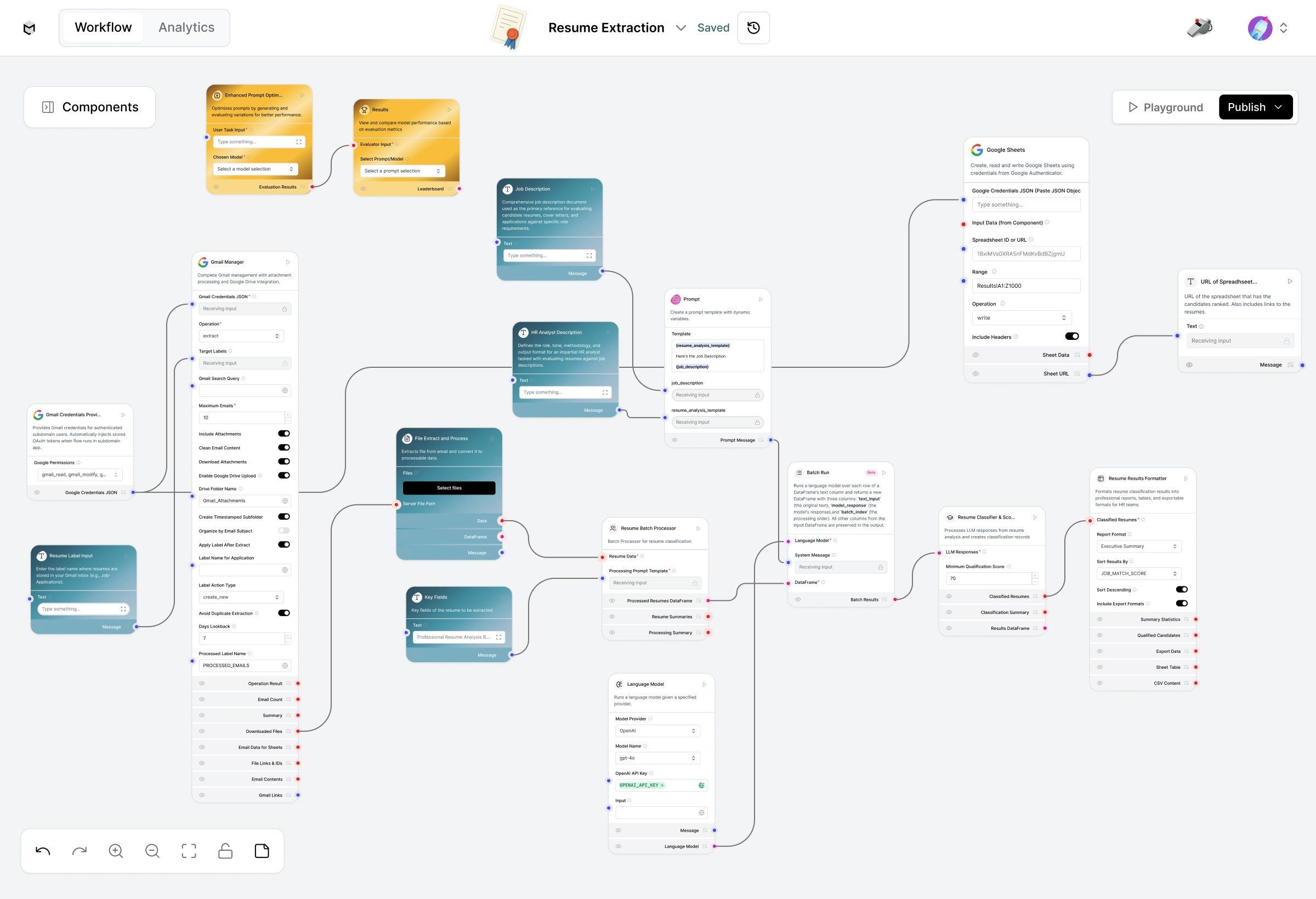 This advanced template automates the process of extracting, analyzing, and organizing resumes using Gmail, Google Drive, and an LLM-powered extraction workflow. It’s designed for recruitment automation, helping you efficiently process job applications and structure candidate data into Google Sheets.
## **Prerequisites**
Before you begin, make sure you have:
1. A Google Cloud Project with access to Gmail and Google Drive APIs.
2. A Gmail Credentials JSON file for authentication.
3. Access to a Google Sheet to store structured results.
4. An OpenAI API key (optional if using a model component that requires it)**.**
## **Create the Resume Extraction Flow**
1. From the LLM Controls dashboard, click **New Flow.**
2. Select **Resume Extraction.**
The flow will appear with pre-connected components for Gmail, Google Drive, and LLM-based resume parsing.
## **Component Overview & Configuration**
### **1. Gmail Manager (Trigger & Setup)**
**Component**: Gmail Manager
**Purpose:** Monitors a labeled Gmail inbox, downloads resume attachments, and applies post-processing labels.
* **User Configuration:**
1. **Gmail Credentials JSON:** Upload your credentials file from Google Cloud.
2. **Target Label:** Gmail label to fetch (e.g., Job-Applications).
3. **Maximum Emails to Fetch:** Number of emails to process per batch.
4. **Drive Folder Name:** Folder in Google Drive where resumes will be saved.
5. **Processed Label:** Label applied after successful processing (e.g., Processed).
### **2. File Handling and Processing**
**Component:** File Extract and Process
**Purpose:** Extracts resume PDFs from Gmail attachments and prepares them for batch LLM processing.
### **3. HR Analyst Description**
**Componen**t: User Input
**Purpose**: Defines how the LLM should interpret and analyze resumes.
**Action:**\
Paste your custom analysis prompt here, ideally, one optimized using the Prompt Optimizer Flow.
**This prompt guides the model in extracting structured details such as:**
1. Candidate Name
2. Contact Information
3. Skills
4. Experience Summary
5. Fit Evaluation
### **4. Contextual Inputs for LLM Understanding**
#### **a. Job Description**
**Component**: Job Description
**Purpose**: Provide the target job role or requirements to guide candidate-fit analysis.
#### **b. Prompt Configuration**
**Component**: Prompt
**Purpose**: Combines the job description, analyst instruction, and resume text into a formatted LLM input.
### **5. Batch Resume Processing**
**Component**: Batch Run
**Purpose**: Manages multiple resume analyses at once using the defined prompt template.
**Input**: Combined text from the resume file, job description, and HR prompt.
### **6. LLM Execution**
**Component**: Language Model (LLM)
**Purpose**: Runs the structured extraction using the configured prompt.
**Tip**: You can select models like gpt-4o or your custom LLM Executor for faster batch inference.
### **7. Resume Classification and Scoring**
**Component**: Resume Classifier
**Purpose**: Assigns a classification (e.g., Junior, Mid-level, Senior) and generates a match score based on the job description.
**Custom Setting:** Adjust the Resume Classification Score threshold to control fit categorization.
### **8. Resume Results Formatter**
**Component**: Results Formatter
**Purpose**: Cleans up and standardizes the LLM’s output.
**Output Fields:**
1. Candidate Name
2. Email Address
3. Role Classification
4. Executive Summary
5. Fit Score
### **9. Google Sheets Writer**
**Component:** Google Sheets
**Purpose**: Writes structured data to a predefined Google Sheet.
**Configuration Required:**
1. Spreadsheet ID – Your Google Sheet identifier.
2. Sheet Name –The target tab name for data insertion.
3. Field Mapping – Connect output fields to sheet columns.
### **10. Final Output: Sheet Link Display**
**Component**: URL Output
**Purpose**: Displays a clickable Google Sheet link for quick access to processed data.
## **Run the Resume Extraction Flow**
1. Click **Playground.**
2. Ensure your Gmail credentials and Google Drive folder are correctly configured.
3. Press Run to start fetching and processing resumes.
4. **Once complete:**
* Resume PDFs appear in your Google Drive.
* Candidate data is added as new rows in your Google Sheet.
## **Modify or Extend the Flow**
You can extend this template by:
1. Replacing the LLM component with a Prompt Optimizer Flow for automated prompt evaluation.
2. Adding a Qdrant or Vector Store for long-term candidate profile storage.
3. Connecting additional Sheets or CRMs for HR integration.
## **Output Summary**
After each run, you’ll get:
1. Resume PDFs saved in Drive
2. Extracted and structured candidate insights
3. A consolidated Google Sheet with name, skills, and fit score.
When importing into your workspace, replace the default Gmail credentials provider with your own Gmail Credentials JSON.
This advanced template automates the process of extracting, analyzing, and organizing resumes using Gmail, Google Drive, and an LLM-powered extraction workflow. It’s designed for recruitment automation, helping you efficiently process job applications and structure candidate data into Google Sheets.
## **Prerequisites**
Before you begin, make sure you have:
1. A Google Cloud Project with access to Gmail and Google Drive APIs.
2. A Gmail Credentials JSON file for authentication.
3. Access to a Google Sheet to store structured results.
4. An OpenAI API key (optional if using a model component that requires it)**.**
## **Create the Resume Extraction Flow**
1. From the LLM Controls dashboard, click **New Flow.**
2. Select **Resume Extraction.**
The flow will appear with pre-connected components for Gmail, Google Drive, and LLM-based resume parsing.
## **Component Overview & Configuration**
### **1. Gmail Manager (Trigger & Setup)**
**Component**: Gmail Manager
**Purpose:** Monitors a labeled Gmail inbox, downloads resume attachments, and applies post-processing labels.
* **User Configuration:**
1. **Gmail Credentials JSON:** Upload your credentials file from Google Cloud.
2. **Target Label:** Gmail label to fetch (e.g., Job-Applications).
3. **Maximum Emails to Fetch:** Number of emails to process per batch.
4. **Drive Folder Name:** Folder in Google Drive where resumes will be saved.
5. **Processed Label:** Label applied after successful processing (e.g., Processed).
### **2. File Handling and Processing**
**Component:** File Extract and Process
**Purpose:** Extracts resume PDFs from Gmail attachments and prepares them for batch LLM processing.
### **3. HR Analyst Description**
**Componen**t: User Input
**Purpose**: Defines how the LLM should interpret and analyze resumes.
**Action:**\
Paste your custom analysis prompt here, ideally, one optimized using the Prompt Optimizer Flow.
**This prompt guides the model in extracting structured details such as:**
1. Candidate Name
2. Contact Information
3. Skills
4. Experience Summary
5. Fit Evaluation
### **4. Contextual Inputs for LLM Understanding**
#### **a. Job Description**
**Component**: Job Description
**Purpose**: Provide the target job role or requirements to guide candidate-fit analysis.
#### **b. Prompt Configuration**
**Component**: Prompt
**Purpose**: Combines the job description, analyst instruction, and resume text into a formatted LLM input.
### **5. Batch Resume Processing**
**Component**: Batch Run
**Purpose**: Manages multiple resume analyses at once using the defined prompt template.
**Input**: Combined text from the resume file, job description, and HR prompt.
### **6. LLM Execution**
**Component**: Language Model (LLM)
**Purpose**: Runs the structured extraction using the configured prompt.
**Tip**: You can select models like gpt-4o or your custom LLM Executor for faster batch inference.
### **7. Resume Classification and Scoring**
**Component**: Resume Classifier
**Purpose**: Assigns a classification (e.g., Junior, Mid-level, Senior) and generates a match score based on the job description.
**Custom Setting:** Adjust the Resume Classification Score threshold to control fit categorization.
### **8. Resume Results Formatter**
**Component**: Results Formatter
**Purpose**: Cleans up and standardizes the LLM’s output.
**Output Fields:**
1. Candidate Name
2. Email Address
3. Role Classification
4. Executive Summary
5. Fit Score
### **9. Google Sheets Writer**
**Component:** Google Sheets
**Purpose**: Writes structured data to a predefined Google Sheet.
**Configuration Required:**
1. Spreadsheet ID – Your Google Sheet identifier.
2. Sheet Name –The target tab name for data insertion.
3. Field Mapping – Connect output fields to sheet columns.
### **10. Final Output: Sheet Link Display**
**Component**: URL Output
**Purpose**: Displays a clickable Google Sheet link for quick access to processed data.
## **Run the Resume Extraction Flow**
1. Click **Playground.**
2. Ensure your Gmail credentials and Google Drive folder are correctly configured.
3. Press Run to start fetching and processing resumes.
4. **Once complete:**
* Resume PDFs appear in your Google Drive.
* Candidate data is added as new rows in your Google Sheet.
## **Modify or Extend the Flow**
You can extend this template by:
1. Replacing the LLM component with a Prompt Optimizer Flow for automated prompt evaluation.
2. Adding a Qdrant or Vector Store for long-term candidate profile storage.
3. Connecting additional Sheets or CRMs for HR integration.
## **Output Summary**
After each run, you’ll get:
1. Resume PDFs saved in Drive
2. Extracted and structured candidate insights
3. A consolidated Google Sheet with name, skills, and fit score.
When importing into your workspace, replace the default Gmail credentials provider with your own Gmail Credentials JSON.