
Use a data component in a flow
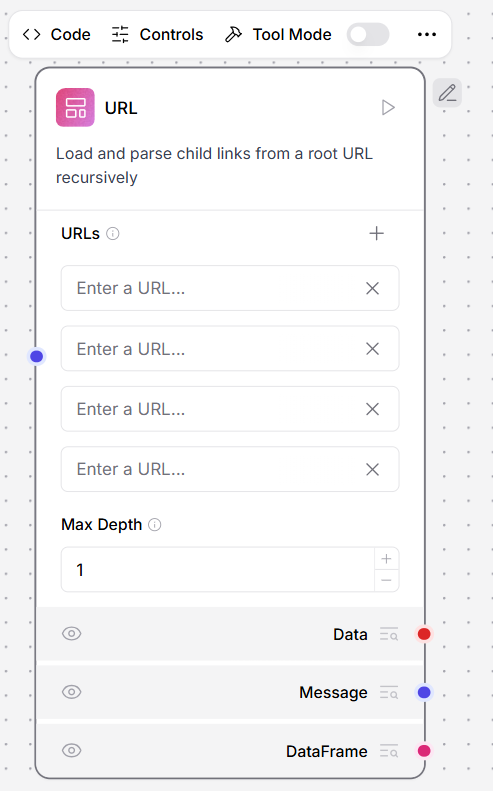
The URL data component loads content from a list of URLs. In the component’s URLs field, enter the URL you want to load To add multiple URL fields, click the add button Alternatively, connect a component that outputs theMessage type, like the Chat Input component, to supply your URLs from a component
API Request Component
This component makes HTTP requests using URLs or cURL commands.Setup Instructions
- Connect the Data output to a component that accepts the input (for example, connect the API Request component to a Chat Output component)
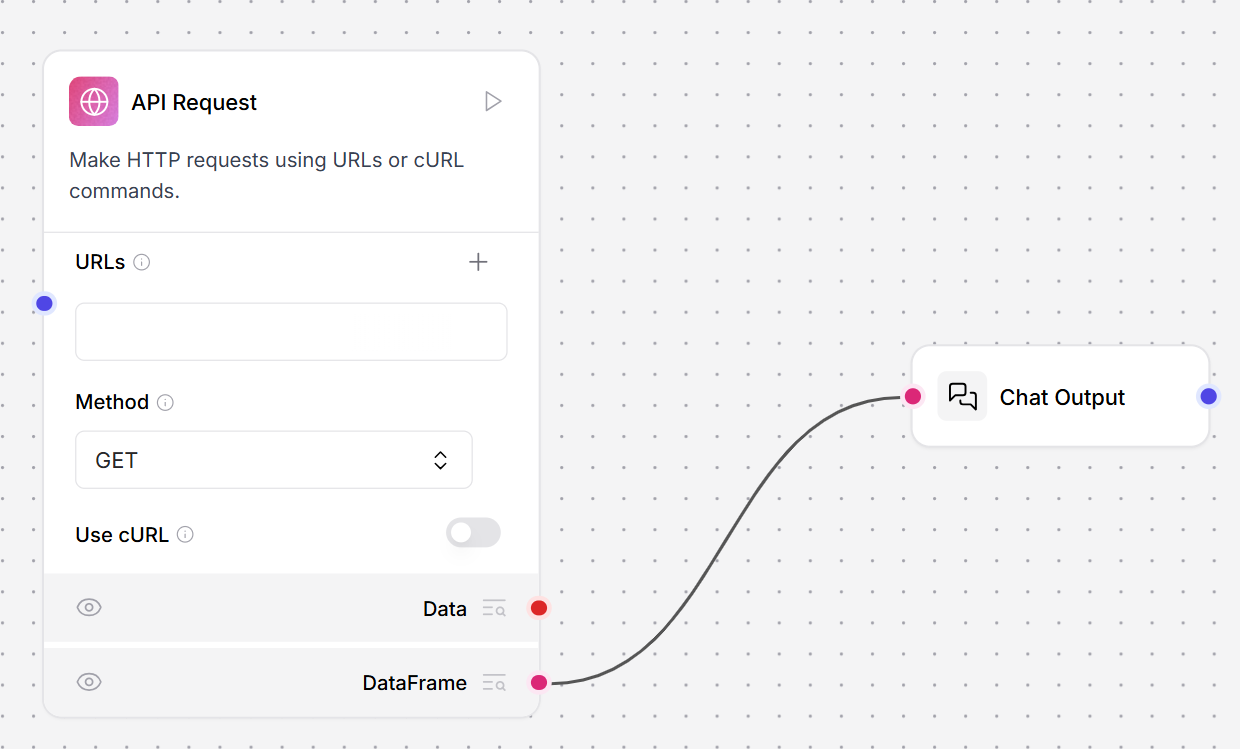
- In the API component’s URLs field, enter the endpoint for your request
- In the Method field, enter the type of request (GET, POST, PATCH, PUT, or DELETE)
- Optionally, enable the Use cURL button to create a field for pasting curl requests
- Click Playground, then click Run Flow to execute your request
Parameters
Parameters
Inputs
Outputs
File
This component loads and parses files of various supported formats and converts the content into a Data object. It supports multiple file types and provides options for parallel processing and error handling. To Load a Document- Click the Select files button
-
Select a local file or a file loaded with File management
Parameters
InputsOutputs
Supported File Types
Text Files
.txt- Plain text files.md,.mdx- Markdown files.csv- Comma-separated values.json- JSON data files.yaml,.yml- YAML configuration files.xml- XML documents.html,.htm- HTML web pages.pdf- PDF documents.docx- Microsoft Word documents
Code Files
.py- Python source code.js- JavaScript files.ts,.tsx- TypeScript files.sh- Shell scripts.sql- SQL query files
Archive Formats
For bundling multiple files:.zip- ZIP archives.tar- TAR archives.tgz- Gzipped TAR archives.bz2- Bzip2 compressed files.gz- Gzip compressed files
SQL Query
This component executes SQL queries on a specified database.Parameters
Parameters
Inputs
Outputs
URL
This component fetches content from one or more URLs, processes the content, and returns it in various formats. It supports output in plain text or raw HTML. In the component’s URLs field, enter the URL you want to load- To use this component in a flow, connect the DataFrame output to a component that accepts the input. For example, connect the URL component to a Chat Output component.
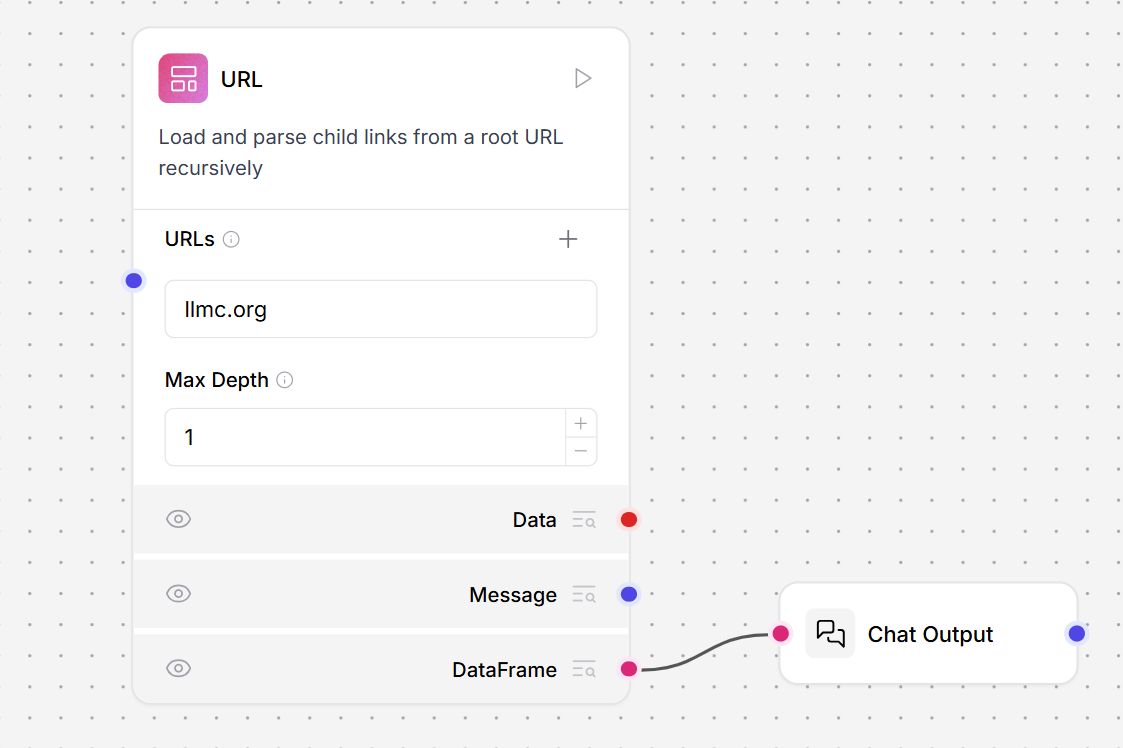
- In the URL component’s URLs field, enter the URL for your request. This example uses
llmc.org. - Optionally, in the Max Depth field, enter how many pages away from the initial URL you want to crawl. Select
1to crawl only the page specified in the URLs field. Select2to crawl all pages linked from that page. The component crawls by link traversal, not by URL path depth. - Click Playground, and then click Run Flow. The text contents of the URL are returned to the Playground as a structured DataFrame.
- In the URL component, change the output port to Message, and then run the flow again. The text contents of the URL are returned as unstructured raw text, which you can extract patterns from with the Regex Extractor tool.
- Connect the URL component to a Regex Extractor and Chat Output.
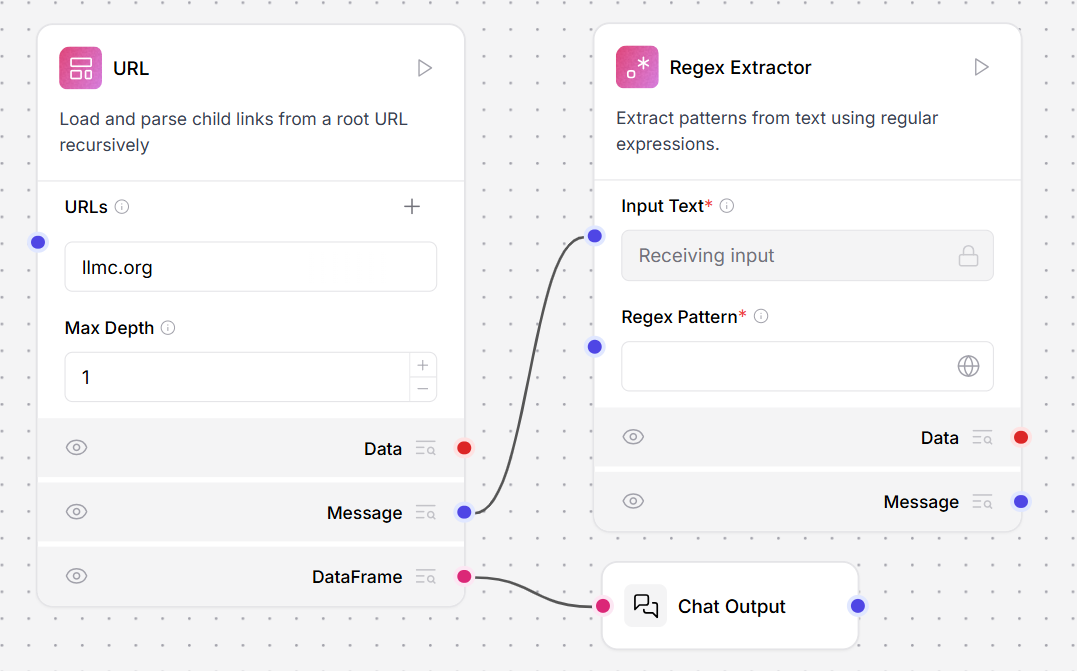
- In the Regex Extractor tool, enter a pattern to extract text from the URL component’s raw output. This example extracts the first paragraph from the “In the News” section of
https://en.wikipedia.org/wiki/Main_Page.
Parameters
Parameters
Inputs
Outputs
Webhook
This component defines a webhook trigger that runs a flow when it receives an HTTP POST request. If the input is not valid JSON, the component wraps it in apayload object so that it can be processed and still trigger the flow. The component does not require an API key.
When you add a Webhook component to a flow, the flow’s API access pane exposes an additional Webhook cURL tab that contains a POST /v1/webhook/$FLOW_ID code snippet. You can use this request to send data to the Webhook component and trigger the flow. For example:
To test the webhook component:
- Add a Webhook component to the flow.
- Connect the Webhook component’s Data output to the Data input of a Parser component.
- Connect the Parser component’s Parsed Text output to the Text input of a Chat Output component.
- In the Parser component, under Mode, select Stringify. This mode passes the webhook’s data as a string for the Chat Output component to print.
- To send a POST request, copy the code from the Webhook cURL tab in the API pane and paste it into a terminal.
- Send the POST request.
- Open the Playground. Your JSON data is posted to the Chat Output component, which indicates that the webhook component is correctly triggering the flow.
Parameters
Parameters
Directory
This component recursively loads files from a directory and converts the content into Data objects. It supports filtering by file type, depth control, and optional multithreading for parallel processing. To Load a Directory- Enter the directory path or use the default current directory
- Optionally select specific file types to filter
- Set the search depth and enable recursive mode if needed
Paramters
Paramters
Inputs
Outputs
Load Spreadsheet
This component loads and parses spreadsheet files (.xlsx, .xls) and converts the content into a searchable data format for analysis. It supports sheet selection, row limits, caching, and optimized loading for large files. To Load a Spreadsheet- Click the Select files button and upload an .xlsx or .xls file
- Optionally specify a sheet name (defaults to the first sheet)
- Configure row limits and caching as needed
Parameters
Parameters
Inputs
Outputs
Recursive URL Crawler
This component loads and parses child links from a root URL recursively. It crawls web pages up to a specified depth and extracts content in text or HTML format. To Crawl URLs- Enter one or more URLs by clicking the + button
- Set the Max Depth to control how many link levels to crawl
- Configure output format (Text or HTML)
Parameters
Parameters
S3 Bucket Uploader
This component uploads files to an Amazon S3 bucket. It supports two upload strategies: storing parsed data or uploading the original file as-is, with options for path prefixing and stripping. To Upload Files to S3- Provide your AWS Access Key ID and AWS Secret Key
- Enter the Bucket Name
- Connect Data inputs from upstream components
- Choose an upload strategy