
Use a logic component in a flow
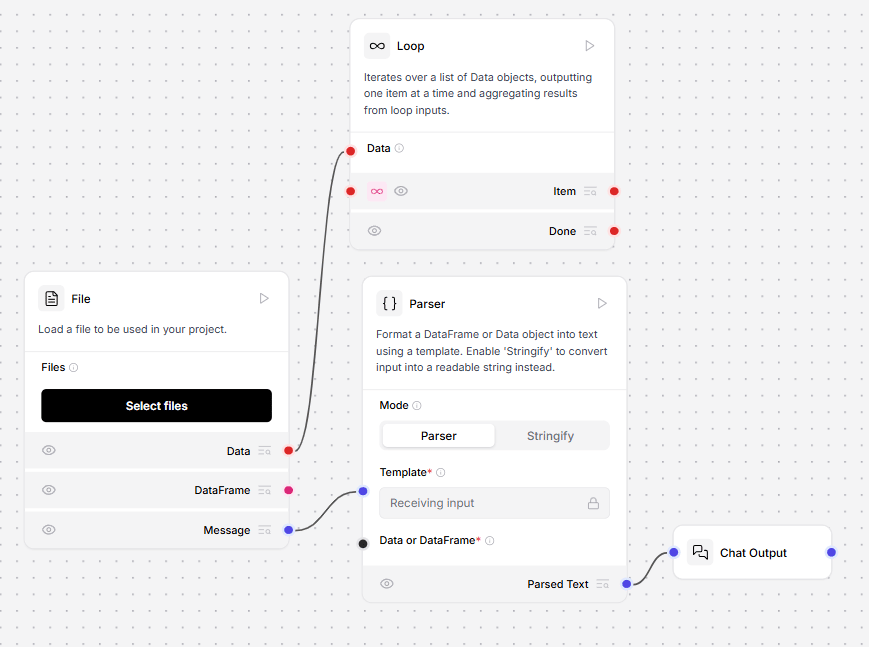
This flow creates a summarizing “for each” loop with the Loop component. The component iterates over a list of Data objects until it’s completed, and then the Done loop aggregates the results. The File component loads text files from your local machine, and then the Parser component parses them into a list of structuredData objects. The Loop component passes each Data object to a Prompt to be summarized.
When the Loop component runs out of Data, the Done loop activates, which counts the number of pages and summarizes their tone with another Prompt. This is represented in LLM Controls by connecting the Parser component’s Data List output to the Loop component’s Data loop input.
Conditional router (If-Else component)
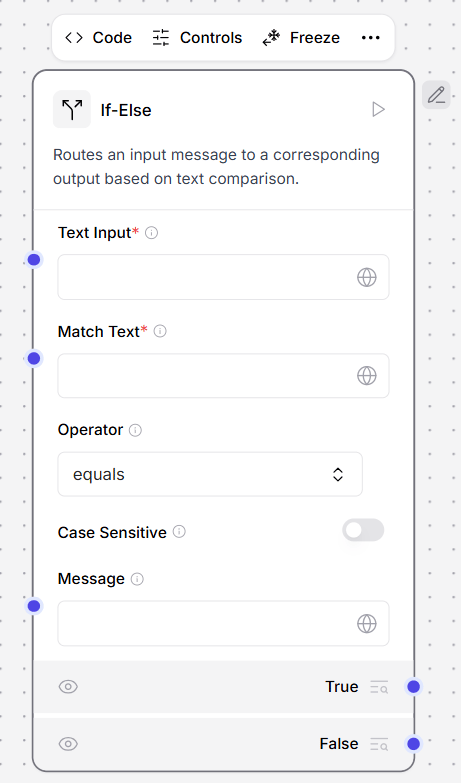
This component routes messages by comparing two strings. It evaluates a condition by comparing two text inputs using the specified operator and routes the message totrue_result or false_result.
The operator looks for single strings based on your defined operator behavior, but it can also search for multiple words by regex matching.
To use the Conditional router component to check incoming messages with regex matching, do the following:
- Connect the If-Else component’s Text Input port to a Chat Input component.
- In the If-Else component, enter the following values.
- In the Match Text field, enter
.*(urgent|warning|caution).*. The component looks for these values. The regex match is case sensitive, so to look for all permutations ofwarning, enterwarning|Warning|WARNING. - In the Operator field, enter
regex. The component looks for the stringsurgent,warning, andcaution. For more operators, see Operator behavior. - In the Message field, enter
New Message Detected. This field is optional. The message is sent to both the True and False ports. The component is now set up to send aNew Message Detectedmessage out of its True port if it matches any of the strings. If no strings are detected, it sends a message out of the False port.
- Create two identical flows to process the messages. Connect an Open AI component, a Prompt, and a Chat Output component together.
- Connect one chain to the If-Else component’s True port, and one chain to the False port.
- Add your OpenAI API key to both OpenAI components.
- In both Prompt components, enter the behavior you want each route to take.
- Open the Playground.
- Send the flow some messages. Your messages route differently based on the if-else component’s evaluation.
Parameters
Parameters
Inputs
Outputs
Operator Behavior
The If-else component includes a comparison operator to compare the values ininput_text and match_text.
All options respect the case_sensitive setting except regex.
- Equals: Exact match comparison.
- Not equals: Inverse of exact match.
- contains: Checks if match_text is found within input_text.
- starts with: Checks if input_text begins with match_text.
- Ends with: Checks if input_text ends with match_text.
- Regex: Performs regular expression matching. It is always case sensitive and ignores the case_sensitive setting.
Listen
This component listens for a notification and retrieves its associated state.Parameter
Parameter
Inputs
Outputs
Loop
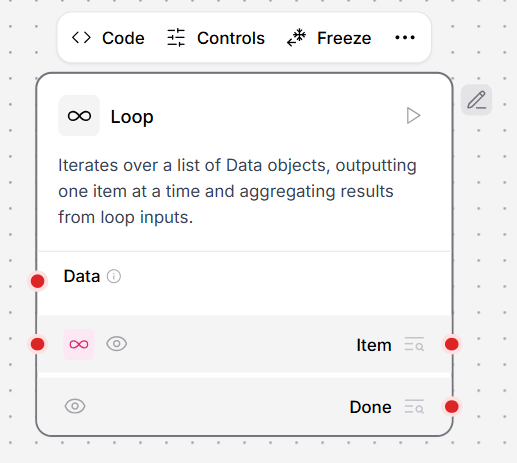
This component iterates over a list of Data objects, outputting one item at a time and aggregating results from loop inputs. In this example, the Loop component iterates over a CSV file through the Item port until there are no rows left to process. Then, the Loop component performs the actions connected to the Done port, which in this case is loading the structured data into Chroma DB. Think of it this way: the Item port forms the “main” loop that repeats until a “complete” condition is reached.- The Loop component accepts Data from the Load CSV component and outputs the data from the Item port.
- Each CSV row is converted to a Message and processed into structured data with the StructureOpenAId Output component. The dotted line connected from the Structured Output component’s Looping port tells you where the loop begins again.
- The Loop component repeatedly extracts rows by Text Key until there are no more rows to extract.
Parameters
Parameters
Inputs
Outputs
Notify
This component generates a notification for the Listen component to use.Parameters
Parameters
Inputs
Outputs
Pass
This component forwards the input message, unchanged.Parameters
Parameters
Inputs
Outputs
Run flow
This component allows you to run any flow stored in your LLM Controls database without opening the flow editor. The Run Flow component can also be used as a tool when connected to an Agent. Thename and description metadata that the Agent uses to register the tool are created automatically.
When you select a flow, the component fetches the flow’s graph structure and uses it to generate the inputs and outputs for the Run Flow component.
To use the Run Flow component as a tool, do the following:
- Add the Run Flow component to the Simple Agent flow.
- In the Flow Name menu, select the sub-flow you want to run. The appearance of the Run Flow component changes to reflect the inputs and outputs of the selected flow.
- On the Run Flow component, enable Tool Mode.
-
Connect the Run Flow component to the Toolset input of the Agent. Your flow should now look like this:
.png?fit=max&auto=format&n=9PuWEwunOBJ8KxNm&q=85&s=44640a56acb168b190ee551b29b33392)
- Run the flow. The Agent uses the Run Flow component as a tool to run the selected sub-flow.
Parameters
Parameters
Inputs
Outputs