
Prerequisites
Before you begin, make sure you have:- A Google Cloud Project with access to Gmail and Google Drive APIs.
- A Gmail Credentials JSON file for authentication.
- Access to a Google Sheet to store structured results.
- An OpenAI API key (optional if using a model component that requires it).
Create the Resume Extraction Flow
- From the LLM Controls dashboard, click New Flow.
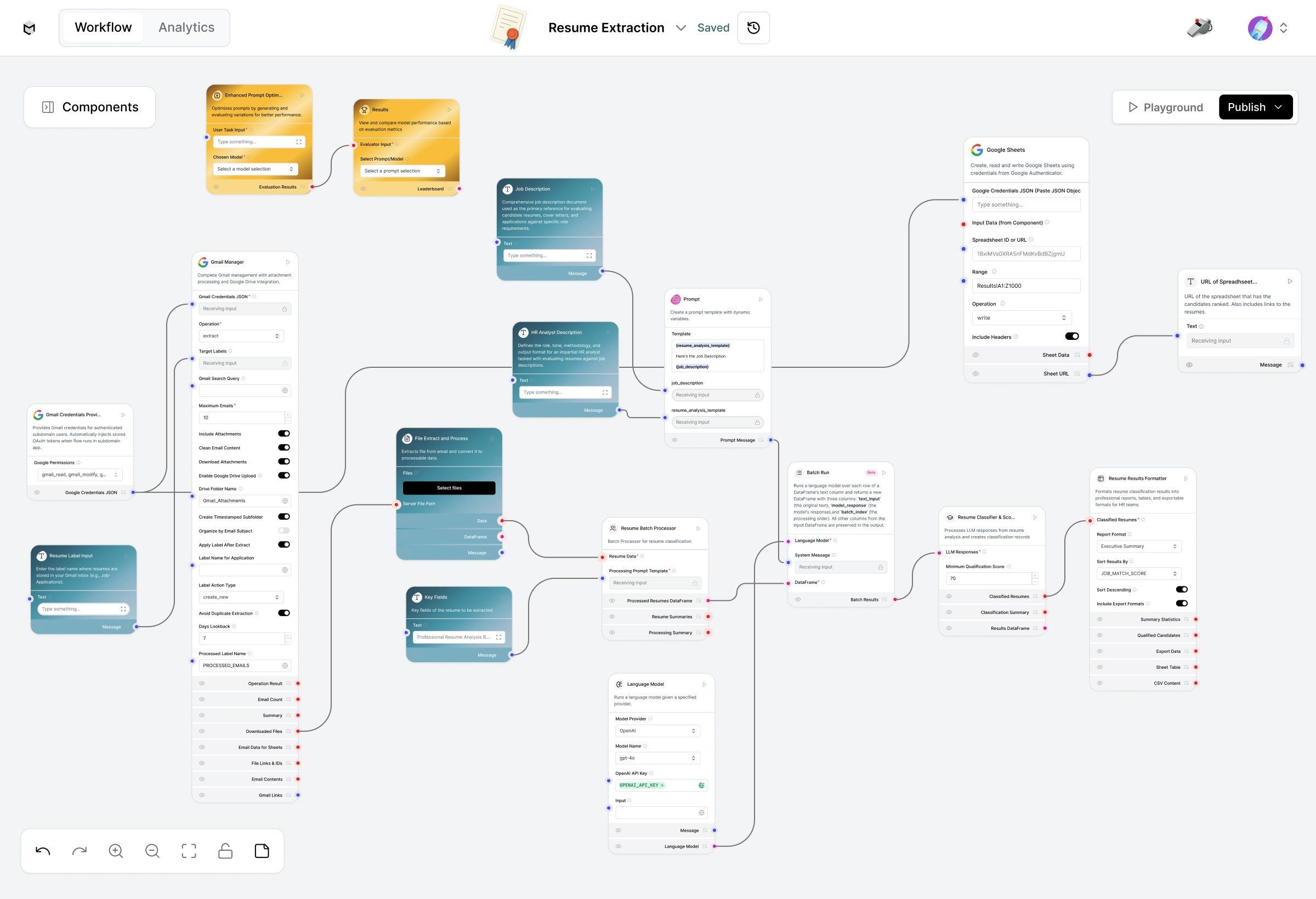
- Select Resume Extraction. The flow will appear with pre-connected components for Gmail, Google Drive, and LLM-based resume parsing.
Component Overview & Configuration
1. Gmail Manager (Trigger & Setup)
Component: Gmail Manager Purpose: Monitors a labeled Gmail inbox, downloads resume attachments, and applies post-processing labels.- User Configuration:
- Gmail Credentials JSON: Upload your credentials file from Google Cloud.
- Target Label: Gmail label to fetch (e.g., Job-Applications).
- Maximum Emails to Fetch: Number of emails to process per batch.
- Drive Folder Name: Folder in Google Drive where resumes will be saved.
- Processed Label: Label applied after successful processing (e.g., Processed).
2. File Handling and Processing
Component: File Extract and Process Purpose: Extracts resume PDFs from Gmail attachments and prepares them for batch LLM processing.3. HR Analyst Description
Component: User Input Purpose: Defines how the LLM should interpret and analyze resumes. Action:Paste your custom analysis prompt here, ideally, one optimized using the Prompt Optimizer Flow. This prompt guides the model in extracting structured details such as:
- Candidate Name
- Contact Information
- Skills
- Experience Summary
- Fit Evaluation
4. Contextual Inputs for LLM Understanding
a. Job Description
Component: Job Description Purpose: Provide the target job role or requirements to guide candidate-fit analysis.b. Prompt Configuration
Component: Prompt Purpose: Combines the job description, analyst instruction, and resume text into a formatted LLM input.5. Batch Resume Processing
Component: Batch Run Purpose: Manages multiple resume analyses at once using the defined prompt template. Input: Combined text from the resume file, job description, and HR prompt.6. LLM Execution
Component: Language Model (LLM) Purpose: Runs the structured extraction using the configured prompt. Tip: You can select models like gpt-4o or your custom LLM Executor for faster batch inference.7. Resume Classification and Scoring
Component: Resume Classifier Purpose: Assigns a classification (e.g., Junior, Mid-level, Senior) and generates a match score based on the job description. Custom Setting: Adjust the Resume Classification Score threshold to control fit categorization.8. Resume Results Formatter
Component: Results Formatter Purpose: Cleans up and standardizes the LLM’s output. Output Fields:- Candidate Name
- Email Address
- Role Classification
- Executive Summary
- Fit Score
9. Google Sheets Writer
Component: Google Sheets Purpose: Writes structured data to a predefined Google Sheet. Configuration Required:- Spreadsheet ID – Your Google Sheet identifier.
- Sheet Name –The target tab name for data insertion.
- Field Mapping – Connect output fields to sheet columns.
10. Final Output: Sheet Link Display
Component: URL Output Purpose: Displays a clickable Google Sheet link for quick access to processed data.Run the Resume Extraction Flow
- Click Playground.
- Ensure your Gmail credentials and Google Drive folder are correctly configured.
- Press Run to start fetching and processing resumes.
- Once complete:
- Resume PDFs appear in your Google Drive.
- Candidate data is added as new rows in your Google Sheet.
Modify or Extend the Flow
You can extend this template by:- Replacing the LLM component with a Prompt Optimizer Flow for automated prompt evaluation.
- Adding a Qdrant or Vector Store for long-term candidate profile storage.
- Connecting additional Sheets or CRMs for HR integration.
Output Summary
After each run, you’ll get:- Resume PDFs saved in Drive
- Extracted and structured candidate insights
-
A consolidated Google Sheet with name, skills, and fit score.
When importing into your workspace, replace the default Gmail credentials provider with your own Gmail Credentials JSON.