What is a flow?
A flow is an application. It receives input, processes it, and produces output. Flows consist of components that you configure and connect in the Workspace.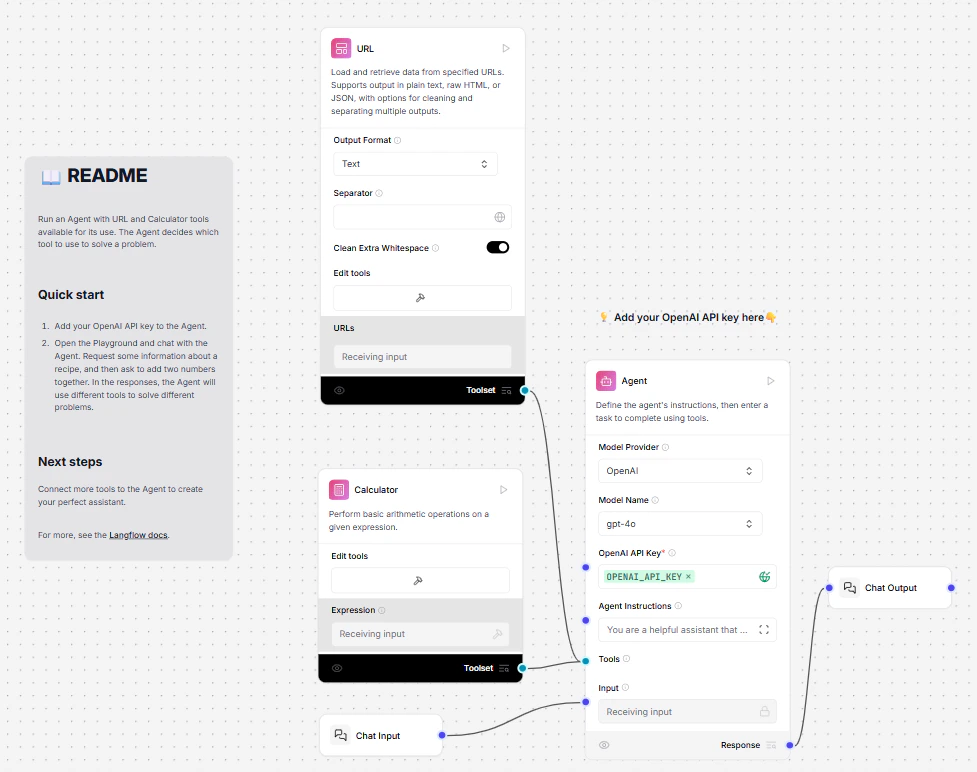
- Each component in a flow is a node that performs a specific task, like an AI model or a data source.
- Each component has a Configuration menu. Click the Code button on a component to see its underlying Python code.
- Components are connected with edges to form flows.
Find your way around
If you’re new to LLM Controls, it’s OK to feel a bit lost at first. We’ll take you on a tour, so you can orient yourself and start creating applications quickly. LLM Controls has four distinct regions: the workspace is the main area where you build your flows. The components sidebar is on the left and lists the available components. The playground and publish pane are available in the upper right corner.Workspace
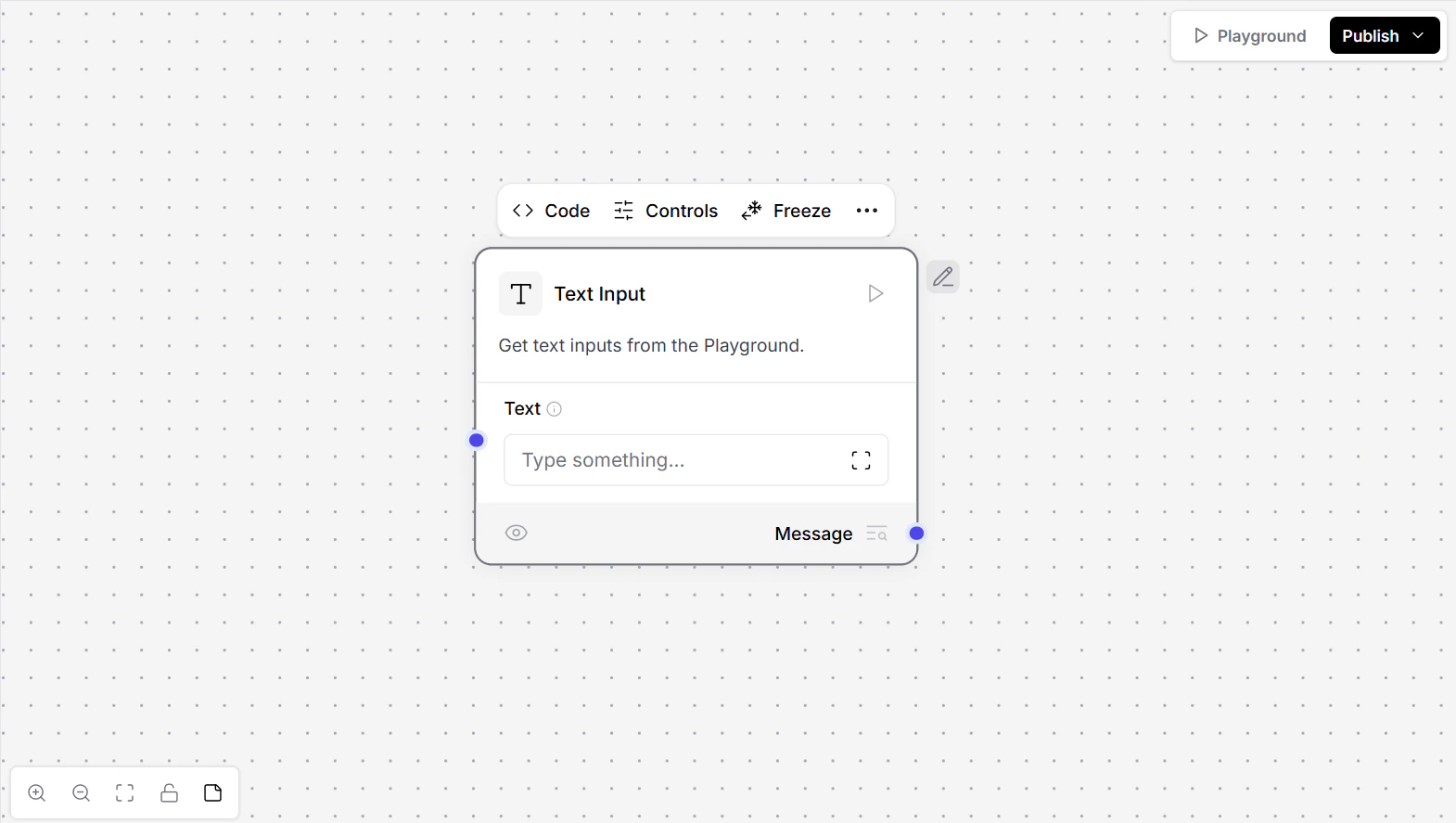
The workspace is where you create AI applications by connecting and running components in flows.- Click and drag the workspace to move it left, right, up, and down.
- Scroll up and down to zoom in and out of the workspace, or use the Zoom In and Zoom Out controls.
- Click Fit To Zoom to center the workspace on the current flow.
- Click Lock to lock the workspace in place, preventing accidental movement.
-
Click Add Note to add a note to your flow, similar to commenting in code.
Components
A component is a single building block within a flow and consists of inputs, outputs, and parameters that define its functionality. To add a component to your flow, drag it from the sidebar onto the workspace. To connect components, drag a line from the output handle of one component to the input handle of another. For more information, see Components overview.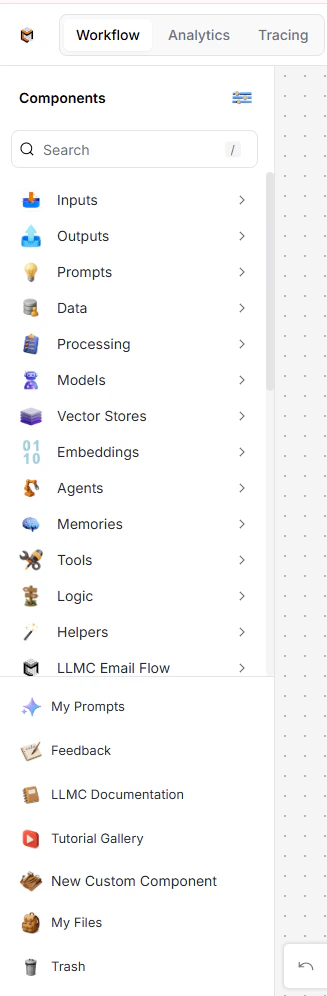
Playground
The Playground executes the current flow in the workspace. Chat with your flow, view inputs and outputs, and modify your AI’s memories to tune your responses in real time. Either the Chat Input or Chat Output component can be opened in the Playground and tested in real time. For more information, see the Playground..png?fit=max&auto=format&n=9PuWEwunOBJ8KxNm&q=85&s=b02f9070b45b8b0c69d25f800435a2b3)
Publish pane
The Publish pane provides code templates to integrate your flows into external applications. For more information, see the Publish pane.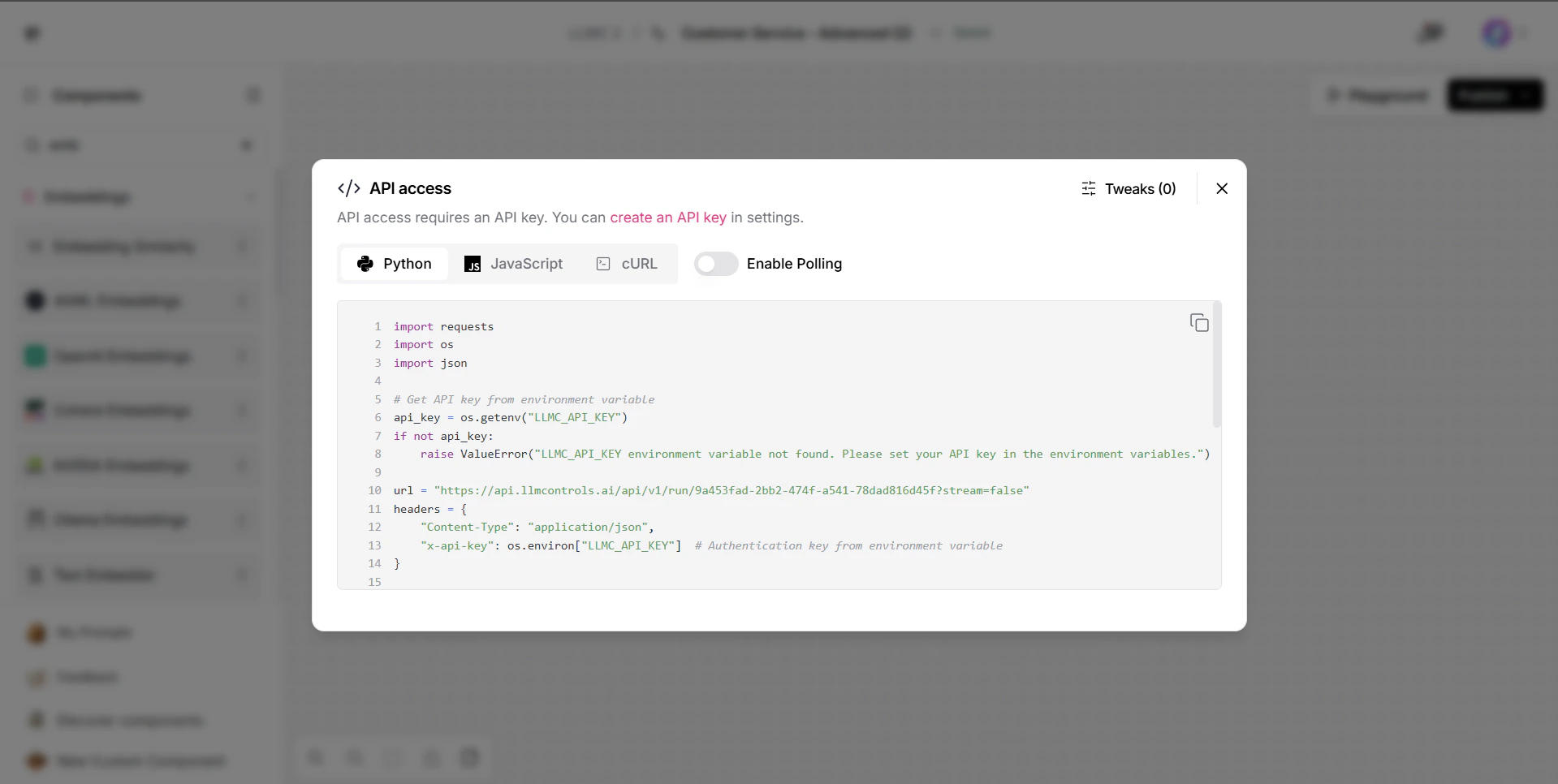
View logs
The Logs pane provides a detailed record of all component executions within a workspace. To access the Logs pane, click your Flow Name and then select Logs.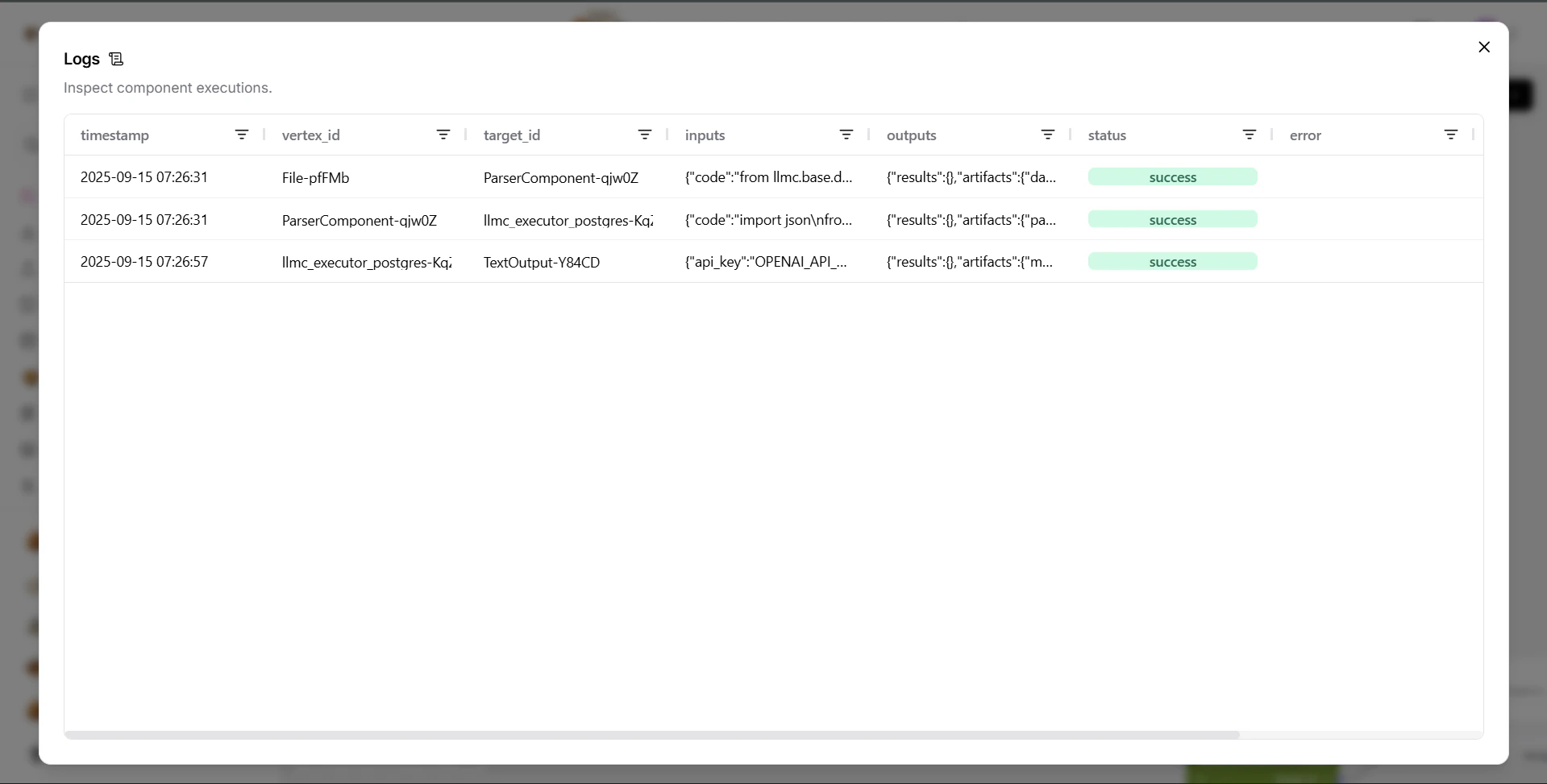
Projects
The Projects page displays all the flows you’ve created in the LLM Controls workspace.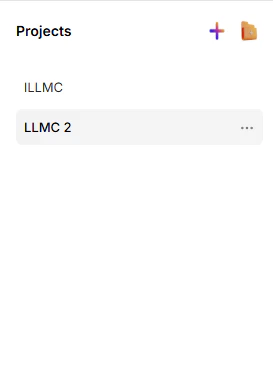
File management
Upload, store, and manage files in LLM Controls’ File management system. For more on managing your files, see Manage files.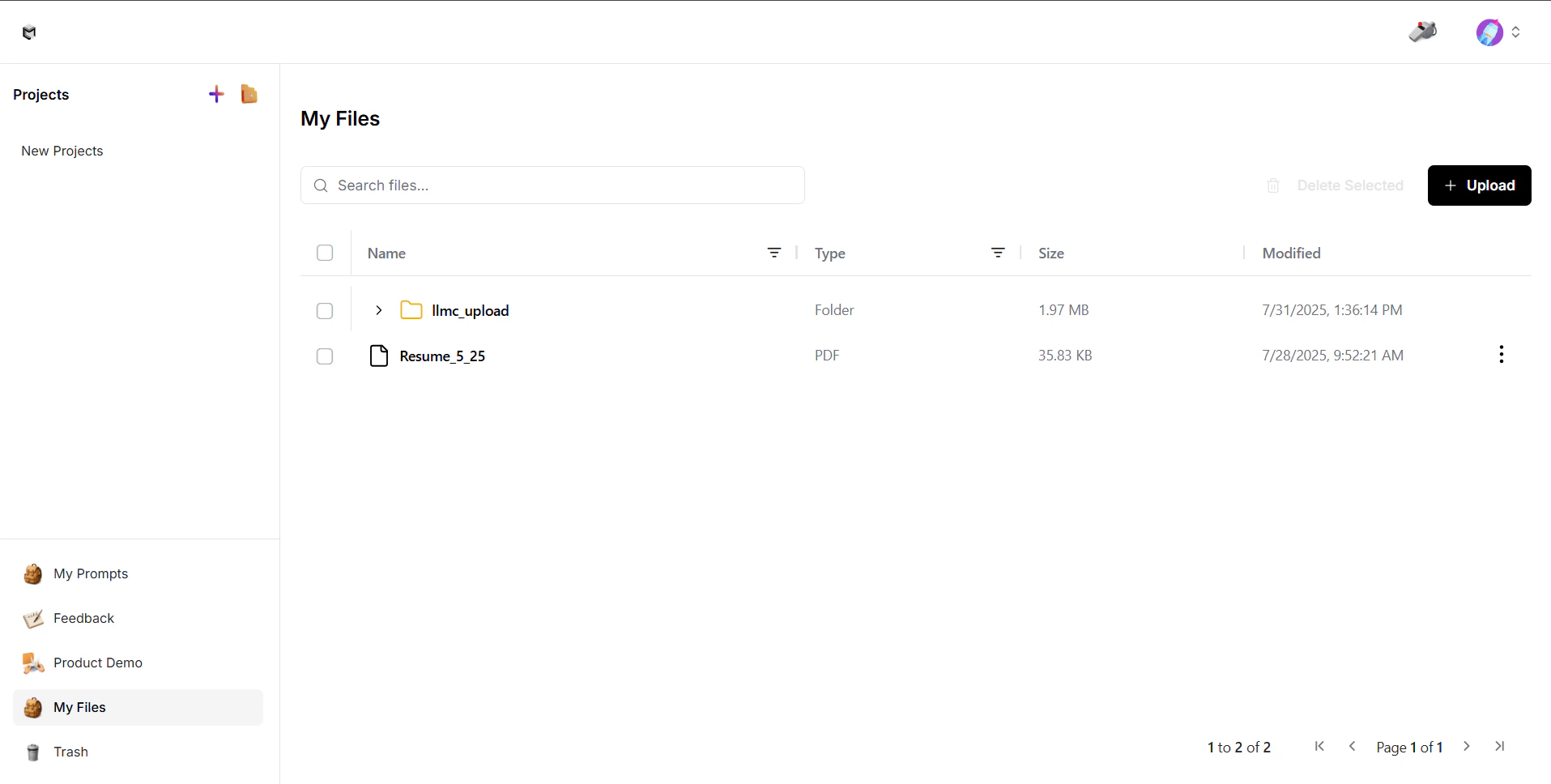
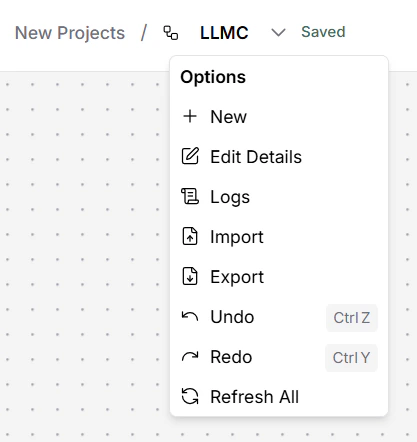
Options menu
The dropdown menu labeled with the project name offers several management and customization options for the current flow in the LLM Controls workspace:- New: Create a new flow from scratch.
- Edit Details: Adjust settings specific to the current flow, such as its name, description, and endpoint name.
- Logs: View logs for the current project, including execution history, errors, and other runtime events.
- Import: Import a flow or component from a JSON file into the workspace.
- Export: Export the current flow as a JSON file.
- Undo: Revert the last action taken in the project. Keyboard shortcut: Control+Z(or on macOS).
- Redo: Reapply a previously undone action. Keyboard shortcut: Control+Y(or on macOS).
-
Refresh All: Refresh all components and delete cache.
Settings
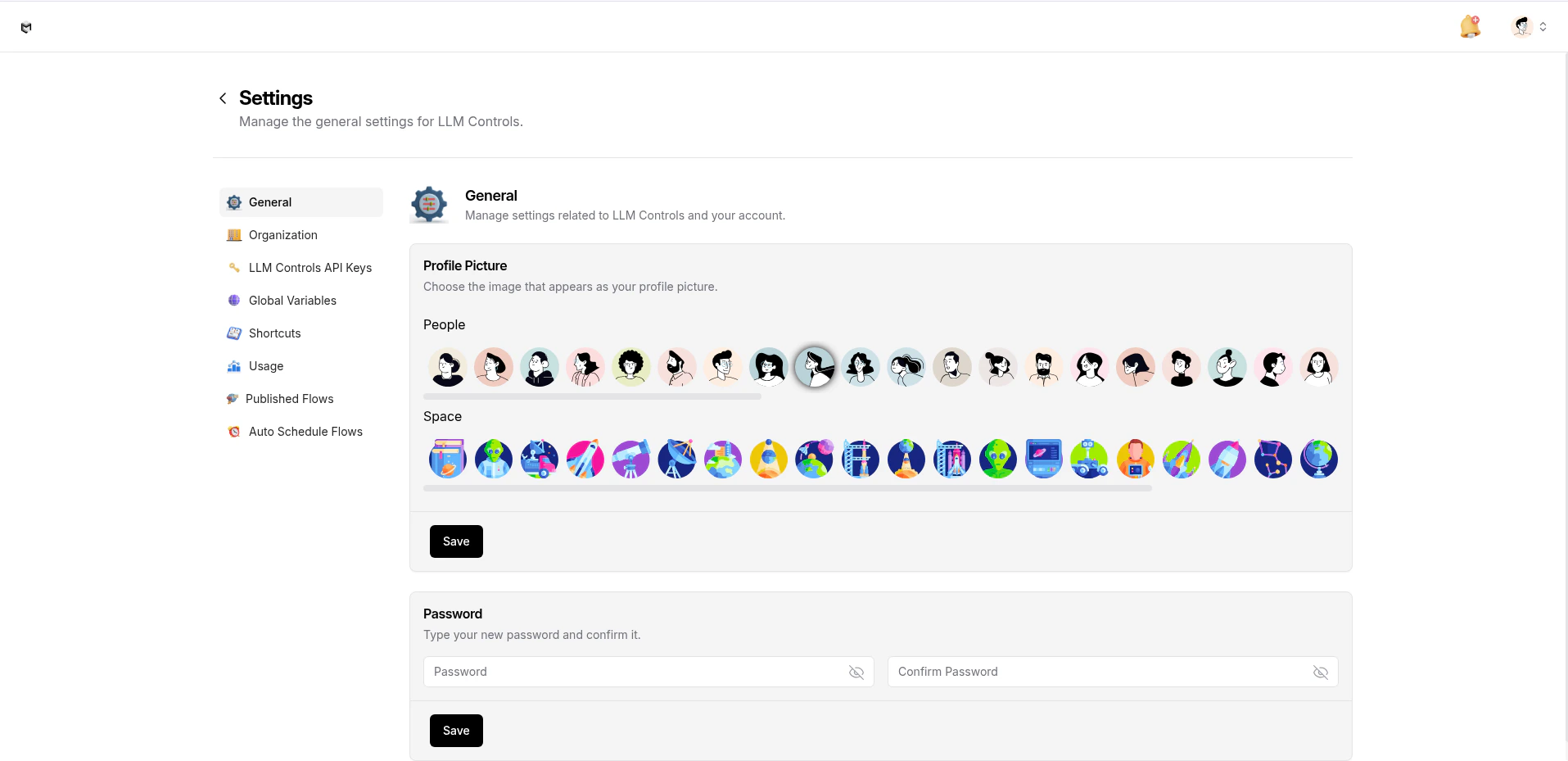
In the LLM Controls header, click your profile icon, and then select Settings to access general LLM Controls settings, including global variables, LLM Controls API keys, keyboard shortcuts, and log messages.