
Upload a file
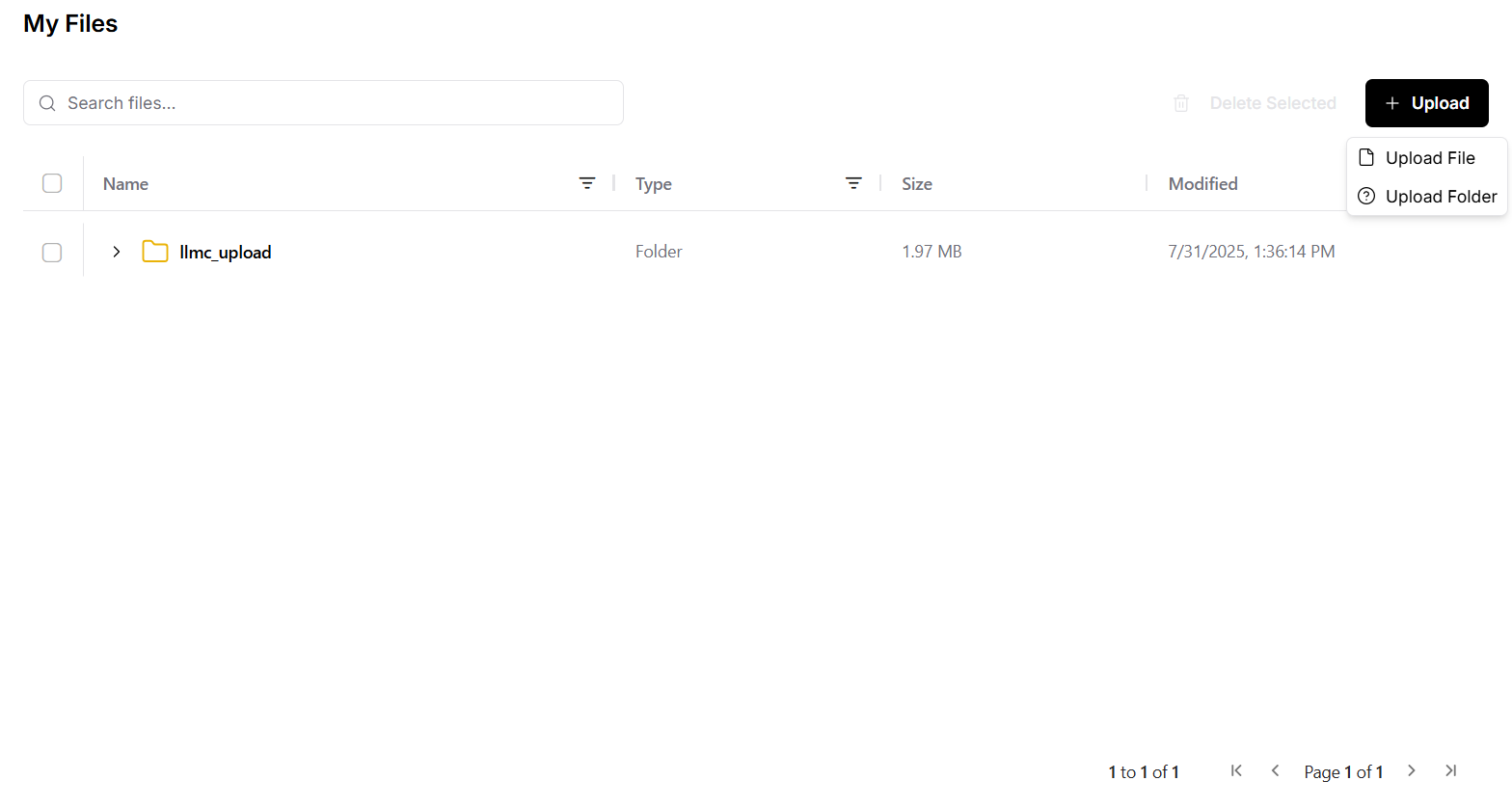
The File management system is available at the/files URL. For example, if you’re running LLM Controls at the default http://localhost:7860 address, the File management system is located at http://localhost:7860/files.
To upload a file from your local machine:
- From the My Files window at
http://localhost:7860/files, click Upload. - Select the file to upload. The file is uploaded to LLM Controls.
You can upload multiple files in a single action. Files are available to flows stored in different projects.
Use uploaded files in a flow
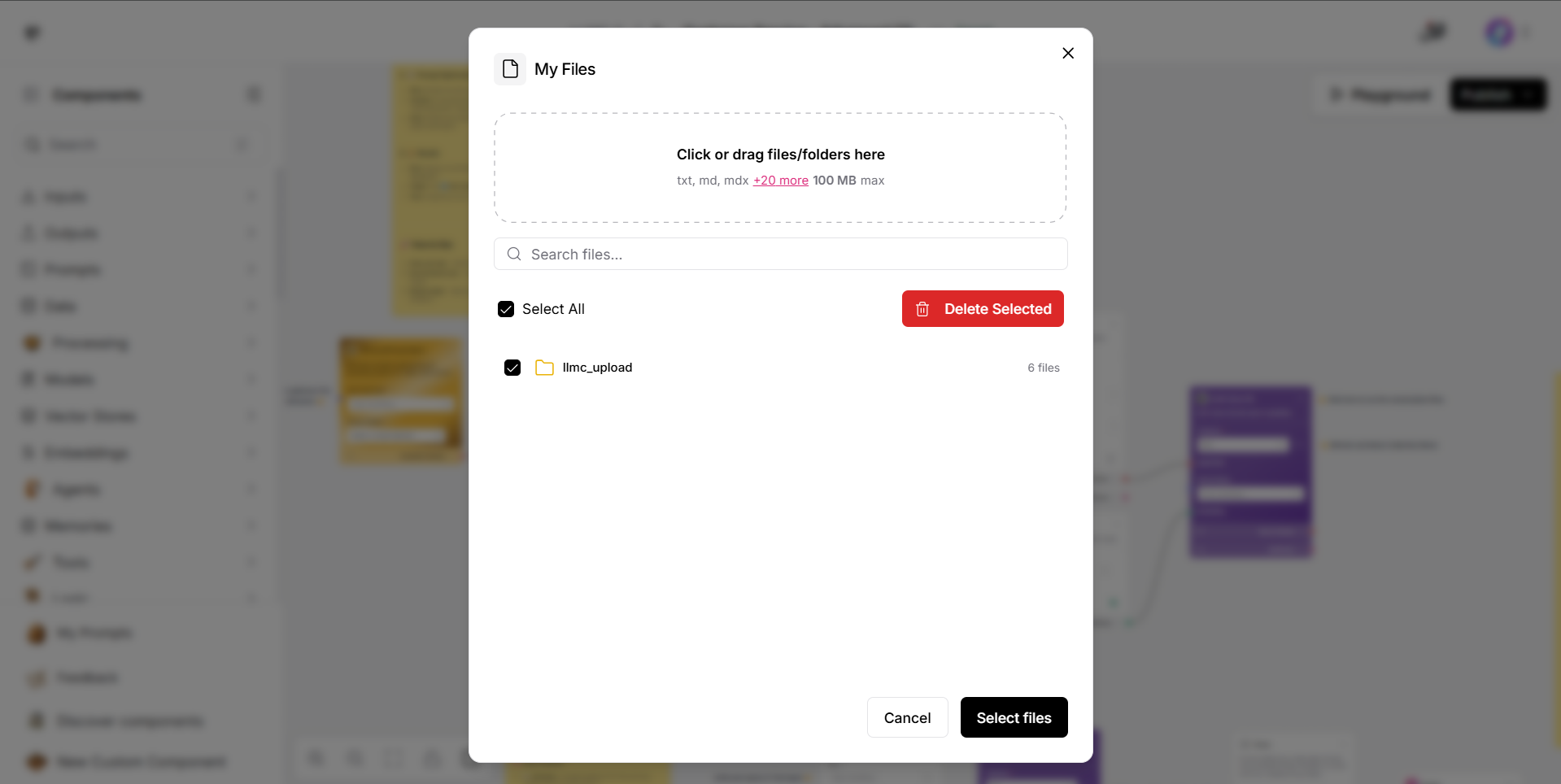
To use your uploaded files in flows:- Include the File component in a flow.
- To select a document to load, in the File component, click the Select files button.
- Select a file to upload, and then click Select file. The loaded file name appears in the component.
NOTEIf you prefer a one-time upload, the File component still allows one-time uploads directly from your local machine.
Supported file types
The maximum supported file size is 100 MB. Text files:.txt- Text files.md,.mdx- Markdown files.csv- CSV files.json- JSON files.yaml,.yml- YAML files.xml- XML files.html,.htm- HTML files.pdf- PDF files.docx- Word documents.py- Python files.sh- Shell scripts.sql- SQL files.js- JavaScript files.ts,.tsx- TypeScript files
.zip- ZIP archives.tar- TAR archives.tgz- Gzipped TAR archives.bz2- Bzip2 compressed files.gz- Gzip compressed files