
Use a processing component in a flow
The Split Text processing component in this flow splits the incoming Data into chunks to be embedded into the vector store component. The component offers control over chunk size, overlap, and separator, which affect context and granularity in vector store retrieval results.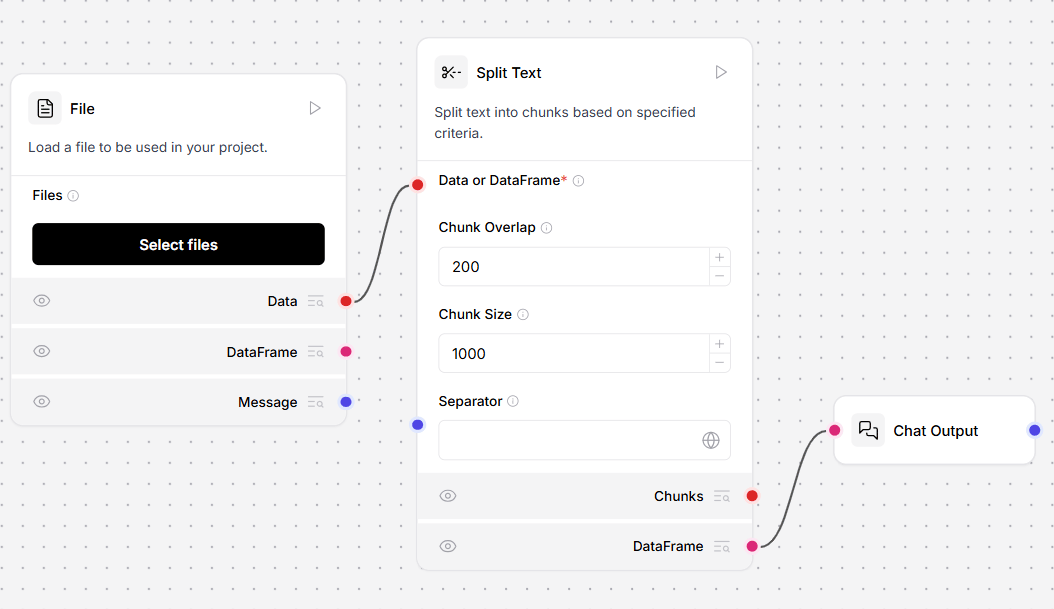
DataFrame operations
This component performs operations on DataFrame rows and columns. To use this component in a flow, connect a component that outputs DataFrame to the DataFrame Operations component This example fetches JSON data from an API. The Smart function component extracts and flattens the results into a tabular DataFrame. The DataFrame Operations component can then work with the retrieved data.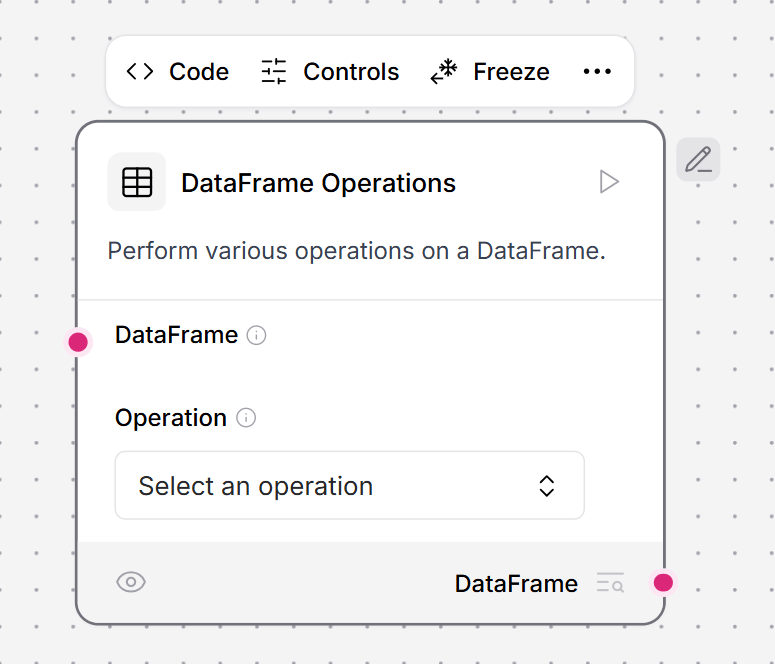
- The API Request component retrieves data with only
sourceandresultfields. For this example, the desired data is nested within theresultfield. - Connect a Smart function to the API request component, and a Language model to the Smart function. This example connects a Groq model component.
- In the Groq model component, add your Groq API key.
- To filter the data, in the Smart function component, in the Instructions field, use natural language to describe how the data should be filtered.
- To run the flow, in the Smart function component, click Run component.
- To inspect the filtered data, in the Smart function component, click Inspect output. The result is a structured DataFrame.
- Add the DataFrame Operations component, and a Chat Output component to the flow.
- In the DataFrame Operations component, in the Operation field, select Filter.
- To apply a filter, in the Column Name field, enter a column to filter on. This example filters by
name. - Click Playground, and then click Run Flow. The flow extracts the values from the
namecolumn.
Operations
This component can perform the following operations on Pandas DataFrame.Parameters
Parameters
Inputs
Outputs
Data operations
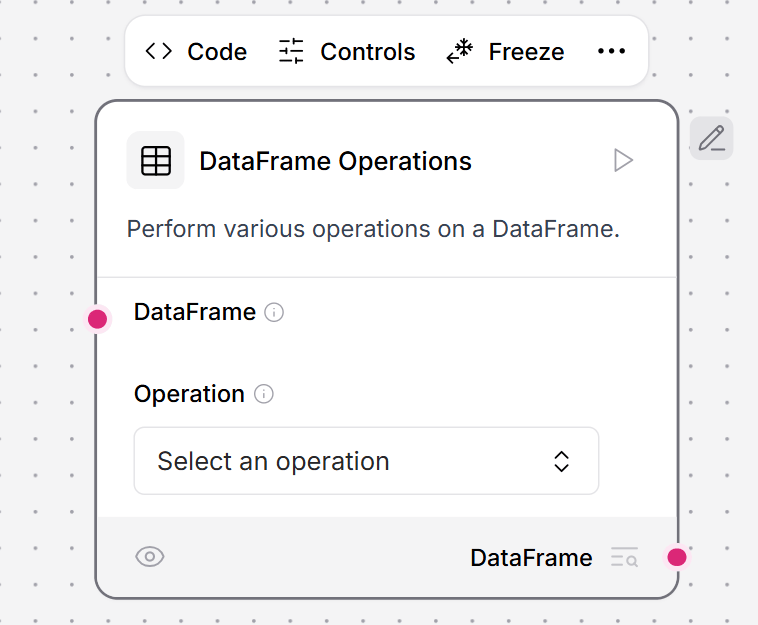
This component performs operations on Data objects, including selecting keys, evaluating literals, combining data, filtering values, appending/updating data, removing keys, and renaming keys.- To use this component in a flow, connect a component that outputs Data to the Data Operations component’s input. All operations in the component require at least one Data input.
-
In the Operations field, select the operation you want to perform. For example, send this request to the Webhook component. Replace
YOUR_FLOW_IDwith your flow ID. -
In the Data Operations component, select the Select Keys operation to extract specific user information. To add additional keys, click Add More.
-
Filter by
name,username, andemailto select the values from the request.
Operations
The component supports the following operations. All operations in the Data operations component require at least one Data input.Parameters
Parameters
Inputs
Outputs
Data to DataFrame
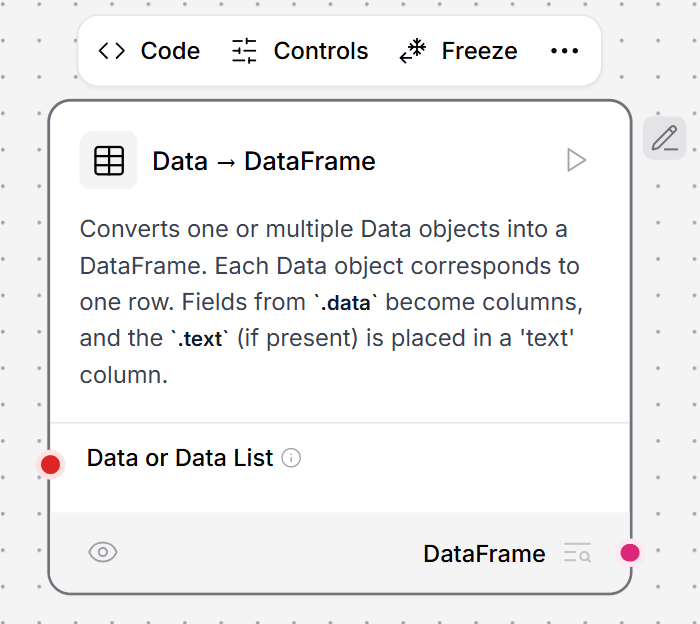
This component converts one or multiple Data objects into a DataFrame. Each Data object corresponds to one row in the resulting DataFrame. Fields from the.data attribute become columns, and the .text field (if present) is placed in a ‘text’ column.
-
To use this component in a flow, connect a component that outputs Data to the Data to Dataframe component’s input. This example connects a Webhook component to convert
textanddatainto a DataFrame. -
To view the flow’s output, connect a Chat Output component to the Data to Dataframe component.
-
Send a POST request to the Webhook containing your JSON data. Replace
YOUR_FLOW_IDwith your flow ID. This example uses the default LLM Controls server address. -
In the Playground, view the output of your flow. The Data to DataFrame component converts the webhook request into a
DataFrame, withtextanddatafields as columns. - Send another employee data object.
-
In the Playground, this request is also converted to
DataFrame.
Parameters
Parameters
Inputs
Outputs
LLM router
This component routes requests to the most appropriate LLM based on OpenRouter model specifications.Parameters
Parameters
Inputs
Outputs
Message to data
This component converts Message objects to Data objects.Parameters
Parameters
Inputs
Outputs
Parser
This component formatsDataFrame or Data objects into text using templates, with an option to convert inputs directly to strings using stringify.
To use this component, create variables for values in the template the same way you would in a Prompt component. For DataFrames, use column names, for example Name: {Name}. For Data objects, use {text}.
To use the Parser component with a Structured Output component, do the following:
- Connect a Structured Output component’s DataFrame output to the Parser component’s DataFrame input.
- Connect the File component to the Structured Output component’s Message input.
- Connect the OpenAI model component’s Language Model output to the Structured Output component’s Language Model input.
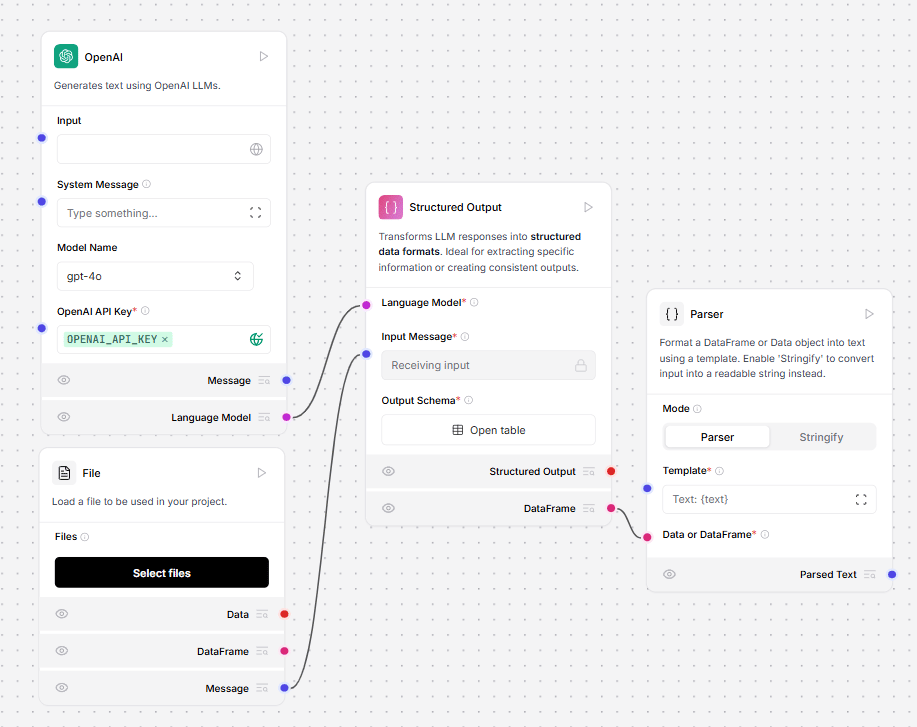
- In the Structured Output component, click Open Table. This opens a pane for structuring your table. The table contains the rows Name, Description, Type, and Multiple.
-
Create a table that maps to the data you’re loading from the File loader. For example, to create a table for employees, you might have the rows
id,name, andemail, all of typestring. -
In the Template field of the Parser component, enter a template for parsing the Structured Output component’s DataFrame output into structured text. Create variables for values in the
templatethe same way you would in a Prompt component. For example, to present a table of employees in Markdown: - To run the flow, in the Parser component, click Run component.
- To view your parsed text, in the Parser component, click Inspect output.
- Optionally, connect a Chat Output component, and open the Playground to see the output.
Parameters
Parameters
Inputs
Outputs
Regex extractor
This component extracts patterns from text using regular expressions. It can be used to find and extract specific patterns or information from text data. To use this component in a flow:- Connect the Regex Extractor to a URL component and a Chat Output component.
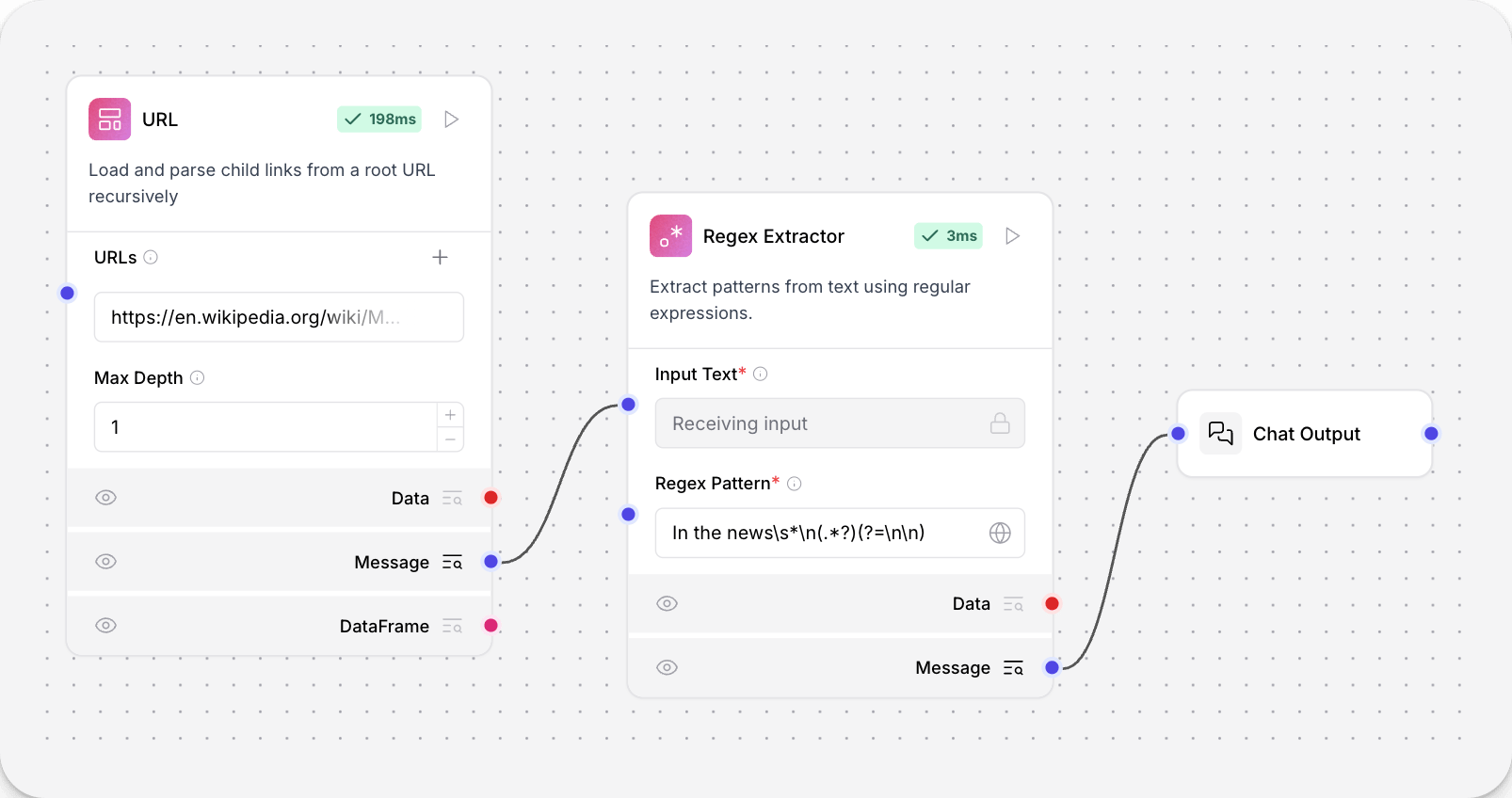
- In the Regex Extractor tool, enter a pattern to extract text from the URL component’s raw output. This example extracts the first paragraph from the “In the News” section of
https://en.wikipedia.org/wiki/Main_Page:
Save to File
This component saves DataFrames, Data, or Messages to various file formats.- To use this component in a flow, connect a component that outputs DataFrames, Data, or Messages to the Save to File component’s input. The following example connects a Webhook component to two Save to File components to demonstrate the different outputs.
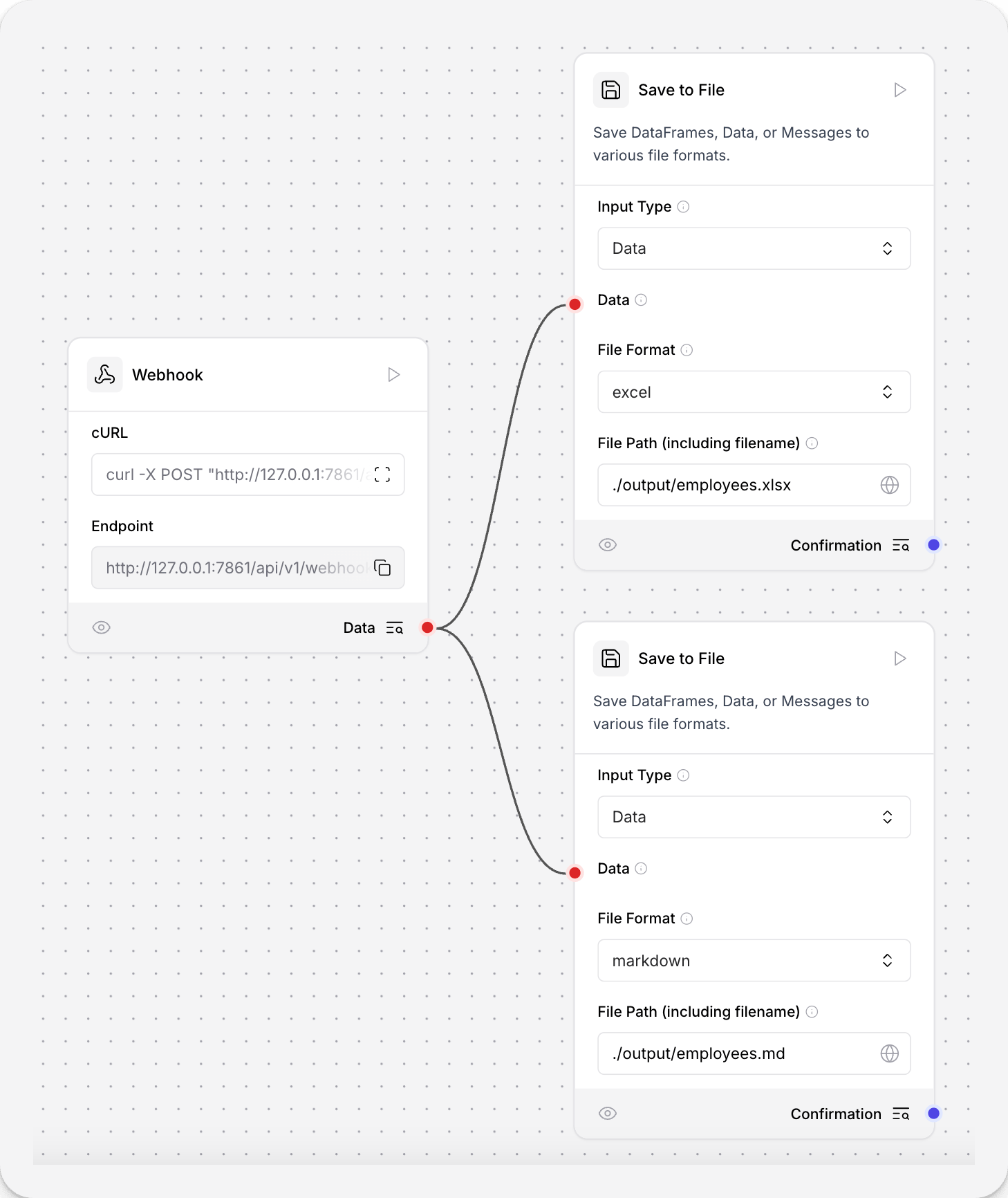
- In the Save to File component’s Input Type field, select the expected input type. This example expects Data from the Webhook.
- In the File Format field, select the file type for your saved file. This example uses
.mdin one Save to File component, and.xlsxin another. - In the File Path field, enter the path for your saved file. This example uses
./output/employees.xlsxand./output/employees.mdto save the files in a directory relative to where LLM Controls is running. The component accepts both relative and absolute paths, and creates any necessary directories if they don’t exist.
- Send a POST request to the Webhook containing your JSON data. Replace
YOUR_FLOW_IDwith your flow ID. This example uses the default LLM Controls server address. - In your local filesystem, open the
outputsdirectory. You should see two files created from the data you’ve sent: one in.xlsxfor structured spreadsheets, and one in Markdown.
File input format options
ForDataFrame and Data inputs, the component can create:
csvexceljsonmarkdownpdf
Message inputs, the component can create:
txtjsonmarkdownpdf
Parameters
Parameters
Inputs
Outputs
Split text
This component splits text into chunks based on specified criteria. It’s ideal for chunking data to be tokenized and embedded into vector databases. The Split Text component outputs Chunks or DataFrame. The Chunks output returns a list of individual text chunks. The DataFrame output returns a structured data format, with additionaltext and metadata columns the applied.
-
To use this component in a flow, connect a component that outputs Data or DataFrame to the Split Text component’s Data port. This example uses the URL component, which is fetching JSON placeholder data.
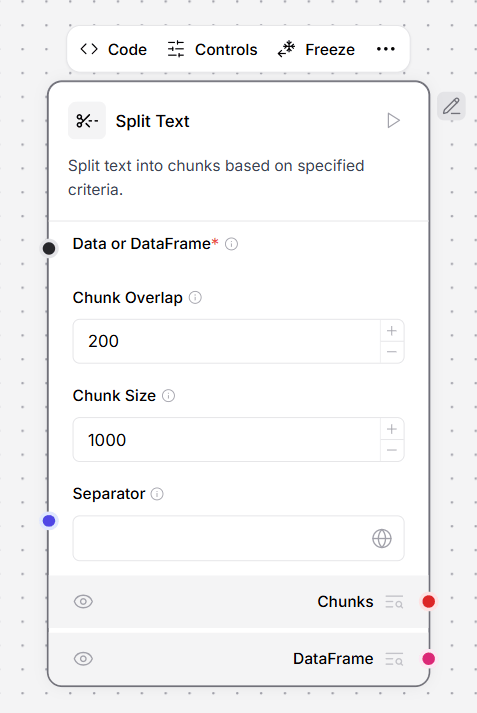
- In the Split Text component, define your data splitting parameters.
},, so each chunk contains one JSON object.
The order of precedence is Separator, then Chunk Size, and then Chunk Overlap. If any segment after separator splitting is longer than chunk_size, it is split again to fit within chunk_size.
After chunk_size, Chunk Overlap is applied between chunks to maintain context.
- Connect a Chat Output component to the Split Text component’s DataFrame output to view its output.
- Click Playground, and then click Run Flow. The output contains a table of JSON objects split at
},. - Clear the Separator field, and then run the flow again. Instead of JSON objects, the output contains 50-character lines of text with 10 characters of overlap.
Parameters
Parameters
Update data
This component dynamically updates or appends data with specified fields.Parameters
Parameters
Inputs
Outputs
Text Input
This component gets text inputs from the Playground and passes them as a Message to downstream components.To Use Text Input
- Add the component to your flow
- Enter text in the Text field or connect it to the Playground input
Parameters
Parameters
Filter Data
This component filters a Data object based on a list of keys, returning a new Data object containing only the matching key-value pairs.To Filter Data
- Connect a Data object from an upstream component
- Specify one or more keys in the Filter Criteria list to keep
Parameters
Parameters
Filter Values
This component filters a list of data items based on a specified key, filter value, and comparison operator. Check the advanced options to select match comparison.To Filter Values
- Connect a list of Data items from an upstream component
- Set the Filter Key (e.g., ‘route’) and Filter Value (e.g., ‘CMIP’)
- Optionally change the Comparison Operator in the advanced options
Parameters
Parameters
Lambda Filter
This component uses an LLM to generate a lambda function for filtering or transforming structured data. Provide natural language instructions, and the component will create and apply a Python lambda function to your data.To Use Lambda Filter
- Connect structured Data from an upstream component
- Connect a Language Model output from an LLM component
- Write natural language Instructions describing how to filter or transform the data
Parameters
Parameters
LLMC Parser
This component batch processes document chunks to extract structured information using LLM with custom prompts. It processes chunks in configurable batches, extracts JSON from LLM responses, and merges results across batches.To Use LLMC Parser
- Connect Document Chunks from a Split Text component (accepts list or single input)
- Connect a Language Model from an LLM component
- Write a Custom Prompt defining what information to extract and the JSON structure
- Optionally adjust Batch Size and Max Tokens in advanced options
Parameters
Parameters