
Add a component to a flow
To add a component to a flow, drag the component from the Components menu to the Workspace. The Components menu is organized by component type, and some components are hidden by default- Beta components: These are LLM Controls’ core components. They are grouped by purpose, such as Inputs or Data. Be aware that these components are in beta and not suitable for production workloads.
- Bundles: These components support specific integrations, and they are grouped by provider.
Configure a component
After adding a component to a flow, configure the component’s parameters and connect it to the other components in your flows. Each component has inputs, outputs, parameters, and controls related to the component’s purpose. By default, components show only required and common options. To access additional settings and controls, including meta settings, use the component’s header menu. To access a component’s header menu, click the component in your Workspace.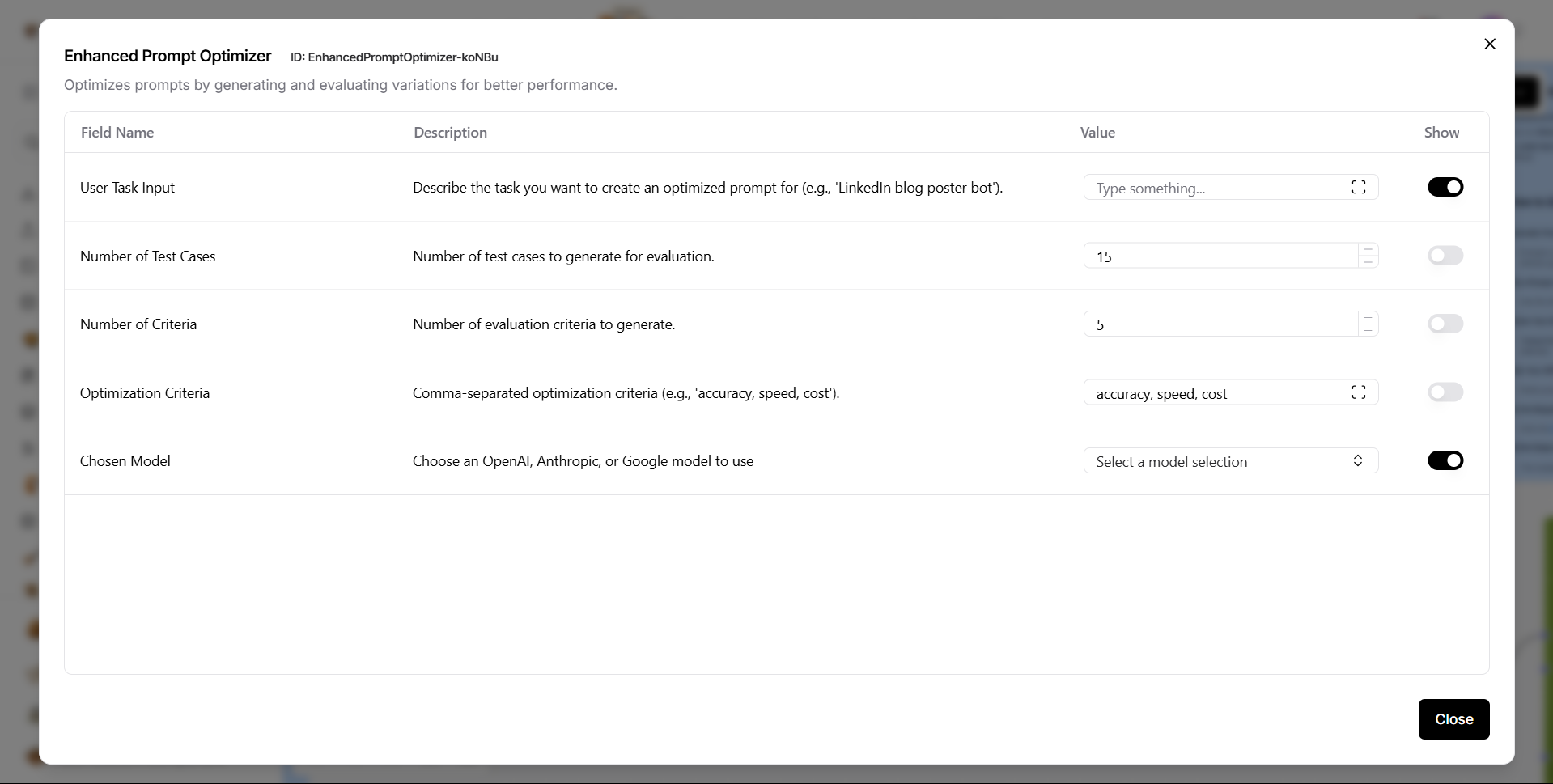
- Code: Modify component settings by directly editing the component’s Python code.
- Controls: Adjust all component parameters, including optional settings that are hidden by default.
- Tool Mode: Enable this option when combining a component with an Agent component.
Rename a component
To modify a component’s name or description, click the component in the Workspace, and then click Edit. Component descriptions accept Markdown syntax.Run a component
To run a single component, click Run component. A Last Run value indicates that the component ran successfully. Running a single component is different from running an entire flow. In a single component run, the build_vertex function is called, which builds and runs only the single component with direct inputs provided through the UI . The VertexBuildResult data is passed to the build and run method that calls the component’s build method and runs it. Unlike running an entire flow, running a single component doesn’t automatically execute its upstream dependencies.Inspect component output and logs
To view the output and logs for a single component, click Inspect.Freeze a component
importantFreezing a component also freezes all components upstream of the selected component.
Component ports
Circular port icons () on the border of a component indicate the types of inputs and outputs that can be connected to the component at that port.
Port colors
Component port colors indicate the data type ingested or emitted by the port. For example, a text port either accepts or emits text data. The following table lists the component port colors and their corresponding input types:Component code
All components have underlying code that determines how you configure them and what actions they can perform. In the context of creating and running flows, component code does the following:- Determines what configuration options to show in the LLM Controls UI.
- Validates inputs based on the component’s defined input types.
- Processes data using the configured parameters, methods, and functions.
- Passes results to the next component in the flow.
Component class that defines the component’s interface and behavior.
Each component’s code includes definitions for inputs and outputs, which are represented in the Workspace as component ports. For example, the RecursiveCharacterTextSplitter has four inputs. Each input definition specifies the input type, such as IntInput, as well as the encoded name, display name, description, and other parameters for that specific input. These values determine the component settings, such as display names and tooltips in the LLM Controls UI.
Additionally, components have methods or functions that handle their functionality. For example, the RecursiveCharacterTextSplitter has two methods:
The get_data_input method retrieves the text data to be split from the component’s input, which makes the data available to the class.
The build_text_splitter method creates a RecursiveCharacterTextSplitter object by calling its parent class’s build method. Then, the text is split with the created splitter and passed to the next component.
Component versions
Component versions and states are stored in an internal LLM Controls database. When you add a component to a flow, you create a detached copy of the component based on the information in the LLM Controls database. These copies are detached from the primary LLM Controls database, and they don’t synchronize with any updates that can occur when you upgrade your LLM Controls version. In other words, an individual instance of a component retains the version number and state from the moment you add it to a specific flow. For example, if a component is at version 1.0 when you add it to a flow, it remains at version 1.0 in that flow unless you update it.Update component versions
When editing a flow in the Workspace, LLM Controls notifies you if a component’s workspace version is behind the database version, so you can update the component’s workspace version:- Update ready: This notification means the component update contains no breaking changes.
- Update available: This notification means the component update might contain breaking changes. Breaking changes modify component inputs and outputs, causing the components to be disconnected and break the flow. After updating the component, you might need to edit the component settings or reconnect component ports.
- Click Update to update a single component. This is recommended for updates without breaking changes.
-
Click Review to view all available updates and create a snapshot before updating. This is recommended for updates with breaking changes.
To save a snapshot of your flow before updating the components, enable Create backup flow before updating. Backup flows are stored in the same project folder as the original flow with the suffix
(backup). To update specific components, select the components you want to update, and then click Update Components.
Components are updated to the latest available version, based on the version of LLM Controls you are running.
Group components
Multiple components can be grouped into a single component for reuse. This is useful for organizing large flows by combining related components together, such as a RAG Agent component and an associated vector database component.- Hold Shift, and then click and drag to highlight all components you want to merge. Components must be completely within the selection area to be merged.
- Release the mouse and keyboard, and then click Group to merge the components into a single group component.