
Tool object, with a common interface the agent understands. Agents become aware of tools through tool registration, where the agent is provided a list of available tools, typically at agent initialization. The Tool object’s description tells the agent what the tool can do.
The agent then uses a connected LLM to reason through the problem to decide which tool is best for the job.
Use a tool in a flow
Tools are typically connected to agent components at the Tools port. The simple agent starter project uses URL and Calculator tools connected to an agent component to answer a user’s questions. The OpenAI LLM acts as a brain for the agent to decide which tool to use..png?fit=max&auto=format&n=9PuWEwunOBJ8KxNm&q=85&s=44640a56acb168b190ee551b29b33392)
arXiv
This component searches and retrieves papers from arXiv.org.Parameters
Parameters
Inputs
Outputs
Astra DB tool
This component allows agents to query data from Astra DB collections. To use this tool in a flow, connect it to an Agent component. The flow looks like this: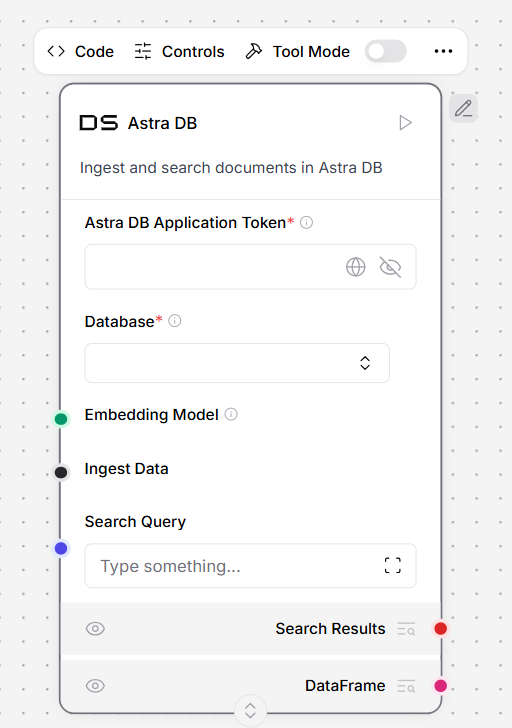
Define Astra DB tool parameters
The Tool Parameters configuration pane allows you to define parameters for filter conditions for the component’s Find command. These filters become available as parameters that the LLM can use when calling the tool, with a better understanding of each parameter provided by the Description field.- To define a parameter for your query, in the Tool Parameters pane, click Add a new row.
- Complete the fields based on your data. For example, with this filter, the LLM can filter by unique
customer_idvalues.
- Name:
customer_id - Attribute Name: Leave empty if the attribute matches the field name in the database.
- Description:
"The unique identifier of the customer to filter by". - Is Metadata:
Falseunless the value is stored in the metadata field. - Is Mandatory:
Trueto require this filter. - Is Timestamp:
Falsesince the value is an ID, not a timestamp. - Operator:
$eqto look for an exact match.
Parameters
Parameters
Inputs
OutputsThe Data output is used when directly querying Astra DB, while the Tool output is used when integrating with agents.
Astra DB CQL Tool
TheAstra DB CQL Tool allows agents to query data from CQL tables in Astra DB.
Parameters
Parameters
Inputs
Outputs
Bing Search API
This component allows you to call the Bing Search API.Parameters
Parameters
Inputs
Outputs
Combinatorial Reasoner
This component runs Icosa’s Combinatorial Reasoning (CR) pipeline on an input to create an optimized prompt with embedded reasons. For more information, see Icosa computing.Parameters
Parameters
Inputs
Outputs
DuckDuckGo search
This component performs web searches using the DuckDuckGo search engine with result-limiting capabilities.Parameters
Parameters
Inputs
Outputs
Exa Search
This component provides an Exa Search toolkit for search and content retrieval.Parameters
Parameters
Inputs
Outputs
Glean Search API
This component allows you to call the Glean Search API.Parameters
Parameters
Inputs
Outputs
Google Serper API
This component allows you to call the Serper.dev Google Search API.Parameters
Parameters
Inputs
Outputs
MCP connection
The MCP connection component exposes Model Context Protocol (MCP) servers, including your other flows, as tools for LLM Controls agents.MCP consists of parameters Such as :Parameters
Parameters
- MODE: studio, sse
- MCP SSE URL: uvx mcp-server-fetch (example command)
- Tools
Wikidata
This component performs a search using the Wikidata API.Parameters
Parameters
Inputs
Outputs
Spreadsheet Query
This component provides tools for searching through spreadsheet data using SQL queries, natural language, filters, and aggregations. It also supports chart generation (line, scatter, bar, histogram, pie, box plots).Parameters
Parameters
Tool Calling Agent
This component is an agent designed to utilize various tools seamlessly within workflows. It uses a language model to process user input and decide which tools to call.Parameters
Parameters
Calculator
This component performs basic arithmetic operations on a given expression. It safely evaluates mathematical expressions using Python’s AST parser, supporting addition, subtraction, multiplication, division, and exponentiation.Parameters
Parameters
Python REPL
This component is a Python code executor that lets you run Python code with specific imported modules. Remember to always use print() to see your results.Parameters
Parameters
Search API
This component calls the searchapi.io API with result limiting. It returns organic search results with title, link, and snippet fields. Supports Google, Bing, and DuckDuckGo engines.Parameters
Parameters
Serp Search API
This component calls the Serp Search API with result limiting. It returns organic search results with title, link, and snippet fields.Parameters
Parameters
Tavily AI Search
This component is a search engine optimized for LLMs and RAG, aimed at efficient, quick, and persistent search results. It supports configurable search depth, topic filtering, time ranges, and can include images and short answers.Wikipedia
This component calls the Wikipedia API to search and retrieve article content.Parameters
Parameters
Inputs
| Name | Display Name | Info |
| input_value | Input | |
| lang | Language | |
| k | Number of results | |
| load_all_available_meta | Load all available meta | |
| doc_content_chars_max | Document content characters max |
Outputs
WolframAlpha API
This component enables queries to Wolfram Alpha for computational data, facts, and calculations across various topics, delivering structured responses.Parameters
Parameters
Inputs
| Name | Display Name | Info |
| input_value | Input Query | Example query: ‘What is the population of France?‘ |
| app_id | App ID |
Outputs
Yahoo Finance
This component uses yfinance (unofficial package) to access financial data and market information from Yahoo Finance. It supports multiple data retrieval methods including stock info, news, balance sheets, earnings, and more.Parameters
Parameters