
Use an embeddings model component in a flow
- SplitTextComponent chunks the documents into smaller pieces
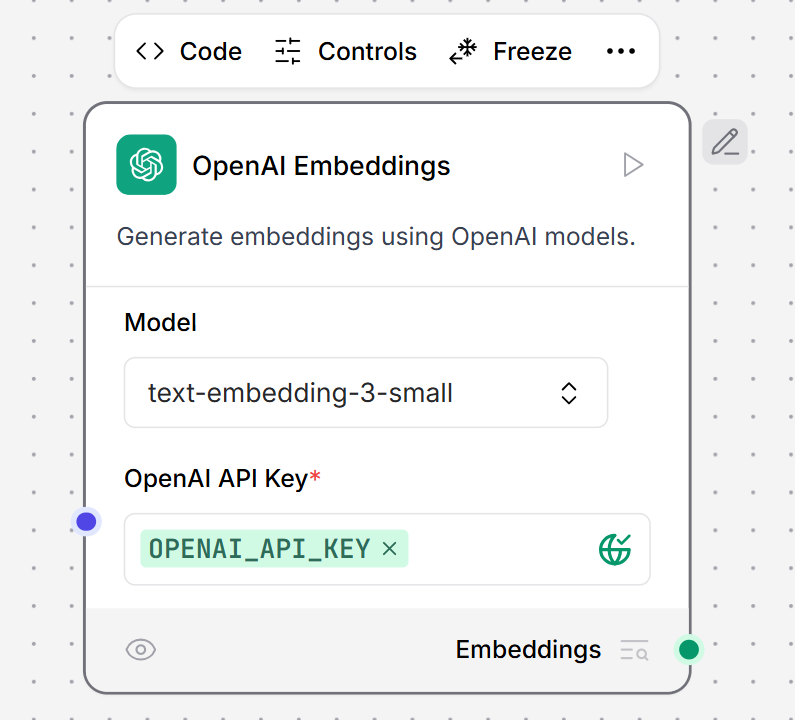
- OpenAIEmbeddingsComponent converts text chunks into numerical vectors
- AstraDBVectorStoreComponent stores the vectorized data in the vector database
AI/ML
This component generates embeddings using the AI/ML API.Parameters
Parameters
Inputs
Outputs
Amazon Bedrock Embeddings
This component is used to load embedding models from Amazon Bedrock.Parameters
Parameters
Inputs
Outputs
Astra DB vectorize
importantThis component is deprecated as of LLM Controls version 1.1.2. Instead, use the Astra DB vector store component.
Parameters
Parameters
Inputs
Outputs
Azure OpenAI Embeddings
This component generates embeddings using Azure OpenAI models.Parameters
Parameters
Inputs
Outputs
Cloudflare Workers AI Embeddings
This component generates embeddings using Cloudflare Workers AI models.Parameters
Parameters
Inputs
Outputs
Cohere Embeddings
This component is used to load embedding models from Cohere.Parameters
Parameters
Inputs
Outputs
Embedding similarity
This component computes selected forms of similarity between two embedding vectors.Parameters
Parameters
Inputs
Outputs
Google generative AI embeddings
This component connects to Google’s generative AI embedding service using the GoogleGenerativeAIEmbeddings class from thelangchain-google-genai package.
Parameters
Parameters
Inputs
Outputs
Hugging Face Embeddings
noteThis component is deprecated as of LLM Controls version 1.0.18. Instead, use the Hugging Face Embeddings Inference component.
Parameters
Parameters
Inputs
Outputs
Hugging Face embeddings inference
This component generates embeddings using Hugging Face Inference API models and requires a Hugging Face API token to authenticate. Local inference models do not require an API key. Use this component to create embeddings with Hugging Face’s hosted models, or to connect to your own locally hosted models.Parameters
Parameters
Inputs
Outputs
Connect the Hugging Face component to a local embeddings model
To run an embedding inference locally, see the HuggingFace documentation. To connect the local Hugging Face model to the Hugging Face embeddings inference component and use it in a flow, follow these steps:- Create a Vector store RAG flow. There are two embeddings models in this flow that you can replace with Hugging Face embeddings inference components.
- Replace both OpenAI embeddings model components with Hugging Face model components.
- Connect both Hugging Face components to the Embeddings ports of the Astra DB vector store components.
- In the Hugging Face components, set the Inference Endpoint field to the URL of your local inference model. The API Key field is not required for local inference.
- Run the flow. The local inference models generate embeddings for the input text.
IBM watsonx embeddings
This component generates text using IBM watsonx.ai foundation models. To use IBM watsonx.ai embeddings components, replace an embeddings component with the IBM watsonx.ai component in a flow. An example document processing flow looks like the following: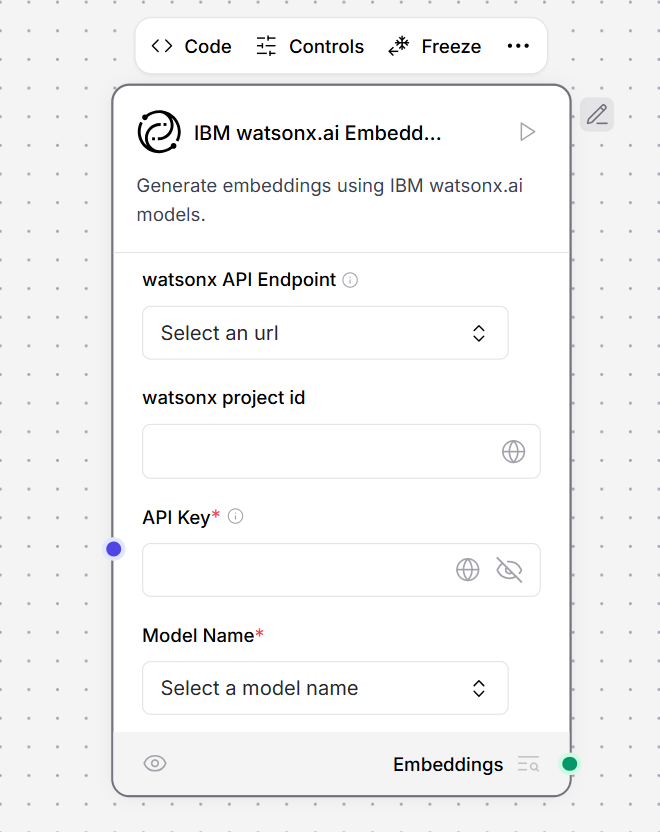
Default models
The component supports several default models with the following vector dimensions:sentence-transformers/all-minilm-l12-v2: 384-dimensional embeddingsibm/slate-125m-english-rtrvr-v2: 768-dimensional embeddingsibm/slate-30m-english-rtrvr-v2: 768-dimensional embeddingsintfloat/multilingual-e5-large: 1024-dimensional embeddings
Parameters
Parameters
Inputs
Outputs
LM Studio Embeddings
This component generates embeddings using LM Studio models.Parameters
Parameters
Inputs
Outputs
MistralAI
This component generates embeddings using MistralAI models.Parameters
Parameters
Inputs
Outputs
NVIDIA
This component generates embeddings using NVIDIA models.Parameters
Parameters
Inputs
Outputs
Ollama embeddings
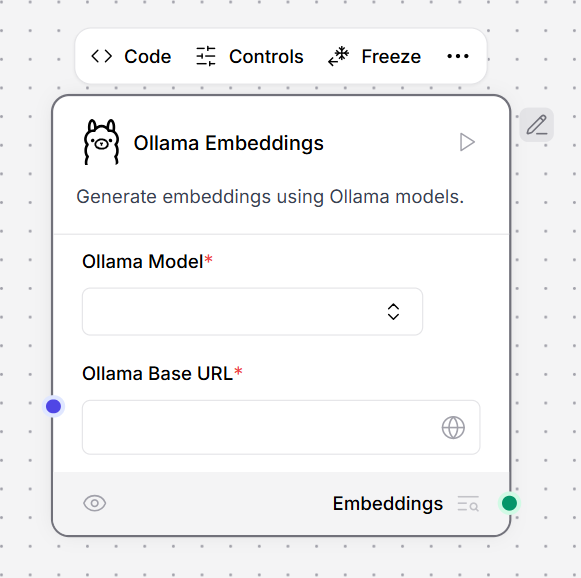
This component generates embeddings using Ollama models. For a list of Ollama embeddings models, see the Ollama documentation. To use this component in a flow, connect LLM Controls to your locally running Ollama server and select an embedding model.- In the Ollama component, in the Ollama Base URL field, enter the address for your locally running Ollama server. This value is set as the
OLLAMA_HOSTenvironment variable in Ollama. The default base URL ishttp://localhost:11434. - To refresh the server’s list of models, click Refresh.
- In the Ollama Model field, select an embedding model. This example uses
all-minilm:latest. - Connect the Ollama embeddings component to a flow. For example, this flow connects a local Ollama server running a
all-minilm:latestembeddings model to a Chroma DB vector store to generate embeddings for split text.
Parameters
Parameters
Inputs
Outputs
OpenAI Embeddings
This component is used to load embedding models from OpenAI.Parameters
Parameters
Inputs
Outputs
Text embedder
This component generates embeddings for a given message using a specified embedding model.Parameters
Parameters
Inputs
Outputs
VertexAI Embeddings
This component is a wrapper around Google Vertex AI Embeddings API.Parameters
Parameters
Inputs
Outputs