
Prerequisites
Run the Simple Agent template flow
-
In LLM Controls, click New Flow, and then select the Simple Agent template.
.png?fit=max&auto=format&n=9PuWEwunOBJ8KxNm&q=85&s=da2de5dc1ce82d8e0d9d9a0742947a9f)
- In the Agent component’s settings, in the OpenAI API Key field, enter your OpenAI API key. This guide uses an OpenAI model for demonstration purposes. If you want to use a different provider, change the Model Provider field, and then provide credentials for your selected provider. Optionally, you can click Globe to store the key in an LLM Controls global variable.
- To run the flow, click Playground.
-
To test the Calculator tool, ask the agent a simple math question, such as
I want to add 4 and 4.To help you test and evaluate your flows, the Playground shows the agent’s reasoning process as it analyzes the prompt, selects a tool, and then uses the tool to generate a response. In this case, a math question causes the agent to select the Calculator tool and use an action likeevaluate_expression.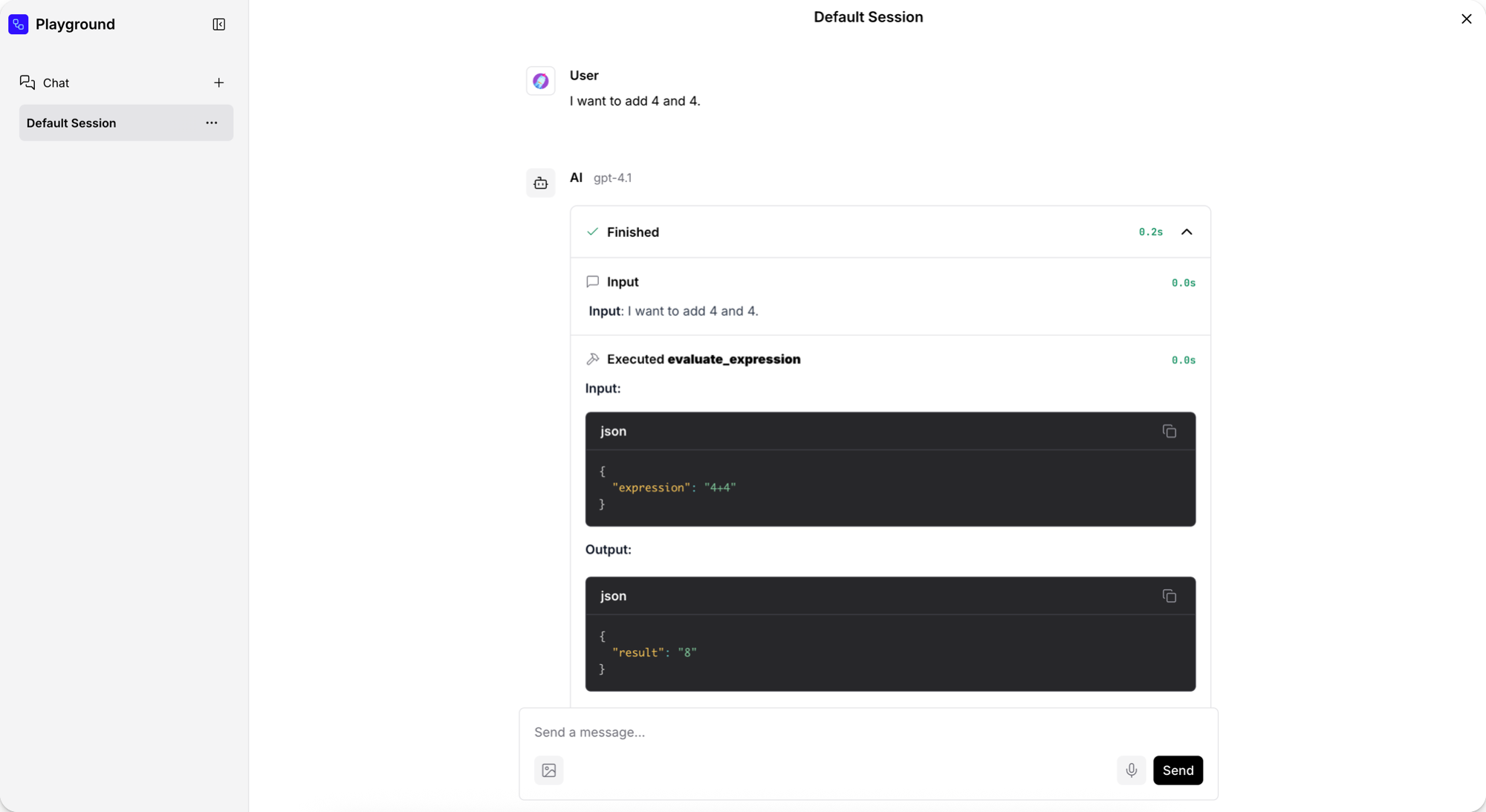
-
To test the URL tool, ask the agent about current events. For this request, the agent selects the URL tool’s
fetch_contentaction, and then returns a summary of current news headlines. - When you are done testing the flow, click Close.
- Edit your Simple Agent flow by attaching different tools or adding more components to the flow.
- Build your own flows from scratch or by modifying other template flows.
- Integrate flows into your applications, as explained in Run your flows from external applications.
Run your flows from external applications
LLM Controls is an application development platform, but it’s also a runtime you can call through an API with Python, JavaScript, or HTTP. LLM Controls provides code snippets to help you get started with the LLM Controls API- To access the API code for any flow in LLM Controls, open the desired flow and click on the “Publish” button located at the top-right corner of the screen. A dropdown will appear with three options: API access, Embed into site, and Shareable Playground.
- Python
- JavaScript
- curl
- Click on API access to open a code snippet window that provides you with ready-to-use code in multiple languages (Python, JavaScript, cURL). The default code in the API access pane constructs a request with the LLM Controls server URL, headers, and a payload of request data. The code snippets automatically include the LLMC_SERVER_ADDRESS and FLOW_ID values for the flow.
- If you’re using the cloud version, make sure to create an API key in your Settings > LLM Controls API tab and set it as an environment variable (LLMC_API_KEY) in your development environment before making requests.
Response
Response
Extract data from the response
The following example builds on the API pane’s example code to create a question-and-answer chat in your terminal that stores the Agent’s previous answer.- Incorporate your Simple Agent flow’s
/runsnippet into the following script. This script runs a question-and-answer chat in your terminal and stores the Agent’s previous answer so you can compare it.
- Python
- JavaScript
- To view the Agent’s previous answer, type
compare. To close the terminal chat, typeexit.
Use tweaks to apply temporary overrides to a flow run
You can include tweaks with your requests to temporarily modify flow parameters. Tweaks are added to the API request and temporarily change component parameters within your flow. Tweaks override the flow’s components’ settings for a single run only. They don’t modify the underlying flow configuration or persist between runs. Tweaks are added to the /run endpoint’s payload. To assist with formatting, you can define tweaks in the LLM Controls Tweaks pane before copying the code snippet.- To open the Tweaks pane, from the API access pane, click Tweaks.
- In the Tweaks pane, select the parameter you want to modify in your next request. Enabling parameters in the Tweaks pane adds them to the example code snippet.
- For example, to change the model provider from OpenAI to Groq and include your Groq API key with the request, select the relevant parameters in the Tweaks pane, and the code snippet will be automatically updated.