
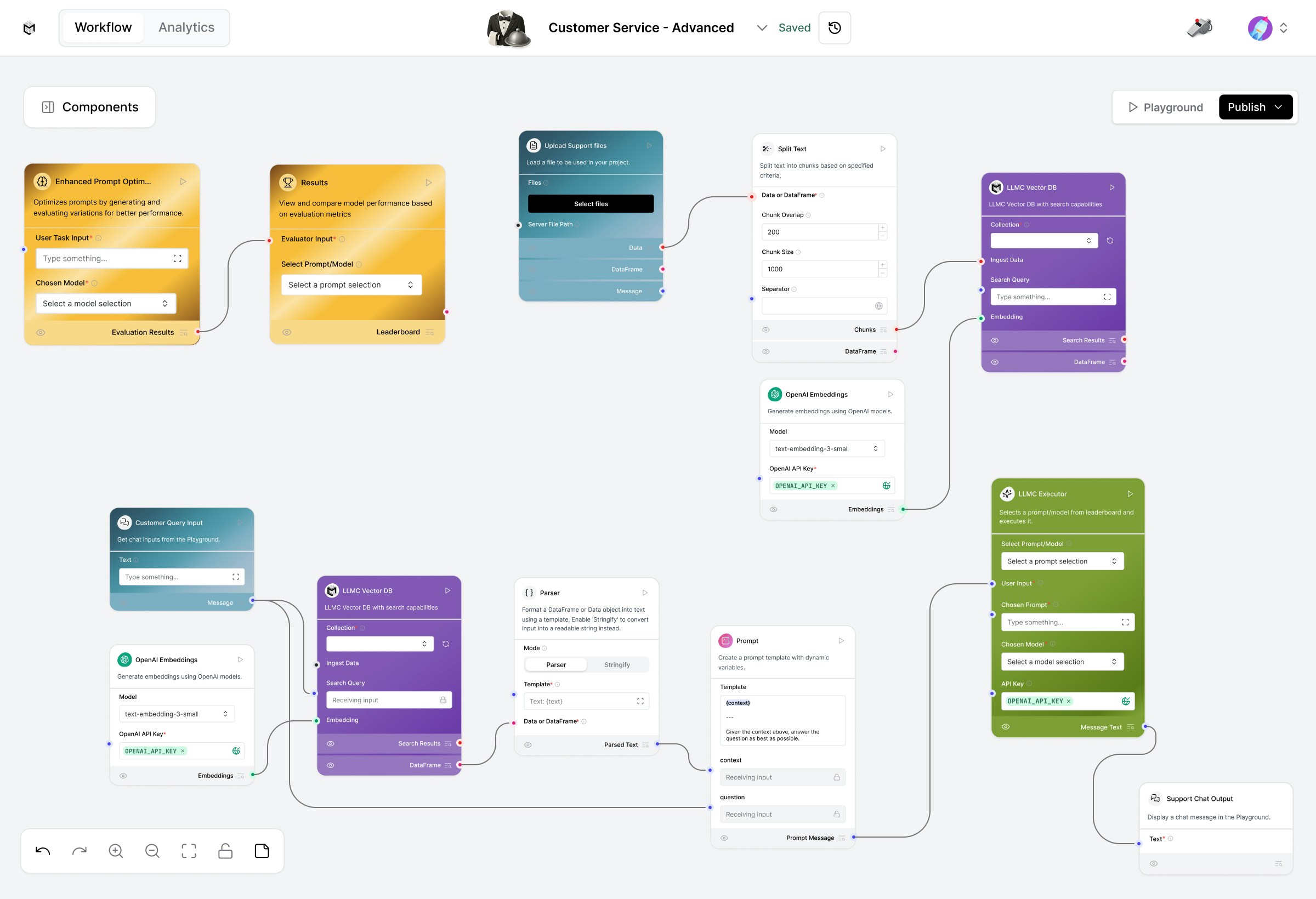
It integrates Prompt Optimization, Vector Search, and LLMC Executor to create a fully automated support flow.
Prerequisites
- An active OpenAI API key
- Access to the LLM Controls dashboard
- At least one support document (PDF, TXT, or website URL) for data ingestion
Create the Customer Service Flow
From the LLM Controls dashboard, click New Flow → Select Customer Service – Advanced.The flow includes three main sections:
1. Prompt Optimizer Flow
Automatically generate, evaluate, and rank optimized prompts to ensure your model responds effectively to customer questions.Flow Components
- User Task – Define the type of prompt you want to optimize.
- Enhanced Prompt Optimizer – Generates variations, criteria, and scoring to identify the best prompt.
- Results – Displays ranked performance and top prompt outputs.
Run It
- Start from the User Task node, input your optimization goal.
- Click Run on the Results node to execute the optimizer.
- Review the leaderboard to see the top-performing prompt.
2. Load Data Flow
Prepare your knowledge base for AI retrieval. This step embeds your support documents into a Vector DB.Steps
- Upload Files or URLs – Add your customer support guides, FAQs, or product documentation.
- Split Text – Breaks content into smaller chunks.
- Embed Text – Uses OpenAI Embeddings to create vector representations.
-
Store Data – Saves all embeddings to the LLMC Vector DB.
Make sure your OpenAI API key is configured in the embedding component.
3. Retriever Flow
Handles real customer queries using RAG (Retrieval-Augmented Generation).How It Works
- The Customer Query Input collects a user question.
- The LLMC Vector DB retrieves relevant support content.
- The Parser formats the retrieved content.
- The Prompt injects that context into the model request.
- The LLMC Executor generates the final AI-powered response.
- The Support Chat Output displays the answer.
Example
Input: “Why was my refund delayed?”Output: “Your refund was delayed due to a pending bank verification step, as stated in our policy.”
4. LLMC Executor
Executes optimized prompts using selected models (like GPT-4o).Usage Steps
- Select your Prompt and Model.
- Ensure your API Key is active.
- Enter the user query and click Play.
- View the generated response in the Output section.
Run the Full Customer Support Flow
- Load and embed your company data via the Load Data Flow.
- Optimize prompts with the Prompt Optimizer Flow.
- Connect the Retriever Flow for live Q&A.
- Test everything in the Playground to verify responses.
Modify and Extend
- Add custom prompt templates for tone or brand voice.
- Integrate additional embedding sources (e.g., Notion, Confluence).
- Chain multiple LLMC Executors for tiered reasoning.