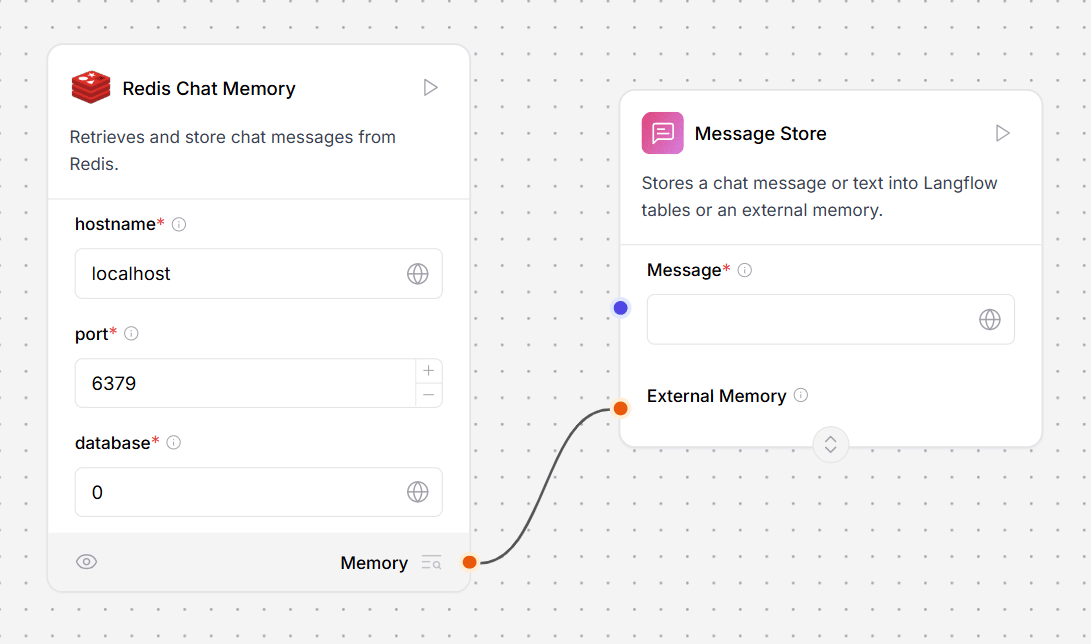
Chat memory in LLM Controls is stored either in local LLM Controls tables with LCBufferMemory or connected to an external database.The Store Message helper component stores chat memories as Data objects, and the Message History helper component retrieves chat messages as data objects or strings.This example flow stores and retrieves chat history from an AstraDBChatMemory component with Store Message and Chat Memory components.
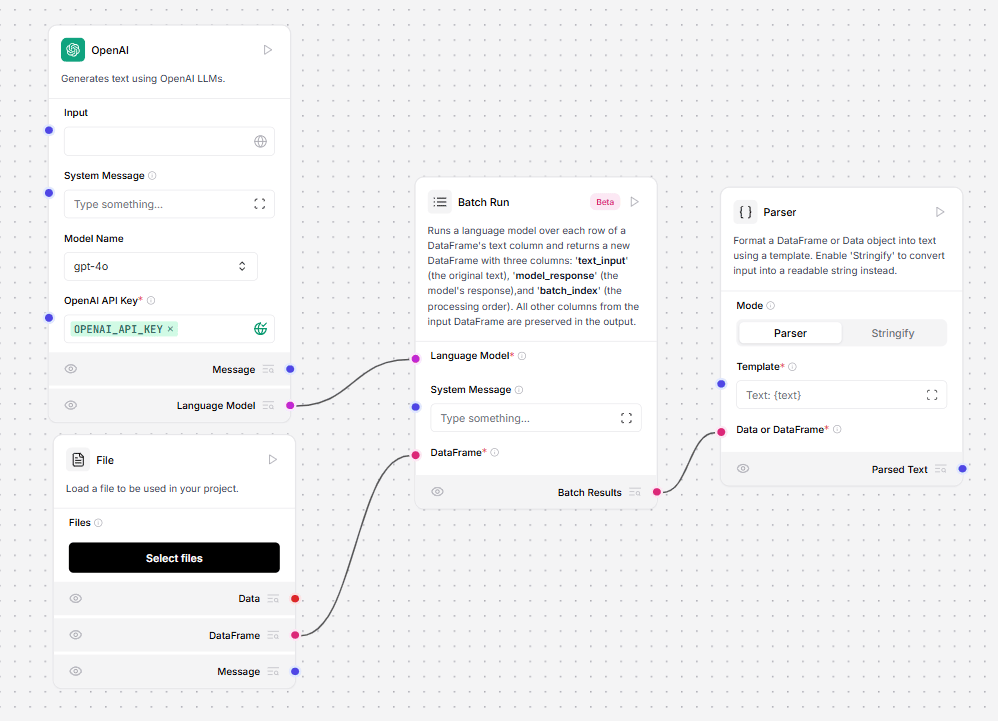
The Batch Run component runs a language model over each row of a DataFrame text column and returns a new DataFrame with the original text and an LLM response.The response contains the following columns:
text_input: The original text from the input DataFrame.
model_response: The model’s response for each input.
batch_index: The processing order, with a 0-based index.
metadata (optional): Additional information about the processing.
These columns, when connected to a Parser component, can be used as variables within curly braces.To use the Batch Run component with a Parser component, do the following:
Connect a Model component to the Batch Run component’s Language model port.
Connect a component that outputs a DataFrame, like the File component, to the Batch Run component’s DataFrame input.
Connect the Batch Run component’s Batch Results output to a Parser component’s DataFrame input. The flow looks like this:
In the Column Name field of the Batch Run component, enter a column name based on the data you’re loading from the File loader. For example, to process a column of names, enter name.
Optionally, in the System Message field of the Batch Run component, enter a System Message to instruct the connected LLM on how to process your file. For example, create a business card for each name.
In the Template field of the Parser component, enter a template for using the Batch Run component’s new DataFrame columns. To use all three columns from the Batch Run component, include them like this:
To run the flow, in the Parser component, click Run component.
To view your created DataFrame, in the Parser component, click.
Optionally, connect a Chat Output component, and open the Playground to see the output.
Parameters
Inputs
Name
Type
Description
model
HandleInput
Connect the ‘Language Model’ output from your LLM component here. Required.
system_message
MultilineInput
A multi-line system instruction for all rows in the DataFrame.
df
DataFrameInput
The DataFrame whose column is treated as text messages, as specified by ‘column_name’. Required.
column_name
MessageTextInput
The name of the DataFrame column to treat as text messages. If empty, all columns are formatted in TOML.
output_column_name
MessageTextInput
Name of the column where the model’s response is stored. Default=model_response.
enable_metadata
BoolInput
If True, add metadata to the output DataFrame.
Outputs
Name
Type
Description
batch_results
DataFrame
A DataFrame with all original columns plus the model’s response column.
The Current Date component returns the current date and time in a selected timezone. This component provides a flexible way to obtain timezone-specific date and time information within an LLM Controls pipeline.
Parameters
Inputs
Name
Type
Description
timezone
String
The timezone for the current date and time.
Outputs
Name
Type
Description
current_date
String
The resulting current date and time in the selected timezone.
infoBefore LLM Controls 1.1, this component was known as the Chat Memory component.
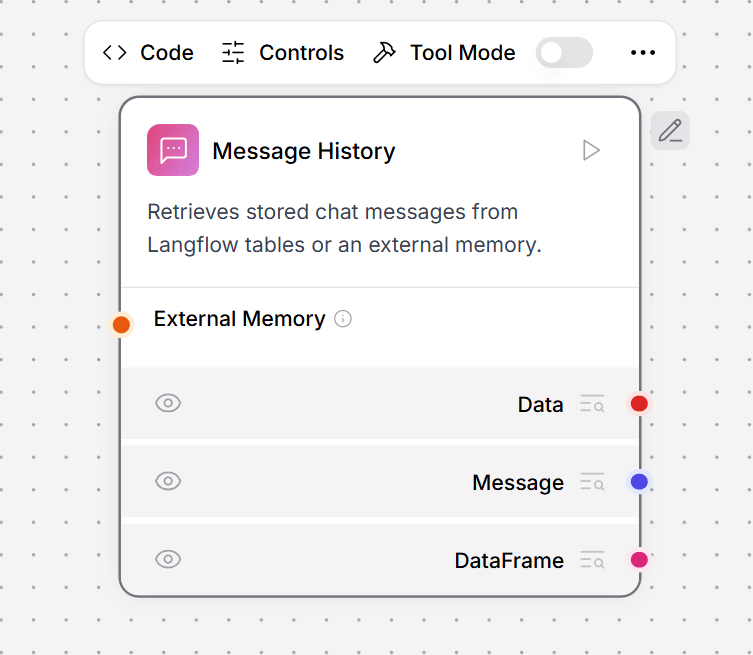
This component retrieves chat messages from LLM Controls tables or external memory.In this example, the Message Store component stores the complete chat history in a local LLM Controls. .table, which the Message History component retrieves as context for the LLM to answer each question.For more information on configuring memory in LLM Controls.
Parameters
Inputs
Name
Type
Description
memory
Memory
Retrieve messages from an external memory. If empty, the LLM Controls tables are used.
sender
String
Filter by sender type.
sender_name
String
Filter by sender name.
n_messages
Integer
The number of messages to retrieve.
session_id
String
The session ID of the chat. If empty, the current session ID parameter is used.
order
String
The order of the messages.
template
String
The template to use for formatting the data. It can contain the keys {text}, {sender} or any other key in the message data.
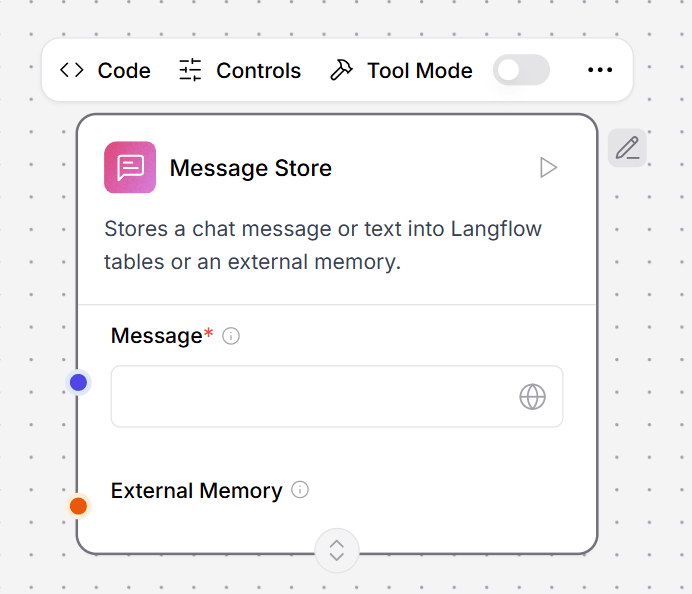
This component stores chat messages or text in LLM Controls tables or external memory.In this example, the Message Store component stores the complete chat history in a local LLM Controls table, which the Message History component retrieves as context for the LLM to answer each question.For more information on configuring memory in LLM Controls.
Parameters
Inputs
Name
Type
Description
message
String
The chat message to be stored. (Required)
memory
Memory
The external memory to store the message. If empty, the LLM Controls tables are used.
sender
String
The sender of the message. Can be Machine or User. If empty, the current sender parameter is used.
sender_name
String
The name of the sender. Can be AI or User. If empty, the current sender parameter is used.
session_id
String
The session ID of the chat. If empty, the current session ID parameter is used.
Outputs
Name
Type
Description
stored_messages
List[Data]
The list of stored messages after the current message has been added.
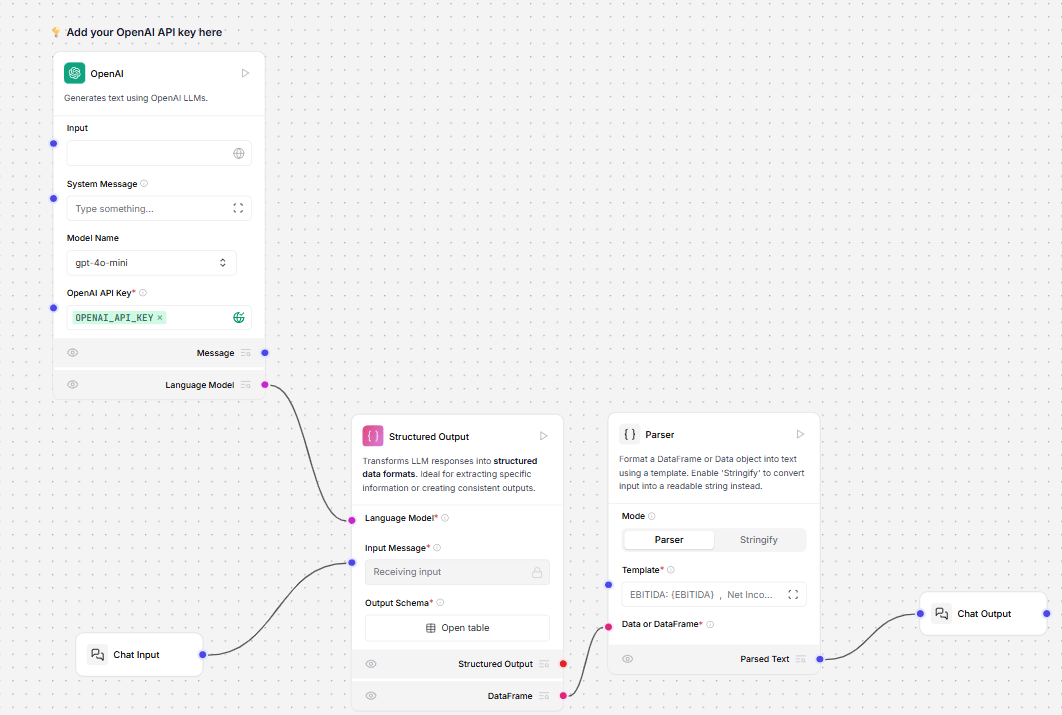
This component transforms LLM responses into structured data formats.In this example from the Financial Report Parser template, the Structured Output component transforms unstructured financial reports into structured data.The connected LLM model is prompted by the Structured Output component’s Format Instructions parameter to extract structured output from the unstructured text. Format Instructions is utilized as the system prompt for the Structured Output component.In the Structured Output component, click the Open table button to view the Output Schema table. The Output Schema parameter defines the structure and data types for the model’s output using a table with the following fields:
Name: The name of the output field.
Description: The purpose of the output field.
Type: The data type of the output field. The available types are str, int, float, bool, list, or dict. The default is text.
Multiple: This feature is deprecated. Currently, it is set to True by default if you expect multiple values for a single field. For example, a list of features is set to True to contain multiple values, such as ["waterproof", "durable", "lightweight"]. Default: True.
The Parser component parses the structured output into a template for orderly presentation in chat output. The template receives the values from the output_schema table with curly braces.For example, the template EBITDA: {EBITDA}, Net Income: {NET_INCOME}, GROSS_PROFIT: {GROSS_PROFIT} presents the extracted values in the Playground as EBITDA: 900 million, Net Income: 500 million, GROSS_PROFIT: 1.2 billion.
Parameters
Inputs
Name
Type
Description
llm
LanguageModel
The language model to use to generate the structured output.
input_value
String
The input message to the language model.
system_prompt
String
The instructions to the language model for formatting the output.
schema_name
String
The name for the output data schema.
output_schema
Table
The structure and data types for the model’s output.
multiple
Boolean
[Deprecated] Always set to True.
Outputs
Name
Type
Description
structured_output
Data
The structured output is a Data object based on the defined schema.
This component transforms the output of a language model into a specified format. It supports CSV format parsing, which converts LLM responses into comma-separated lists using Langchain’s CommaSeparatedListOutputParser.
noteThis component only provides formatting instructions and parsing functionality. It does not include a prompt. You’ll need to connect it to a separate Prompt component to create the actual prompt template for the LLM to use.
Both the Output Parser and Structured Output components format LLM responses, but they have different use cases. The Output Parser is simpler and focused on converting responses into comma-separated lists. Use this when you just need a list of items, for example, ["item1", "item2", "item3"]. The Structured Output is more complex and flexible, and allows you to define custom schemas with multiple fields of different types. Use this when you need to extract structured data with specific fields and types.To use this component:
Create a Prompt component and connect the Output Parser’s format_instructions output to it. This ensures the LLM knows how to format its response.
Write your actual prompt text in the Prompt component, including the {format_instructions} variable. For example, in your Prompt component, the template might look like:
Connect the output_parser output to your LLM model.
The output parser converts this into a Python list: ["apple", "banana", "orange"].
Parameters
Inputs
Name
Type
Description
parser_type
String
The parser type. Currently supports “CSV”.
Outputs
Name
Type
Description
format_instructions
String
Pass to a prompt template to include formatting instructions for LLM responses.
output_parser
Parser
The constructed output parser that can be used to parse LLM responses.