
Message object, but serve different purposes.
The Text Input component accepts a text string input and returns a Message object containing only the input text. The output does not appear in the Playground.
The Chat Input component accepts multiple input types including text, files, and metadata, and returns a Message object containing the text along with sender information, session ID, and file attachments.
The Chat Input component provides an interactive chat interface in the Playground.
Chat Input
This component collects user input asText strings from the chat and wraps it in a Message object that includes the input text, sender information, session ID, file attachments, and styling properties.
It can optionally store the message in a chat history.
Parameters
Parameters
Inputs
Outputs
Message method
TheChatInput class provides an asynchronous method to create and store a Message object based on the input parameters. The Message object is created in the message_response method of the ChatInput class using the Message.create() factory method.
Text Input
The Text Input component accepts a text string input and returns aMessage object containing only the input text.
The output does not appear in the Playground.
Parameters
Parameters
Inputs
Outputs
Chat Output
The Chat Output component creates a Message object that includes the input text, sender information, session ID, and styling properties. The component accepts the following input types.Parameters
Parameters
Inputs
Outputs
Text Output
The Text Output takes a single input of text and returns a Message object containing that text. The output does not appear in the Playground.Parameters
Parameters
Inputs
Outputs
Markdown to Text
This component converts markdown-formatted text to plain text output. It strips markdown syntax, including headers, bold, italic, links, images, code blocks, lists, blockquotes, and strikethrough.To Convert Markdown
- Enter or connect markdown-formatted text in the Markdown Text field
- The component outputs the stripped plain text as a Message
Parameters
Parameters
Chat components example flow
- To use the Chat Input and Chat Output components in a flow, connect them to components that accept or send the Message type. For this example, connect a Chat Input component to an OpenAI model component’s Input port, and then connect the OpenAI model component’s Message port to the Chat Output component.
- In the OpenAI model component, in the OpenAI API Key field, add your OpenAI API key.
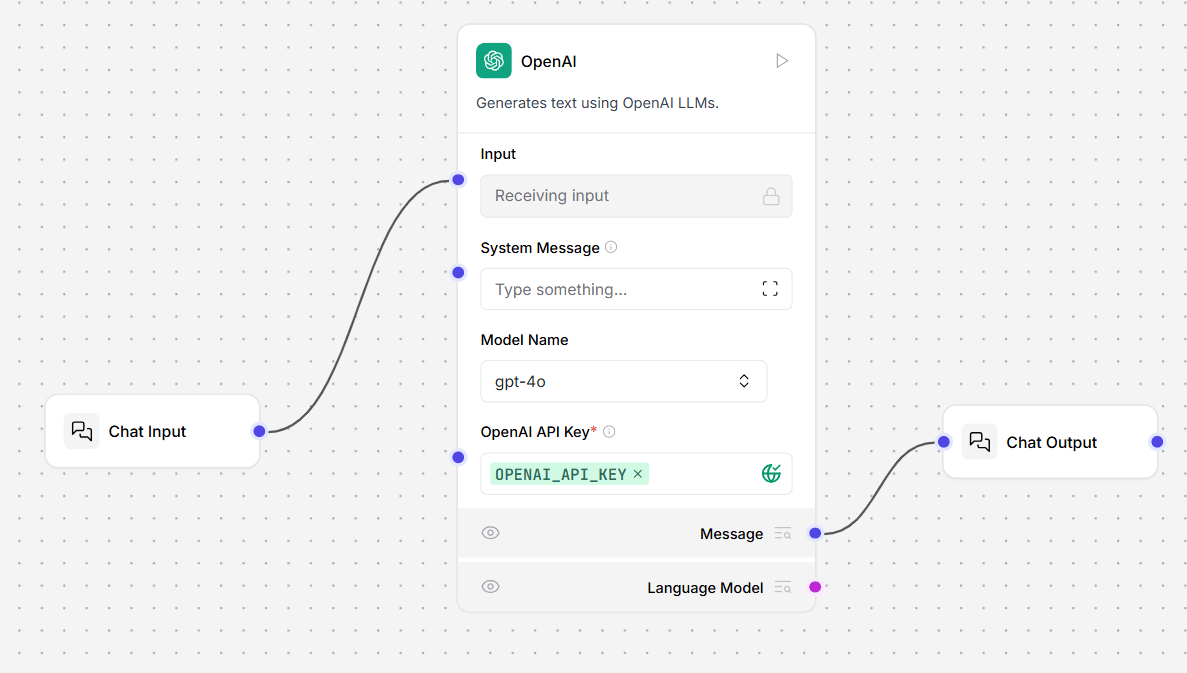
- To send a message to your flow, open the Playground and then enter a message. The OpenAI model component responds. Optionally, in the OpenAI model component, enter a System Message to control the model’s response.
-
In the LLM Controls UI, click your flow name, and then click Logs. The Logs pane opens. Here, you can inspect your component logs.
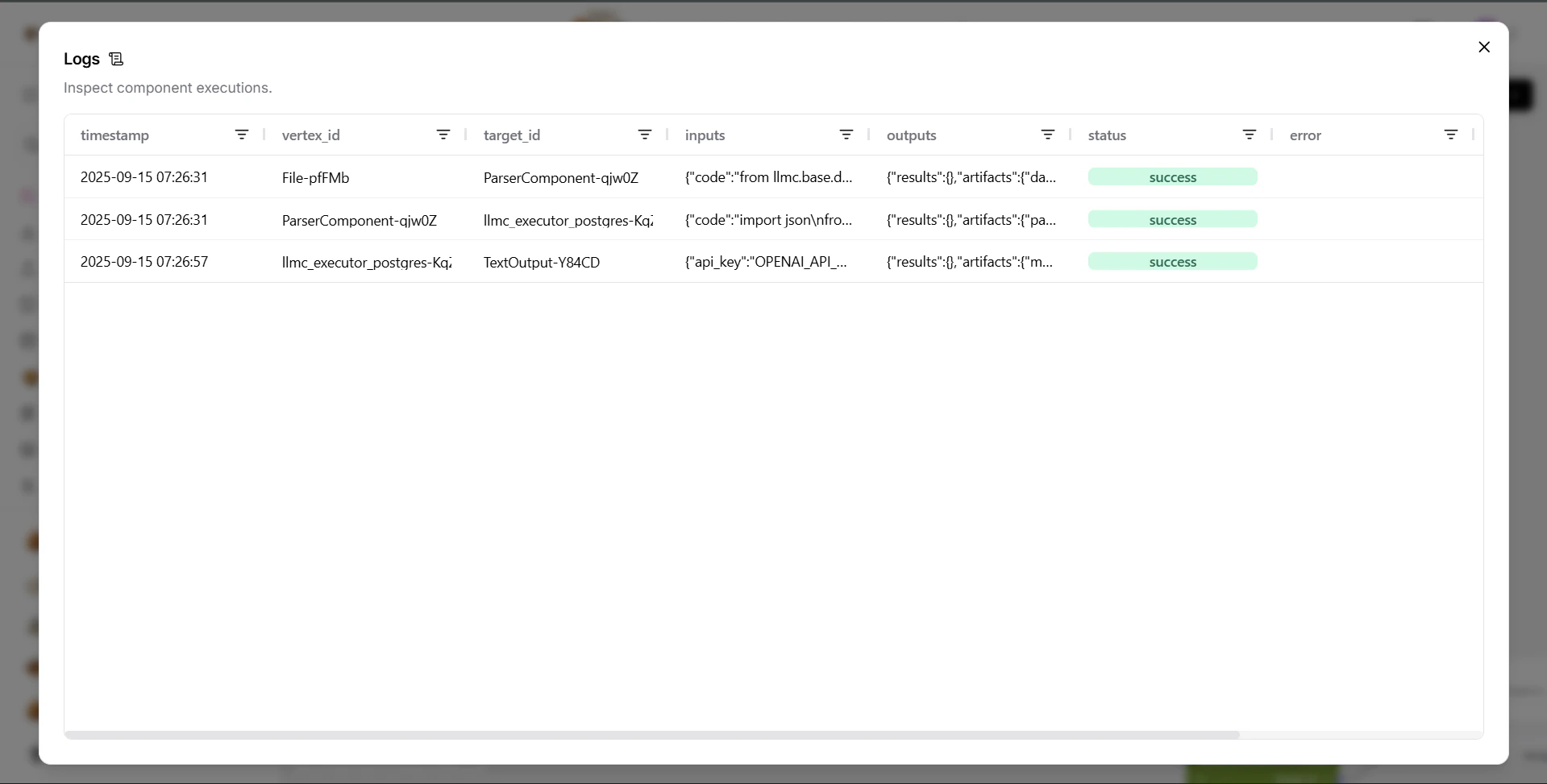
- Your first message was sent by the Chat Input component to the OpenAI model component.
- Your second message was sent by the OpenAI model component to the Chat Output component. This is the raw text output of the model’s response. The Chat Output component accepts this text as input and presents it as a formatted message.
Send chat messages with the API
The Chat Input component is often the entry point for passing messages to the LLM Controls API. To send the same example messages programmatically to your LLM Controls server, do the following:- To get your LLM Controls endpoint, click Publish, and then click API access.
- Copy the command from the cURL tab, and then paste it into your terminal. It looks similar to this:
-
Modify
input_valueso it contains the question,What's the recommended way to install Docker on Mac M1?. Note theoutput_typeandinput_typeparameters that are passed with the message. Thechattype provides additional configuration options, and the messages appear in the Playground. Thetexttype returns only text strings and does not appear in the Playground. -
Add a custom
session_idto the message’sdataobject. The customsession_idvalue starts a new chat session between your client and the LLM Controls server, and can be useful in keeping conversations and AI context separate. - Send the POST request. Your request is answered.
-
Navigate to the Playground. A new chat session called
docker-question-on-m1has appeared, using your uniquesession_id. - To modify additional parameters with Tweaks for your Chat Input and Chat Output components, click Publish, and then click API access.
-
Click Tweaks to modify parameters in the component’s
dataobject. For example, disabling storing messages from the Chat Input component adds a Tweak to your command:
should_store_message is false.