
Prerequisites
Connect LLM Controls to a Composio tool
- In the LLM Controls Workspace, add an Agent component.
- In the Workspace, add the Composio Tools component.
- Connect the Agent component’s Tools port to the Composio Tools component’s Tools port.
- In the Composio API Key field, paste your Composio API key. Alternatively, add the key as a global variable.
- In the Tool Name field, select the tool you want your agent to have access to. For this example, select the Gmail tool, which allows your agent to control an email account with the Composio tool.
- In the Actions field, select the action you want the Agent to take with the Gmail tool. The Gmail tool supports multiple actions, and also supports multiple actions within the same tool. For this example, select GMAIL_CREATE_EMAIL_DRAFT. For more information, see the Composio documentation.
Create a Composio flow
- In the Workspace, add Chat Input and Chat Output components to your flow.
- Connect the components so they look like this.
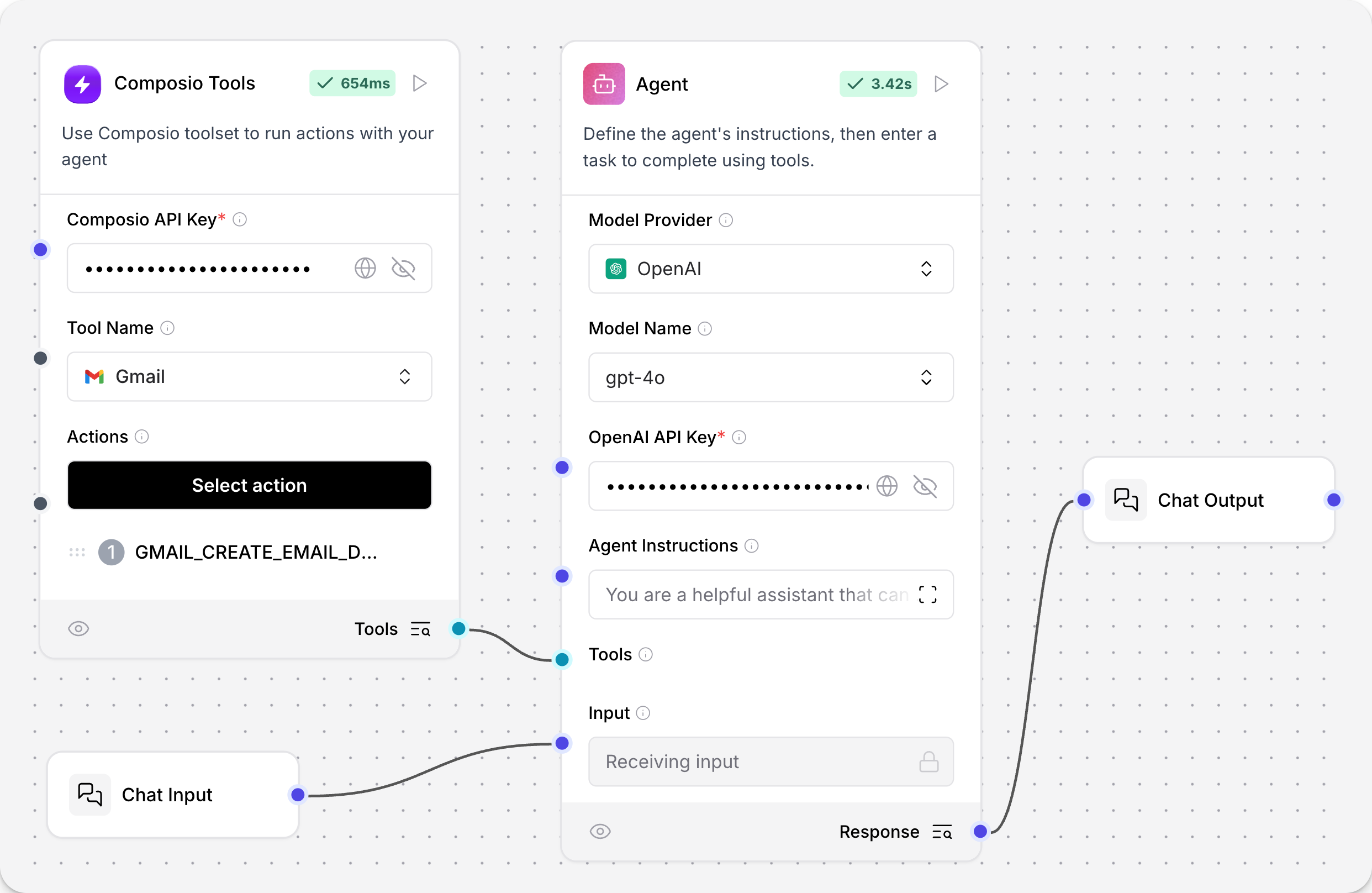
- In the OpenAI API Key field of the Agent component, paste your OpenAI API key. Alternatively, add the key as a global variable.
- To open the Playground pane, click Playground.
- Ask your AI: What tools are available to you? The response should be similar to:
GMAIL_CREATE_EMAIL_DRAFT: This tool allows me to create a draft email using Gmail’s API. I can specify the recipient’s email address, subject, body content, and whether the body content is HTML.CurrentDate-get_current_date: This tool retrieves the current date and time in a specified timezone.
-
Tell your AI to write a draft email.
Create a draft email with the subject line “Greetings from Composio.”
Recipient: “your.email@address.com”
Body content: “Hello from composio!”
Inspect the response to see how the agent used the attached tool to write an email. This example response is abbreviated.
The draft email with the subject “Greetings from Composio” and body “Hello from Composio!” has been successfully created.
- To confirm further, navigate to the Gmail account you authenticated with Composio. Your email is visible in Drafts.