
Create an OAuth Application in Google Cloud
- Navigate to the Google Cloud Console.
- Click Select a project, and then click New Project to create a new project.
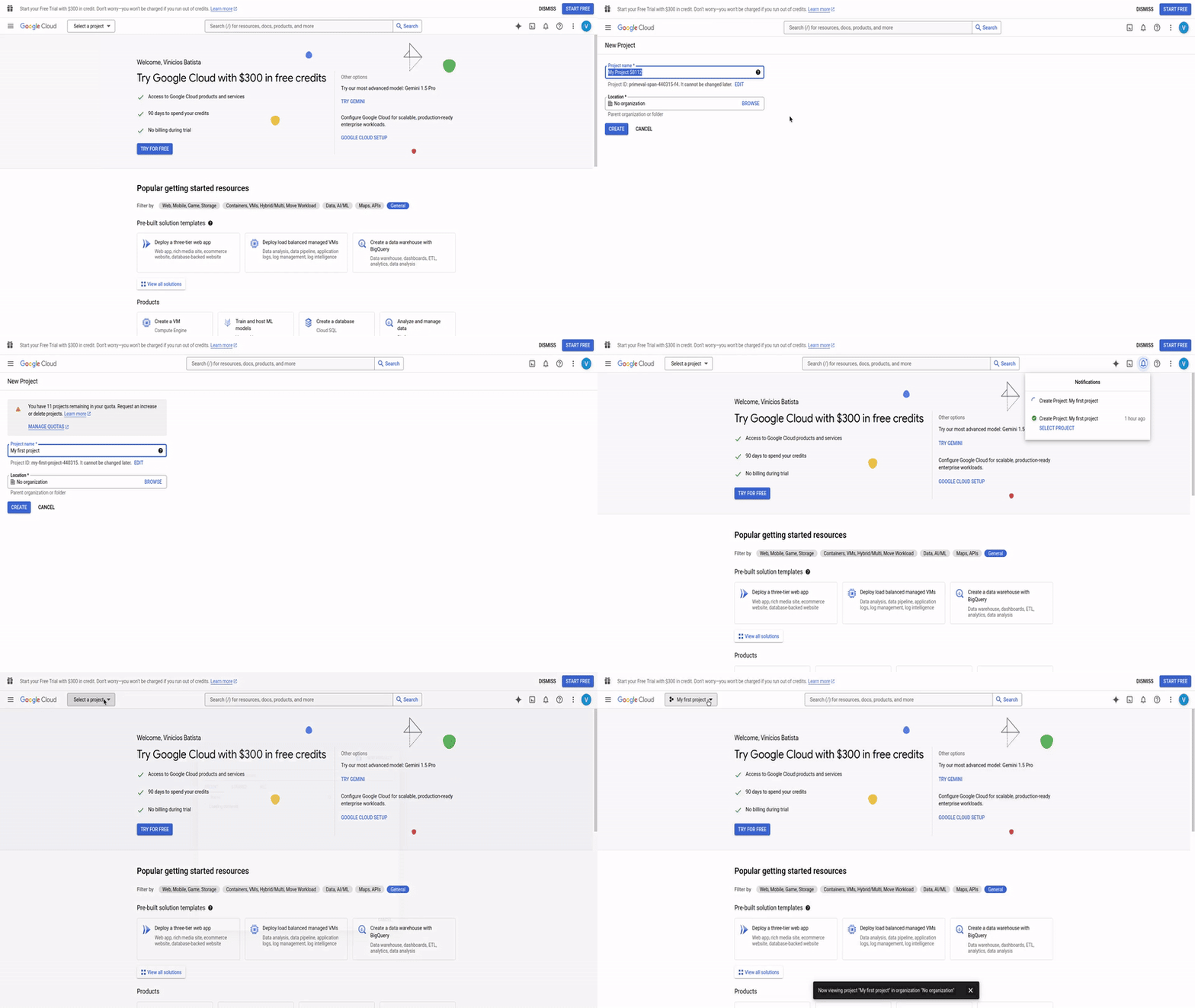
- To enable APIs for the project, select APIs & Services, and then click Library. Enable the APIs you need for your project. For example, if your flow uses the Google Drive component, enable the Google Drive API.
- To navigate to the OAuth consent screen, click APIs & Services, and then click OAuth consent screen.
- Populate your OAuth consent screen with the application name, audience, and user support email. For the audience, select External. This creates a testing application environment that you can add users to.
- To add users to your OAuth audience, click Audience. Under Test users, click Add users. Enter any email addresses you intend to use to authenticate LLM Controls with OAuth. These email addresses have access to the application while it’s in a Testing publishing state. For more information, see the Google documentation.
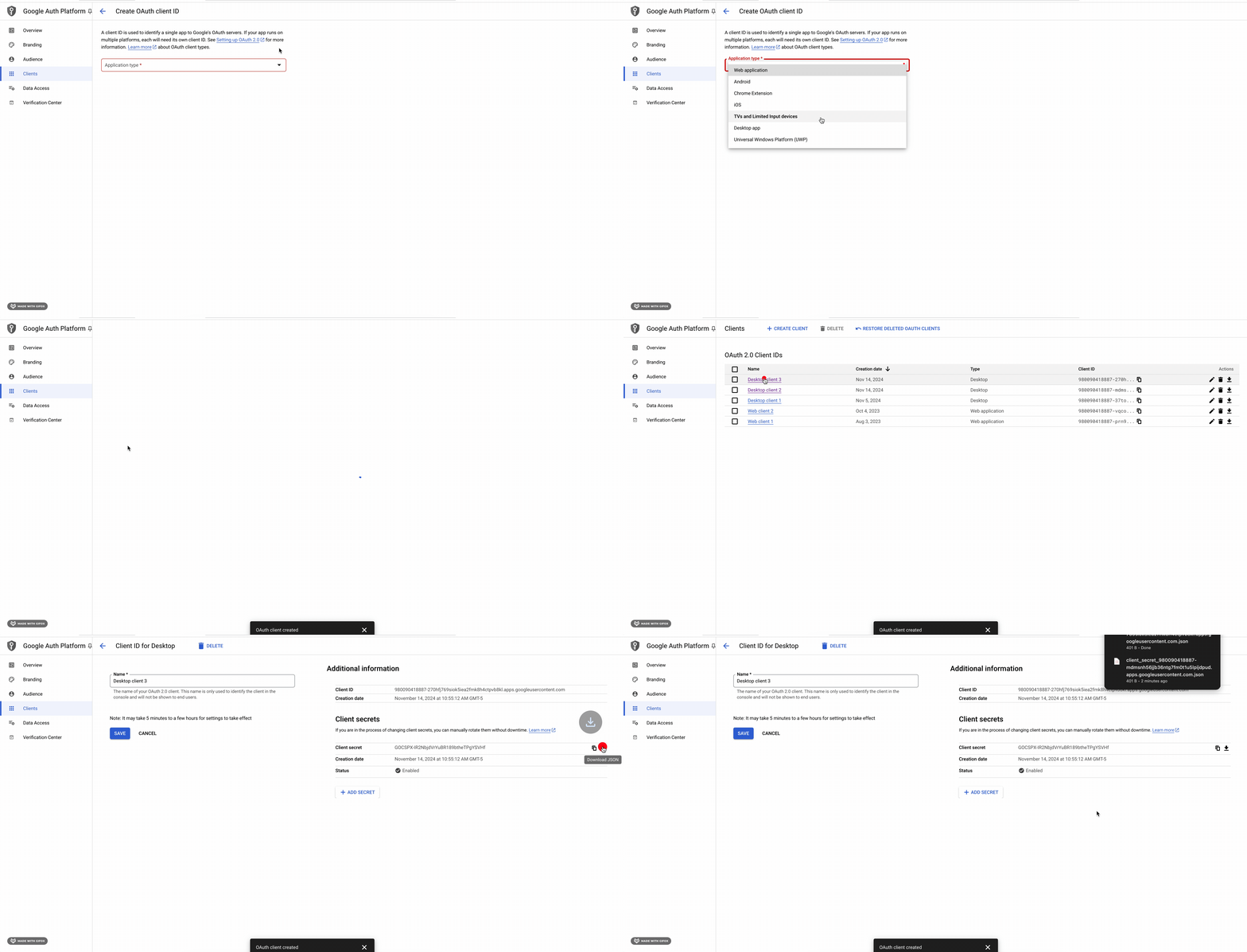
- To create an OAuth Client ID, navigate to Clients and then click Create Client.
- Choose Desktop app as the application type, and then name your client ID.
- Click Create. A Client ID and Client Secret are created. Download the credentials as a JSON file to your local machine and save it securely.
Retrieve Access and Refresh Tokens
With your OAuth application configured and your credentials JSON file created, follow these steps to authenticate the LLM Controls application.- Create a new project in LLM Controls.
- Add a Google OAuth Token component to your flow.
- In the Credentials File field of the Google OAuth Token component, enter the path to your Credentials File, the JSON file containing the Client ID credentials you downloaded from Google in the previous steps.
- In the Scopes field of the Google Oauth Token component, enter the scope required to access your resources. For example, to allow your LLM Controls application to access a user’s Google Drive, the scope is
https://www.googleapis.com/auth/drive. For more information, see the Google documentation. - To authenticate your application, in the Google OAuth Token component, click Play. A new tab opens in the browser to authenticate your application using your Google Cloud account. You must authenticate the application with the same Google account that created the OAuth credentials.
infoIf a new tab does not open automatically, check the LLM Controls Logs for the Google authentication URL. Open this URL in your browser to complete the authentication.
- After successful authentication, your LLM Controls application can request and refresh tokens. These tokens enable LLM Controls to interact with Google services on your behalf and execute your specified requests.
Create a flow with Google Drive loader
For a pre-built JSON file of a flow that uses the Google Drive loader component, download the Google Drive Document Translation Example Flow JSON to your local machine. Example flow structure:- Download the Google Drive Document Translation Example Flow JSON to your local machine.
- To import the downloaded JSON to LLM Controls, click Options, and then select Import.
- In the Credentials File field of the Google OAuth Token component, enter the path to your Credentials File, the JSON file containing the Client ID credentials you downloaded from Google in the previous steps.
- In the Scopes field of the Google Oauth Token component, enter the scope required to access your resources. For example, to allow your LLM Controls application to access a user’s Google Drive, the scope is
https://www.googleapis.com/auth/drive. For more information, see the Google documentation. The example flow includes a Parse data component to convert thedataoutput of the Google OAuth Token component to thetextinput of the JSON Cleaner component. - To allow the LLM Controls component to access the document in Google Drive, copy the Google Drive
documentIDfrom the document’s URL.
infoThe
documentID is located between /d/ and /edit in a Google Drive document’s URL. For example, in the URL https://drive.google.com/file/d/1a2b3c4D5E6F7gHI8J9klmnopQ/edit, the documentID is 1a2b3c4D5E6F7gHI8J9klmnopQ.- In the Google Drive loader component, in the Document ID field, paste the document URL.
- To view the translated document, open the Playground.
Google Sheets
This component creates, reads, and writes Google Sheets using credentials from Google Authenticator. It supports operations including create, read, write, append, clear, and listing sheets, with automatic spreadsheet creation for write/append when no spreadsheet ID is provided.Prerequisites
- Google Credentials JSON (from Gmail Setup Script or Google Universal Authenticator)
To Use Google Sheets
- Paste your Google Credentials JSON (from Gmail Setup Script or Universal Authenticator)
- Select an Operation (create, read, write, append, clear, or list_sheets)
- For read/write/append/clear/list_sheets: Provide a Spreadsheet ID or URL
- For write/append: Provide data via Input Data connection or Data to Write (JSON)
- Optionally configure Range, Include Headers, and Value Input Option
Parameters
Parameters
Inputs
Outputs
Google Docs
This component reads Google Docs and extracts text content and metadata using credentials from Google Universal Authenticator. It supports reading document content with optional formatting preservation and retrieving document metadata.Prerequisites
- Google Credentials JSON (from Google Universal Authenticator with Docs or Drive permissions)
To Use Google Docs
- Connect Google Credentials JSON from Google Universal Authenticator or paste JSON string
- Enter the Document ID (found in the Google Docs URL)
- Select an Operation (read or metadata)
- Optionally toggle Include Metadata and Preserve Formatting
Parameters
Parameters
Inputs
Outputs
Gmail Manager
This component provides complete Gmail management with email extraction, sending, deletion, label management, attachment processing, and Google Drive integration. It supports duplicate avoidance, search queries, and multiple output formats for downstream processing.Prerequisites
- Gmail Credentials JSON (from Gmail Setup Script or Google Universal Authenticator)
To Use Gmail Manager
- Paste your Gmail Credentials JSON
- Select an Operation (extract, list, send, delete, mark_read, mark_unread, add_labels, remove_labels, create_label, move, create_and_apply_label, or show_extracted_emails)
- For extract: Configure Target Labels, Search Query, and Maximum Emails
- For send: Provide To, Subject, and Body in advanced options
- Optionally enable Include Attachments, Download Attachments, and Google Drive Upload
Parameters
Parameters
Inputs
Outputs
Gmail Setup Script
This component authenticates with Gmail, Drive, Sheets, Docs, and Calendar using a client_secret.json file and outputs a credentials JSON for use in LLMC extractors. It uses a two-step OAuth flow: first generating an OAuth URL, then exchanging the authorization code for credentials.Prerequisites
- A client_secret.json file from Google Cloud Console
To Use Gmail Setup Script
- Paste the contents of your client_secret_*.json file from Google Cloud Console
- Run the component to generate an OAuth URL
- Visit the OAuth URL in your browser and sign in to your Google account
- Copy the authorization code from the browser
- Paste the authorization code in the “Authorization Code (Step 2)” field
- Run the component again to complete authentication
Parameters
Parameters
Inputs
Outputs
Google Universal Authenticator
This component is a universal Google services authenticator. Select which Google services you need (Gmail, Sheets, Drive, Docs, Calendar, Photos, Contacts, YouTube, etc.) and authenticate once for all selected services. It supports both Desktop and Web application OAuth client types.Prerequisites
- A client_secret.json file from Google Cloud Console
- Required APIs enabled in Google Cloud Console for selected services
To Use Google Universal Authenticator
- Paste the contents of your client_secret_*.json file from Google Cloud Console
- Enter the services you want to authenticate for in Selected Services (comma-separated)
- Run the component — a browser window will open for OAuth authentication
- Sign in with your Google account and grant the requested permissions
- Copy the generated credentials to use in other Google components (Gmail Manager, Google Sheets, Google Docs, etc.)
Parameters
Parameters
Inputs
Outputs