
Prerequisites
- OpenAI API Key (required for both embeddings and model)
- A document file (PDF, TXT, MD, CSV, JSON, DOCX, etc.)
- Basic familiarity with LLMC components
Create the Vector Store RAG Flow
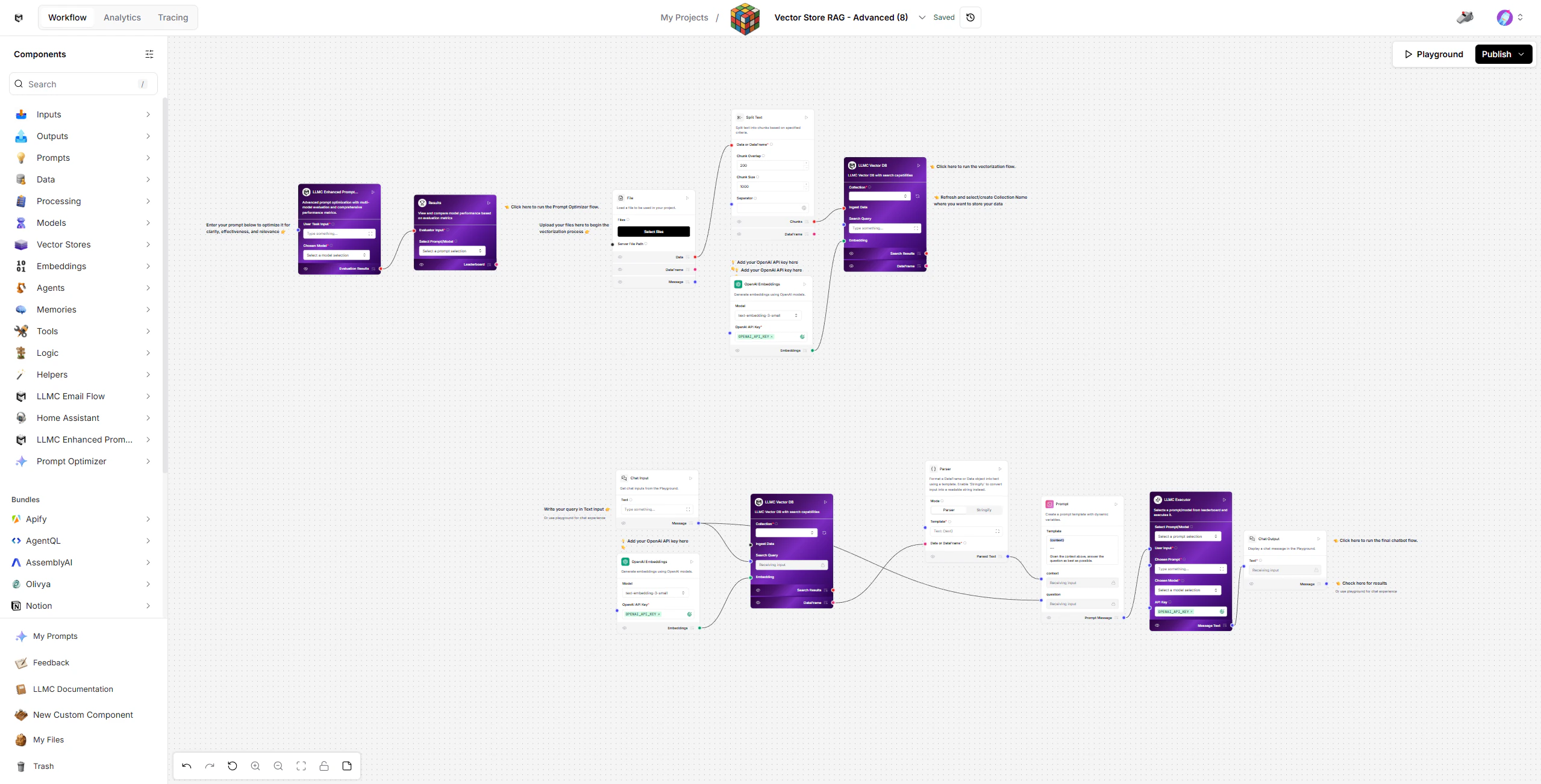
1. Load Your Documents
- Start with the Load Data Flow (top-right section of the workspace).
- Upload your document using the File component.
- Split the content into manageable text chunks via Split Text.
- Generate embeddings with OpenAI Embeddings (text-embedding-3-small).
- Store embeddings in LLMC Vector DB for future semantic retrieval.
2. Ask Questions Using RAG
Once your data is embedded, switch to the Retriever Flow (bottom section). Components:- Chat Input - Enter your question in the Playground.
- OpenAI Embeddings - Converts your query into a vector for semantic search.
- LLMC Vector DB - Retrieves relevant document chunks based on your query.
- Parser - Formats and cleans retrieved content for the LLM.
- Prompt - Combines the retrieved context with your question into a structured prompt.
- LLMC Executor - Executes the prompt using the selected model and returns the answer.
- Chat Output - Displays the final response in the Playground.
3. Optimize Your Prompts
Use the Prompt Optimizer Flow (top-left section) to refine your prompt instructions and improve response quality. How it works:- Automatically generates prompt variations and test cases.
- Scores and ranks are prompted by relevance, accuracy, and tone consistency.
- Displays a leaderboard of best-performing prompts.
- Input your optimization task (e.g., “Answer document questions accurately and concisely”).
- Click Run on the Results node.
- Review and select the top-performing prompt from the leaderboard.
4. Execute and Compare Results
Once optimized prompts are ready, use the LLMC Executor to run them. In the LLMC Executor:- Select your optimized Prompt and preferred Model (gpt-4o, claude-4-sonnet, etc.).
- Paste your OpenAI API Key if not already configured.
- Click Play to execute the query.
- The output displays your final, context-grounded answer.
Modify or Extend
- Change the prompt template in the Prompt component to control how context and questions are presented.
- Swap models in LLMC Executor to test performance differences.
- Adjust chunk size and overlap in Split Text for better retrieval precision.
- Use Results Leaderboard to continuously improve response quality over time.
- Create multiple collections in LLMC Vector DB to organize different knowledge bases.
Configuration Checklist
Example
- Input: “How does our refund policy work for international customers?”
- Output: A clear, accurate response pulled directly from your uploaded refund policy documents.
Built With
- LLMC Framework
- Prompt Optimizer Flow
- LLMC Executor
- RAG Architecture (Vector Retrieval + Prompting)
- OpenAI GPT Models